

t-4-2
Banned
- Local time
- 7:00 PM
- Messages
- 997
Windows Live Mail 2009
There used to be a tutorial about how to set up an image signature file in Windows Mail.
I cannot find it.
Furthermore, I need instructions on how to do it in Windows Live Mail. I cannot find a tutorial on this subject either.
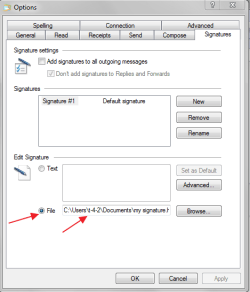
I went as far as entering the image file to " File " section of Signature tab... a HTML file.
see screenshot......
I am using this tutorial :
Create Image Signatures in Windows Mail or Live Mail
But I am stopped at # 3,4,5,6 and 7. When I pasted to notepad, there was nothing appearing on the notepad except this ....C:\Users\t-4-2\Documents
Fixing Windows Live Mail Signature Images
The reason this problem happens is the way Live Mail references the image in your HTML file. To fix the problem, you need to replace the cid: location with the file’s path for your image. The thumbnail below shows an example of this cid: reference.
To find and replace the image location,
1. Navigate to your image file with Windows Explorer.
2. Right-click the image name and select Properties.
3. On the General tab, click to the right of the Location: line.
4. Right-click and choose Select All
5. Press Ctrl+C to copy the file path to your clipboard.
6. Using Notepad or a HTML editor, open your HTML signature file.
7. Locate the line with src=”cid:
8. Remove the contents between the quotes.
9. Press Ctrl+V to paste in your file path.
10. Append that path with a slash and the file name such as \logo.png
11. Save your file.
In my case, I replaced
src=”cid:405D5FBC767641778F51AD4A81034356@Blimper”
with
src="C:\Documents and Settings\Compaq_Owner\My Documents\My Pictures\logo.png"
Although you do have to do extra work to add an image to your email signature, it can be worth the effort. The good news is you only have to do this process once per signature. And for those people that haven’t tried Windows Live Mail, you should consider it as it offers more features and security.
If you still don't see your image, you may need to go to Tools > Safety Options... > Security Tab > Download Images section and uncheck Block Images.
There used to be a tutorial about how to set up an image signature file in Windows Mail.
I cannot find it.
Furthermore, I need instructions on how to do it in Windows Live Mail. I cannot find a tutorial on this subject either.
I went as far as entering the image file to " File " section of Signature tab... a HTML file.
see screenshot......
I am using this tutorial :
Create Image Signatures in Windows Mail or Live Mail
But I am stopped at # 3,4,5,6 and 7. When I pasted to notepad, there was nothing appearing on the notepad except this ....C:\Users\t-4-2\Documents
Fixing Windows Live Mail Signature Images
The reason this problem happens is the way Live Mail references the image in your HTML file. To fix the problem, you need to replace the cid: location with the file’s path for your image. The thumbnail below shows an example of this cid: reference.
To find and replace the image location,
1. Navigate to your image file with Windows Explorer.
2. Right-click the image name and select Properties.
3. On the General tab, click to the right of the Location: line.
4. Right-click and choose Select All
5. Press Ctrl+C to copy the file path to your clipboard.
6. Using Notepad or a HTML editor, open your HTML signature file.
7. Locate the line with src=”cid:
8. Remove the contents between the quotes.
9. Press Ctrl+V to paste in your file path.
10. Append that path with a slash and the file name such as \logo.png
11. Save your file.
In my case, I replaced
src=”cid:405D5FBC767641778F51AD4A81034356@Blimper”
with
src="C:\Documents and Settings\Compaq_Owner\My Documents\My Pictures\logo.png"
Although you do have to do extra work to add an image to your email signature, it can be worth the effort. The good news is you only have to do this process once per signature. And for those people that haven’t tried Windows Live Mail, you should consider it as it offers more features and security.
If you still don't see your image, you may need to go to Tools > Safety Options... > Security Tab > Download Images section and uncheck Block Images.
Last edited:
My Computer
- Computer Manufacturer/Model Number
- Acer Aspire 7741Z
- OS
- Windows 7 Home Premium 64-bit, SP1
- CPU
- Intel Pentium P6200, Cores 2, 2.13 GHz
- Memory
- 4 GB
- Graphics Card(s)
- Intel HD
- Sound Card
- unknown
- Monitor(s) Displays
- 17.3 inches
- Screen Resolution
- 1600 x 900
- Hard Drives
- 640 GB, 5400 PRM
