Let's start from the beginning.
First, I assume both of your computers are connected to your router. Your specs are fairly general, so more specifics would be helpful. Screenshots are worth 1000 words and eliminate ambiguity, so if you can post screenshots where appropriate that would be great..
(1) What is the brand/model of EACH of your two computers?
(2) What is the brand/model of your router? Are the two computers connected to the router via wired or wireless?
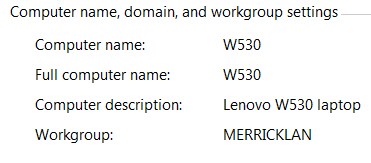
(3) Are both of your computers in the same "workgroup" (not Homegroup)? Right-click on Computer, select Properties, and please report what you show down in the "Computer name, domain, and workgroup settings". DO THIS FOR EACH OF THE TWO COMPUTERS.
For example, I have two computers in my own home LAN. I am at W530 right now, and the other machine is DFW. So here is what I'm asking for each of your two computers, as shown for example on my own W530 (where the workgroup is MERRICKLAN).
Ideally both of your computers should be defined as members of the same workgroup name. If they aren't you can push the "change settings" over on the right of that area, and make whatever changes are appropriate so that your two computers are (a) uniquely identified and named and described, and (b) members of the same single WORKGROUP name. You'll have to re-boot to complete any changes you make.
(4) If you open Windows Explorer and expand the NETWORK item, you should see both of your two computers with each of their unique names. Then if you expand each of the two computers, you should see all of the drives and/or folders on the machine which have been specified to be "shared". Easiest thing to do is to "share" the entire drive letter, which means you'll then be able to get to any lower-level folder/file on that drive.
So in order to access folders/files on machine B from machine A, all of those folders/files (or the drive on which they live) must have been specified to be "shared" on machine B to begin with. Then machine A will be able to get to them. Similarly, all the drives and/or folder/files on machine A should be "shared" on machine A, in order to be able to access them from machine B.
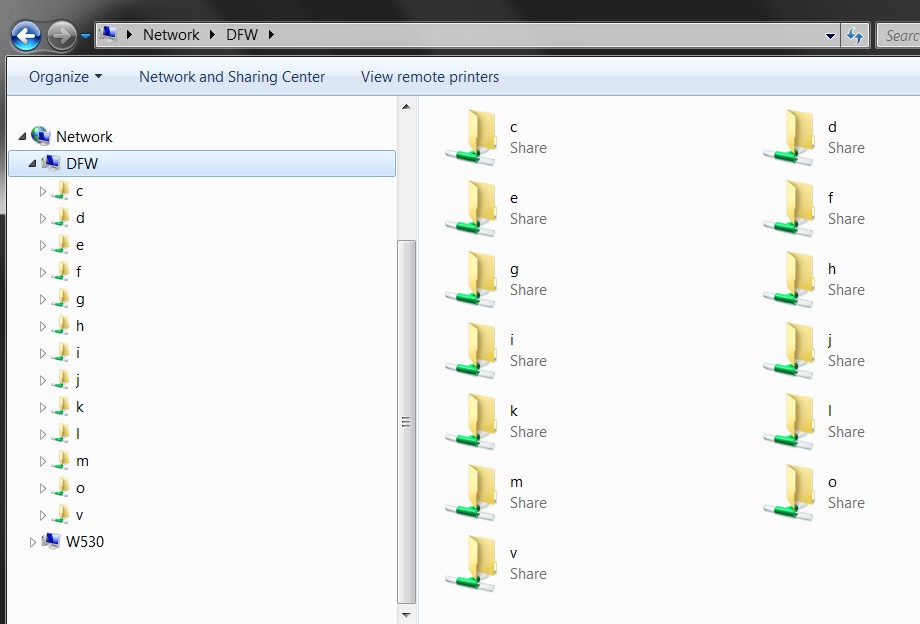
For example, here is what my second machine DFW looks like, from the perspective of the W530 machine I'm at right now. Note that each of the partitions (i.e. drive letters) on DFW shows as "share", because I've previously sat down at DFW and gone ahead and "shared" each drive. That now lets me get to all these drives on DFW when I am at W530 as I am right now.
(5) Furthermore, when you "share" these objects you can also specify what "permissions" you want to grant to the "remote accessor" from the other machine. So you can specify the default of read-only (which means accessing a drive/folder/file on machine A from machine B will be done in read-only mode), or you can grant FULL ACCESS (which means you can also create/update/delete/rename objects on machine A while accessing them from machine B). It's all up to you.
Again, easiest approach is to just "share" each partition/drive letter with "Advanced sharing", and then share it with a name that is the drive letter itself, and then to grant "FULL ACCESS" permission.
So, for example, here is how I've shared my drives... specifically C on W530 in this example. You select the drive in Windows Explorer, right-click on it, select "Share with..." and click on the "Advanced sharing" flyout item. Then follow the wizard, as shown in the following dialog (I hope you understand what I'm demonstrating):
So, do your two machines have a similar setup?
Note that the easiest way to access the drives of the "remote" machine is to "Map Network Drive" on the "local" machine. So, for example, the C-drive on DFW is "mapped" as the P-drive on W530. So P is no different from local C on W530 as far as Windows Explorer presents, except that it's actually the C-partition on the DFW machine. But going through this "map network drive" process makes it completely invisible where the drives are, and you always have easy lettered access to both local and remote drives (from either machine to the other machine no matter which machine you're sitting at, if you do it properly on both machines).
Now, if you're in Windows Explorer and you select the other machine (in Network), you will be prompted to enter a username/password. There will also be a checkbox (which for maximum convenience you should check) asking if you want these credentials to be remembered for the future, or used only this one-time. The username/password requested (for this remote access to machine B from machine A) must be the same username/password you would enter at the boot-time Windows WELCOME screen for that remote machine B, to boot that machine as if you were sitting at it.
Lots of information here. But I need to know what your two machines look like, as far as the general subjects I've covered above.
For absolute sure you need to enter the boot-time username/password which would normally be entered on the Windows WELCOME screen when booting machine B, the first time you try to access machine B from machine A in Windows Explorer (as shown above in my screenshot).