i see 2 option in boot menu

muiacir

New member
Member
VIP
Local time
4:26 AM
Messages
161
thanks very much for this thread
i have a question about windows xp
i have one OS in my system=XP
but like the picture that you inserted:(below)
http://www.sevenforums.com/attachme...l-boot-installation-windows-7-xp-example2.jpg
i see 2 option in boot menu but two of them are windows XP!!!.while as i said i only have 1 Os and if i select each of the two options all of them will start the windows XP.is there a way solve this problem?
 

My Computer My Computer

OS
windows 7 ultimate x64
i have another question.
if we use this thread and create duall boot installation of windows 7 and Xp.
how can we return? for example delete the Xp or 7 to have only one OS
 

My Computer My Computer

OS
windows 7 ultimate x64
If the System Active flags are on the Win7 partition in Disk Mgmt, then just delete XP.

If not you must move the System flag to Win7 by Marking Partition Active then run Startup Repair - Run 3 Separate Times until WIn7 holds the System Active flags. You can then install EasyBCD to add XP. This is also the easiest way to recover from when XP takes over the bootloader after it's install.
 
If the System Active flags are on the Win7 partition in Disk Mgmt, then just delete XP.

1-If not you must move the System flag to Win7 by Marking Partition Active then run Startup Repair - Run 3 Separate Times until WIn7 holds the System Active flags. You can then install EasyBCD to add XP. This is also the easiest way to recover from when XP takes over the bootloader after it's install.
if i installed windows 7 on C drive and windows Xp on D drive so you mean i mark the partition active(in my example i mean the C Drive) and run startup repair and then delete windows xp?
2- i have another problem.when i turn on my laptop i see the picture below but two of options is thw "windows 7".how can i repair that?
9099d1240933934-dual-boot-installation-windows-7-xp-example2.jpg
 

My Computer My Computer

OS
windows 7 ultimate x64
Please post back a screenshot of your maximized Disk Management drive map and listings:

1. Type Disk Management in Start Search box.
2. Open Disk Mgmt. window and maximize it.
3. Type Snipping Tool in Start Search box.
4. Open Snipping Tool, choose Rectangular Snip, draw a box around full map and all listings.
5, Save Snip, attach using paper clip in Reply Box.

Tell us what is on each partition.
 
Please post back a screenshot of your maximized Disk Management drive map and listings:

1. Type Disk Management in Start Search box.
2. Open Disk Mgmt. window and maximize it.
3. Type Snipping Tool in Start Search box.
4. Open Snipping Tool, choose Rectangular Snip, draw a box around full map and all listings.
5, Save Snip, attach using paper clip in Reply Box.

Tell us what is on each partition.
http://image.sx33.net/pic/3b9c7c18ec3a.jpg
 

My Computer My Computer

OS
windows 7 ultimate x64
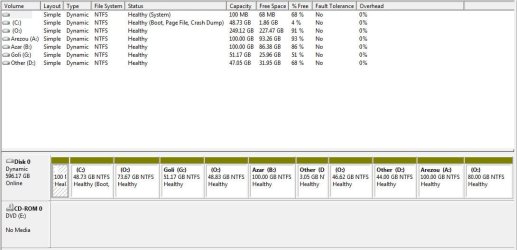
The problem is that you converted your HD to Dynamic which is only meant to be used to span a partition across multiple HD's. Apparently you didn't see the warning message.

The solution to solve this non-destructively is to boot free Partition Wizard CD version 4.2 which is the last one which offers this as a free feature: pw422.zip ISO - Windows Live.

Download the ISO, rightclick to burn it to CD using Windows Image Burner, or use ImgBurn.

Boot CD. You will need to delete the extra partition(s) you created which tipped it to convert to Dynamic before it will convert back to Basic. Since you can only have four Primary partitions you'll need to move the data off of all but the first four beforehand to delete them.

Then follow these steps: How to convert dynamic disk to basic disk with Partition Wizard?

Afterwards post back another Disk Mgmt screenshot (using the Paper Clip in Reply box, not a link) and we'll advise you how to add other partitions safely. Tell us what you prefer.
 
The problem is that you converted your HD to Dynamic which is only meant to be used to span a partition across multiple HD's. Apparently you didn't see the warning message.

The solution to solve this non-destructively is to boot free Partition Wizard CD version 4.2 which is the last one which offers this as a free feature: pw422.zip ISO - Windows Live.

Download the ISO, rightclick to burn it to CD using Windows Image Burner, or use ImgBurn.

Boot CD. You will need to delete the extra partition(s) you created which tipped it to convert to Dynamic before it will convert back to Basic. Since you can only have four Primary partitions you'll need to move the data off of all but the first four beforehand to delete them.

Then follow these steps: How to convert dynamic disk to basic disk with Partition Wizard?

Afterwards post back another Disk Mgmt screenshot (using the Paper Clip in Reply box, not a link) and we'll advise you how to add other partitions safely. Tell us what you prefer.
excuse me my friend.i am a little confuse.
you said i should delete extra partitions.according to the picture that i inserted , what partitions exactlly should i delete?how can i delete them?
and you said i should change dynamic disk to basic.according to my picture should i change all off my partitions or only C partition?(A,B,C,O and G)
and i have mnitool partition wizard professional.can i convert from windows or i need to convert from boot menu?
and my last question is is it possible that the convertion formats or damages my partition?
 
Last edited:

My Computer My Computer

OS
windows 7 ultimate x64
You have already messed up your HD by converting to a Dynamic disk which is only intended for spanning single partitions across multiple HD's. Why would you do that if you don't know what it is?

You can use PW Professional CD to convert disk to Basic. As stated you must delete all but the original four partitions you had when you tried to add another one and it prompted you to convert to Dynamic disk.

Because you didn't attach the Disk Mgmt screenshot correctly using the paper clip in Reply box we cannot access it now to look at your partitioning. But you should move the data off and delete all of the partitions you created that caused it to convert to Dynamic. Since you can only have four Primary Partitions, I would delete all but the first four partitions.

After you do this and convert disk to Basic, post back a screenshot correctly and we will advise you exactly how to add more partitions without converting to Dynamic.
 
thanks my friend. i do not know what are the four primary partition.i inserted an image from my disk management.
please tell me which partitions should i delete?
if i delete the partitions does my data will loss or hurt?
i have the install file of PW Professional.can i do the convertion in windows?
 

Attachments

  • Snap1.jpg
    Snap1.jpg
    60.2 KB · Views: 10

My Computer My Computer

OS
windows 7 ultimate x64
You should use a bootable disc version of Partition Wizard, not the Windows installed version.

If you delete a partition, EVERYTHING on that partition will be lost.

Have you installed any applications to any drive other than C?

Do you have any other drive, probably external, to which you can move what is on some of these partitions?

If you do, I'd temporarily move the contents of A, B, D, G, and O to that other drive as a backup precaution.

If you do not have another drive, I'd do this:

B, D, G, and O have a combined occupied space of about 76 GB.

The A partition has 93 GB of free space.

So I'd move whatever is on B, D, G, and O to A.

And then delete B, D, G, and O, which would leave you with System Reserved, C, A, and a bunch of unallocated space.

That’s what I’d do. Wait and see what Greg says also.

While you are waiting, ask yourself why you need more than 3 or 4 partitions.
 

My Computer My Computer

Computer type
PC/Desktop
Computer Manufacturer/Model Number
Ignatz Special; 4 speed manual gearbox; factory air conditioning; one of one
OS
Windows 7 Home Premium SP1, 64-bit
CPU
Intel Skylake i5-6600K, not overclocked
Motherboard
AsRock Z170M Extreme 4, micro ATX
Memory
8 GB HyperX DDR4-2666 (2 x 4 GB)
Graphics Card(s)
none; graphics are integrated on CPU
Sound Card
onboard: Realtek ALC1150; external: USB Behringer UF0-202
Monitor(s) Displays
Dell S2340M 23 inch IPS
Screen Resolution
1600 x 900
Hard Drives
System: Crucial MX100 series SSD, 128 GB;
Data: Samsung Spinpoint 103SJ, 1 TB;
Backup: WD Caviar Green WD30EZRX-00D8PB0, 3 TB
PSU
Rosewill SilentNight 500 watt fanless, semi-modular
Case
Antec Solo II
Cooling
Noctua NH-U12S; Noctua F12 intake, Noctua S12A exhaust
Keyboard
Microsoft 200 6JH-00001 USB
Mouse
Dell or Microsoft optical wired; USB
Antivirus
Microsoft Security Essentials and Malwarebytes Premium
Browser
Pale Moon
Other Info
All fans PWM; speeds at idle: CPU circa 500 rpm; intake circa 600 rpm; exhaust circa 600 rpm; CPU temps 27 idle and 47 C load in a warm room (27 C/81 F) when running Intel Extreme Tuning Utility stress test.
You should use a bootable disc version of Partition Wizard, not the Windows installed version.

If you delete a partition, EVERYTHING on that partition will be lost.

Have you installed any applications to any drive other than C?

Do you have any other drive, probably external, to which you can move what is on some of these partitions?

If you do, I'd temporarily move the contents of A, B, D, G, and O to that other drive as a backup precaution.

If you do not have another drive, I'd do this:

B, D, G, and O have a combined occupied space of about 76 GB.

The A partition has 93 GB of free space.

So I'd move whatever is on B, D, G, and O to A.

And then delete B, D, G, and O, which would leave you with System Reserved, C, A, and a bunch of unallocated space.

That’s what I’d do. Wait and see what Greg says also.

While you are waiting, ask yourself why you need more than 3 or 4 partitions.
thank you my friend.i do not have external har drive. i will move the data of other drives to the A Drive as you said.
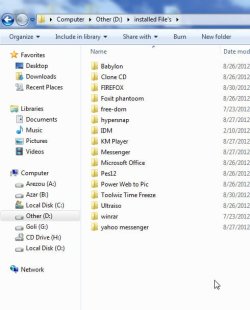
i have a question.my friends told me if we install all of our programs at C Drive , the system will be slow.this is the reason that i installed my programs at D drive(look at picture below).is it true?
another question.as you said.if i change C Partition to basic is it posiible that the windows does not comming up?
i will tell you why i have 5 partitions except C:
the A and B are for my sisters.they keep their files on them
The G is for my mother for the same reason i said
The O is mine
and the D partition is the partition that i installed my programs on that.take a look at the picture below:
 

Attachments

  • Snap2.jpg
    Snap2.jpg
    37.6 KB · Views: 2
Last edited:

My Computer My Computer

OS
windows 7 ultimate x64
If you don't convert HD to Basic it will most likely stop booting soon. You have nearly ruined Win7 by converting to Basic without consulting anyone first.

Your programs should be installed to C since they become part of the OS which is on C.

Delete all but four partitions in order to get PW CD to convert to Basic. Download the bootable copy of Pro you own, or use pw422.zip ISO - Windows Live, burned to CD using Windows Image Burner.

Boot the CD, delete all but 4 partitions, then follow this video to convert dynamic disk to basic disk with Partition Wizard.

Back up your files first to external or another PC on the network.

Afterwards post back another screenshot of your Disk Mgmt drive map and listings, this time following the correct method here: Screenshots and Files - Upload and Post in Seven Forums - Windows 7 Forums

We will give you the steps to convert one data partition to Logical so you can add as many Logical data partitions as you wish. How to set partition as Primary or Logical.
 
Back
Top