I want to make a send to option that will MOVE to specified library

Good deal :). There is indeed a wealth of information in the SF Tutorials (and also in the threads...).

James
 

My Computer My Computer

At a glance

Win7U 64 RTMQ95508GB GskillASUS|EAH4850/HTDI/1GD3/A
OS
Win7U 64 RTM
CPU
Q9550
Motherboard
GA-EP45-UD3R
Memory
8GB Gskill
Graphics Card(s)
ASUS|EAH4850/HTDI/1GD3/A
Sound Card
xfi Plat
Monitor(s) Displays
Dell 2405fpw
Screen Resolution
1920x1200
Hard Drives
Seagate & WD sata Drives
PSU
Antec
Case
Antec
Keyboard
MS Natural Ergonomic 4000
Mouse
Logitech MX610 USB Cordless
I wanted to post some screenshots for anyone interested in the send to toys

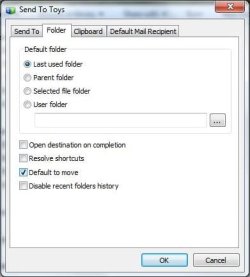
Here is the configuration menu. You can easily add and remove folders from your send to menu. (sends copies & shortcuts only)Send To Toys Configure.jpg

This is my appdata\roaming\microsoft\windows\sendto FolderMy Send To Folder.jpg

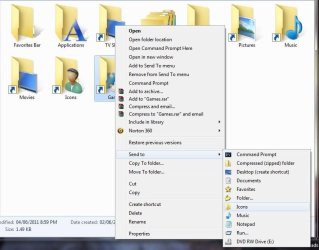
Here is what I now get by rightclick > send to. I like send to Notepad.exe R Click Send To Menu.jpg

As well as send to Folder... Which has the move function. Here is the settings menu.Folder Options.jpg
 

My Computer My Computer

At a glance

Windows 7 Home Premium 64bit.
OS
Windows 7 Home Premium 64bit.
Bit of an old thread, just wanted to post how I resolved it in the end:

Create a new empty batch file, e.g. "moveto-pics.bat"
Edit the batch file, adding the text move %1 "C:\Users\yourname\Pictures\"
Move the new batch file to the SendTo menu

The part between quotation marks needs to be the exact name of the folder where you want to move files. The %1 will automatically get replaced by the filename of the selected file.

If you now right click on any file, and choose 'SendTo > moveto-pics.bat', the selected file will be moved. Only drawback: a cmd window will quickly flash. Good enough for me.
 

My Computer My Computer

At a glance

Win7 Pro x64
OS
Win7 Pro x64
Joe6g really good help, thanks for that man, I needed something like that too. But there's one small problem, with that bat file it's possible only to move plain files, to exact folder. Is there any way to create the batch file which could be able to move folder with its contents to another folder?

Cheers
 

My Computer My Computer

At a glance

Windows 7 Ultimate x64
OS
Windows 7 Ultimate x64
This might interest you:

To Move a file using Send To:

1. Hold down your SHIFT key
2. Tap your CTRL Key once (don't let go of SHIFT)
3. Right click on your item and select a send to option (don' let go of SHIFT until you're done).

I realize this is an old and dusty thread, but I just registered on the site to say, "Thanks!" to both Debugged and the OP. This shortcut (not including the CTRL option as it doesn't seem to work for me (Windows 10 64bit)) is amazing! It adds a plethora more locations to choose from. I'm an avid shortcut user & I can't believe I never ran across it. So thanks again! Again, it doesn't 'move' the item, but did vastly expand my available copyto: locations.
 

My Computer My Computer

At a glance

Windows 10 64biti7Nvidia GTX 98Ti
Computer type
PC/Desktop
Computer Manufacturer/Model Number
HP
OS
Windows 10 64bit
CPU
i7
Graphics Card(s)
Nvidia GTX 98Ti
You Don't have to Hold SHFT Down Forever

You can do all the right clicking on the file(s) and scrolling through the sendto menu without having to hold down SHFT. You only have to hold SHFT down AS YOU CLICK the selection on the sendto menu.

Similarly, when dragging files from one folder to another, if you begin holding SHFT at any point while you drag the file (just before you drop it in the new folder) then you will see "move" written above you cursor.

Likewise, if you hold CTRL while dragging, you will see "copy" written above your cursor.

_______________________________

This registry fix doesn't work for items in the sendto menu, but if you want to permanently change your dragging of files to MOVE or COPY by default (usually by default external drives always copy upon file drag; files on the same drive always move) then here is a link to what you need to know and do:

Change Drag and Drop Default Action in Windows | Windows 10 Tutorials
 

My Computer My Computer

At a glance

MS Windows 10 Home Edition
Computer type
PC/Desktop
Computer Manufacturer/Model Number
custom build
OS
MS Windows 10 Home Edition
Back
Top