Hello cheesedoff and welcome to Seven Forums.
Use the same system restore point to restore your computer to a date/time prior to when the Updates downloaded. Then turn off automatic updates. Go to Control Panel > Windows Update > Change settings > select Never check for updates > OK your way out of the open dialog boxes.

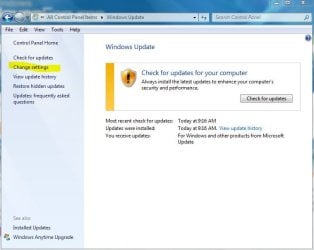
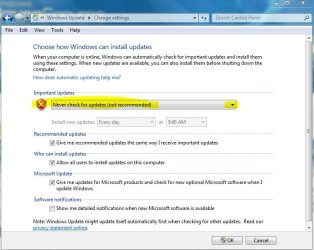
Once you've turned off automatic updating, you can manually check for updates by clicking that button in the second screen shot. Windows Update will show you all available updates (critical/important
and optional.) They all might have a check mark next to them. Uncheck everything including any optional updates.
Once they've all been unchecked, start with the critical/important. Make a note of the KB number. Put a check in the first update and install it. If it installs correctly, reboot your system. Try using IE. If everything works, install the next update, reboot, try IE. Do this with each remaining update installing just one at a time, rebooting, and checking IE. All updates will either install correctly with no IE problems or if any update fails to install or causes problems you'll know exactly which update is the problem. You can ignore that update for the time being and continue installing the rest of them. After all have been installed you can re-try the problematic update.
I realize this will be a much slower process but it usually results in a trouble free installation of multiple updates. If you feel adventurous and want to make it a little less time consuming, you could check mark say, 3 updates at a time. Problem with that is if IE fails to work you'll have to uninstall all three updates and install just one at a time. Here's how to uninstall a bad update:
http://www.sevenforums.com/tutorials/24373-windows-update-uninstall-update.html
