
I'd just done a new install of Windows 7 and have put my OS onto a new 64GB SSD. To begin with imaging and System restore worked but after I'd reconnected all my HDD (6TB in total) and installed all my apps (some alongside the OS, some on one of the HDDs alongside my user files) I went to do a Windows Backup image but discovered it wouldn't work, nor would Macrium Reflect, Paragon or System Restore.
The first errors I got were 'The read operation from the VolumeShadowCopy on the source failed (0x80780029)' and 'The file or directory is corrupted and unreadable (0x8007050)' I restored an early image and did a little more installing (MS Office 2010 as I recall). I attempted to make an image failing again with errors 'not enough space (0x80780119) and 'creation of shadow copy timed out (0x81000101).
Having researched the issue on this and other forums I came to the conclusion that the 100MB system reserved partition that Win7 had put on my C: drive wasn't big enough so I tried various methods to increase the size of this all of which failed leaving me little option but to start over with a clean install - which I'd actually only just very recently done!.
I didn't want to just repeat the same procedure which might well result in the same problem so after yet more research decided to follow advice here -
Hack to Remove 100 MB System Reserved Partition When Installing Windows 7 « My Digital Life
- to do away with the 100MB partition altogether. I used method 3 in the guide and so far it's worked a treat. BTW there is an error in the article - the 100MB partition is also automatically created in Windows 7 64bit Home Premium as well. My OS is now in the System, Boot, Page File, Active, Crash Dump, Primary Partition - all of the SSD. I believe this is rather like Windows XP used to be.
So beforehand Disk Manager looked like this:

and now like this:
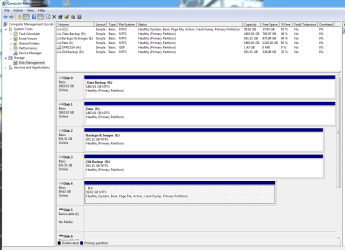
Anyway Volume Shadow Copy seems to no longer be having problems, system restore works, imaging works - even Windows Backup imaging works (Except mine now wants to image my S: drive as well as the C: drive - I suspect that is because I have changed the location of all the User files (music, photos etc) from C:user\xxx to S:user\xxx and there must be some system files in there...)
Hope this helps someone else!
PS Before anyone mentions it I know my OS drive (SSD) - C: drive looks like it's in the wrong place, it should be at location 0 but my mobo has 5 SATA 2 slots and 2 SATA 3 slots. The OS drive (SSD) is in the first SATA 3 slot and works fine
The first errors I got were 'The read operation from the VolumeShadowCopy on the source failed (0x80780029)' and 'The file or directory is corrupted and unreadable (0x8007050)' I restored an early image and did a little more installing (MS Office 2010 as I recall). I attempted to make an image failing again with errors 'not enough space (0x80780119) and 'creation of shadow copy timed out (0x81000101).
Having researched the issue on this and other forums I came to the conclusion that the 100MB system reserved partition that Win7 had put on my C: drive wasn't big enough so I tried various methods to increase the size of this all of which failed leaving me little option but to start over with a clean install - which I'd actually only just very recently done!.
I didn't want to just repeat the same procedure which might well result in the same problem so after yet more research decided to follow advice here -
Hack to Remove 100 MB System Reserved Partition When Installing Windows 7 « My Digital Life
- to do away with the 100MB partition altogether. I used method 3 in the guide and so far it's worked a treat. BTW there is an error in the article - the 100MB partition is also automatically created in Windows 7 64bit Home Premium as well. My OS is now in the System, Boot, Page File, Active, Crash Dump, Primary Partition - all of the SSD. I believe this is rather like Windows XP used to be.
So beforehand Disk Manager looked like this:
and now like this:
Anyway Volume Shadow Copy seems to no longer be having problems, system restore works, imaging works - even Windows Backup imaging works (Except mine now wants to image my S: drive as well as the C: drive - I suspect that is because I have changed the location of all the User files (music, photos etc) from C:user\xxx to S:user\xxx and there must be some system files in there...)
Hope this helps someone else!
PS Before anyone mentions it I know my OS drive (SSD) - C: drive looks like it's in the wrong place, it should be at location 0 but my mobo has 5 SATA 2 slots and 2 SATA 3 slots. The OS drive (SSD) is in the first SATA 3 slot and works fine
My Computer
- Computer Manufacturer/Model Number
- Home build
- OS
- Microsoft Windows 7 Home Premium 64-bit 7601 Multiprocessor Free Service Pack 1
- CPU
- AMD Phenom II x4 850 3.3GHz
- Motherboard
- Asrock 880GMH/U3S3
- Memory
- 8Gb
- Graphics Card(s)
- ATI Radeon HD 4250
- Sound Card
- (1) Creatix SAA7131, Hybrid Capture Device (2) AMD High De
- Monitor(s) Displays
- Generic (DGM - DVI & VGA)
- Screen Resolution
- 1680x1050
- Hard Drives
- (1) M4-CT064M4SSD2 ATA Device (2) WDC WD10 EARS-00Y5B1 SATA Disk Device (3) WDC WD20 EARS-00MVWB0 SATA Disk Device (4) WDC WD20 EARS-00MVWB0 SATA Disk Device (5) WDC WD10 EACS-00B6B0 SATA Disk Device
- PSU
- 500W
- Cooling
- Arctic freezer 7
- Keyboard
- Standard PS/2
- Mouse
- USB
- Internet Speed
- 7616 Kbps


