Incorrect Function - Sharing

andyMc

New member
Local time
7:31 PM
Messages
9
I recently added a larger hard drive to my system and moved everything from my old drive to the new one and changed the drive letter of the new drive to match the old one so that paths would not be broken for all my shortcuts, Lightroom folders, etc. Everything seemed to transition fine. However I'm trying to share my drive over the network, which before was a never a problem. I had removed the share to troubleshoot other issues I was having previously and decided to wait till I made the drive switch to reactivate the share.
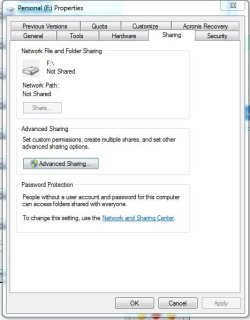
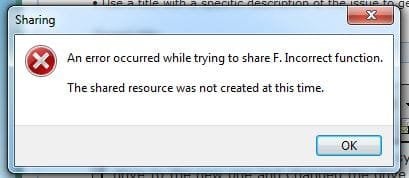
Today I right click on the drive and go to properties and sharing. I noticed that the share button under 'Network File and folder Sharing' is grayed out even though it's not being shared. So I choose Advanced Sharing. From there I check the box to share the folder and press apply and I get this lovely error:
"An error occurred while trying to share F. Incorrect function. The shared resource was not created at this time."

I also tried using net share via elevated command line, but when I do "net share f=F:\" it tells me that my syntax is incorrect, which I'm pretty sure it's correct as I can use net share to share other folders fine.
Any ideas?

Btw:
-firewall is turned off.
-using net view does not show any extra share that shouldn't be there
-I have tried using different names for the share beside just the drive letter.
-sharing folders within the drive work fine, just not the fill drive itself
-I need to share the full drive because I'm mapping it on other computer to use a program which needs to retain the full integrity of the path (ie. if it's f:\foobar one computer it has to be f:\foobar on the other).
-EDIT: I tried net share f=F:/ (notice different slash) and got System error 1, incorrect function.

thanks.
 

Attachments
  • Capture2.JPG
    Capture2.JPG
    19.2 KB · Views: 163
  • Capture.JPG
    Capture.JPG
    39.6 KB · Views: 161

My Computer

OS
Windows 7 Pro x64
CPU
AMD 955 Black
Motherboard
Asus M5a97 evo
Memory
Cosair Vengance
Monitor(s) Displays
Eizo 24"
Case
HAF 912
Is your name showing up as the Admin with full control under the Security tab of this drive?

If not you may need to take ownership of the drive.

You also need to turn on the Windows firewall or nothing will work right.

If you need to give Everyone in your LAN access to this drive then you need to go into the Security tab>Edit button>Add button>type Everyone into the empty box and apply, ok.

You would also need to share the drive using the Advanced sharing button under the Sharing tab.

The greyed out share button is typical, nothing new there at all, mine is the same way. Just use the advanced sharing button to share that drive.
 

My Computer

Computer type
PC/Desktop
Computer Manufacturer/Model Number
Home built
OS
Windows 7 Ult, Windows 8.1 Pro,
CPU
Q9650-4.275GHz, E8600 4.5GHz, E6750-3.8GHz
Motherboard
Evga 780i FTW
Memory
G.Skill PC2 9600 1200Mhz 5 5 5 15 2T
Graphics Card(s)
GTX480
Sound Card
Asus Xonar D2
Monitor(s) Displays
HannsG
Screen Resolution
1680X1050
Hard Drives
GSkill Phoenix Pro 120GB SSD
PSU
ThermalTake Toughpower 1000Watt modular
Case
ThermalTake XaserV
Cooling
Xigmatek S1283
Keyboard
Logitech G15
Mouse
Logitech G9
Internet Speed
T1
Is your name showing up as the Admin with full control under the Security tab of this drive?

If not you may need to take ownership of the drive.

You also need to turn on the Windows firewall or nothing will work right.

If you need to give Everyone in your LAN access to this drive then you need to go into the Security tab>Edit button>Add button>type Everyone into the empty box and apply, ok.

You would also need to share the drive using the Advanced sharing button under the Sharing tab.

The greyed out share button is typical, nothing new there at all, mine is the same way. Just use the advanced sharing button to share that drive.

Thanks for the quick reply. I did verify that I have full control, I also ran the TakeOwnership shortcuts from the forum to make sure it drilled down and took control of everything.

I don't understand your statement about the firewall. I always feel that the firewall keeps stuff from working, not makes it work, but I'm no expert in the inner workings of Win7. Either way, If I turn Windows Firewall on (even if I use restore default settings) I cannot share anything. With the firewall turned on it turns off network discovery. When I try to turn network discovery on, it turns it right back off. Which may be symptomatic of another issue. (I troubleshooted that problem for a week before I just went back to having the firewall off).
 

My Computer

OS
Windows 7 Pro x64
CPU
AMD 955 Black
Motherboard
Asus M5a97 evo
Memory
Cosair Vengance
Monitor(s) Displays
Eizo 24"
Case
HAF 912
The problem isn't with the firewall at all, it just appears to be because the actual problem is with network discovery not staying on which is a very typical problem with many different causes. You should Google or search "Network Discovery will Not Stay On" and you will see what I mean.

There are so many causes of this problem it's near impossible for me to nail one of them down here but it's most likely a Windows service problem with the base filtering engine.

In any event, the Windows firewall needs to remain turned on. And like I already mentioned it's not a firewall problem though it appears to be.

I receive the message that my ESET installation ended prematurely - ESET Knowledgebase
 
Last edited:

My Computer

Computer type
PC/Desktop
Computer Manufacturer/Model Number
Home built
OS
Windows 7 Ult, Windows 8.1 Pro,
CPU
Q9650-4.275GHz, E8600 4.5GHz, E6750-3.8GHz
Motherboard
Evga 780i FTW
Memory
G.Skill PC2 9600 1200Mhz 5 5 5 15 2T
Graphics Card(s)
GTX480
Sound Card
Asus Xonar D2
Monitor(s) Displays
HannsG
Screen Resolution
1680X1050
Hard Drives
GSkill Phoenix Pro 120GB SSD
PSU
ThermalTake Toughpower 1000Watt modular
Case
ThermalTake XaserV
Cooling
Xigmatek S1283
Keyboard
Logitech G15
Mouse
Logitech G9
Internet Speed
T1
The problem isn't with the firewall at all, it just appears to be because the actual problem is with network discovery not staying on which is a very typical problem with many different causes. You should Google or search "Network Discovery will Not Stay On" and you will see what I mean.
There are so many causes of this problem it's near impossible for me to nail one of them down here.
yeah, like I said I troubleshooted that for many hours before just turning the firewall off. Most solutions ended up being solved by turning the firewall off in the end. Which is what I finally did after trying many many other steps.

In any event, the Windows firewall needs to remain turned on.
What's the reasoning for that statement? If I'm behind my router, monitor services, monitor inbound/outbound network connections why should I have the firewall turned on? I'm just wondering what the firewall does that would help with file sharing?

Also are you saying that we can't troubleshoot my original problem without turning on the firewall? I can share any folder anywhere fine, I just cannot share the top drive level.
 

My Computer

OS
Windows 7 Pro x64
CPU
AMD 955 Black
Motherboard
Asus M5a97 evo
Memory
Cosair Vengance
Monitor(s) Displays
Eizo 24"
Case
HAF 912
Iv had a similar problem lately and it turned out to be a virus had deleted all the rules from the firewall

(HLM\system\currenntcontrolsetzservices\sharedaccess\defaults\firewallpolicy\firewallrules)

The whole dafault folder was gone.

Iv attached the missing rules in the .reg file, download and merge with your current reg (right click . merge)

Then goto control panel > firewall > allow a program or feature through the firewall > You might have to click the change settings button here > then put ticks in all the boxes under home that apply to you.. file and print sharing , network discovery etc click ok at the bottom of the page. You should then be able to turn on network discovery, file and print sharing and share your folders.

The attached file will work with all vista and win 7 systems
 

Attachments

My Computer

Computer type
PC/Desktop
Computer Manufacturer/Model Number
Custom Build
OS
Windows 7 Ultimate x64
Fix for cannot share folders or printers

It took me a couple of days to figure this out. I could not share folders or printers. I could also not turn on Network Discovery or File and Printer sharing. The radio buttons would revert back to OFF everytime.

What I needed to do was to repair the Base Filtering Engine service. I'm guessing a virus or some bad program messed this up. I used a repair utility from ESET to do this for me.

Here it is: I receive the message that my ESET installation ended prematurely - ESET Knowledgebase

There is a ServiceRepair.exe. Running this and rebooted fixed the problem for me.

Hope this helps someone else.

Dave
 

My Computer

Computer type
PC/Desktop
OS
Minnesota
It took me a couple of days to figure this out. I could not share folders or printers. I could also not turn on Network Discovery or File and Printer sharing. The radio buttons would revert back to OFF everytime.

What I needed to do was to repair the Base Filtering Engine service. I'm guessing a virus or some bad program messed this up. I used a repair utility from ESET to do this for me.

Here it is: I receive the message that my ESET installation ended prematurely - ESET Knowledgebase

There is a ServiceRepair.exe. Running this and rebooted fixed the problem for me.

Hope this helps someone else.

Dave

Thank you for posting this Dave! I had this exact problem today and running the ServiceRepair.exe file from ESET fixed the issue and I was able to share folders once again. :D

Ryan
 

My Computer

Computer type
PC/Desktop
OS
Windows 7 Ultimate x64
Hey ! I have to give my 'props' to both SolomonG and xmonkz . The registry firewall rules were actually missing on my machine, the Base Filtering Engine service was actually present in my services but I ran the fix above anyway, whiched actually worked. Symptom of the error described in OP is now gone. :D
 

My Computer

OS
64 premium home
It took me a couple of days to figure this out. I could not share folders or printers. I could also not turn on Network Discovery or File and Printer sharing. The radio buttons would revert back to OFF everytime.

What I needed to do was to repair the Base Filtering Engine service. I'm guessing a virus or some bad program messed this up. I used a repair utility from ESET to do this for me.

Here it is: I receive the message that my ESET installation ended prematurely - ESET Knowledgebase

There is a ServiceRepair.exe. Running this and rebooted fixed the problem for me.

Hope this helps someone else.

Dave

Thank you for posting this Dave! I had this exact problem today and running the ServiceRepair.exe file from ESET fixed the issue and I was able to share folders once again. :D

Ryan

Hi Guys! I just registered to tell you that this solution FIXED the problem I was having that was identical to the OP. My Network sharing would NOT stay enabled no matter what I did. I did recall having a virus several months ago and I cleaned it, but I didn't realize it disabled some of my services.

KUDOS to the ServiceRepair.exe and to user "rbreece".
 

My Computer

Computer type
PC/Desktop
Computer Manufacturer/Model Number
Custom Build
OS
Windows 7 Home Premium 64bit
CPU
Intel Core i5-2500K
Motherboard
ASRock Z68 Extreme4 Gen3
Memory
8 GB
Welcome to our Forum Faluzure.
Glad you found something that fixed your problem and reporting back to us.
Happy computing.
 

My Computer

Computer type
PC/Desktop
Computer Manufacturer/Model Number
Home made Desktop
OS
Windows 10 Pro. 64/ version 1709 Windows 7 Pro/64
CPU
Intel i7-6800K @ 4.3
Motherboard
ASUS X-99 Deluxe II
Memory
Corsair Platinum 16 gig @2400
Graphics Card(s)
EVGA GTX 1070 OC
Monitor(s) Displays
Asus 27" LED LCD/VE278Q
Screen Resolution
1920-1080 or 1280-720 HDMI
Hard Drives
INTEL SSD 730-240 Gb Sata 3.0/
PSU
EVGA Platium 1200W
Case
Phanteks Luxe Tempered Glass 8 fans/ one radiator
Cooling
XSPC/ Water Cooled CPU
Keyboard
Das 4 Professional
Mouse
Logitech M705/MX Anywhere 2-S
Internet Speed
100 mbits
Antivirus
Microsoft Security Essentials/ Malwarebytes Premium 3.0/ SAS
Browser
I.E. 11 default/Firefox/ ISP Time Warner Cable/Spectrum
Other Info
LG BluRay Burner/
Sound system-KLipsch-THX/
Icy Dock ssd Hot Swap bays.
Hey ! I have to give my 'props' to both SolomonG and xmonkz . The registry firewall rules were actually missing on my machine, the Base Filtering Engine service was actually present in my services but I ran the fix above anyway, whiched actually worked. Symptom of the error described in OP is now gone. :D

Same result here. The firewall rules were missing on my machine, the Base Filtering Engine service was present in my services, but I also ran the fix above anyway and it worked. I can now share folders with no error!

Thanks to SolomonG and xmonkz :)
 

My Computer

Computer type
PC/Desktop
OS
Windows 8 Enterprise x64
I'm happy for those that solved something, but that wasn't AndyMc's original problem.

Like AndyMc, I too installed a larger disk a couple of weeks ago and afterward found that I was no longer able to set my folders and printers to 'shared'. Those folders that were shared remained visible on my network but I could not add more. I could remove sharing, but then I could not reinstate it.

I'm writing here because I used Samsung's magician software to copy my old C drive onto my new one. I now suspect that this is the source of the sharing problem.
 

My Computer

Computer type
PC/Desktop
OS
Windows 7 Pro 64 bit
An error occured while trying to share Scans. Incorrect function

That ServiceRepair.exe utility worked like a charm! It reset all of the windows firewall rules/services and I was able to enable file sharing once again. :cool:

* This utility is highly recommended *
 

My Computer

Computer type
PC/Desktop
Computer Manufacturer/Model Number
Dell
OS
Windows 7
CPU
i5
Motherboard
Unknown
Memory
8GB
Graphics Card(s)
AMD Radeon HD8490
Hard Drives
500GB Seagate
Antivirus
Vipre Business
Browser
IE 11
Back
Top