
Indexer Backoff - Enable or Disable in Windows 7

How to Enable or Disable Search "Indexer Backoff" in Windows 7

   Information
This will show you how to enable or disable the search indexer backoff feature in Windows 7.

If enabled, backoff logic will be used to throttle back indexing activity when system activity is high.

If disabled, indexing will continue at full speed even when system activity is high.

You must be logged in as an administrator to be able to do this tutorial.

   Note
If you have a decent performing computer, and do not run a lot at once often, then you might consider disabling the indexer backoff feature to allow indexing to be able to finish faster. For example, when you manually rebuild the index.


EXAMPLE: Indexing Activity with "indexer backoff" Enable and Disabled with high system activity
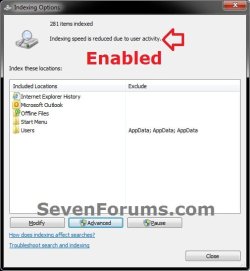
Enabled.jpg Disabled.jpg


OPTION ONE

Using a REG File Download


1. To Enable Search "Indexer Backoff"
NOTE: This is the default setting.
A) Click on the Download button below to download the file below.
Enable_Indexer_Backoff.reg

Download


B) Go to step 3.
2. To Disable Search Indexer Backoff"
A) Click on the Download button below to download the file below.
Disable_Indexer_Backoff.reg

Download


3. Click on Save, and save the .reg file to the desktop.

4. Right click the downloaded .reg file and click on Merge.

5. Click on Run, Yes, Yes, and OK when prompted.

6. Log off and log on, or restart the computer to fully apply.

7. When done, you can delete the downloaded .reg file if you like.


OPTION TWO

Through the Local Group Policy Editor


1. Open the Local Group Policy Editor.
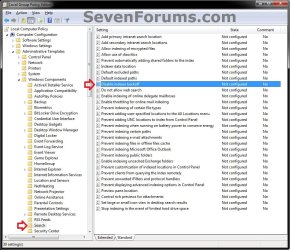
2. In the left pane, click on to expand Computer Configuration, Administrative Templates, Windows Components, and Search. (see screenshot below)
GPEDIT-1.jpg
3. In the right pane, double click on Disable indexer backoff. (see screenshot above)

4. To Enable Search "Indexer Backoff"
A) Select (dot) either Not Configured or Disabled. (see screenshot below step 6)
NOTE: Not Configured is the default setting.
B) Go to step 6.
5. To Disable Search "Indexer Backoff"
A) Select (dot) Enabled. (see screenshot below step 6)
6. Click on OK. (see screenshot below)
GPEDIT-2.jpg
7. Close the Local Group Policy Editor window.
That's it,
Shawn


Attachments

Confusion about exactly what enable vs. disable is doing

Hey Shawn,

I'm a little confused about the poor choice of wording Microsoft has chosen to use (imo) of what enabled vs. disabled really means for Indexer Backoff.

At the beginning of the tutorial, in the information section you state:

If enabled, backoff logic will be used to throttle back indexing activity when system activity is high.

If disabled, indexing will continue at full speed even when system activity is high.

Clicking on the "Disable indexer backoff" brings up the window which provides "Help" text for the choices:

Not Configured or Disabled [Default Setting]:


  • If disabled, backoff logic will be used to throttle back indexing activity when system activity is high. (slower indexing)
Enabled:

  • If enabled, the search indexer backoff feature will be disabled. Indexing will continue at full speed even when system activity is high. (faster indexing)

Is this not the opposite of what you have in the information section of this tutorial, or have I confused enabled/disabled with what Microsoft's enabled/disabled means?

It sure would seem a lot easier to simply emit "backoff" completely, and just say:
"(1) Would you like the indexer to run at full speed regardless of activity? (2) Would you like it to adjust to your activity level and slow down while you are working and take longer to complete?"

Thanks for any advice. I would love to run your batch files to make things easier when I want to complete indexing faster and then run the other to slow it back down to default later.
 

My Computer My Computer

At a glance

Windows 8.1 Pro 64-bitIntel Core i7 3770K @ 3.50GHz16.0GB Dual-Channel DDR3 @ 799MHz (10-10-10-30)EVGA NVIDIA GeForce GTX 780, 6144MB GDDR5
Computer type
PC/Desktop
Computer Manufacturer/Model Number
Custom
OS
Windows 8.1 Pro 64-bit
CPU
Intel Core i7 3770K @ 3.50GHz
Motherboard
ASUSTeK COMPUTER INC. P8Z77-V PRO (LGA1155)
Memory
16.0GB Dual-Channel DDR3 @ 799MHz (10-10-10-30)
Graphics Card(s)
EVGA NVIDIA GeForce GTX 780, 6144MB GDDR5
Sound Card
Sound Blaster Z
Monitor(s) Displays
ASUS VE278
Screen Resolution
1920x1080 @ 60Hz
Hard Drives
1) 250GB Samsung 850 EVO (SSD)
2) 2TB Seagate (SATA)
3) 2TB Seagate (SATA)
4) 4TB Seagate (EXTERNAL)
PSU
OCZ ZX 1000W
Case
Antec 1100
Cooling
Standard with Antec 1100
Keyboard
Microsoft Wireless Natural Multimedia
Mouse
Razer Death Adder Chroma
Internet Speed
60 Mbps
Antivirus
Windows Defender, Malwarebytes Anti-Malware, Anti-Exploit
Browser
Chrome
Hello menace, :)

Yeah, the wording could be better.

The policy is Disable indexer backoff, so you would either enabled to Disable indexer backoff or Not configured to not Disable indexer backoff.

Following the steps in the tutorial will get you what you want though.
 

My Computer My Computer

At a glance

64-bit Windows 11 Pro for WorkstationsIntel i7-8700K OC'd to 5 GHz64 GB (4x16GB) G.SKILL TridentZ RGB DDR4 3600...ASUS ROG-STRIX-GTX1080TI-O11G-GAMING
Computer type
PC/Desktop
Computer Manufacturer/Model Number
Self built custom
OS
64-bit Windows 11 Pro for Workstations
CPU
Intel i7-8700K OC'd to 5 GHz
Motherboard
ASUS ROG Maximus XI Formula Z390
Memory
64 GB (4x16GB) G.SKILL TridentZ RGB DDR4 3600 MHz
Graphics Card(s)
ASUS ROG-STRIX-GTX1080TI-O11G-GAMING
Sound Card
Integrated
Monitor(s) Displays
2 x Samsung Odyssey G7 27"
Screen Resolution
2560x1440
Hard Drives
1TB Samsung 990 PRO M.2,
4TB Samsung 990 PRO PRO M.2,
TerraMaster F8 SSD Plus NAS
PSU
Seasonic Prime Titanium 850W
Case
Thermaltake Core P3
Cooling
Corsair Hydro H115i
Keyboard
Logitech wireless K800
Mouse
Logitech MX Master 4
Internet Speed
2 Gb/s Download and 100 Mb/s Upload
Antivirus
Malwarebyte Anti-Malware Premium
Browser
Google Chrome
Other Info
Logitech Z625 speaker system,
Logitech BRIO 4K Pro webcam,
HP Color LaserJet Pro MFP M477fdn,
APC SMART-UPS RT 1000 XL - SURT1000XLI,
Galaxy S23 Plus phone
Batch Files?

Thanks so much Brink!

I was having trouble wrapping my head around the wording.

Those registry entries you've created are great! How would I go about writing .bat files to swap between these two states instead of using registry entries? Would batch files use the same syntax you used? I'm guessing not now that I think of it, since registry entries are very different than commands, is that right?

I am looking for a way to have to batch files on the desktop while I experiment with the indexer in the next while. One for each of those two states. I'm not interested in turning off (disabling) the search indexer permanently like some do, but I would like to be able to run them as an Admin without having to have the UAC pop-up every time.

Thanks very much for any advice and guidance! :D
 

My Computer My Computer

At a glance

Windows 8.1 Pro 64-bitIntel Core i7 3770K @ 3.50GHz16.0GB Dual-Channel DDR3 @ 799MHz (10-10-10-30)EVGA NVIDIA GeForce GTX 780, 6144MB GDDR5
Computer type
PC/Desktop
Computer Manufacturer/Model Number
Custom
OS
Windows 8.1 Pro 64-bit
CPU
Intel Core i7 3770K @ 3.50GHz
Motherboard
ASUSTeK COMPUTER INC. P8Z77-V PRO (LGA1155)
Memory
16.0GB Dual-Channel DDR3 @ 799MHz (10-10-10-30)
Graphics Card(s)
EVGA NVIDIA GeForce GTX 780, 6144MB GDDR5
Sound Card
Sound Blaster Z
Monitor(s) Displays
ASUS VE278
Screen Resolution
1920x1080 @ 60Hz
Hard Drives
1) 250GB Samsung 850 EVO (SSD)
2) 2TB Seagate (SATA)
3) 2TB Seagate (SATA)
4) 4TB Seagate (EXTERNAL)
PSU
OCZ ZX 1000W
Case
Antec 1100
Cooling
Standard with Antec 1100
Keyboard
Microsoft Wireless Natural Multimedia
Mouse
Razer Death Adder Chroma
Internet Speed
60 Mbps
Antivirus
Windows Defender, Malwarebytes Anti-Malware, Anti-Exploit
Browser
Chrome
You're most welcome menace. :)

Here are some .bat file versions instead for you. You'll have to right click on the .bat file, and click on "Run as administrator" for them to work.
 

Attachments

My Computer My Computer

At a glance

64-bit Windows 11 Pro for WorkstationsIntel i7-8700K OC'd to 5 GHz64 GB (4x16GB) G.SKILL TridentZ RGB DDR4 3600...ASUS ROG-STRIX-GTX1080TI-O11G-GAMING
Computer type
PC/Desktop
Computer Manufacturer/Model Number
Self built custom
OS
64-bit Windows 11 Pro for Workstations
CPU
Intel i7-8700K OC'd to 5 GHz
Motherboard
ASUS ROG Maximus XI Formula Z390
Memory
64 GB (4x16GB) G.SKILL TridentZ RGB DDR4 3600 MHz
Graphics Card(s)
ASUS ROG-STRIX-GTX1080TI-O11G-GAMING
Sound Card
Integrated
Monitor(s) Displays
2 x Samsung Odyssey G7 27"
Screen Resolution
2560x1440
Hard Drives
1TB Samsung 990 PRO M.2,
4TB Samsung 990 PRO PRO M.2,
TerraMaster F8 SSD Plus NAS
PSU
Seasonic Prime Titanium 850W
Case
Thermaltake Core P3
Cooling
Corsair Hydro H115i
Keyboard
Logitech wireless K800
Mouse
Logitech MX Master 4
Internet Speed
2 Gb/s Download and 100 Mb/s Upload
Antivirus
Malwarebyte Anti-Malware Premium
Browser
Google Chrome
Other Info
Logitech Z625 speaker system,
Logitech BRIO 4K Pro webcam,
HP Color LaserJet Pro MFP M477fdn,
APC SMART-UPS RT 1000 XL - SURT1000XLI,
Galaxy S23 Plus phone
Back
Top