
Infinite Screen Loop During Windows 7 Install.
Hey Everyone,
I built my first ever CPU this past December and I am now running into an issue trying to install Windows 7 Professional 64 bit OEM. I have tried looking up this issue with no luck of finding anyone running into the same problem I have encountered. I am not entirely sure of what information is needed so I am going to explain everything. I am sorry if this is a slightly long post.
CPU Breakdown:
Processor - AMD Bulldoxer X6 FX-6100 Six Core AM3+ 3.3Ghz
Motherboard - Gigabyte GA-990FXA-UD3 AM3+ (Does not support on board graphics)
Ram - Kingston Hyper X 8GB (2x4GB) DDR3
Video Card - Gigabyte AMD Radeon HD 6450 1GB DDR3 PCI 2.1
HDD - Western Digital Caviar Green 2TB Sata 3 64mb
Power Supply - Cooler Master Extreme Power Plus 600W V2.3
DVD Drive - Super Ritemaster
Multi Card Reader - iCAN 12 in 1 card reader
Case - Cooler Master CM 690 II Advance ATX Mid Tower Case
Here is a run down of what I have attempted so far:
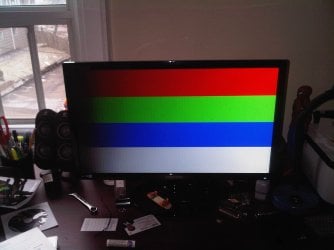
After I put all the pieces together, I initially installed Kubuntu 11.10 64bit since I did not own a copy of windows to install. Everything worked without a hitch and is still running smoothly to date. After obtaining a of Windows 7, I installed a Virtual Machine and installed windows 7 to work within Kubuntu, realizing this wasn't running a fast as I would like, I decided to try dual booting Kubuntu 11.10 and Windows 7 side by side. I used Gparted to resize my partition and free up 200GB of unallocated space for my Windows 7 install. I then put my Windows 7 disc in and the CD boots fine brings me to the "Loading Windows Files" progress bar then the next screen is the "Starting Windows Screen" 4 coloured balls form the Windows Logo and then as it goes to advance to the next screen it goes into Infinite Screen Loop. Here it flashes between a Black Screen, a Grey Screen, a White Screen and a Screen with 4 different coloured Bars (Red, green, blue and White)
Here is an Image of the 4th screen
From here I assumed I messed up my repartitioning of my hard drive and the Windows 7 Disc isn't able to see my unallocated partition. I tried changing the format type of the unallocated partition with no luck and the same outcome for each attempt to install Windows 7
During all this time, I ordered a 1.5TB Western Digital Caviar Green Sata 3 64mb and I figured I would try installing windows 7 on a clean unused hard drive. From there I would dual boot by switch boot priority in the BIOS when I want to use the other OS. After installing the second HDD and disconnecting my first HDD (2TB), this lead to the exact same infinite screen loop.
From here I have tried disabling and disconnecting all USB ports and using the PS2 keyboard (my mother board only has 1 PS2 connection so I could not connect a PS2 Mouse) Disconnected my Internet cable and only had what is necessary connected to the back of my PC all of this leaded to the same screen loop.
My next idea (which I am not sure if I should do) is to take my brand new 1.5TB hard drive and install it in my another PC which is running Kubuntu 64 bit with AMD quad core 64 bit processor and seeing if I am able to install windows using this PC.
Other than that, I am currently at a loss of what to try next for my PC and would appreciate any help!
Thanks
Hey Everyone,
I built my first ever CPU this past December and I am now running into an issue trying to install Windows 7 Professional 64 bit OEM. I have tried looking up this issue with no luck of finding anyone running into the same problem I have encountered. I am not entirely sure of what information is needed so I am going to explain everything. I am sorry if this is a slightly long post.
CPU Breakdown:
Processor - AMD Bulldoxer X6 FX-6100 Six Core AM3+ 3.3Ghz
Motherboard - Gigabyte GA-990FXA-UD3 AM3+ (Does not support on board graphics)
Ram - Kingston Hyper X 8GB (2x4GB) DDR3
Video Card - Gigabyte AMD Radeon HD 6450 1GB DDR3 PCI 2.1
HDD - Western Digital Caviar Green 2TB Sata 3 64mb
Power Supply - Cooler Master Extreme Power Plus 600W V2.3
DVD Drive - Super Ritemaster
Multi Card Reader - iCAN 12 in 1 card reader
Case - Cooler Master CM 690 II Advance ATX Mid Tower Case
Here is a run down of what I have attempted so far:
After I put all the pieces together, I initially installed Kubuntu 11.10 64bit since I did not own a copy of windows to install. Everything worked without a hitch and is still running smoothly to date. After obtaining a of Windows 7, I installed a Virtual Machine and installed windows 7 to work within Kubuntu, realizing this wasn't running a fast as I would like, I decided to try dual booting Kubuntu 11.10 and Windows 7 side by side. I used Gparted to resize my partition and free up 200GB of unallocated space for my Windows 7 install. I then put my Windows 7 disc in and the CD boots fine brings me to the "Loading Windows Files" progress bar then the next screen is the "Starting Windows Screen" 4 coloured balls form the Windows Logo and then as it goes to advance to the next screen it goes into Infinite Screen Loop. Here it flashes between a Black Screen, a Grey Screen, a White Screen and a Screen with 4 different coloured Bars (Red, green, blue and White)
Here is an Image of the 4th screen
From here I assumed I messed up my repartitioning of my hard drive and the Windows 7 Disc isn't able to see my unallocated partition. I tried changing the format type of the unallocated partition with no luck and the same outcome for each attempt to install Windows 7
During all this time, I ordered a 1.5TB Western Digital Caviar Green Sata 3 64mb and I figured I would try installing windows 7 on a clean unused hard drive. From there I would dual boot by switch boot priority in the BIOS when I want to use the other OS. After installing the second HDD and disconnecting my first HDD (2TB), this lead to the exact same infinite screen loop.
From here I have tried disabling and disconnecting all USB ports and using the PS2 keyboard (my mother board only has 1 PS2 connection so I could not connect a PS2 Mouse) Disconnected my Internet cable and only had what is necessary connected to the back of my PC all of this leaded to the same screen loop.
My next idea (which I am not sure if I should do) is to take my brand new 1.5TB hard drive and install it in my another PC which is running Kubuntu 64 bit with AMD quad core 64 bit processor and seeing if I am able to install windows using this PC.
Other than that, I am currently at a loss of what to try next for my PC and would appreciate any help!
Thanks
Last edited:
My Computer
At a glance
Windows 7 Professional 64 bit
- OS
- Windows 7 Professional 64 bit
