Infinite restart loop

dvoriner

New member
Local time
12:35 AM
Messages
10
Hello! I have a brand new desktop PC with preinstalled Win7 Home Premium 64bit. I split the HDD and have Ubuntu on the other half. When I logged in Win7 I uninstalled preinstalled Norton Antivirus (it would stop working in two months anyways). After I got rid of it, it asked to restart the computer. I did so but a problem occurred. About 3 or 4 seconds after the restart, the computer restarts again ... and again and again. I lets me go to BIOS but nowhere else because right after that it restarts again. Even when I turn off the computer and turn it on again, it does the same - a restart loop. As I said, the loop takes about 3-5 seconds... Do you have an idea what to do? I do not have an installation CD/DVD, is there a way I can download some boot stuff from the internet?

Thank you very much
 

My Computer

Computer Manufacturer/Model Number
Emachines EL1850
OS
Windows 7 Home premium 64bit
CPU
Intel Celeron E3300
Graphics Card(s)
NVidia GeForce 315 512MB
Hi dvoriner, welcome to the forums :)

At which point is it restartting? Are you able to at least tap F8 to enter the boot options menu & boot in safe mode?
   Note
To access the boot menu keep tapping F8 after the 1st post screen goes blank


OS
 

My Computer

Computer Manufacturer/Model Number
Compaq Desktop
OS
Windows 7 Ultimate x64
CPU
AMD Sempron Dual Core
Memory
3GB
Graphics Card(s)
NVIDIA GeForce 6150SE nForce 430
Screen Resolution
1024x768
Hard Drives
150GB Sata
Hello dvoriner, welcome to Seven Forums!


As the PC is "brand new" this may be the easiest option, there may be a way to recover the PC to factory specifications though all changes you have made to the PC will be lost, have a look at the info below to see if it'll be a help to you; you may get an option to make backups of data so have backup media available before you start, to use if needed.

Be sure to post back with any further questions you may have and to keep us informed.
   Information

To start the system recovery:
1. Restart the PC.

2. When the eMachines logo appears on the screen, press the Alt and F10 keys repeatedly.

3. If you are prompted with a Microsoft Windows boot screen, press the Enter key.

4. After the system recovery program has loaded, follow the prompts to reinstall the Operating System.


My Computer

Computer Manufacturer/Model Number
* BFK Customs *
OS
W 7 64-bit Ultimate
CPU
Intel Q9550 Yorkfield
Motherboard
ASUS P5Q Pro
Memory
8GB Dominator 8500C5D
Graphics Card(s)
ATI : XFX 5870
Sound Card
Realtek HD Audio 7-1
Monitor(s) Displays
1x 47" LCD HDMI & 3x 26" LCD HDMI
Screen Resolution
1920x1080P & 1920x1200
Hard Drives
1x 80GB Intel X25-M G2 SSD : 1x 500GB & 1x 640GB WD Caviar Black(s)
PSU
Corsair 620HX
Case
Cooler Master RC-690
Cooling
Tuniq Tower 120, 2x 140mm and 3x 120mm case fans
Keyboard
Microsoft 500
Mouse
Razer Diamondback 3G
Internet Speed
14 Mb/s
Other Info
1x Koutech 3Gb/s SATA HDD Hot Swap Rack
Hi!

The computer restarts right after the eMachines screen appears so yes, I have the option to press Del to enter BIOS or to press F12 to enter the boot setup.

I tried to press F8 but that did not work.

However Alt + F10 worked! (finally something works :) So now I have an option to recover the factory specifications on 233 GB of HDD (the total capacity is 500GB so I presume the Ubuntu part will remain untouched). Now I have a stupid question: If I recover the "factory specifications", does it mean I will get rid of the preinstalled Win7 or not? Thank you for your replies, you are very helpful.
 

My Computer

Computer Manufacturer/Model Number
Emachines EL1850
OS
Windows 7 Home premium 64bit
CPU
Intel Celeron E3300
Graphics Card(s)
NVidia GeForce 315 512MB
What I would suggest is to do a partition specific wipe "secure erase" to the Linux partition first because it is the source of the issue and if you recover to "factory" you very well may be right back where you started if Ubuntu/Grub is still there.

Have a look at Option Three in this tutorial at the link below to see an out-line of the wipe process.

Be advised: just be sure to do the correct partition, if you 'wipe' the built-in "Factory Recovery" partition by mistake that'll destroy any chance to use that partition to do the factory recovery at a later date.

Partition Wizard : Use the Bootable CD


Once you do the wipe to the Ubuntu partition you may be able to use the info in this tutorial to re-create a new set of boot files to the Windows 7 partition to get it booting again without the need to do the factory recovery.

Startup Repair - Run 3 Separate Times
 

My Computer

Computer Manufacturer/Model Number
* BFK Customs *
OS
W 7 64-bit Ultimate
CPU
Intel Q9550 Yorkfield
Motherboard
ASUS P5Q Pro
Memory
8GB Dominator 8500C5D
Graphics Card(s)
ATI : XFX 5870
Sound Card
Realtek HD Audio 7-1
Monitor(s) Displays
1x 47" LCD HDMI & 3x 26" LCD HDMI
Screen Resolution
1920x1080P & 1920x1200
Hard Drives
1x 80GB Intel X25-M G2 SSD : 1x 500GB & 1x 640GB WD Caviar Black(s)
PSU
Corsair 620HX
Case
Cooler Master RC-690
Cooling
Tuniq Tower 120, 2x 140mm and 3x 120mm case fans
Keyboard
Microsoft 500
Mouse
Razer Diamondback 3G
Internet Speed
14 Mb/s
Other Info
1x Koutech 3Gb/s SATA HDD Hot Swap Rack
Wow, so it is not going to be too easy, huh? So the problem is in Ubuntu, that is quite a surprise for me.

So the main thing I have to be careful about is that I have to erase the Ubuntu partition and not the W7 one, ok?
But that itself may not be enough so I will need some new boot files for W7 so I could boot it without recovering initial specifications, right?

Ok, I will try to do that and I will let you know, ok?

One more question... Would it be easy to reinstall Ubuntu in that erased partition in the future, after the W7 will be working again?

Thank you!!!

EDIT: There are 5 segments.
1) PQservice (NTFS) capacity 19GB, used 10GB
2) SYSTEM RESERVED (NTFS) capacity 100, used 25MB
3)eMachines (NTFS) capacity 233GB, used 22.5GB
4)* (file type: other) capacity 205GB, used 205GB
5)* (Linux swap) capacity 8.5GB, used 4kb

I am wiping the 4th one, I hope that is correct :)
 
Last edited:

My Computer

Computer Manufacturer/Model Number
Emachines EL1850
OS
Windows 7 Home premium 64bit
CPU
Intel Celeron E3300
Graphics Card(s)
NVidia GeForce 315 512MB
Be advised: just be sure to do the correct partition, if you 'wipe' the built-in "Factory Recovery" partition by mistake that'll destroy any chance to use that partition to do the factory recovery at a later date.


This is not referring to the Windows 7 partition, it is the partition that is added at the factory that is used to do the "Factory Recovery" I posted instructions for you earlier and the 2 are completely different, the recovery partition probably has the drive letter "D: Recovery" as listed in the Partition Wizard program.
 

My Computer

Computer Manufacturer/Model Number
* BFK Customs *
OS
W 7 64-bit Ultimate
CPU
Intel Q9550 Yorkfield
Motherboard
ASUS P5Q Pro
Memory
8GB Dominator 8500C5D
Graphics Card(s)
ATI : XFX 5870
Sound Card
Realtek HD Audio 7-1
Monitor(s) Displays
1x 47" LCD HDMI & 3x 26" LCD HDMI
Screen Resolution
1920x1080P & 1920x1200
Hard Drives
1x 80GB Intel X25-M G2 SSD : 1x 500GB & 1x 640GB WD Caviar Black(s)
PSU
Corsair 620HX
Case
Cooler Master RC-690
Cooling
Tuniq Tower 120, 2x 140mm and 3x 120mm case fans
Keyboard
Microsoft 500
Mouse
Razer Diamondback 3G
Internet Speed
14 Mb/s
Other Info
1x Koutech 3Gb/s SATA HDD Hot Swap Rack
There are 5 segments.
1) PQservice (NTFS) capacity 19GB, used 10GB
2) SYSTEM RESERVED (NTFS) capacity 100, used 25MB
3)eMachines (NTFS) capacity 233GB, used 22.5GB
4)* (file type: other) capacity 205GB, used 205GB
5)* (Linux swap) capacity 8.5GB, used 4kb

OK, so I am becoming little bit desperate here. As said above, I wiped the fourth partition. Then I changed the third partition to "active". After that I booted from the Win 7 repair disc and tried to run "startup repair" for few times but the reboot loop is still there. I ran the MiniTool Partition Wizard and saw that SYSTEM RESERVED is active again even though before the startup repair I marked the fourth partition as active! Nevertheless, I tried to run factory recovery from the HDD but also with no result. Now I have no idea what to do again :cry: since I think I have tried everything. Any last idea? :)

Thank you for your admirable patience :D
 

My Computer

Computer Manufacturer/Model Number
Emachines EL1850
OS
Windows 7 Home premium 64bit
CPU
Intel Celeron E3300
Graphics Card(s)
NVidia GeForce 315 512MB
Hello again.


What are the partition names "Labels" as listed in Partition Wizard?
 

My Computer

Computer Manufacturer/Model Number
* BFK Customs *
OS
W 7 64-bit Ultimate
CPU
Intel Q9550 Yorkfield
Motherboard
ASUS P5Q Pro
Memory
8GB Dominator 8500C5D
Graphics Card(s)
ATI : XFX 5870
Sound Card
Realtek HD Audio 7-1
Monitor(s) Displays
1x 47" LCD HDMI & 3x 26" LCD HDMI
Screen Resolution
1920x1080P & 1920x1200
Hard Drives
1x 80GB Intel X25-M G2 SSD : 1x 500GB & 1x 640GB WD Caviar Black(s)
PSU
Corsair 620HX
Case
Cooler Master RC-690
Cooling
Tuniq Tower 120, 2x 140mm and 3x 120mm case fans
Keyboard
Microsoft 500
Mouse
Razer Diamondback 3G
Internet Speed
14 Mb/s
Other Info
1x Koutech 3Gb/s SATA HDD Hot Swap Rack
What are the partition names "Labels" as listed in Partition Wizard?
Hi, I am not sure what you mean by labels so here is all information I see in Partition Wizard, if that is not enough I will try to give you more! :geek: :

1) PQSERVICE (file system: NTFS) capacity 19GB, used 10GB, status: None, type: primary
2) SYSTEM RESERVED (file system: NTFS) capacity 100MB, used 25MB, status: None, type: primary
3) eMachines (file system: NTFS) capacity 233GB, used 22.5GB, status: Active, type: primary
4) * (file system: unallocated) capacity 205GB, used 0KB, status: None, type: logical
5) * (file system: Linux swap) capacity 8.5GB, used 4kb

I deleted the Ubuntu partition which was number 4 and 5 before (number 4 is called " * " and so was number 5 when it still existed) so number 4 is now "unallocated". Also, as said before, "SYSTEM RESERVED" is no longer "Active" as I switched the "eMachines" to "Active".
 

My Computer

Computer Manufacturer/Model Number
Emachines EL1850
OS
Windows 7 Home premium 64bit
CPU
Intel Celeron E3300
Graphics Card(s)
NVidia GeForce 315 512MB
Did you do the wipe to the Ubuntu partition or did you just delete it using Partition Wizard.

If you just deleted it that is probably the issue as he Grub boot-loader is still there.
 

My Computer

Computer Manufacturer/Model Number
* BFK Customs *
OS
W 7 64-bit Ultimate
CPU
Intel Q9550 Yorkfield
Motherboard
ASUS P5Q Pro
Memory
8GB Dominator 8500C5D
Graphics Card(s)
ATI : XFX 5870
Sound Card
Realtek HD Audio 7-1
Monitor(s) Displays
1x 47" LCD HDMI & 3x 26" LCD HDMI
Screen Resolution
1920x1080P & 1920x1200
Hard Drives
1x 80GB Intel X25-M G2 SSD : 1x 500GB & 1x 640GB WD Caviar Black(s)
PSU
Corsair 620HX
Case
Cooler Master RC-690
Cooling
Tuniq Tower 120, 2x 140mm and 3x 120mm case fans
Keyboard
Microsoft 500
Mouse
Razer Diamondback 3G
Internet Speed
14 Mb/s
Other Info
1x Koutech 3Gb/s SATA HDD Hot Swap Rack
I wiped the partition four first (but I did not touch "Linux swipe" partition). Then I tried to mark the eMachines partition active and ran the startup repair for few times with no desired result so I decided to delete everything related to Linux in the Partition Wizard (I did not wipe "Linux swipe", I just deleted it). GRUB might still be there even though I never get to see it. Is there a way to delete it? Is that what I want?

I hope someone else in the future will profit from this conversation as well!!!

EDIT: I find the information to delete GRUB here. Should I try it?
 

My Computer

Computer Manufacturer/Model Number
Emachines EL1850
OS
Windows 7 Home premium 64bit
CPU
Intel Celeron E3300
Graphics Card(s)
NVidia GeForce 315 512MB
Mark the System Reserved 100mb boot partition active: http://www.sevenforums.com/tutorials/71432-partition-mark-active.html

Then boot into the win7 DVD Repair console and run Startup Repair up to 3 separate times with reboots until it starts. http://www.sevenforums.com/tutorials/105541-startup-repair-run-3-separate-times.html

EDIT: I find the information to delete GRUB here. Should I try it?

That bootsect command is automated in Startup Repair. You can certainly run it separately if necessary, though.

Here is the correct method to run Recovery: http://www.ehow.com/how_5977219_do-recovery-disk-emachine-disk_.html

If the Recovery Partition fails to run, try marking it Active first.
 
OK, so I marked the partition SYSTEM RESERVED as active and ran startup repair for three times but with no result.

Then I deleted GRUB from the command line of the Win 7 repair disc as described in your thread "Remove GRUB"... and it worked! The Win7 booted successfully.

Yesterday I did some unnecessary things - among which running the "factory recovery" so I guess I do not need the eMachines recovery now... but I will definitely keep this link as it may come handy one day.

Anyways I want to thank you a lot for your patience and great help, gregrocker and Bare Foot Kid. I hope others will take advantage of this thread as well.

Have a nice day!
 

My Computer

Computer Manufacturer/Model Number
Emachines EL1850
OS
Windows 7 Home premium 64bit
CPU
Intel Celeron E3300
Graphics Card(s)
NVidia GeForce 315 512MB
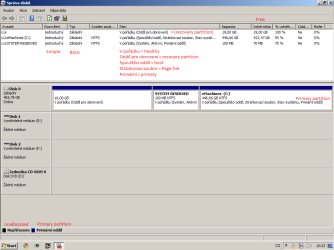
If you'll post back a screenshot of your full Disk Management drive map, using Snipping Tool in Start Menu, we can look it over for any other problems.

Did your Factory Recovery partition run when you tried it earlier? Try making Recovery Disks now that you're in Windows. Or did you receive any disks with computer?

In the future, you can avoid the GRUB corruption by placing Ubuntu/Linux on another HD and booting via BIOS Boot Order and one-time BIOS Boot Menu key (F10 on eMachine).
 
Hi,

here is my Disk management screen shot with some translations of mine in red. I hope it makes some sense.

Yes, I ran the factory recovery from the HDD (there was no CD or DVD in the drive). I got there by typing Alt + F10 right after turning on the computer. As far as I remember the name of the program was "eMachines recovery management" or something like that...

I did not receive any CDs or DVDs with the computer. I assume that everything needed for recovery of or reinstalling Windows is in that "recovery partition" as seen in the screenshot.
 

Attachments

  • diskmgmt.png
    diskmgmt.png
    23.7 KB · Views: 20

My Computer

Computer Manufacturer/Model Number
Emachines EL1850
OS
Windows 7 Home premium 64bit
CPU
Intel Celeron E3300
Graphics Card(s)
NVidia GeForce 315 512MB
Hello again.


From the screen-shot it certainly looks as though the recovery partition is still intact, have you tried to create the recovery disks, this is a "copy" of the recovery partition that can be used to recover the PC to the same factory condition that the recovery partition does, in case of Hard Disk Drive (HDD) failure.

Look around really good in the Windows start menu for the program used to create the disks, it's a really good idea to create them 'just in case'.


I'm really pleased you got the PC booting again. :)
 

My Computer

Computer Manufacturer/Model Number
* BFK Customs *
OS
W 7 64-bit Ultimate
CPU
Intel Q9550 Yorkfield
Motherboard
ASUS P5Q Pro
Memory
8GB Dominator 8500C5D
Graphics Card(s)
ATI : XFX 5870
Sound Card
Realtek HD Audio 7-1
Monitor(s) Displays
1x 47" LCD HDMI & 3x 26" LCD HDMI
Screen Resolution
1920x1080P & 1920x1200
Hard Drives
1x 80GB Intel X25-M G2 SSD : 1x 500GB & 1x 640GB WD Caviar Black(s)
PSU
Corsair 620HX
Case
Cooler Master RC-690
Cooling
Tuniq Tower 120, 2x 140mm and 3x 120mm case fans
Keyboard
Microsoft 500
Mouse
Razer Diamondback 3G
Internet Speed
14 Mb/s
Other Info
1x Koutech 3Gb/s SATA HDD Hot Swap Rack
OK, I will make some recovery disks as I might try to uninstall the antivirus again in the future (the original source of all trouble) :)

Thank you again, BFK and gregrocker.
 

My Computer

Computer Manufacturer/Model Number
Emachines EL1850
OS
Windows 7 Home premium 64bit
CPU
Intel Celeron E3300
Graphics Card(s)
NVidia GeForce 315 512MB
You are very welcome; if you want to try Linux again, it is best to install it to a separate Hard Disk Drive (HDD) to avoid boot issues, have a look at the info below.


   Information

The easiest way to do away with boot issues between separate Operating Systems (OS) is to use the BIOS one time boot menu to select which OS to boot at system startup, each motherboard has an individual hot-key to tap during system start-up to access this menu.

If you have 2 separate Hard Disk Drives (HDD) and have one OS installed to one HDD and you want to install another OS to the second HDD, disconnect the HDD with the first OS installed on it and leave only the HDD you want to install the second OS to connected.

Just be sure not to change where the original HDD SATA cable was connected, it has to be re-connected to the exact same port to avoid boot issues.


My Computer

Computer Manufacturer/Model Number
* BFK Customs *
OS
W 7 64-bit Ultimate
CPU
Intel Q9550 Yorkfield
Motherboard
ASUS P5Q Pro
Memory
8GB Dominator 8500C5D
Graphics Card(s)
ATI : XFX 5870
Sound Card
Realtek HD Audio 7-1
Monitor(s) Displays
1x 47" LCD HDMI & 3x 26" LCD HDMI
Screen Resolution
1920x1080P & 1920x1200
Hard Drives
1x 80GB Intel X25-M G2 SSD : 1x 500GB & 1x 640GB WD Caviar Black(s)
PSU
Corsair 620HX
Case
Cooler Master RC-690
Cooling
Tuniq Tower 120, 2x 140mm and 3x 120mm case fans
Keyboard
Microsoft 500
Mouse
Razer Diamondback 3G
Internet Speed
14 Mb/s
Other Info
1x Koutech 3Gb/s SATA HDD Hot Swap Rack
Back
Top