Insert Boot Disc

goofeyfoot

New member
Local time
7:13 PM
Messages
25
Hello:

I have Windows 7 on a AMD Phenom Machine.

Hard Drive died so I put another one in and restored Windows with Acronis True Image.

When I leave the Windows repair disk in the drive, the restored system starts perfectly, runs perfectly etc. But if I pull that repair disk out of the drive I get this error about "No Bootable Device" "Insert Disc". So in other words that repair disk has to be in the drive, else I get the error.

I have already:

1. Verified that the boot sequence points to my Windows Drive
2. Run system repair. That's useless. It just tells me everything is fine.
3. Run bootrec fixmbr, vixboot, rebuildbcd. No problems found
4. Run Chkdsk. No problems found.

And about a million other things.

What should I do?

Thanks.

Michael
 

My Computer

Computer Manufacturer/Model Number
Asus Motherboard Quad Core
OS
Windows 7 Home Premium 64 Bit
CPU
Phenom Quad Core
Motherboard
Asus
Memory
4 MG
Graphics Card(s)
Radeon
Sound Card
Sound Blaster
Monitor(s) Displays
HP 17 Ince
Hard Drives
Seagate 1000
Cooling
2 Fans
Thanks for you reponse. I did the thing with the repair disk. Every time it says that everything is fine. And yes, the system will boot as long as the repair disk is physically in the optical drive. But if you pull it out. Then you get "boot disk failure, insert system disk and press enter" as the error.

I have been reading about this nightmare and I ran into this command called bootrec rebuild or something like that. The command is supposed to show how many windows systems are on your system. Well mine always shows zero. Even if you flag a partition as active the asterisk eventually disappears.

This is driving me nuts because the system works but it just won't boot.

By the way I have already tried this with another drive and the exact same thing happens.

Thanks again.

Michael
 

My Computer

Computer Manufacturer/Model Number
Asus Motherboard Quad Core
OS
Windows 7 Home Premium 64 Bit
CPU
Phenom Quad Core
Motherboard
Asus
Memory
4 MG
Graphics Card(s)
Radeon
Sound Card
Sound Blaster
Monitor(s) Displays
HP 17 Ince
Hard Drives
Seagate 1000
Cooling
2 Fans
We have solved this problem every time by Marking Partition Active the 100mb System Reserved (if you have it) or C (if not) then running 3 separate Startup Repairs with reboots. If that fails what sometimes works is moving the Active flag from SysReserved to C then running the Repairs again.

If that fails then it may require wiping the HD of all boot code using Diskpart Clean Command then following the same steps as for Clean Reinstall - Factory OEM Windows 7 to be certain you are getting a perfect install.

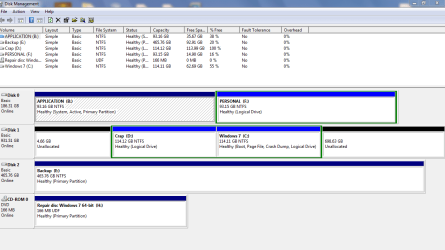
Please post back a screenshot of your maximized Disk Management drive map and listings:

1. Type Disk Management in Start :orb: Search box.
2. Open Disk Mgmt. window and maximize it.
3. Type Snipping Tool in Start Search box.
4. Open Snipping Tool, choose Rectangular Snip, click New, draw a box around full drive map and all listings.
5, Save Snip, attach using paper clip in Reply Box.

Tell us what is on each partition.
 
Last edited:
Greg:

Thanks for your response. When the drive died, I shied away from doing the reinstall because I couldn't find the Product Code (I usually keep these. I have about a million from the nineties - go figure). I did look up the product code with one of those download things. Don't know whether it brought back the right code. But I'm getting off track here.

Here is the snippet of the drives. Now before you laugh I didn't set them up that way. When I did the Windows system restore on the new drive things got kind of disjointed but there you have it. By the way I have Acronis True image too. Didn't use that here. So what you're looking at is the plain Jane Windows 7 Recovery result.

As far as what is in the partitions.

Application is just programs. Things that you would buy and install like Microsoft Office utilities, etc.

Personal is photographs and things like that.

The unallocateds I don't know anything about.

Crap is nothing. There used to be an old Windows XP installation there, but it is gone. So crap is empty.

Backup is just what I was hoping would avoid occasions like what we're discussing. Just Windows and Acronis backups.

The repair disk is the CD that supposedly fixes Windows 7.

Thanks again for your response.

Michael
 

Attachments

  • Capture.PNG
    Capture.PNG
    27.7 KB · Views: 15

My Computer

Computer Manufacturer/Model Number
Asus Motherboard Quad Core
OS
Windows 7 Home Premium 64 Bit
CPU
Phenom Quad Core
Motherboard
Asus
Memory
4 MG
Graphics Card(s)
Radeon
Sound Card
Sound Blaster
Monitor(s) Displays
HP 17 Ince
Hard Drives
Seagate 1000
Cooling
2 Fans
It's almost as though the WIn7 is an afterthought tossed on a secondary HD in a Logical partition which can't even boot, over at the far end of the HD away from the disk reader so that the empty partition preceding it can get better disk reads.

Let's have a plan that gives WIn7 priority instead, properly on a Primary partition on the Primary HD with its own boot files.

Download and burn to CD Partition Wizard bootable CD, boot it, rightclick on B to Modify>Set to Inactive, click OK.

Rightclick on D to Delete, OK.

Rightclick on C to Modify>Set to Primary, OK, Apply all steps.

Then rightclick C again to Modify>Set to Active, OK. Then r/c C to Resize, dragging left border all the way to the left end of the HD, adjusting right border where you want it, then OK, Apply all steps.

Now power down to unplug all other HD's, swap B HD's cable to C HD making sure it remains set first to boot in BIOS setup. Boot into WIn7 DVD to run Startup Repair - Run up to 3 Separate Times until C boots and holds the System Active boot flags.

Plug back in other HDs and keep them in Disk1 and 2 slots to avoid derailing C's boot files during repairs again.
 
Last edited:
Greg: Did what you said on everything up to the point where you said swap the drives. That's because B is on an ide drive. So should I just unplug that? All other drives are SATA.
 

My Computer

Computer Manufacturer/Model Number
Asus Motherboard Quad Core
OS
Windows 7 Home Premium 64 Bit
CPU
Phenom Quad Core
Motherboard
Asus
Memory
4 MG
Graphics Card(s)
Radeon
Sound Card
Sound Blaster
Monitor(s) Displays
HP 17 Ince
Hard Drives
Seagate 1000
Cooling
2 Fans
That makes it even more important that B is unplugged during the repairs.

You can leave C where it is, just make sure it becomes set to boot first because now B is set to boot first since it holds the System boot files. Then mark C Active and run 3 separate Startup Repairs with reboots in between to check all parameters and run all fixes.

Once you replug B make sure no partition on it ever becomes marked Active, or it may hijack boot files during a repair or reinstall. Better to always unplug other HD's during repairs or reinstall.
 
greg:

couldnt get windows to boot even after a bunch of repair sessions. So used diskpart to mark active. But flag keeps resetting. Ran rebuild rcd and it show zero active installations. cant make flag stay.

Oh I should mention that partition wizard leaves about 8 mg to the left of c. No matter how you shove c down to the left 8 mg stays to the left of c
 

My Computer

Computer Manufacturer/Model Number
Asus Motherboard Quad Core
OS
Windows 7 Home Premium 64 Bit
CPU
Phenom Quad Core
Motherboard
Asus
Memory
4 MG
Graphics Card(s)
Radeon
Sound Card
Sound Blaster
Monitor(s) Displays
HP 17 Ince
Hard Drives
Seagate 1000
Cooling
2 Fans
The only reason Active flag would not stay on C is if it has not yet been converted to Primary. Check now.

Where else does the Active flag go if it wont' stay on C? There are no other partitions since you've deleted D and unplugged all other HD's, correct?

I've never heard of Active flag not staying put. Please respond to these questions as you've apparently missed a step.

The OS will not repair and Start without the Active flag being on C.
 
ok will try that tomorrow. But I am pretty sure that I marked as active in wizard. And I did it again in diskpart. In that regard the asterisk would stay up for a few minutes then disappear.

And what is with that empty 8 gb that is to the left of C? Maybe that is bad?

Thanks again.

Michael
 

My Computer

Computer Manufacturer/Model Number
Asus Motherboard Quad Core
OS
Windows 7 Home Premium 64 Bit
CPU
Phenom Quad Core
Motherboard
Asus
Memory
4 MG
Graphics Card(s)
Radeon
Sound Card
Sound Blaster
Monitor(s) Displays
HP 17 Ince
Hard Drives
Seagate 1000
Cooling
2 Fans
It's a minor flaw we see sometimes in PW. It can likely be corrected installing the PW Home Version later.

What's important is that all of the steps given were covered, and there were a lot so double-check you completed each. You must have a Primary partition, which will always allow Active flag, then 3 separate Startup Repairs during which it writes the System boot files to C and starts it up.

If this fails we can always construct a fresh Win7 boot partition, and the XP HD will still boot Win7 when set first to boot in BIOS, albeit with the problems you originally reported.
 
OK. Will check all tomorrow. But I know for a fact that the Win partition is primary because it says so in diskpart. But the active flag kept shutting off.

Thanks for all your advice Greg.

Michael
 

My Computer

Computer Manufacturer/Model Number
Asus Motherboard Quad Core
OS
Windows 7 Home Premium 64 Bit
CPU
Phenom Quad Core
Motherboard
Asus
Memory
4 MG
Graphics Card(s)
Radeon
Sound Card
Sound Blaster
Monitor(s) Displays
HP 17 Ince
Hard Drives
Seagate 1000
Cooling
2 Fans
Greg:

Hello again.

Went into PW. 0nly the one drive now. It is set to primary and it is set to active. It is as far to the left as it can go.

When you start it says the thing about hit a key if you want to beoot from cd. You let that that go by and you get nothing but a blinking cursor. Everything halts right there.

In the alternative if you do boot off the cd it takes you to the repair console thing. Once there you ask it to do a repair and the answer always comes back that nothing is wrong.

Then you reboot and everything happens all over again.

In short, there is no "repair" that you see happening.

Thanks.

Michael
 

My Computer

Computer Manufacturer/Model Number
Asus Motherboard Quad Core
OS
Windows 7 Home Premium 64 Bit
CPU
Phenom Quad Core
Motherboard
Asus
Memory
4 MG
Graphics Card(s)
Radeon
Sound Card
Sound Blaster
Monitor(s) Displays
HP 17 Ince
Hard Drives
Seagate 1000
Cooling
2 Fans
Run three separate Startup Repairs with reboots no matter what it reports. We are using Startup Repair here to write boot files which requires sequencing it outside its normal usage.

If that fails open the installer's Command Line to run each of these followed by enter.

bootrec /fixboot
bootrec /fixmbr
bootsect /rebuildbcd

If that fails boot free Partition Wizard bootable CD, confirm WIn7 partition is Active or Modify>Set to Active, then run Partition Wizard Rebuild MBR Video Help.
 
On each "reboot" do you leave the cd in, or pulli out?
 

My Computer

Computer Manufacturer/Model Number
Asus Motherboard Quad Core
OS
Windows 7 Home Premium 64 Bit
CPU
Phenom Quad Core
Motherboard
Asus
Memory
4 MG
Graphics Card(s)
Radeon
Sound Card
Sound Blaster
Monitor(s) Displays
HP 17 Ince
Hard Drives
Seagate 1000
Cooling
2 Fans
Just don't reboot it, but you can leave it in the drive unless it's booting itself somehow.
 
Greg:

I did it the way you said. On each boot you get the question about press a key to boot from cd. if you ignore that and let it sit the same message remains on the screen. There's just a blinking cursor. So I guess I have to try that fix stuff.

Thanks.

Michael
 

My Computer

Computer Manufacturer/Model Number
Asus Motherboard Quad Core
OS
Windows 7 Home Premium 64 Bit
CPU
Phenom Quad Core
Motherboard
Asus
Memory
4 MG
Graphics Card(s)
Radeon
Sound Card
Sound Blaster
Monitor(s) Displays
HP 17 Ince
Hard Drives
Seagate 1000
Cooling
2 Fans
Greg: Did the PW thing this time. Still shows as active but coming back out everything stays the same.

Brother.

Thanks.

Michael
 

My Computer

Computer Manufacturer/Model Number
Asus Motherboard Quad Core
OS
Windows 7 Home Premium 64 Bit
CPU
Phenom Quad Core
Motherboard
Asus
Memory
4 MG
Graphics Card(s)
Radeon
Sound Card
Sound Blaster
Monitor(s) Displays
HP 17 Ince
Hard Drives
Seagate 1000
Cooling
2 Fans
Back
Top