Install SSD with HD data drive under Win 7

camner

New member
Local time
9:49 PM
Messages
37
I'd like to install an SSD for my Win 7 setup. My HD currently has about 250GB on it, and I'm planning to put the data intensive user stuff on the HD.

From poking around, I understand the best way to separate the user data from the boot drive is through drag and drop, rather than a register hack (see Windows 7 and SSDs: Cutting your system drive down to size | Page 2 | ZDNet)

My question is this…I'm planning a fresh install of Win 7 on the SSD. If I use Windows Easy Transfer to transfer the data and settings, there won't be enough room on the SSD for it all (I'm planning a 128GB SSD).

So how do I go about doing the install so that the SSD has just the OS and the apps on it while the HD has the data moved over from the existing HD?
 

My Computer

Computer type
PC/Desktop
Computer Manufacturer/Model Number
Dell Inspiron 620
OS
Windows 7 Pro (64 bit)
CPU
i5
Memory
8GB
Camner, welcome to the windows 7 forum.

One solution would be to move all of your data to another disk. remove the hibernate file and then start reducing the size of the existing C drive to less than 120gig. It has to be equal or less than the size of your new SSD. It is just not the free space but the actual size of the c drive after you reduce it's size. Then you can use most any of the image programs like Acronis or the Microsoft included image program to create an image of your resized C drive and install you SSD, then restore the image to the SSD from an external hard disk. Takes a bit of time but it does work. Otherwise, I would remove the existing hard disks and install W7 from your DVD drive. and of course all of your programs would have to be re-installed on your new C SSD.

Clear as mud?

Rich
 

My Computer

Computer type
Laptop
Computer Manufacturer/Model Number
Toshiba Laptop Qosimo X870
OS
Windows 7 Pro x64 SP1
CPU
Intel Core I7
Motherboard
Toshiba Qosmio
Memory
16 Gigs
Graphics Card(s)
NVIDIA GeForce GTX 670M
Monitor(s) Displays
17.7" laptop
Screen Resolution
1600 x 900
Hard Drives
256 Gig SanDisk SSD for C
256 Gig Intel SSD for D
Internet Speed
50/25 FIOS
Antivirus
Vipre (all you can eat for 10 machines)
Browser
IE and FF
Other Info
I have dos 6.22, wfwg 3.11, win98, 2000 and xp VHD's available for testing. MS's Virtual PC works great.
Clear as mud?

Rich

Yup (thanks!), but what I want to do is to rebuild the system from scratch…If I just clone over the (reduced size) current boot drive I'll be transferring whatever problems the existing system has to the new drive!

What I'd like to do is this:

1. Do a "clean install" of Win7 on the SSD
2. Ideally, migrate/transfer apps settings and user settings to the SSD from the old HD, BUT not transfer the storage intensive user data
3. Move the user data (documents, music, videos, images, etc) to an HD

If I need to, I can certainly simply reinstall the apps and manually move over the user data, but then I have to go in and manually recreate all the settings (power, aero, windows update, etc.) in the new system. I can do that, but if I could avoid it, it would be a faster process.

If I don't intend to actually clone the existing system to the new drive, I presume that the apps such as Acronis and Paragon won't do anything for me, right?
 

My Computer

Computer type
PC/Desktop
Computer Manufacturer/Model Number
Dell Inspiron 620
OS
Windows 7 Pro (64 bit)
CPU
i5
Memory
8GB
I would go for the clone option (why not?). But first (so prior to clone):

1. "Ideally, migrate/transfer apps settings and user settings to the SSD from the old HD, BUT not transfer the storage intensive user data."=>STORAGE INTENSIVE DATA must be moved prior to clone.
2. Move the user data (documents, music, videos, images, etc) to an HD. Move prior to clone
 

My Computer

Computer type
Laptop
Computer Manufacturer/Model Number
ACER ASPIRE 5742G
OS
Microsoft Windows 7 Home Premium 64-bits 7601 Multiprocessor Free Service Pack 1
CPU
Intel(R) Core(TM) i3 CPU M 370 @ 2.40GHz
Motherboard
Acer Aspire 5742G
Memory
4,00 GB
Graphics Card(s)
ATI Mobility Radeon HD 5400 Series
Sound Card
(1) AMD High Definition Audio Device (2) Realtek High Defi
Screen Resolution
1366 x 768 x 32 bits (4294967296 colors) @ 60 Hz
Hard Drives
WDC WD5000BEVT-22ZAT0
I would go for the clone option (why not?). But first (so prior to clone):

1. "Ideally, migrate/transfer apps settings and user settings to the SSD from the old HD, BUT not transfer the storage intensive user data."=>STORAGE INTENSIVE DATA must be moved prio to clone.
2. Move the user data (documents, music, videos, images, etc) to an HD. Move prior to clone

Thanks for the reply. The reason for not cloning is that the Win7 install is a 2-year-old Dell Win7 system. The computer has slowed down a lot in the last two years, and I'm assuming there's enough "cruft" around (not to mention the original Dell installed software I don't need!) that has accumulated. An SSD will certainly make the cruft go around faster, but wouldn't it be better to start over with a clean install?
 

My Computer

Computer type
PC/Desktop
Computer Manufacturer/Model Number
Dell Inspiron 620
OS
Windows 7 Pro (64 bit)
CPU
i5
Memory
8GB
I would go for the clone option (why not?). But first (so prior to clone):

1. "Ideally, migrate/transfer apps settings and user settings to the SSD from the old HD, BUT not transfer the storage intensive user data."=>STORAGE INTENSIVE DATA must be moved prio to clone.
2. Move the user data (documents, music, videos, images, etc) to an HD. Move prior to clone

Thanks for the reply. The reason for not cloning is that the Win7 install is a 2-year-old Dell Win7 system. The computer has slowed down a lot in the last two years, and I'm assuming there's enough "cruft" around (not to mention the original Dell installed software I don't need!) that has accumulated. An SSD will certainly make the cruft go around faster, but wouldn't it be better to start over with a clean install?
Clean install gives the best result. But takes a long time.... you have to reinstall drivers/applications. And have to reapply all your settings
 

My Computer

Computer type
Laptop
Computer Manufacturer/Model Number
ACER ASPIRE 5742G
OS
Microsoft Windows 7 Home Premium 64-bits 7601 Multiprocessor Free Service Pack 1
CPU
Intel(R) Core(TM) i3 CPU M 370 @ 2.40GHz
Motherboard
Acer Aspire 5742G
Memory
4,00 GB
Graphics Card(s)
ATI Mobility Radeon HD 5400 Series
Sound Card
(1) AMD High Definition Audio Device (2) Realtek High Defi
Screen Resolution
1366 x 768 x 32 bits (4294967296 colors) @ 60 Hz
Hard Drives
WDC WD5000BEVT-22ZAT0
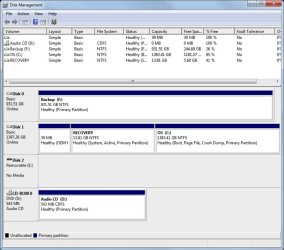
Post a picture of your current Disk Management. Then we can see what's best.

If you do a fresh install on the SSD, the system will fit easily. We'll discuss how to deal with your data after we can see Disk Management.

But transferring your current OS to the SSD is also possible - and easy. We'll just have to deal with the data first.
 

My Computer

Computer Manufacturer/Model Number
HP, Dell, Gateway, Toshiba - 4 laptops and 2 desktops
OS
Vista, Windows7, Mint Mate, Zorin, Windows 8
CPU
from 1.6GHz Duo to i7
Monitor(s) Displays
2x HP w2207
Hard Drives
5x HDD, 7x SSD, 12x Externals
Keyboard
with trackball - no mices
Mouse
Trackball mice
Internet Speed
DSL 6000
I would not use Easy Transfer because it can lose files and reimports hidden AppData settings which are a corruption path into a fresh new Clean Reinstall - Factory OEM Windows 7.

Follow the steps in the blue link to get and keep a perfect install to the SSD with all other HD's unplugged.

After install plug back in the HDD, sort all data into a copy of the User folders you place on a new data partition, then link from the new Win7 to those User folders either via Library - Include a Folder vand Library - Set Save Folder to avoid having these data drive folders be deemed System files if you want to use Win7 backup imaging; or you can move the User folders to the Data drive using User Folders - Change Default Location.

I would get an SSD large enough to include all programs, System-managed Paging File, and the modern Hibernate file since its function is perfected in Win7 and a great convenience.

Once you have everything off the old install Mark Partition Inactive then Delete Partition
to repartition in Disk Mgmt, or resize the data partition to include it: Partition Wizard Resize Partition - Video Help.

Let us know if you have any questions or problems.
 
Post a picture of your current Disk Management. Then we can see what's best.

If you do a fresh install on the SSD, the system will fit easily. We'll discuss how to deal with your data after we can see Disk Management.

But transferring your current OS to the SSD is also possible - and easy. We'll just have to deal with the data first.

Thanks…I'll post the picture of the current Disk Management when I get home tonight and have access to the machine.

A couple of followup questions in the meantime…

1. Several places mention that it is valuable to "enable AHCI" before starting an install onto an SSD. Other places say "DON'T". I really don't know what AHCI is supposed to do or not do. Any wisdom on this?

2. I've only done a clean install on a physical PC once (XP, a while back). I've done several clean installs of Win7 in a virtual environment, but that's easier because there are no drivers to worry about. I've also done a bunch of Mac OS X clean installs. When I do a clean install on OS X on a production machine, I always install to an external drive and spend some time rebuilding the system more gradually so I don't take the production machine out of service for a long period of time. It's just a matter of booting off of the appropriate drive (external-new vs. internal-old).

Given the advice in the link at Clean Reinstall - Factory OEM Windows 7 to disconnect other drives before beginning the install, I wonder if there is a way to accomplish the "little at a time" approach with Win7. For example, can I install the SSD (disconnecting the other HDs) and do the initial OS install, and then put the SSD temporarily in an external enclosure and boot up off that external drive to do the driver installs, program installs, etc.? Or do I have to physically disconnect/reconnect the SSD each time I want to work on that system during the rebuild? Or do I need to take the machine out of service for as long as it takes to do the install of the OS, updates, apps, etc.?
 

My Computer

Computer type
PC/Desktop
Computer Manufacturer/Model Number
Dell Inspiron 620
OS
Windows 7 Pro (64 bit)
CPU
i5
Memory
8GB
1. AHCI speeds up the transfer times from the SSD. Set it after the installation is complete - in both the BIOS and Windows 7.

http://www.sevenforums.com/tutorials/61869-ahci-enable-windows-7-vista.html

2. Yes, you have to disconnect all drives that are not needed for the installation. Else your bootmgr may end up on one of the HDDs. If that happens, it can be fixed but that is another step.

I would not suggest to finagle the SSD installation on an exernal drive. You don't have to worry about drivers. Those usually come with the installation. Programs is another matter. But as long as you still have your old installation on the HDD, you can switch to that for immediate work.

3. When we have the disk management picture, we'll see how we can best deal with your data. In case we need it - do you have an external disk and how much free space is on that ??
 

My Computer

Computer Manufacturer/Model Number
HP, Dell, Gateway, Toshiba - 4 laptops and 2 desktops
OS
Vista, Windows7, Mint Mate, Zorin, Windows 8
CPU
from 1.6GHz Duo to i7
Monitor(s) Displays
2x HP w2207
Hard Drives
5x HDD, 7x SSD, 12x Externals
Keyboard
with trackball - no mices
Mouse
Trackball mice
Internet Speed
DSL 6000
Once Win7 is installed and there's no chance it will place it's boot files elsewhere you can reconnect the other HD in a DISK position lower than Disk0 which should be for the SSD unless it cannot otherwise be.

You can then access your data from Win7, even boot the other drive if needed by tapping the one-time BIOS Boot Menu key. When time comes delete Win7 partition to correctly uninstall the OS after marking it Inactive. To move the User data files off first for linking from WIn7 as suggested earlier, shrink space to create a new partition to copy them into. But to get it cleanest of all move the data off external to wipe the old HDD with Diskpart Clean Command then repartition in Disk Mgmt.
 
1. Here's the disk management screenshot.
diskmanagement.jpg

2. Yes, I have plenty of external (USB) drive space (including empty drives for cloning/imaging, if helpful)

3. Sorry if I'm missing something obvious, but where's the missing space usage? The screenshot below is from Foldersize, and it shows that the C drive occupies 201.74GB but the C:\ folder only occupies 73GB (that seems to include the invisible folders at the root of the C drive). Where's the "missing" ~130GB?
 

Attachments

  • foldersize.png
    foldersize.png
    45.7 KB · Views: 4

My Computer

Computer type
PC/Desktop
Computer Manufacturer/Model Number
Dell Inspiron 620
OS
Windows 7 Pro (64 bit)
CPU
i5
Memory
8GB
Well, the first problem you have is that the bootmgr sits on the recovery partition. So that has to be copied to C because you probably don't want that recovery partition on the SSD - make images instead.

http://www.sevenforums.com/tutorials/209885-bootmgr-move-c-easybcd.html

Next you have to move your user files somewhere. Easiest is probably to temporarily move them to an external drive.

Then I would get rid of that hiberfile. The command is powercfg -h off. And whilst you are at it, reduce the pagefile to 2GBs.

Now the data on your C should fit on the SSD. You can now make an image of it which you then dump on the SSD. OR you can use the Paragon migration tool which does the job in 3 clicks (sets you $20 back) - link is in this tutorial.

http://www.sevenforums.com/tutorials/149969-ssd-install-transfer-operating-system.html

Now you have to change the BIOS boot sequence and can test everything. When you are done with all that, we'll discuss what you do with your user data from the backup.
 

My Computer

Computer Manufacturer/Model Number
HP, Dell, Gateway, Toshiba - 4 laptops and 2 desktops
OS
Vista, Windows7, Mint Mate, Zorin, Windows 8
CPU
from 1.6GHz Duo to i7
Monitor(s) Displays
2x HP w2207
Hard Drives
5x HDD, 7x SSD, 12x Externals
Keyboard
with trackball - no mices
Mouse
Trackball mice
Internet Speed
DSL 6000
Well, the first problem you have is that the bootmgr sits on the recovery partition. So that has to be copied to C because you probably don't want that recovery partition on the SSD - make images instead.

http://www.sevenforums.com/tutorials/209885-bootmgr-move-c-easybcd.html
How do you see where the boot manager is from the Drive Management info? Is it because the Recovery partition is marked as "Active"?
Next you have to move your user files somewhere. Easiest is probably to temporarily move them to an external drive.

Then I would get rid of that hiberfile. The command is powercfg -h off. And whilst you are at it, reduce the pagefile to 2GBs.
Again, sorry for the ignorance…but how do you see that the hibernate file exists from looking a the Drive Management. IIRC, turning off hibernation means that for the many hours/day that the computer is not in use it will be sleeping instead of hibernating. That's higher energy use, no? The machine has 8GB of RAM…to much to devote to allowing hibernation?

Now the data on your C should fit on the SSD.
I'm still confused about the space…the recovery partition is under 14GB, the hibernation file is 8GB, and after the change, the page file is 2GB. That from 201GB won't fit on a 128GB SSD. When Foldersize reports the C:\ folder at ~73GB and the C drive at 201GB, what accounts for the difference? (or better stated, perhaps: What's the difference the C:\ folder and the C drive?)

You can now make an image of it which you then dump on the SSD. OR you can use the Paragon migration tool which does the job in 3 clicks (sets you $20 back) - link is in this tutorial.

http://www.sevenforums.com/tutorials/149969-ssd-install-transfer-operating-system.html
I'm planning on doing a clean install in order not to have the SSD inherit all the crap that's accumulated (from the beginning with the Dell-installed bloatware) in the last 2 years.

Now you have to change the BIOS boot sequence and can test everything. When you are done with all that, we'll discuss what you do with your user data from the backup.

Thanks much for your continued help.
 

My Computer

Computer type
PC/Desktop
Computer Manufacturer/Model Number
Dell Inspiron 620
OS
Windows 7 Pro (64 bit)
CPU
i5
Memory
8GB
The bootmgr is where the System and Active flags are.:)
 

My Computer

Computer type
PC/Desktop
Computer Manufacturer/Model Number
Home Built Desktop By DataTech
OS
Windows 7 Ultimate X64 SP1
CPU
Intel i5-2550K, Differing ~4.4-4.8GHz No built in GPU
Motherboard
ASUS P8Z68-V PRO/GEN3
Memory
16GB G.Skill Sniper 1866MHz @ 2133MHz 2x8GB
Graphics Card(s)
ASUS GTX650TIB-DC2OC-2GD5, (650TI Boost)
Sound Card
Onboard Realtek 5-1
Monitor(s) Displays
Samsung P2570HD
Screen Resolution
1920x1080
Hard Drives
Samsung 840 Pro 256GB SSD for OS, 500GB Seagate Constellation (Enterprise drive) for Data
PSU
Corsair HX650W
Case
Inwin Dragon Rider
Cooling
Hyper 212 EVO w/two Noctua fans, push-pull, @1300 RPM
Keyboard
E-Z Eyes, bright yellow keys with large characters
Mouse
steelseries SENSEI Laser Pro Gaming
Internet Speed
48-51Mbs Mbs down, 11 Mbs up Xfinity Cable
Antivirus
Norton Internet Security 2013
Browser
IE 10, Opera, Pale Moon if needed
Other Info
4 case fans, LG BluRay-RE, ASUS DVD-RW, Mr. Fusion power supply, 1.21 gigawatts.
I would not disable the Hibernate file since it is a very convenient feature that allows you to walk away from your PC without concern whether going back in 15 minutes or 15 days or weeks. It also resumes much faster than a Startup, which can be reserved when Updates requires it.

So I would buy an SSD large enough for programs, OS, Hibernate and System-Managed Paging file which is the same size as your RAM. Then link your User folders to HD using http://www.sevenforums.com/tutorials/18629-user-folders-change-default-location.html, or if you plan to use Win7 backup imaging to avoid having the HD data partition deemed a System partition link the copied User folders to http://www.sevenforums.com/tutorials/585-library-include-folder.html
 
1. As Gary says = active means the bootmgr is sitting there.

2. Hibernation is not really needed - use sleep, that's just as good. It takes 8GB on your SSD. Who needs it. I disable it since years. I did not see it in disk management but in your Foldersize chart.

3. I assume most of the space is taken by your user files. Once those are off, it should fit.

4. A clean install is always a good idea. Then you have to make the hiberfile and pagefile adjustments after the installation - if you want. The data can stay in the old C partition and you can access it from there. But a cleaner solution would be to save the data, wipe the C partition and make a data partition in that place.
 

My Computer

Computer Manufacturer/Model Number
HP, Dell, Gateway, Toshiba - 4 laptops and 2 desktops
OS
Vista, Windows7, Mint Mate, Zorin, Windows 8
CPU
from 1.6GHz Duo to i7
Monitor(s) Displays
2x HP w2207
Hard Drives
5x HDD, 7x SSD, 12x Externals
Keyboard
with trackball - no mices
Mouse
Trackball mice
Internet Speed
DSL 6000
1. As Gary says = active means the bootmgr is sitting there.

System flag means the boot files are stored on the partition and it is booting Win7.

2. Hibernation is not really needed - use sleep, that's just as good. It takes 8GB on your SSD. Who needs it. I disable it since years.

I don't mean to sound contrarian Wolfgang but Hibernate is so perfected in Win7 and adds such value to the desktop experience that I defend it when its slighted.

Sleep is not a substitute for Hibernate since it keeps power to RAM. If you go away from the PC for long it will use RAM unnecessarily when it could have written RAM to the HDD and powered off to save both power and the RAM life. Sleep is best viewed as an intermediate step timed in case you might want to come back and quickly wake it up using mouse or Enter. But if you're going to be gone more than an hour or so, it's best to have it Hibernate to write what you left out to the HD and power down, then enjoy a near instant resume on an SSD, only 10-20 seconds on a HDD.

I set my installs at 30 minutes Sleep, 60 minutes Hibernate, with Hybrid Sleep turned on so a power cut will still save RAM contents to HD. Only users with specialized needs tend not to like this, although it must be sold to many stuck in XP ways.

This is the default for Windows 8 because it is a better way to use your PC than shutting down every time, with a near instant resume. A full Shut Down or Restart becomes only needed when required for Updates or Program installs, or clearing any bogs.
 
I'm a bit confused here.
You are saying it is better to have a SSD use Hibernate instead of Sleep ?
This would mean for overnight non-use, Hibernate is preferred ?
 

My Computer

Computer type
Laptop
Computer Manufacturer/Model Number
Lenovo Z710 #59400485
OS
Windows 8.1.1 64bit
CPU
i7-4700MQ
Memory
8.0GB PC3-12800 DDR3L SDRAM 1600 MHz
Graphics Card(s)
Intel® HD Graphics 4600
Sound Card
on-board
Monitor(s) Displays
17.3"
Screen Resolution
1920x1080
Hard Drives
1TB 5400 RPM;(OS,programs)


Hitachi, 1Tb external,(B'up)
PSU
4 Cell 41 Watt Hour Lithium-Ion
Case
Lenovo
Cooling
Air in, Air out.
Keyboard
Logitech - Y-UY95 - Illuminated
Mouse
M$ - Arc Touch
Internet Speed
59 Mb down / 25 Mb up
Antivirus
Defender
Browser
Firefox (newest)
Other Info
MBAM Pro, SAS Pro, Revo Pro.

Ext. HP 2311 Monitor
Matter of personal taste. I never use hibernation and over night I shut everything off. On a small SSD, the hiberfile is a pita because it takes a lot of useless space - 4, 8 or 16GB depending on RAM size. Who needs it.
 

My Computer

Computer Manufacturer/Model Number
HP, Dell, Gateway, Toshiba - 4 laptops and 2 desktops
OS
Vista, Windows7, Mint Mate, Zorin, Windows 8
CPU
from 1.6GHz Duo to i7
Monitor(s) Displays
2x HP w2207
Hard Drives
5x HDD, 7x SSD, 12x Externals
Keyboard
with trackball - no mices
Mouse
Trackball mice
Internet Speed
DSL 6000
Back
Top