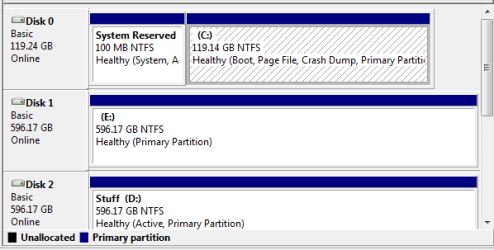
I plan to install Windows 7 on a shiny new Partiot Torqx 128GB SSD. I have used this method in the past for new disks. I see no reason why it wouldn't work on an SSD but am I right? The method just uses diskpart (cmd prompt) Would it be just as good to plug it into my working system and create an active partition then install form there and delete the old installation on the other disk?
Here is the method that I know works fine.
During Setup, if you create a new partition on a clean HDD (no partitions), or delete all partitions and then create a new one - from the Partition screen in Setup, Win7 will create the 100MB boot partition, and you can't stop it/cancel it. If you want to install Win7 to a clean HDD, but don't want the boot partition do this:
At the first setup screen (Language, Keyboard, etc.) press SHIFT+F10. This will open a command prompt window. Enter the following diskpart commands to create a partition.
- Diskpart
- List disk
(this command is important. It will show you what disk drives you have. Most likely your hard drive will be will be Disk 0, but you need to check it first.)
- select disk 0
- clean
- create partition primary size=60000
(this creates a partition 60GB in size. If you want to use the whole hard drive, just leave off the size=number)
- select partition 1
- active
- format fs=ntfs quick
Type Exit to leave Diskpart. Type Exit to close the command prompt. Now continue with the install. When you get to the partition screen, highlight the partition you just created and click Next. Windows will install to the partition you created and not create the 100MB boot partition. Instead, you will see a C:\Boot folder when the install is finished (like Vista has).
Here is the method that I know works fine.
During Setup, if you create a new partition on a clean HDD (no partitions), or delete all partitions and then create a new one - from the Partition screen in Setup, Win7 will create the 100MB boot partition, and you can't stop it/cancel it. If you want to install Win7 to a clean HDD, but don't want the boot partition do this:
At the first setup screen (Language, Keyboard, etc.) press SHIFT+F10. This will open a command prompt window. Enter the following diskpart commands to create a partition.
- Diskpart
- List disk
(this command is important. It will show you what disk drives you have. Most likely your hard drive will be will be Disk 0, but you need to check it first.)
- select disk 0
- clean
- create partition primary size=60000
(this creates a partition 60GB in size. If you want to use the whole hard drive, just leave off the size=number)
- select partition 1
- active
- format fs=ntfs quick
Type Exit to leave Diskpart. Type Exit to close the command prompt. Now continue with the install. When you get to the partition screen, highlight the partition you just created and click Next. Windows will install to the partition you created and not create the 100MB boot partition. Instead, you will see a C:\Boot folder when the install is finished (like Vista has).
My Computer
At a glance
Windows 7 Professional x64Intel Core i7 8604GB DDR3 Mushkin 1600Mhz @ 7-8-7-20MSI GTS250 1GB DDR3 Twin Frozr
- Computer Manufacturer/Model Number
- Keeps changing - (Custom)
- OS
- Windows 7 Professional x64
- CPU
- Intel Core i7 860
- Motherboard
- Gigabyte GA-P55-UD4P
- Memory
- 4GB DDR3 Mushkin 1600Mhz @ 7-8-7-20
- Graphics Card(s)
- MSI GTS250 1GB DDR3 Twin Frozr
- Sound Card
- Onboard realtek
- Monitor(s) Displays
- Samsung SyncMaster 24" P2450 + Samsung 20" 2033
- Screen Resolution
- 1920 X 1080 and 1600 X 900 (#2 system 1440 X 900)
- Hard Drives
- Patriot Inferno 120GB SSD + 3 WD Blue 640GB drives
- PSU
- Corsair 750 HX Modular
- Case
- Lancool PC-K62
- Cooling
- Cooler Master TX3 CPU cooler and 4-140mm and 1-120mm case
- Keyboard
- Gigabyte USB keyboard
- Mouse
- Microsoft wireless laser mouse 5000
- Internet Speed
- 7 Mb down 1.5 up
- Other Info
- System #2: AMD Phenom II X6 1055T (Freezer 7 Pro cooler) - Gigabyte 880GMA-UD2H - WD 500GB Black - 9500GT (1GB) 500W OCZ modular PSU - Antec 200 case. System #3 (LapTop) Core 2 Duo T6670 - 320GB 7200RPM HD - 4GB DDR3 RAM.