Installing Win 7 on 2nd hard drive

ViperGuy

New member
Local time
3:24 PM
Messages
7
I have XP MCE now and just bought a new sata hard drive and want to isntall Win 7 Pro on it. I read the tutorial but am still confused. Can I just remove my current hard drive with XP on it, install the new hard drive and then install win 7 on it? Then when Win 7 is installed reinstall my old XP drive?

I built my PC its a
Core 2 Duo
4 gigs of ram,
400 GB sata drive with XP
200 GB IDE drive for storage
IDE DVD rom drive
sata DVD burner
new blank 1TB sata drive
 

My Computer

Computer Manufacturer/Model Number
Me =-)
OS
Win 7 Pro 64bit + XP MCE 32bit
CPU
Intel 2.4 C2D
Motherboard
EVGA 680i
Memory
4 x 1GB Corsair XMS2 DDR2 800
Graphics Card(s)
XFX 7900GS
Sound Card
integrated
Monitor(s) Displays
19" Widscreen
Screen Resolution
1440 x 900
Hard Drives
1TB sata WD Black
400 sata Seagate
200 IDE Seagate
PSU
600 watt Ultra X-Finity
Case
XG Red Viper
Cooling
Zalman 9700
Keyboard
Saitek Eclipse II
Mouse
Logitech Wireless G7
Internet Speed
20Mbps Cable
Other Info
Built Jan 2007
Yes, this is actually the best way to dual boot since it leaves your HD's independent. You then boot via the BIOS boot order and/or using the key given for Boot Menu on first bootup screen.

If you leave the XP drive plugged, Win 7 will configure a Windows managed dual boot which is harder to extricate XP later since it will hold the MBR for both.
 
Welcome to SF! Viper Guy

There's also another option not mentioned of simply switching sata ports for both drives leaving the new drive as HD0. Once 7 is installed on the new drive XP will be seen as "previous version of Windows" on the boot options screen once added into the 7 boot loader automatically. Both drives still remain independently bootable on their own and the XP entry is easy to remove from the 7 BCD store later if needed.

The guide here shows two methods of installing 7 before or after XP is on. Method One suits your needs there. http://www.sevenforums.com/tutorials/8057-dual-boot-installation-windows-7-xp.html
 

My Computers

System One System Two

  • Computer type
    PC/Desktop
    Computer Manufacturer/Model Number
    Custom builds = 2
    OS
    W7 Ultimate x64/W10 Pro x64/W11 Pro Triple Boot - Main PC W7 Remote PC Micro ATX W7 Pro x64/W11 Pro
    CPU
    AMD Phenom II X4 975 Deneb 3.6ghz - 965 2nd remote pc
    Motherboard
    Gigabyte GA-790XTA-UD4-Gigabyte GA-880GM-D2H remote pc
    Memory
    Kingston Hyper X DDR3 1600 1.5v 16gb - Hyper X Fury 8gb 2nd
    Graphics Card(s)
    MSI HD Radeon 5750 1gb - MSI HD Radeon 6450 on mini tower
    Sound Card
    Creative Labs X-Fi Xtreme Audio P - Realtek onooard 2nd case
    Monitor(s) Displays
    ASUS VW199T-P 19" HP 2082a Main-HP 2082a 20" remote pc
    Screen Resolution
    Asus 1440x900 - HP 1600x900
    Hard Drives
    WD Black 1TB HD per OS W7, W10, and pending W11 presently on 500gb OS Drive - Pending Triple 1TB HDs for Spanned Storage/backup volume
    Single 2TB external USB enclosure, single 1TB System 7 Host/Boot drive, Pending 8TB external HD for system image b
    PSU
    Corsair 750TX - primary / Corsair CX600 - second
    Case
    Antec 900-2 - SSD compatible / NZXT Vulcan mini tower
    Cooling
    Zalman CNPS9900A
    Keyboard
    AZIO L70 Backlit Letters Gaming - ONN Cordless/USB
    Mouse
    MSI DS200 Programmable, Logitech Cordless
    Internet Speed
    30mbps upgrade - primary hard wired - mini tower usb WiFi
    Antivirus
    GFI VIPRE Internet Security 2014 on W7 2016 beta on W10,
    Browser
    Cyberfox, WaterFox 64bit FF variants, FireFox x64, Pale Moon
    Other Info
    Accomdata fan cooled usb 2.0 PIDE/Sata II, III external enclosure.
    Sambient usb/eSata PATA/Sata II, III external enclosure.
  • Computer type
    PC/Desktop
    System Manufacturer/Model Number
    CUSTOM ASSEMBLY
    OS
    W7 Pro x64/W11 Pro
    CPU
    AMD Deneb 3.6ghz - 965
    Motherboard
    Gigabyte GA-880GM-D2H remote pc
    Memory
    Kingston Hyper X Fury 8gb
    Graphics Card(s)
    MSI HD Radeon 6450 DVI Output
    Sound Card
    Realtek onooard Creative or Other separate PENDING
    Monitor(s) Displays
    VIZIO 32" LCD TV Separate LCD Pending
    Screen Resolution
    1600x1080
    Hard Drives
    WD 500GB OS Host/Boot WD Green 1TB Storage/Backup
    PSU
    Corsair 600W - THERMALTAKE 600W spare case
    Case
    NZXT Vulcan mini tower
    Cooling
    Twin 120mm Top Fans - 240mm Side Cover
    Keyboard
    ONN Cordless/USB Logitech Cordless
    Mouse
    ONN USB/Cordless - Logitech Cordless
    Internet Speed
    DSL 5G
    Browser
    MS Edge, FireFox, WaterFox x64, FireFox Nightly
    Other Info
    OS Testing-Remote Access to Main TeamViewer
Thanks for the fast replies.

So I can just plug the new hd in the sata port of the old hd and the old hd in the next open sata port put in the Win 7 disc and install it?

I built my own system but im still not familiar with some of the more technical stuff.:confused:
 

My Computer

Computer Manufacturer/Model Number
Me =-)
OS
Win 7 Pro 64bit + XP MCE 32bit
CPU
Intel 2.4 C2D
Motherboard
EVGA 680i
Memory
4 x 1GB Corsair XMS2 DDR2 800
Graphics Card(s)
XFX 7900GS
Sound Card
integrated
Monitor(s) Displays
19" Widscreen
Screen Resolution
1440 x 900
Hard Drives
1TB sata WD Black
400 sata Seagate
200 IDE Seagate
PSU
600 watt Ultra X-Finity
Case
XG Red Viper
Cooling
Zalman 9700
Keyboard
Saitek Eclipse II
Mouse
Logitech Wireless G7
Internet Speed
20Mbps Cable
Other Info
Built Jan 2007
I would go with what gregrocker says - make an independent installation. No need to uninstall your current disk, just unplug the power cable. Then install Win7 on your new disk, replug the XP disk and choose your boot sequence via the BIOS. That way you don't have to mess around with MBR's - yukky stuff.
 

My Computer

Computer Manufacturer/Model Number
HP, Dell, Gateway, Toshiba - 4 laptops and 2 desktops
OS
Vista, Windows7, Mint Mate, Zorin, Windows 8
CPU
from 1.6GHz Duo to i7
Monitor(s) Displays
2x HP w2207
Hard Drives
5x HDD, 7x SSD, 12x Externals
Keyboard
with trackball - no mices
Mouse
Trackball mice
Internet Speed
DSL 6000
I would go with what gregrocker says - make an independent installation. No need to uninstall your current disk, just unplug the power cable. Then install Win7 on your new disk, replug the XP disk and choose your boot sequence via the BIOS. That way you don't have to mess around with MBR's - yukky stuff.

So when I plug the XP drive back in will Win 7 see it?

Thanks again :cool:
 

My Computer

Computer Manufacturer/Model Number
Me =-)
OS
Win 7 Pro 64bit + XP MCE 32bit
CPU
Intel 2.4 C2D
Motherboard
EVGA 680i
Memory
4 x 1GB Corsair XMS2 DDR2 800
Graphics Card(s)
XFX 7900GS
Sound Card
integrated
Monitor(s) Displays
19" Widscreen
Screen Resolution
1440 x 900
Hard Drives
1TB sata WD Black
400 sata Seagate
200 IDE Seagate
PSU
600 watt Ultra X-Finity
Case
XG Red Viper
Cooling
Zalman 9700
Keyboard
Saitek Eclipse II
Mouse
Logitech Wireless G7
Internet Speed
20Mbps Cable
Other Info
Built Jan 2007
Switching the data cables are easy enough since the Windows installer always looks for the first drive on the system to place the boot files and create mbr entries there. Once those are swapped you will still need to take a trip into the bios boot section to make sure the new drive is set as the first in order or the default boot device depending on which bios version is used.

Once 7 is on you can set which version will be the default OS as well. Being 7 is newer you may want to leave 7 set as the default until getting familiar with it however. The XP entry seen on the startup screen can also be renamed with the help of a small 3rd party tool as well as setting the amount of time the boot options will be displayed onscreen before proceeding into the default OS.

Until the next version 2.0 of the EasyBCD tool is available in order to preserve the new look on the 7 boot splash screen a small run from folder tool called BellaVista will work for renaming "previous version" to "XP Home or Pro" with the set description option. System Tools - BellaVista

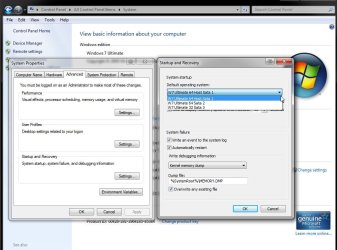
For setting which OS is default if you elect to have XP set as default you can use this as well or proceed into the boot tab in the msconfig utility there. The Startup & Recovery section found in Control Panel>System>Advanced settings.
 

Attachments

  • Set Default OS in Startup Recovery.jpg
    Set Default OS in Startup Recovery.jpg
    89.7 KB · Views: 22

My Computers

System One System Two

  • Computer type
    PC/Desktop
    Computer Manufacturer/Model Number
    Custom builds = 2
    OS
    W7 Ultimate x64/W10 Pro x64/W11 Pro Triple Boot - Main PC W7 Remote PC Micro ATX W7 Pro x64/W11 Pro
    CPU
    AMD Phenom II X4 975 Deneb 3.6ghz - 965 2nd remote pc
    Motherboard
    Gigabyte GA-790XTA-UD4-Gigabyte GA-880GM-D2H remote pc
    Memory
    Kingston Hyper X DDR3 1600 1.5v 16gb - Hyper X Fury 8gb 2nd
    Graphics Card(s)
    MSI HD Radeon 5750 1gb - MSI HD Radeon 6450 on mini tower
    Sound Card
    Creative Labs X-Fi Xtreme Audio P - Realtek onooard 2nd case
    Monitor(s) Displays
    ASUS VW199T-P 19" HP 2082a Main-HP 2082a 20" remote pc
    Screen Resolution
    Asus 1440x900 - HP 1600x900
    Hard Drives
    WD Black 1TB HD per OS W7, W10, and pending W11 presently on 500gb OS Drive - Pending Triple 1TB HDs for Spanned Storage/backup volume
    Single 2TB external USB enclosure, single 1TB System 7 Host/Boot drive, Pending 8TB external HD for system image b
    PSU
    Corsair 750TX - primary / Corsair CX600 - second
    Case
    Antec 900-2 - SSD compatible / NZXT Vulcan mini tower
    Cooling
    Zalman CNPS9900A
    Keyboard
    AZIO L70 Backlit Letters Gaming - ONN Cordless/USB
    Mouse
    MSI DS200 Programmable, Logitech Cordless
    Internet Speed
    30mbps upgrade - primary hard wired - mini tower usb WiFi
    Antivirus
    GFI VIPRE Internet Security 2014 on W7 2016 beta on W10,
    Browser
    Cyberfox, WaterFox 64bit FF variants, FireFox x64, Pale Moon
    Other Info
    Accomdata fan cooled usb 2.0 PIDE/Sata II, III external enclosure.
    Sambient usb/eSata PATA/Sata II, III external enclosure.
  • Computer type
    PC/Desktop
    System Manufacturer/Model Number
    CUSTOM ASSEMBLY
    OS
    W7 Pro x64/W11 Pro
    CPU
    AMD Deneb 3.6ghz - 965
    Motherboard
    Gigabyte GA-880GM-D2H remote pc
    Memory
    Kingston Hyper X Fury 8gb
    Graphics Card(s)
    MSI HD Radeon 6450 DVI Output
    Sound Card
    Realtek onooard Creative or Other separate PENDING
    Monitor(s) Displays
    VIZIO 32" LCD TV Separate LCD Pending
    Screen Resolution
    1600x1080
    Hard Drives
    WD 500GB OS Host/Boot WD Green 1TB Storage/Backup
    PSU
    Corsair 600W - THERMALTAKE 600W spare case
    Case
    NZXT Vulcan mini tower
    Cooling
    Twin 120mm Top Fans - 240mm Side Cover
    Keyboard
    ONN Cordless/USB Logitech Cordless
    Mouse
    ONN USB/Cordless - Logitech Cordless
    Internet Speed
    DSL 5G
    Browser
    MS Edge, FireFox, WaterFox x64, FireFox Nightly
    Other Info
    OS Testing-Remote Access to Main TeamViewer
I would go with what gregrocker says - make an independent installation. No need to uninstall your current disk, just unplug the power cable. Then install Win7 on your new disk, replug the XP disk and choose your boot sequence via the BIOS. That way you don't have to mess around with MBR's - yukky stuff.

So when I plug the XP drive back in will Win 7 see it?

Thanks again :cool:

Yes - even better. If you create a seperate partition for your data from the XP system, you can include those folders (documents, pictures, music, etc) into the Win7 libraries and you don't have to worry about syncing your data.
 

My Computer

Computer Manufacturer/Model Number
HP, Dell, Gateway, Toshiba - 4 laptops and 2 desktops
OS
Vista, Windows7, Mint Mate, Zorin, Windows 8
CPU
from 1.6GHz Duo to i7
Monitor(s) Displays
2x HP w2207
Hard Drives
5x HDD, 7x SSD, 12x Externals
Keyboard
with trackball - no mices
Mouse
Trackball mice
Internet Speed
DSL 6000
Thanks for all the detailed help will try this all tomorrow.

One last question should I partition the new 1TB drive or just leave it whole? My current 400 GB XP drive isn't partitioned.

Thanks again.
 

My Computer

Computer Manufacturer/Model Number
Me =-)
OS
Win 7 Pro 64bit + XP MCE 32bit
CPU
Intel 2.4 C2D
Motherboard
EVGA 680i
Memory
4 x 1GB Corsair XMS2 DDR2 800
Graphics Card(s)
XFX 7900GS
Sound Card
integrated
Monitor(s) Displays
19" Widscreen
Screen Resolution
1440 x 900
Hard Drives
1TB sata WD Black
400 sata Seagate
200 IDE Seagate
PSU
600 watt Ultra X-Finity
Case
XG Red Viper
Cooling
Zalman 9700
Keyboard
Saitek Eclipse II
Mouse
Logitech Wireless G7
Internet Speed
20Mbps Cable
Other Info
Built Jan 2007
I would partition it. If you leave it as one partition, you may later have trouble to shrink it the way you like. It is always easier to delete a partition and add it to the one that's to the left of it. Depending on your needs, I would make 3 or 4 partitions. If you don't know yet what you are going to put in, make it 4 times 250GBs.
And as I suggested earlier, think about an independent data partition to where you can move all your current XP data. That can be on either disk - on the XP disk though only if you can shrink the 400GB enough to have sufficient space for now and later.
 

My Computer

Computer Manufacturer/Model Number
HP, Dell, Gateway, Toshiba - 4 laptops and 2 desktops
OS
Vista, Windows7, Mint Mate, Zorin, Windows 8
CPU
from 1.6GHz Duo to i7
Monitor(s) Displays
2x HP w2207
Hard Drives
5x HDD, 7x SSD, 12x Externals
Keyboard
with trackball - no mices
Mouse
Trackball mice
Internet Speed
DSL 6000
That will depend mainly on how you plan things out. Once you have run 7 for some time you will likely want to dump XP entirely at some point and may wish the 1tb was simply added on for storage depending on how much data and files you store locally on drives. Here the new drive for the 64bit 7 is a 1tb model with a single larger primary since I already have a good amount of storage space on separate drives.

You could even decide to shrink the XP primary down and see a new second primary for 7 there as well. With several drives in here the choice was simply using each drive for a single large primary either for OS or storage. That saves from running into the "out of memory" error you see when filling up a small primary when spliting a drive up.
 

My Computers

System One System Two

  • Computer type
    PC/Desktop
    Computer Manufacturer/Model Number
    Custom builds = 2
    OS
    W7 Ultimate x64/W10 Pro x64/W11 Pro Triple Boot - Main PC W7 Remote PC Micro ATX W7 Pro x64/W11 Pro
    CPU
    AMD Phenom II X4 975 Deneb 3.6ghz - 965 2nd remote pc
    Motherboard
    Gigabyte GA-790XTA-UD4-Gigabyte GA-880GM-D2H remote pc
    Memory
    Kingston Hyper X DDR3 1600 1.5v 16gb - Hyper X Fury 8gb 2nd
    Graphics Card(s)
    MSI HD Radeon 5750 1gb - MSI HD Radeon 6450 on mini tower
    Sound Card
    Creative Labs X-Fi Xtreme Audio P - Realtek onooard 2nd case
    Monitor(s) Displays
    ASUS VW199T-P 19" HP 2082a Main-HP 2082a 20" remote pc
    Screen Resolution
    Asus 1440x900 - HP 1600x900
    Hard Drives
    WD Black 1TB HD per OS W7, W10, and pending W11 presently on 500gb OS Drive - Pending Triple 1TB HDs for Spanned Storage/backup volume
    Single 2TB external USB enclosure, single 1TB System 7 Host/Boot drive, Pending 8TB external HD for system image b
    PSU
    Corsair 750TX - primary / Corsair CX600 - second
    Case
    Antec 900-2 - SSD compatible / NZXT Vulcan mini tower
    Cooling
    Zalman CNPS9900A
    Keyboard
    AZIO L70 Backlit Letters Gaming - ONN Cordless/USB
    Mouse
    MSI DS200 Programmable, Logitech Cordless
    Internet Speed
    30mbps upgrade - primary hard wired - mini tower usb WiFi
    Antivirus
    GFI VIPRE Internet Security 2014 on W7 2016 beta on W10,
    Browser
    Cyberfox, WaterFox 64bit FF variants, FireFox x64, Pale Moon
    Other Info
    Accomdata fan cooled usb 2.0 PIDE/Sata II, III external enclosure.
    Sambient usb/eSata PATA/Sata II, III external enclosure.
  • Computer type
    PC/Desktop
    System Manufacturer/Model Number
    CUSTOM ASSEMBLY
    OS
    W7 Pro x64/W11 Pro
    CPU
    AMD Deneb 3.6ghz - 965
    Motherboard
    Gigabyte GA-880GM-D2H remote pc
    Memory
    Kingston Hyper X Fury 8gb
    Graphics Card(s)
    MSI HD Radeon 6450 DVI Output
    Sound Card
    Realtek onooard Creative or Other separate PENDING
    Monitor(s) Displays
    VIZIO 32" LCD TV Separate LCD Pending
    Screen Resolution
    1600x1080
    Hard Drives
    WD 500GB OS Host/Boot WD Green 1TB Storage/Backup
    PSU
    Corsair 600W - THERMALTAKE 600W spare case
    Case
    NZXT Vulcan mini tower
    Cooling
    Twin 120mm Top Fans - 240mm Side Cover
    Keyboard
    ONN Cordless/USB Logitech Cordless
    Mouse
    ONN USB/Cordless - Logitech Cordless
    Internet Speed
    DSL 5G
    Browser
    MS Edge, FireFox, WaterFox x64, FireFox Nightly
    Other Info
    OS Testing-Remote Access to Main TeamViewer
Installed 7 today, it was easy but I had one hiccup. I disconnected my XP drive and installed my new hard drive then went to install Win 7 and my mobo throws a code! Nothing showed up on my screen and I couldn't get into the BIOS, luckily I have another PC and looked up the code online. It was my ram so I uninstalled 2 sticks and restarted then everything went smoothly.

Only took 20 minutes to install and download all the updates. :)
It looks pretty and is fast but it uses more ram then XP.

Hopefully this is my last question. I cant dual boot, I can see the XP hard drive and all the files on it what do I do next?
 

My Computer

Computer Manufacturer/Model Number
Me =-)
OS
Win 7 Pro 64bit + XP MCE 32bit
CPU
Intel 2.4 C2D
Motherboard
EVGA 680i
Memory
4 x 1GB Corsair XMS2 DDR2 800
Graphics Card(s)
XFX 7900GS
Sound Card
integrated
Monitor(s) Displays
19" Widscreen
Screen Resolution
1440 x 900
Hard Drives
1TB sata WD Black
400 sata Seagate
200 IDE Seagate
PSU
600 watt Ultra X-Finity
Case
XG Red Viper
Cooling
Zalman 9700
Keyboard
Saitek Eclipse II
Mouse
Logitech Wireless G7
Internet Speed
20Mbps Cable
Other Info
Built Jan 2007
If you kept XP unplugged during Win7 installation it should be now bootable via the BIOS shortcut key given on your first bootup screen for Boot Menu.

This is a better way to Dual Boot if you can configure it because the drives remain independent and can come and go as you please. Win7 boots as default OS, or you can choose XP using the Boot Menu key.

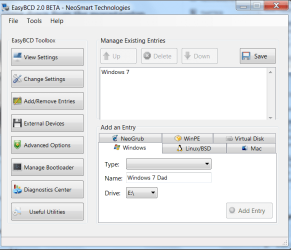
If not, use EasyBCD 2.0 to configure a Windows Dual Boot which makes the drives interdependent and harder to extricate. Add XP on the Add/Remove tab by Type and Name, accepting prompt to add boot files, it will fill in drive letter, click Add OS. Then highlight new XP listing above, and Save.
 

Attachments

  • Capture2.PNG
    Capture2.PNG
    29.7 KB · Views: 6
Last edited:
You can have independently bootable drives as well as having one set as default with options to boot into the installations on the other drives with the EasyBCD program. The present second sata was originally a stand alone drive until the startup repair tool made that a recovered installation when the new drive's mbr had an oops! That wasn't the preferred way to add that in for sure! :D

The F8 option here is used mainly for booting off a live disk or 7 dvd when performing an install rather then going back and forth into the bios to reset the hard drive as first all over. That option also is used for live cds or booting from a flash drive. For ease of a dual boot while still keeping each drive as a stand alone you simply add the new entry into the default drive's boot loader there.
 

My Computers

System One System Two

  • Computer type
    PC/Desktop
    Computer Manufacturer/Model Number
    Custom builds = 2
    OS
    W7 Ultimate x64/W10 Pro x64/W11 Pro Triple Boot - Main PC W7 Remote PC Micro ATX W7 Pro x64/W11 Pro
    CPU
    AMD Phenom II X4 975 Deneb 3.6ghz - 965 2nd remote pc
    Motherboard
    Gigabyte GA-790XTA-UD4-Gigabyte GA-880GM-D2H remote pc
    Memory
    Kingston Hyper X DDR3 1600 1.5v 16gb - Hyper X Fury 8gb 2nd
    Graphics Card(s)
    MSI HD Radeon 5750 1gb - MSI HD Radeon 6450 on mini tower
    Sound Card
    Creative Labs X-Fi Xtreme Audio P - Realtek onooard 2nd case
    Monitor(s) Displays
    ASUS VW199T-P 19" HP 2082a Main-HP 2082a 20" remote pc
    Screen Resolution
    Asus 1440x900 - HP 1600x900
    Hard Drives
    WD Black 1TB HD per OS W7, W10, and pending W11 presently on 500gb OS Drive - Pending Triple 1TB HDs for Spanned Storage/backup volume
    Single 2TB external USB enclosure, single 1TB System 7 Host/Boot drive, Pending 8TB external HD for system image b
    PSU
    Corsair 750TX - primary / Corsair CX600 - second
    Case
    Antec 900-2 - SSD compatible / NZXT Vulcan mini tower
    Cooling
    Zalman CNPS9900A
    Keyboard
    AZIO L70 Backlit Letters Gaming - ONN Cordless/USB
    Mouse
    MSI DS200 Programmable, Logitech Cordless
    Internet Speed
    30mbps upgrade - primary hard wired - mini tower usb WiFi
    Antivirus
    GFI VIPRE Internet Security 2014 on W7 2016 beta on W10,
    Browser
    Cyberfox, WaterFox 64bit FF variants, FireFox x64, Pale Moon
    Other Info
    Accomdata fan cooled usb 2.0 PIDE/Sata II, III external enclosure.
    Sambient usb/eSata PATA/Sata II, III external enclosure.
  • Computer type
    PC/Desktop
    System Manufacturer/Model Number
    CUSTOM ASSEMBLY
    OS
    W7 Pro x64/W11 Pro
    CPU
    AMD Deneb 3.6ghz - 965
    Motherboard
    Gigabyte GA-880GM-D2H remote pc
    Memory
    Kingston Hyper X Fury 8gb
    Graphics Card(s)
    MSI HD Radeon 6450 DVI Output
    Sound Card
    Realtek onooard Creative or Other separate PENDING
    Monitor(s) Displays
    VIZIO 32" LCD TV Separate LCD Pending
    Screen Resolution
    1600x1080
    Hard Drives
    WD 500GB OS Host/Boot WD Green 1TB Storage/Backup
    PSU
    Corsair 600W - THERMALTAKE 600W spare case
    Case
    NZXT Vulcan mini tower
    Cooling
    Twin 120mm Top Fans - 240mm Side Cover
    Keyboard
    ONN Cordless/USB Logitech Cordless
    Mouse
    ONN USB/Cordless - Logitech Cordless
    Internet Speed
    DSL 5G
    Browser
    MS Edge, FireFox, WaterFox x64, FireFox Nightly
    Other Info
    OS Testing-Remote Access to Main TeamViewer
Back
Top