Installing Windows 7 from Windows 8

adriangg

New member
Local time
7:04 PM
Messages
5
Hello,

I am trying to install Windows 7 back on my Lenevo laptop following the process:

I installed Windows 7 from an online site called "Dreamspark" which is available to me as a student at my school. The file is an ISO file and after I downloaded it I ran the Setup up, clicked on "Install Now", then on "Go online to get the latest updates for installation (recommended)."

However I get the error:
"Windows 7 error windows could not update the installation files. to install windows, close Setup and restart the installation. Error code: 0x0".

Now if I don't click on the option to get the latest updates...and instead just click on install, and select the partition in the C Drive I get the following:
A prompt telling me it's "Copying Windows Files", "expanding windows files", and it restarts the laptop. When booting up again, the Boot manager shows up but starts up Windows 7 automatically. I see the "Starting Windows" logo but then a blue screen comes up saying :

"Check to be sure you have adequate disk space. If a driver is identified in the Stop message, disable the driver or check with the manufacturer for driver updates. Check with your hardware vendor from any BIOS updates. Disable BIOS memory options such as caching or shadowing.... "

Does anyone know how I can work around this? I already backed up all the files from the laptop and just want to install back Windows 7. Thank you everyone!
 
Last edited:

My Computer

OS
Windows 8 64bit
Hi,

I may have misunderstood you, but it sound like you are trying to run the installer from within Windows 8? You can't do that.

You have to write the Windows 7 ISO to external media (DVD or USB) using this:

Microsoft Store Online

Then boot from that media and perform the installation. Are you performing a UEFI or MBR installation? Extra steps may be needed.

Regards,
Golden
 

My Computer

Computer type
PC/Desktop
Computer Manufacturer/Model Number
Golden Mk. I.4
OS
Windows 10 Pro x64 ; Xubuntu x64
CPU
Intel i7 860 @ 2.80 GHz O/C'ed to 4.0GHz
Motherboard
Gigabyte P55A-UD3R Rev.1. Award BIOS F13
Memory
16GB Corsair Vengance DDR3 @ 661 MHz Dual Channel (9-9-9-24)
Graphics Card(s)
EVGA NVidia GTX 560 1024MB
Sound Card
Realtek Integrated
Monitor(s) Displays
Dual Samsung SyncMaster 2494HS
Screen Resolution
1920*1080 and 1920*1080
Hard Drives
1*Samsung 840 EVO 120GB SSD;
1*OCZ Vertex 2 60GB SSD;
2*Samsung F3 SpinPoint 1TB in RAID0;
1*Samsung F1 SpinPoint 1TB;
2*Western Digital 1TB External USB 3.0
1*Western Digital 500GB External USB 3.0
1*Seagate 500GB External USB 2.0
PSU
Thermaltake ToughPower QFan 750W
Case
Thermaltake Element S VK60001W2Z
Cooling
Corsair H60 Water Cooling, 2*230mm and 2*80mm case fans
Keyboard
Logitech G110
Mouse
Logitech MX518
OK, I see you updated your post with more information. You need to confirm whether this is a UEFI or MBR installation?
 

My Computer

Computer type
PC/Desktop
Computer Manufacturer/Model Number
Golden Mk. I.4
OS
Windows 10 Pro x64 ; Xubuntu x64
CPU
Intel i7 860 @ 2.80 GHz O/C'ed to 4.0GHz
Motherboard
Gigabyte P55A-UD3R Rev.1. Award BIOS F13
Memory
16GB Corsair Vengance DDR3 @ 661 MHz Dual Channel (9-9-9-24)
Graphics Card(s)
EVGA NVidia GTX 560 1024MB
Sound Card
Realtek Integrated
Monitor(s) Displays
Dual Samsung SyncMaster 2494HS
Screen Resolution
1920*1080 and 1920*1080
Hard Drives
1*Samsung 840 EVO 120GB SSD;
1*OCZ Vertex 2 60GB SSD;
2*Samsung F3 SpinPoint 1TB in RAID0;
1*Samsung F1 SpinPoint 1TB;
2*Western Digital 1TB External USB 3.0
1*Western Digital 500GB External USB 3.0
1*Seagate 500GB External USB 2.0
PSU
Thermaltake ToughPower QFan 750W
Case
Thermaltake Element S VK60001W2Z
Cooling
Corsair H60 Water Cooling, 2*230mm and 2*80mm case fans
Keyboard
Logitech G110
Mouse
Logitech MX518
So I will need to follow the instruction in the link you provided for a blank USB? Because it makes it seem as if that is for when you are running Windows 7...but I'm running Windows 8.

I pasted the ISO file in an external hardrive that has the back up files but I guess this won't work?

I don't know what installation I am doing... UEFI or MBR installation :(

When I put Windows 8 on this laptop from Windows 7, all I did was run the Set up file in the ISO file and Windows 8 was installed fully. Guess this won't work going back to windows 7. I will follow the instructions in the link you provided and post results.

Thanks.
 

My Computer

OS
Windows 8 64bit
OK. Leta assume MBR for now - write the ISO to USB, then boot from that and install. Be sure to remove all existing partitions during installation.
 

My Computer

Computer type
PC/Desktop
Computer Manufacturer/Model Number
Golden Mk. I.4
OS
Windows 10 Pro x64 ; Xubuntu x64
CPU
Intel i7 860 @ 2.80 GHz O/C'ed to 4.0GHz
Motherboard
Gigabyte P55A-UD3R Rev.1. Award BIOS F13
Memory
16GB Corsair Vengance DDR3 @ 661 MHz Dual Channel (9-9-9-24)
Graphics Card(s)
EVGA NVidia GTX 560 1024MB
Sound Card
Realtek Integrated
Monitor(s) Displays
Dual Samsung SyncMaster 2494HS
Screen Resolution
1920*1080 and 1920*1080
Hard Drives
1*Samsung 840 EVO 120GB SSD;
1*OCZ Vertex 2 60GB SSD;
2*Samsung F3 SpinPoint 1TB in RAID0;
1*Samsung F1 SpinPoint 1TB;
2*Western Digital 1TB External USB 3.0
1*Western Digital 500GB External USB 3.0
1*Seagate 500GB External USB 2.0
PSU
Thermaltake ToughPower QFan 750W
Case
Thermaltake Element S VK60001W2Z
Cooling
Corsair H60 Water Cooling, 2*230mm and 2*80mm case fans
Keyboard
Logitech G110
Mouse
Logitech MX518
I am trying to install Windows 7 back on my Lenevo laptop following the process:

I installed Windows 7 from an online site called "Dreamspark" which is available to me as a student at my school. The file is an ISO file and after I downloaded it I ran the Setup up, clicked on "Install Now", then on "Go online to get the latest updates for installation (recommended)."

I would say the Lenovo Notebook, start its life with Win XP or Vista.

Therfore making a MBR installation.

Try Cleaning the HD Drive, using the CLEAN command (no need to use CLEAN ALL) in Step One in this tutorial:
http://www.sevenforums.com/tutorials/91339-ssd-hdd-optimize-windows-reinstallation.html
 

My Computer

OS
ME/XP/Vista/Win7
OK. Leta assume MBR for now - write the ISO to USB, then boot from that and install. Be sure to remove all existing partitions during installation.

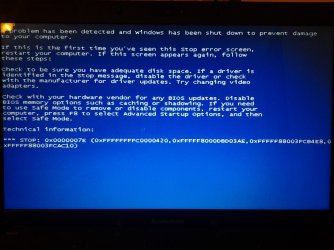
I installed the ISO on my blank USB and booted the laptop using the USB. I got the blue screen:
"A problem has been detected and windows has been shut down to prevent damage to your computer.

....

Check with your hardware vendor for any BIOS updates. Disable BIOS memory options such as cashing or shadowing. If you need to use Safe Mode to remove or disable components, restart your computer, press F8 and Select Advanced Startup options, and then select Safe Mode.

"

I never even saw an option to remove any partitions
 

My Computer

OS
Windows 8 64bit

My Computer

OS
Windows 8 64bit
Obviously you didn't boot the stick as it said Windows was being shut down to prevent damage. It was either in Windows or attempting to boot windows ignoring the stick.
Make sure you're taking the same steps as How to Boot A Computer from CD or DVD - YouTube

Can you burn a DVD? Use ImgBurn at 4x speed. Set DVD first to boot in BIOS setup.

If not confirm your ISO by size or download another, write to flash stick using UltraISO Software To Create Bootable USB Flash Drive which always works when others don't.

Now boot the stick using Lenovo one-time Boot Menu key, or by setting the flash stick to boot first in BIOS setup, under USB, Removable or HD - you may have to expand an entry to see the stick's name to choose it. At first screen, press Shift + F10 to open a Command Line, run Diskpart Clean Command.

Close Command Box, click Install Now to Clean Install Windows 7.
 
Make sure you're taking the same steps as How to Boot A Computer from CD or DVD - YouTube

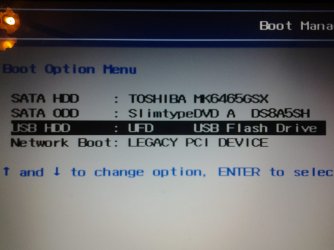
I did this correctly. I used the one-time boot key (F12 on my laptop).

confirm your ISO by size or download another, write to flash stick using UltraISO Software To Create Bootable USB Flash Drive which always works when others don't.

The ISO size is ~3Gigs...which is about right. I wrote it to my flash disk (30gigs, currrently blank) using the link above.

Now boot the stick using Lenovo one-time Boot Menu key, or by setting the flash stick to boot first in BIOS setup, under USB, Removable or HD - you may have to expand an entry to see the stick's name to choose it. At first screen, press Shift + F10 to open a Command Line, run Diskpart Clean Command.

I booted the stick (see picture)... immediately pressed Shift +F10... nothing. So now the Windows 7 logo shows up slightly, but then same error. I attached an image of this error.

I still don't even have opportunity of opening the CMD prompt.
 

Attachments

  • 20130119_003425.jpg
    20130119_003425.jpg
    152.8 KB · Views: 2
  • 20130119_003459.jpg
    20130119_003459.jpg
    229.7 KB · Views: 4

My Computer

OS
Windows 8 64bit
The BSOD is very specific - is there an update for the BIOS available?
 

My Computer

Computer type
PC/Desktop
Computer Manufacturer/Model Number
Golden Mk. I.4
OS
Windows 10 Pro x64 ; Xubuntu x64
CPU
Intel i7 860 @ 2.80 GHz O/C'ed to 4.0GHz
Motherboard
Gigabyte P55A-UD3R Rev.1. Award BIOS F13
Memory
16GB Corsair Vengance DDR3 @ 661 MHz Dual Channel (9-9-9-24)
Graphics Card(s)
EVGA NVidia GTX 560 1024MB
Sound Card
Realtek Integrated
Monitor(s) Displays
Dual Samsung SyncMaster 2494HS
Screen Resolution
1920*1080 and 1920*1080
Hard Drives
1*Samsung 840 EVO 120GB SSD;
1*OCZ Vertex 2 60GB SSD;
2*Samsung F3 SpinPoint 1TB in RAID0;
1*Samsung F1 SpinPoint 1TB;
2*Western Digital 1TB External USB 3.0
1*Western Digital 500GB External USB 3.0
1*Seagate 500GB External USB 2.0
PSU
Thermaltake ToughPower QFan 750W
Case
Thermaltake Element S VK60001W2Z
Cooling
Corsair H60 Water Cooling, 2*230mm and 2*80mm case fans
Keyboard
Logitech G110
Mouse
Logitech MX518
It also said that "Windows was shut down to prevent damage" when he was supposedly booting the installer flash stick, so I don't know how reliable the rest of the error is. But it can't hurt to check for a BIOS update.

What it meant to me is that he wasn't booting the stick, or it's not bootable. Windows was either started already and crashed or bypassed the stick so HD was trying to boot.

But I'm also very sleepy so will leave it in your hands, Colin. :sleepy: Glad to see you're not jetlagging.
 
Back
Top