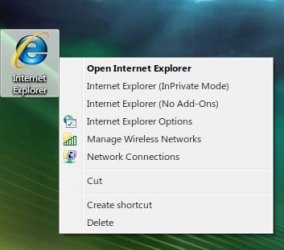
Internet Explorer 8 special shell shortcut

greenjaguar

New member
Local time
5:08 PM
Messages
13
Hi there,

My IE8 special shell shortcut that that provides quick access to internet options is missing from desktop, does anyone knows how to put it there?

I tried to use the method I used with xp and vista but it didn't work..

can someone help me here?
 

My Computer

OS
Windows 7
I've never seen an IE icon on my desktop - just in the taskbar. If IE isn't in there, you can go to IE in the start menu, right click, and select "pin to taskbar".
 

My Computer

Computer Manufacturer/Model Number
Dell XPS 15 L502x
OS
Windows 7 Ultimate x64 SP1
CPU
Core i7-2670QM
Memory
8GB DDR3 PC3-10600
Graphics Card(s)
Intel HD Graphics 3000 + GeForce GT 540M
Screen Resolution
1920x1080
Hard Drives
1TB 5400RPM Seagate
that will create a normal shorcut, thats not what I want :huh:
 

My Computer

OS
Windows 7
Open Control Panel.

Select Internet Options icon.

Drag and drop onto Desktop.
 
that is close Antman, but not quite what I intend here.

this procedure worked with vista and xp but it doesnt work with seven:
  1. Click Start, Run.
  2. Type regedit.exe.
  3. Navigate to the following registry key: HKEY_CURRENT_USER\Software\Microsoft\Windows\CurrentVersion\Explorer\
    HideDesktopIcons\NewStartPanel
    (wrapped for easy reading)
    Note: If HideDesktopIcons and NewStartPanel do not exist, create new registry keys for them.
  4. In the right hand pane, double-click {871C5380-42A0-1069-A2EA-08002B30309D} key. If the registry value name does not exist, create a new DWORD value and name it as {871C5380-42A0-1069-A2EA-08002B30309D}
  5. Enter dword value data as 0 to enable the Internet Explorer icon on the Desktop.
 

My Computer

OS
Windows 7
that is close Antman, but not quite what I intend here.


What you intend and what you asked appear to be two different things.

"My IE8 special shell shortcut that that provides quick access to internet options is missing from desktop, does anyone knows how to put it there?"

You decline a shortcut to the app, you decline a shortcut to options, you have proven that the former method no longer works.

The taskbar is your option.
 
I just want the old shortcut back, you do know what iam talking about right?

the ie shortcut with the internet options in the shell.

I guess that is not possible anymore

thanks anyway
 

My Computer

OS
Windows 7
I just want the old shortcut back, you do know what iam talking about right?

the ie shortcut with the internet options in the shell.

I guess that is not possible anymore

thanks anyway

Many times what we want is dependent on what is possible ... :p
 

My Computer

Computer type
PC/Desktop
Computer Manufacturer/Model Number
LENOVO K450 @3.0GHZ
OS
64-bit Windows 8.1 Pro
CPU
Core(TM) i5 CPU 4330 Haswell @ 3.20GHz
Motherboard
LENOVO
Memory
12.00 GB
Graphics Card(s)
Intel(R) HD Graphics
Sound Card
Intel HD integtrated
Monitor(s) Displays
HP 25' ISP Monitor
Screen Resolution
1900/1020
Hard Drives
(1) ST1000DM003-1CH162 (2) Generic STORAGE DEVICE USB Device (3) Generic STORAGE DEVICE USB Device
Internet Speed
100mb down/10mb up

My Computer

Computer Manufacturer/Model Number
Dell XPS 15 L502x
OS
Windows 7 Ultimate x64 SP1
CPU
Core i7-2670QM
Memory
8GB DDR3 PC3-10600
Graphics Card(s)
Intel HD Graphics 3000 + GeForce GT 540M
Screen Resolution
1920x1080
Hard Drives
1TB 5400RPM Seagate
nothing special pops up ? can we add the internet options here?

what do you mean?
 

My Computer

OS
Windows 7
I just want the old shortcut back, you do know what iam talking about right?

the ie shortcut with the internet options in the shell.

I guess that is not possible anymore

thanks anyway
I understand. I will ask you to understand my response. I spent my time experimenting with my system to prove that my reply would work. I gave you my time and effort - answering the question you specifically asked.

You then told me something I already know. Thank you, I appreciate the reminder.

IE8 in Windows 7 behaves differently in response to market and regulatory pressure and concerns. What you want is no longer available.
 

My Computer

Computer Manufacturer/Model Number
Dell XPS 15 L502x
OS
Windows 7 Ultimate x64 SP1
CPU
Core i7-2670QM
Memory
8GB DDR3 PC3-10600
Graphics Card(s)
Intel HD Graphics 3000 + GeForce GT 540M
Screen Resolution
1920x1080
Hard Drives
1TB 5400RPM Seagate
Adding the following to the registry should give you context menu access to IE options, but I haven't tested it myself:

[HKEY_CLASSES_ROOT\Directory\Background\shell]
@="none"
[HKEY_CLASSES_ROOT\Directory\Background\shell\Change Internet Options]
[HKEY_CLASSES_ROOT\Directory\Background\shell\Change Internet Options\command]
@="control inetcpl.cpl"

More here:
http://www.askvg.com/add-change-sou...-in-windows-vista-and-7-desktop-context-menu/
 

My Computer

OS
Windows7
@ greenjaguar - there might be more applications that allow you to edit jump lists. Just google for "customize jump list".
 

My Computer

Computer Manufacturer/Model Number
Dell XPS 15 L502x
OS
Windows 7 Ultimate x64 SP1
CPU
Core i7-2670QM
Memory
8GB DDR3 PC3-10600
Graphics Card(s)
Intel HD Graphics 3000 + GeForce GT 540M
Screen Resolution
1920x1080
Hard Drives
1TB 5400RPM Seagate
thanks for all your replies, iam gonna try some of your suggestions
 

My Computer

OS
Windows 7
I just want the old shortcut back, you do know what iam talking about right?

the ie shortcut with the internet options in the shell.

I guess that is not possible anymore

thanks anyway

Many times what we want is dependent on what is possible ... :p

The below reg code works for me. I added a couple of other commands to the context menu and added a info tip for the IE icon. You can customize any way you want. One thing that I haven't gotten to work is the hex code for attributes to rename the icon although when I added the reg entries, I did not re-boot to see if it made a difference

Code:
Windows Registry Editor Version 5.00
[HKEY_CLASSES_ROOT\CLSID\{00000000-0000-0000-0000-100000000001}]
@="Internet Explorer"
"InfoTip"="Windows Internet Explorer 8 provides an easier and more secure web browsing experience. Perform quick searches right from the toolbar, custom print your webpages, and discover, manage, and read RSS feeds."
[HKEY_CLASSES_ROOT\CLSID\{00000000-0000-0000-0000-100000000001}\DefaultIcon]
@="C:\\Windows\\System32\\ieframe.dll,-190"
[HKEY_CLASSES_ROOT\CLSID\{00000000-0000-0000-0000-100000000001}\shell]
@=""
[HKEY_CLASSES_ROOT\CLSID\{00000000-0000-0000-0000-100000000001}\shell\IeInPrivate]
@="Internet Explorer (InPrivate Mode)"
[HKEY_CLASSES_ROOT\CLSID\{00000000-0000-0000-0000-100000000001}\shell\IeInPrivate\Command]
@="C:\\Program Files\\Internet Explorer\\iexplore.exe -private"
[HKEY_CLASSES_ROOT\CLSID\{00000000-0000-0000-0000-100000000001}\shell\IeNoAddOns]
@="Internet Explorer (No Add-Ons)"
[HKEY_CLASSES_ROOT\CLSID\{00000000-0000-0000-0000-100000000001}\shell\IeNoAddOns\Command]
@="\"C:\\Program Files\\Internet Explorer\\iexplore.exe\" -extoff"
[HKEY_CLASSES_ROOT\CLSID\{00000000-0000-0000-0000-100000000001}\shell\IeOptions]
@="Internet Explorer Options"
"Icon"="C:\\Windows\\System32\\inetcpl.cpl,-4487"
[HKEY_CLASSES_ROOT\CLSID\{00000000-0000-0000-0000-100000000001}\shell\IeOptions\Command]
@="\"C:\\Windows\\System32\\rundll32.exe\" C:\\Windows\\System32\\shell32.dll,Control_RunDLL C:\\Windows\\System32\\inetcpl.cpl"
[HKEY_CLASSES_ROOT\CLSID\{00000000-0000-0000-0000-100000000001}\shell\ManageWirelessNetworks]
@="Manage Wireless Networks"
"Icon"="C:\\Windows\\System32\\wlanpref.dll,-101"
[HKEY_CLASSES_ROOT\CLSID\{00000000-0000-0000-0000-100000000001}\shell\ManageWirelessNetworks\Command]
@="explorer.exe shell:::{1fa9085f-25a2-489b-85d4-86326eedcd87}"
[HKEY_CLASSES_ROOT\CLSID\{00000000-0000-0000-0000-100000000001}\shell\NetworkConnections]
@="Network Connections"
"Icon"="C:\\Windows\\System32\\ncpa.cpl,-1001"
[HKEY_CLASSES_ROOT\CLSID\{00000000-0000-0000-0000-100000000001}\shell\NetworkConnections\Command]
@="RunDll32.exe shell32.dll,Control_RunDLL ncpa.cpl"
[HKEY_CLASSES_ROOT\CLSID\{00000000-0000-0000-0000-100000000001}\shell\Open]
@="Open Internet Explorer"
[HKEY_CLASSES_ROOT\CLSID\{00000000-0000-0000-0000-100000000001}\shell\Open\Command]
@="\"C:\\Program Files\\Internet Explorer\\iexplore.exe\""

Untitled.jpg

Forgot to mention, edit the code to your liking and save it as IEstatic.reg or whatever you want .reg file extension. Right click it and merge or double click to merge it. After merging, right click desktop and select refresh.
 

My Computer

Computer Manufacturer/Model Number
Averatec 6130HS-20
OS
Windows 7 Professional 32-bit (6.1, Build 7600)
CPU
Intel(R) Pentium(R) 4 3.00 GHz HT
Memory
2.0 GB
Graphics Card(s)
ATI Mobility Radeon 9600 64MB
Sound Card
Realtek AC'97 Audio
Screen Resolution
1280 x 800
Hard Drives
Seagate 96023A 60GB 7200RPM -
Seagate FreeAgentDesktop 250GB
Cooling
20 Inch Box Fan
Mouse
Targus PAWM10 Wireless Optical Laptop Mouse
Back
Top