
How to Turn On or Off AutoComplete in Internet Explorer
Information
AutoComplete (automatic text completion) or inline AutoComplete is a feature that automatically appends the suggested text to the words as you are typing them in the Internet Explorer address bar and open dialog box. It tries to guess and finish what it thinks you are typing for you automatically.
This will show you how to turn AutoComplete on or off in the address bar of Internet Explorer in Vista, Windows 7, and Windows 8.
This will show you how to turn AutoComplete on or off in the address bar of Internet Explorer in Vista, Windows 7, and Windows 8.
EXAMPLE: Internet Explorer "AutoComplete" On and OFF


OPTION ONE
To Turn IE AutoComplete On or Off in Internet Options
OR
2. Open Internet Explorer, click/tap on Tools (Menu bar), and click/tap on Internet Options.
NOTE: In Windows 8, you would open the IE10 desktop version, and not the IE10 Metro (Windows UI) version.
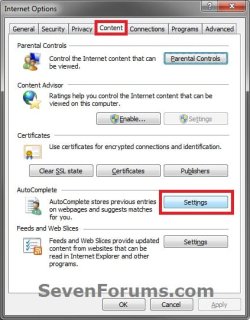
3. Click/tap on the Content tab, click/tap on the Settings button under AutoComplete, and do step 4 or 5 below for what you would like to do. (see screenshot below)
4. To Turn On Internet Explorer AutoComplete
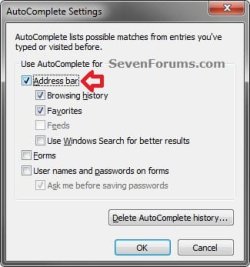
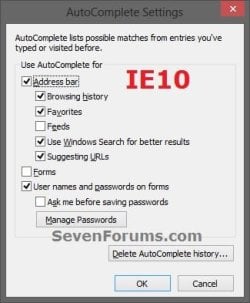
NOTE: This is the default setting. A) Check at least the Address bar and Browsing history box, then click/tap on OK. (see screenshot below)
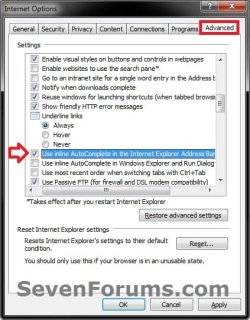
B) Click/tap on the Advanced tab, then under the Browsing section, check the Use inline AutoComplete in the Internet Explorer Address Bar and Open Dialog box. (see screenshot below)
C) Go to step 6.
5. To Turn Off Internet Explorer AutoComplete A) Uncheck the Browsing history box, then click/tap on OK. (see screenshot below step 4A)
:warn:WARNING: If you uncheck the Address bar box, then this will also turn off Auto Suggest in the address bar of Windows Explorer.
B) Click/tap on the Advanced tab, then under the Browsing section, uncheck the Use inline AutoComplete in the Internet Explorer Address Bar and Open Dialog box. (see screenshot below step 4B)
C) Continue on to step 6.
6. Click/tap on OK. (see screenshot below step 4B)
7. If open, close and reopen Internet Explorer to see the changes.
OPTION TWO
To Turn IE AutoComplete On or Off Using a REG File Download
NOTE: This option will not affect auto suggest in Windows Explorer. 1. To Turn On Internet Explorer AutoComplete
NOTE: This is the default setting. A) Click/tap on the download button below to download the file below. Turn_On_Internet_Explorer_Auto_Complete.reg
Download
B) Go to step 3.
2. To Turn Off Internet Explorer AutoComplete A) Click/tap on the download button below to download the file below.
Turn_Off_Internet_Explorer_Auto_Complete.reg
Download
3. Save the .reg file to the Desktop.
4. Double click/tap on the downloaded .reg file to merge it.
5. Click/tap on Run, Yes (UAC-Windows 7/8) or Continue (UAC-Vista), Yes, and OK when prompted.
6. If open, close and reopen Internet Explorer to see the changes.
7. When done, you can delete the downloaded .reg file if you like.
OPTION THREE
To Turn IE AutoComplete On or Off Manually in Registry Editor
NOTE: This option will not affect auto suggest in Windows Explorer. 1. Open the Start Menu, then type regedit in the search box and press Enter.
2. If prompted by UAC, then click/tap on Yes (Windows 7/8) or Continue (Vista).
3. In regedit, navigate to the location below. (see screenshot below) HKEY_CURRENT_USER\Software\Microsoft\Internet Explorer\AutoComplete
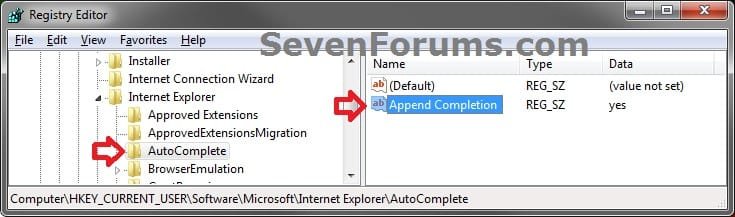
4. In the right pane of AutoComplete, double click/tap on Append Completion. (see screenshot above)
5. To Turn On Internet Explorer AutoComplete
NOTE: This is the default setting. A) Type in yes, and click/tap on OK. (see screenshot below)

B) Go to step 7.
6. To Turn Off Internet Explorer AutoComplete A) Type in no, and click/tap on OK. (see screenshot above)
7. Close regedit.
8. If open, close and reopen Internet Explorer to see the changes.
That's it,
Shawn
Related Tutorials
- How to Change the Size of the Windows 7 Explorer Address and Search Bar
- How to Turn AutoComplete On or Off in Windows Explorer
- How to Turn Auto Suggest On or Off in Windows Explorer
- How to Enable or Disable Search Suggestions in Internet Explorer
- How to Delete Typed URLs in Internet Explorer Auto Suggest Drop Down List
- How to Enable or Disable Common Dialog Boxes Dropdown List of Recent Files
- How to Reset and Clear Common Dialog Boxes Dropdown List of Recent Files History
- How to Enable or Disable AutoComplete in Firefox
Attachments
Last edited:


