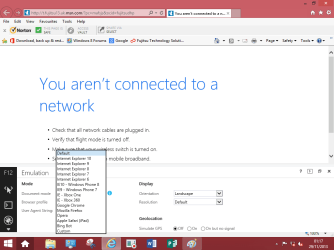
How to Enable or Disable "F12 Developer Tools" in Internet Explorer
Information
This will show you how to enable or disable F12 Developer Tools in IE8, IE9, IE10, and IE11 for all users in Vista, Windows 7, and Windows 8.
For more information about "F12 Developer Tools" in IE8, IE9 and IE10, see:
NOTE: IE11 is only available in Windows 7 and Windows 8.
For more information about "F12 Developer Tools" in IE8, IE9 and IE10, see:
- Introduction to F12 Developer Tools (Windows)
- Testing sites with Browser Mode vs. Doc Mode - IEBlog - Site Home - MSDN Blogs
NOTE: IE11 is only available in Windows 7 and Windows 8.
- Announcing new F12 dev tools features in August update - IEBlog - Site Home - MSDN Blogs
- Using the F12 developer tools (Windows)
- What's new in F12 Tools (Windows)
- (New) What's new in F12 with Windows 8.1 Update - IEBlog - Site Home - MSDN Blogs
- Improving UI responsiveness (Windows)
- Debugging and Tuning Web Sites and Apps with F12 Developer Tools in IE11 - IEBlog - Site Home - MSDN Blogs
- New Performance Scanning Tools on modern.IE Enable Faster Real-World Sites and Improved User Experiences - IEBlog - Site Home - MSDN Blogs
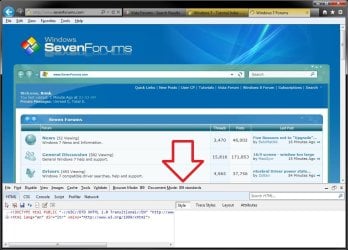
EXAMPLE: F12 Developer Tools in IE11
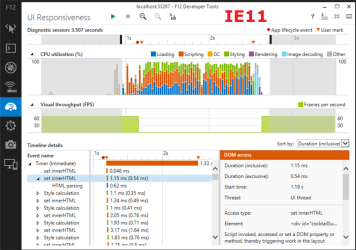
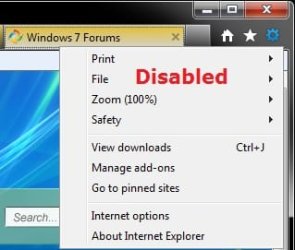
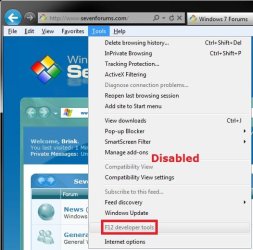
EXAMPLE: F12 Developer Tools in IE9, IE10, and IE11 Enabled and Disabled


OPTION ONE
Using a REG File Download
1. To Enable F12 Developer Tools in IE8, IE9, IE10, and IE11
NOTE: This is the default setting.
A) Click/tap on the Download button below to download the file below.
Enable_IE_F12_Developer_Tools.reg
Download
B) Go to step 3.
2. To Disable F12 Developer Tools in IE8, IE9, IE10, and IE11
A) Click/tap on the Download button below to download the file below.
Disable_IE_F12_Developer_Tools.reg
Download
3. Save the .reg file to the desktop.
4. Double click/tap on the downloaded .reg file to merge it.
5. Click/tap on Run, Yes (UAC-Windows 7/8) or Continue (UAC-Vista), Yes, and OK when prompted.
6. If open, close and reopen Internet Explorer to apply.
7. When done, you can delete the downloaded .reg file if you like.
OPTION TWO
Through the Local Group Policy Editor
1. Open the all users, specific users or groups, or all users except administrators Local Group Policy Editor for how you want this policy applied.
2. In the left pane, click/tap on to expand User Configuration, Administrative Templates, Windows Components, Internet Explorer, and Toolbars. (see screenshot below)
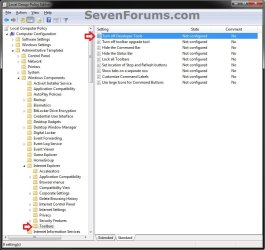
3. In the right pane, double click/tap on Turn off Developer Tools. (see screenshot above)
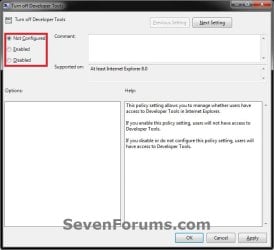
4. To Enable F12 Developer Tools in IE8, IE9, IE10, and IE11
A) Select (dot) either Not Configured or Disabled. (see screenshot below step 6)
NOTE: Not Configured is the default setting.
B) Go to step 6.
5. To Disable F12 Developer Tools in IE8, IE9, IE10, and IE11
A) Select (dot) Enabled. (see screenshot below step 6)
6. Click/tap on OK. (see screenshot below)
7. Close the Local Group Policy Editor window.
8. If open, close and reopen Internet Explorer to apply.
That's it,
Shawn
Attachments
Last edited: