How to Create an Internet Website Shortcut in Windows
Information
This tutorial will show you how to create a Internet Website Shortcut that will open a website in any browser in Vista, Windows 7, Windows 8, and Windows 8.1.
OPTION ONE
Drag and Drop to Create Internet Website Shortcut in IE9, IE10, or IE11
Note
You will be able to Pin to Taskbar or Pin to Start Menu this shortcut by doing this in Internet Explorer.
1. Open Internet Explorer, and go to the website that you want to create a shortcut of, then do either step 2 or 3 below for how you would like to create the shortcut.
2. To be able to Pin the Internet Shortcut
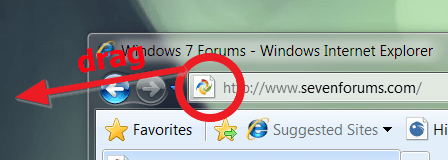
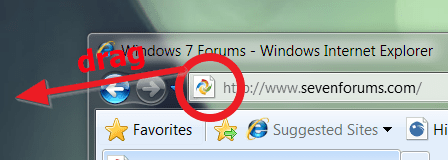
A) Drag the favicon in the left side of the address bar in IE to your desktop and release to have a shortcut to the website. (see screenshot below)
Note
When you create a shortcut using this option, the shortcut behaves like when you pin a site from IE, and opens in a new Internet Explorer window. The shortcut's/pinned site is at the center of the experience, not the browser. When a shortcut's/pinned site is launched from the taskbar, the browser frame and navigational controls integrate the site's icon and primary color, providing an experience that's tailored to the site you're viewing.
You can also add additional home page tabs for each site you pin or create a shortcut of like this. That way when you open a site that's pinned you can open several webpages or websites all at once.
You can also add additional home page tabs for each site you pin or create a shortcut of like this. That way when you open a site that's pinned you can open several webpages or websites all at once.

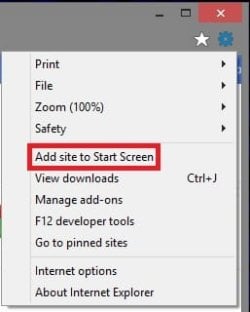
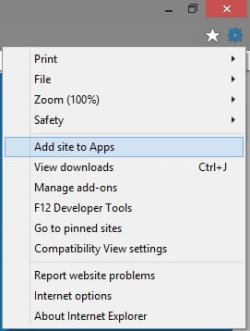
B) You can now move the shortcut to where you like for easy use, Pin to Taskbar in Vista/Windows 7 or Windows 8/8.1, use Add site to Start Menu (Vista/Windows 7), use Add site to Start Screen (Windows 8), and use Add site to Apps (Windows 8.1).
OR
3. To Drag and Drop without a Separate IE Window Opening
A) Press and hold shift + left click, drag the favicon in the left side of the address bar in IE9 or IE10 to your desktop and release to have a shortcut to the website. (see screenshot below)
B) You can now pin the shortcut into the jump list of Internet Explorer on the taskbar, or move the shortcut to where you like for easy use.
OPTION TWO
Right Click on Website to Create Internet Website Shortcut in Internet Explorer
Note
This option will allow you to create a website shortcut quickly to your desktop that you will be able to move where you like, but this shortcut will not have the option to Pin to Taskbar or Pin to Start Menu in it's context menu.
1. Open Internet Explorer, and go to the website that you want to create a shortcut of.
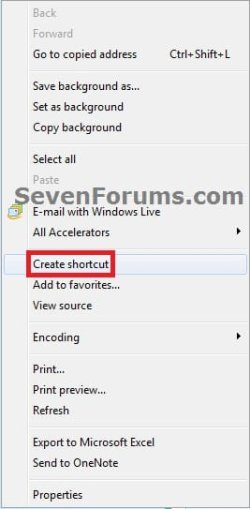
2. Right click on a non clickable area of the webpage, and click on Create shortcut. (see screenshot below)
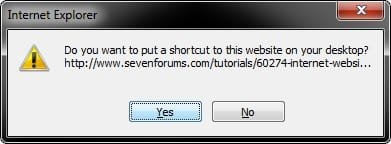
3. Click on Yes to have the shortcut created on your desktop. (see screenshot below)
4. If you would like to Change the Icon of the Internet Shortcut
NOTE: This is if you do not want to have the default Internet Explorer icon use for your shortcut. If that icon is ok with you, then you are done and can go to step 5 instead.
A) Right click on the new internet shortcut on the Desktop and click on Properties.
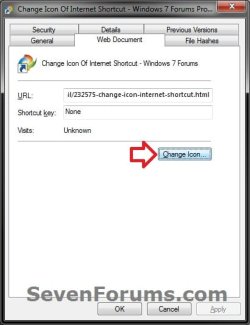
B) Click on the Web Document tab, then click on the Change Icon button. (see screenshot below)
C) Click on the Browse button, then navigate to and select the 256x256 pixel ICO file that you want to use as the icon for your internet shortcut, click on Open, select the icon, and click on OK. (see screenshots below)

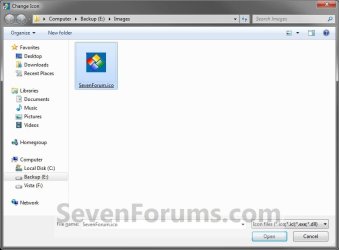
D) Click on OK. (see screenshot below step 4A)
5. You can now move the website shortcut to where you like.

OPTION THREE
To Manually Create a Internet Website Shortcut to Open in Any Web Browser
Note
This option will allow you to be able to Pin to Taskbar or Pin to Start Menu this shortcut with any browser by just substituting the full path to the browser's EXE file in the shortcut. You can use the Internet Explorer and Firefox examples below for how. You will also be able to change the icon of this shortcut as well.
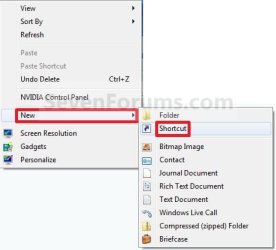
1. Right click or press and hold on an empty area on your desktop, and click/tap on New and Shortcut. (see screenshot below)
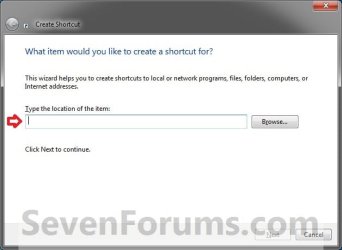
2. Type the location from either step 3A or 3B OR step 4A or 4B below into the location area, and click/tap on the Next button. (see screenshot below)
NOTE: Check to see if you have a 32-bit or 64-bit Windows installed first. You would substitute website address below with the website URL adress that you want instead.
3. To Create a Internet Shortcut to Open in Internet Explorer Inprivate Browsing
NOTE: InPrivate Browsing enables you to surf the web without leaving a trail in Internet Explorer. This helps prevent anyone else who might be using your computer from seeing where you visited and what you looked at on the web.
A) If you have 32-bit Windows
Code:
"%ProgramFiles%\Internet Explorer\iexplore.exe" -private [B][COLOR=red]website address[/COLOR][/B]I would type this below for our website http://www.sevenforums.com/.
Code:
"%ProgramFiles%\Internet Explorer\iexplore.exe" -private [URL="http://www.sevenforums.com/"][COLOR=#0066cc][URL]http://www.sevenforums.com/[/URL][/COLOR][/URL]B) If you have 64-bit Windows
- To Have Website Shortcut Open in Default 32-bit Internet Explorer
Code:
"%ProgramFiles(x86)%\Internet Explorer\iexplore.exe" -private [B][COLOR=red]website address[/COLOR][/B]I would type this below for our website http://www.sevenforums.com/
Code:
"%ProgramFiles(x86)%\Internet Explorer\iexplore.exe" -private [URL="http://www.sevenforums.com/"][COLOR=#0066cc][URL]http://www.sevenforums.com/[/URL][/COLOR][/URL]- To Have Website Shortcut Open in 64-bit Internet Explorer
Code:
"%ProgramFiles%\Internet Explorer\iexplore.exe" -private [B][COLOR=red]website address[/COLOR][/B]I would type this below for our website http://www.sevenforums.com/
Code:
"%ProgramFiles%\Internet Explorer\iexplore.exe" -private [URL="http://www.sevenforums.com/"][COLOR=#0066cc][URL]http://www.sevenforums.com/[/URL][/COLOR][/URL]A) If you have 32-bit Windows
"%ProgramFiles%\Internet Explorer\iexplore.exe" website address
FOR EXAMPLE:
I would type this below for our website http://www.sevenforums.com/.
Code:
"%ProgramFiles%\Internet Explorer\iexplore.exe" [URL]http://www.sevenforums.com/[/URL]
Note
If you wanted to have the website shortcut open in another browser, say Firefox instead as an example, you would use this below instead. You would just substitute the first part in quotes for the full path of the browser's exe file that you wanted to use instead.
Code:
"%ProgramFiles%\Mozilla Firefox\firefox.exe" [URL="http://www.sevenforums.com/"][COLOR=#800080][URL]http://www.sevenforums.com/[/URL][/COLOR][/URL]
Note
If you wanted to have the website shortcut open in another browser, say Google Chrome instead as an example, you would use this below instead. You would just substitute the first part in quotes for the full path of the browser's exe file that you wanted to use instead.
Code:
"%ProgramFiles%\Google\Chrome\Application\chrome.exe" [URL="http://www.sevenforums.com/"][URL]http://www.sevenforums.com/[/URL][/URL]B) If you have 64-bit Windows
- To Have Website Shortcut Open in Default 32-bit Internet Explorer
FOR EXAMPLE:
I would type this below for our website http://www.sevenforums.com/
Code:
"%ProgramFiles(x86)%\Internet Explorer\iexplore.exe" [URL]http://www.sevenforums.com/[/URL]- To Have Website Shortcut Open in 64-bit Internet Explorer
FOR EXAMPLE:
I would type this below for our website http://www.sevenforums.com/
Code:
"%ProgramFiles%\Internet Explorer\iexplore.exe" [URL]http://www.sevenforums.com/[/URL]
Note
If you wanted to have the website shortcut open in Firefox instead as an example, you would use this below instead. You would just subsititute the first part in quotes for the full path of the browser's exe file that you wanted to use instead.
Code:
"%ProgramFiles(x86)%\Mozilla Firefox\firefox.exe" [URL="http://www.sevenforums.com/"][URL]http://www.sevenforums.com/[/URL][/URL]
Note
If you wanted to have the website shortcut open in another browser, say Google Chrome instead as an example, you would use this below instead. You would just substitute the first part in quotes for the full path of the browser's exe file that you wanted to use instead.
Code:
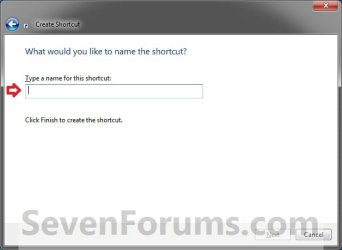
"%ProgramFiles(x86)%\Google\Chrome\Application\chrome.exe" [URL="http://www.sevenforums.com/"][URL]http://www.sevenforums.com/[/URL][/URL]4. Type in the website name (ex: SevenForums), and click on the Finish button. (See screenshot below)
NOTE: You can name this anything you would like.
5. To Change the Icon of the Internet Shortcut
NOTE: This is if you do not want to have the default Internet Explorer icon use for your shortcut. If that icon is ok with you, then you are done and can go to step 5 instead. If you wanted to use the default favicon .ico file used by the website, then these are stored in the hidden C:\Users\User-Name\AppData\Local\Microsoft\Windows\Temporary Internet Files protected operating system folder. It is recommended to move and select to use the favicon to a different location to avoid accidentally deleting the favicon when clearing the browser history.
A) Right click on the new internet shortcut on the Desktop and click on Properties.
B) Click on the Shortcut tab, then click on the Change Icon button. (see screenshot below)

C) Click on the Browse button, then navigate to and select the 256x256 pixel ICO file that you want to use as the icon for your internet shortcut and click on Open. (see screenshots below)
D) Click on OK. (see screenshot below)
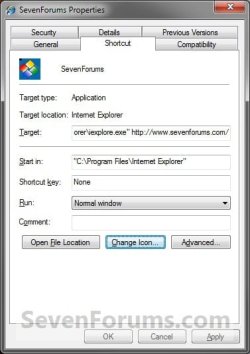
6. In Vista and Windows 7, you can now Pin to Taskbar (Windows 7 only) or Pin to Start Menu, add to Quick Launch, assign a keyboard shortcut to it, or move this shortcut to where you like for easy use.
7. In Windows 8 and 8.1, you can Pin to Taskbar on desktop, Pin to Start screen, add to Quick Launch, assign a keyboard shortcut to it, or move this shortcut to where you like for easy use.
NOTE: Just a reminder that if you move or delete the shortcut (target), then the pinned one from this shortcut on the taskbar and/or Start Menu will no longer work since the target has been moved or deleted.
That's it,
Shawn
Related Tutorials
- How to Pin or Unpin a Folder to the Windows 7 Taskbar
- How to Enable or Disable QuickLaunch in Windows 7
- How to Pin or Unpin a Program to the Windows 7 Taskbar
- How to Pin Your User Files Folder to the Windows 7 Taskbar
- How to Pin and Unpin Websites from IE9 to the Taskbar or Start Menu
- How to Enable or Disable Internet Explorer 9 Ability to Pin Sites
- How to Create a Shortcut of a File, Folder, Drive, or Program in Vista, Windows 7, and Windows 8
- How to Add "Open with" to Context Menu of URL Files in Windows 7 and Vista
- How to Pin and Unpin Websites from IE10 to Start Screen in Windows 8
- How to Pin Site Tile to Start Screen from Internet Explorer 11 (IE11) in Windows 8.1
Last edited: