By far the easiest (at least by my standards) is to use the awesome backup software called FreeFileSync. I'll show you in pictures how this is done in FreeFileSync.
FreeFileSync: Open Source File Synchronization & Backup Software
Select New.
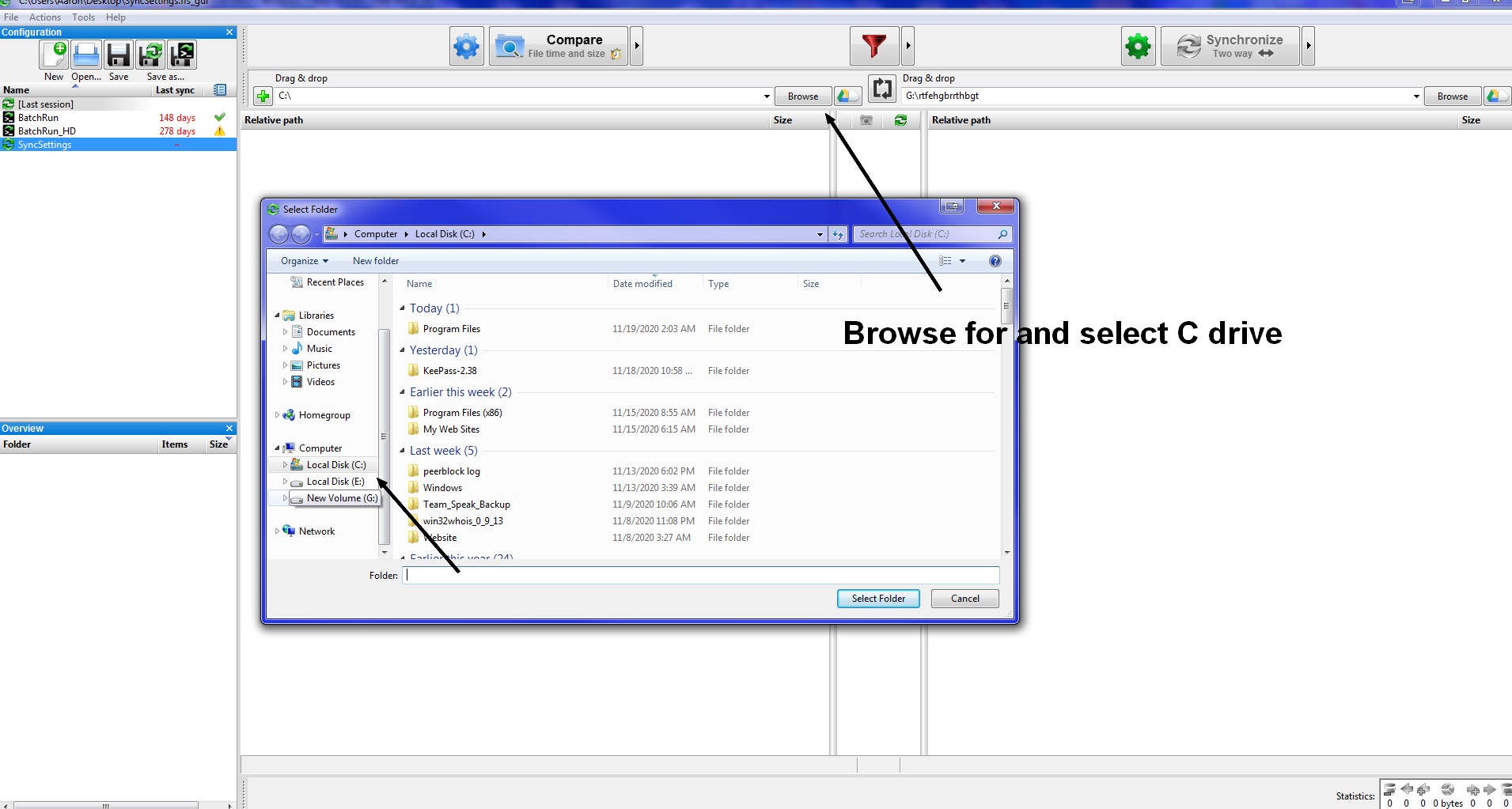
On the left side which is the source, chose the Browse button and chose your C drive.
On the right side chose Browse and select your backup location like an external hard drive or what ever.
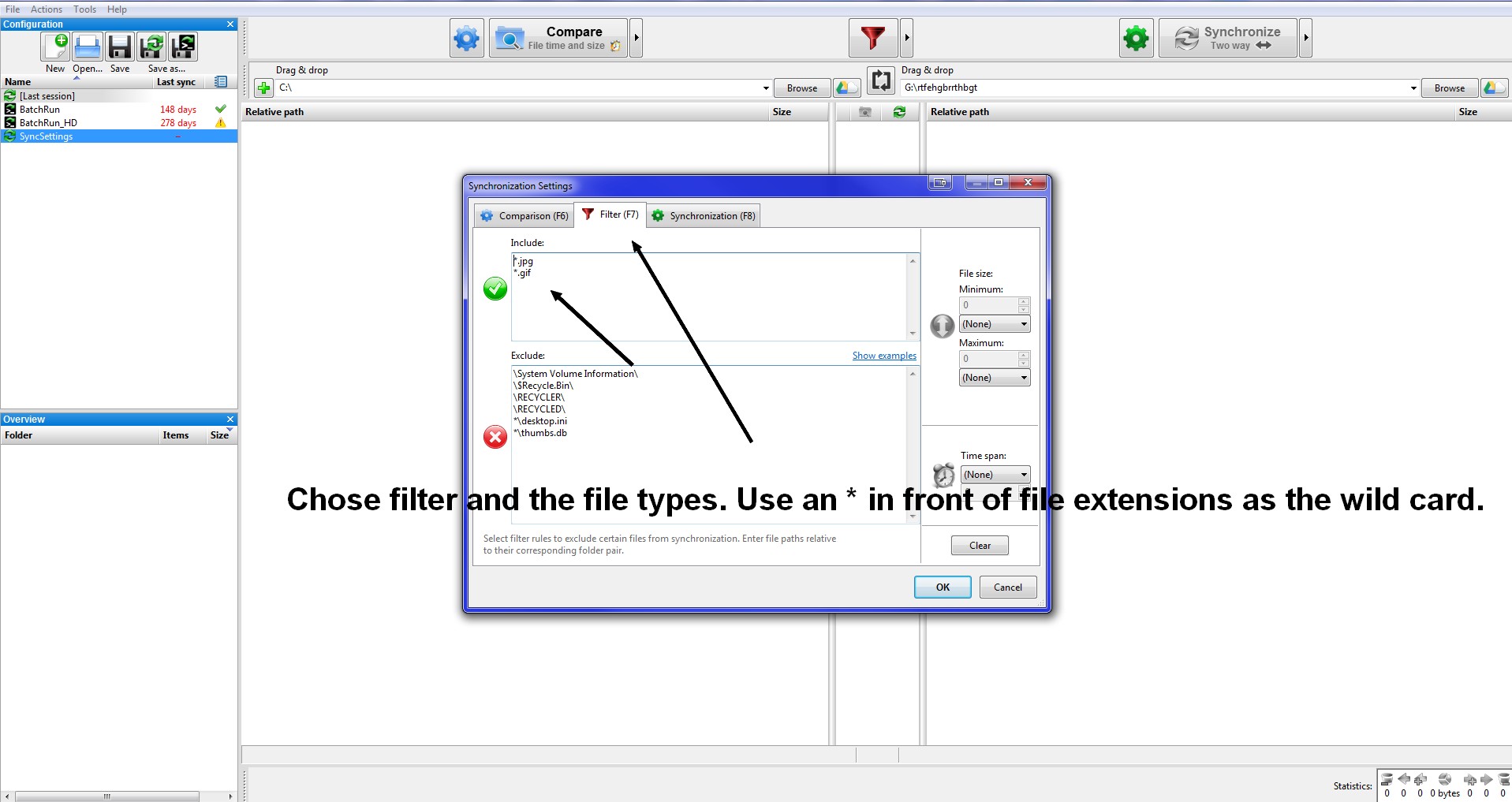
Click the gear icon. Under the Comparison tab you can leave it at default based on file time and date. Click the Filter tab and add the file extensions that you'd ONLY like to be backed up. Make sure you add an asterisk (*) in front of the file extension. So if you want to backup jpgs then the extension will be *.jpg. In my example image here I'm only backing up gifs and jpgs. Under the synchronization tab chose Two way.
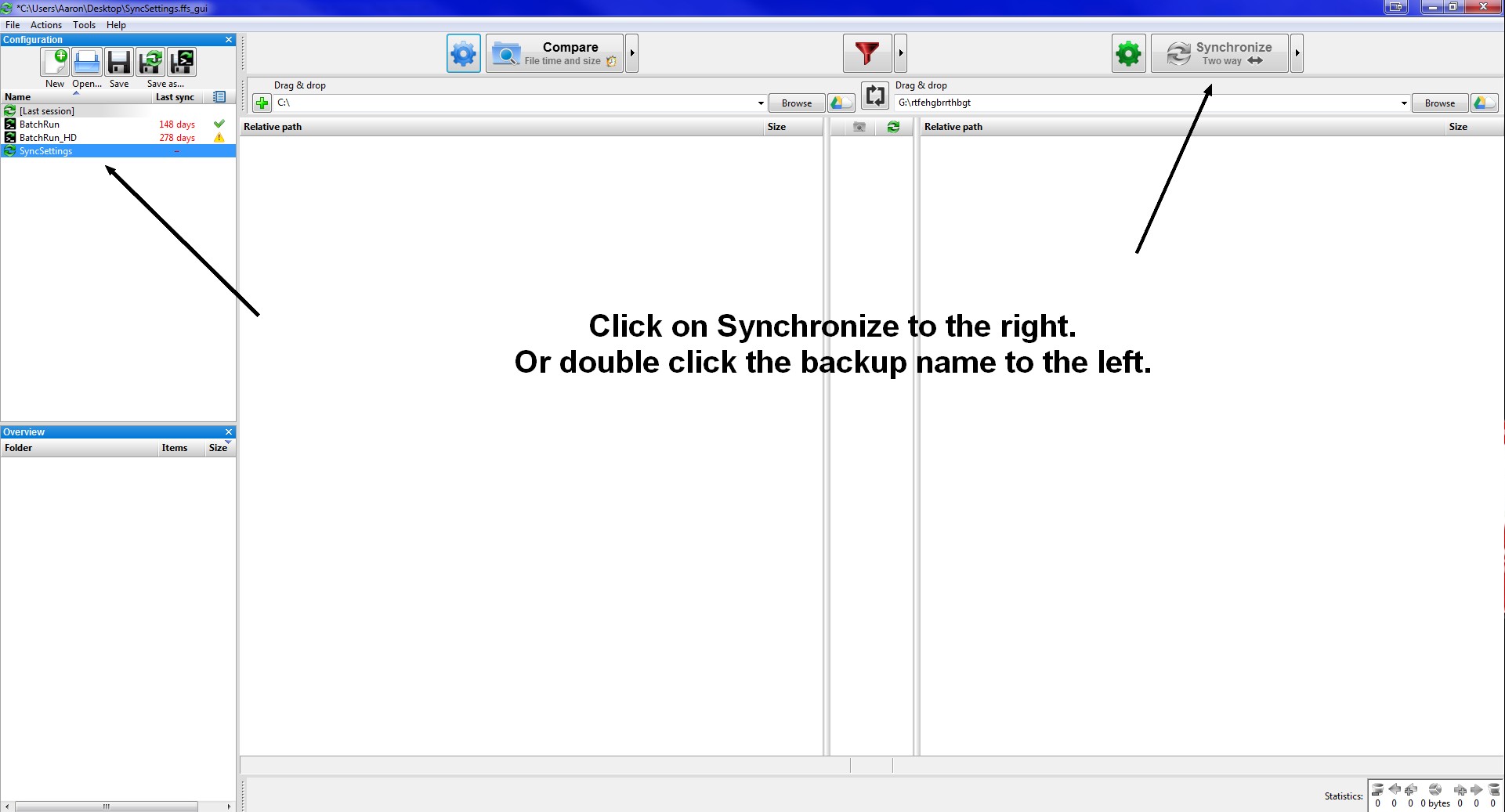
Chose "Save as..." and name the file something. The difference between the Save as file and the batch file is that double clicking the created Save as file will launch FreeFileSync's program its self, where is double clicking the created batch file will automatically conduct the backup without launching the FreeFileSync program. In the case of the batch file, that can be set as a auto run process to conduct an automatic backup at a time interval or at computer boot up, etc. I can tell you how to do that if you want.
In this example we're going to create a Save as file.
Now you said you would like to backup photos, videos, and documents. So in order to do this we need to know what file extensions that your data uses. So right off the bat I know that images are mostly jpgs and gifs, but could also be bmp and some other file formats. The most popular would be jpg and gif. So in the include filters you add *.jpg and *.gif per line as shown in the image. If you know the exact file types, then add their extensions accordingly line by line. Video extensions could be in the form of a wealth of formats. The most common would have to be the mp4 or mpg formats. So if you look and see what formats you have on your computer you'll know what extensions to include in the include filter. So it might be *.mp4 and *.mpg. For documents pertaining to just Office look at
this list. There's a wealth of them for sure, but by in large, any documents you have may be in the doc or docx format. So in the include filter list you add per line *.doc and *.docx. Excel I'm not sure. You'd have to see what you have there on your drive and look at the Excel extensions in that list. Just looking on your computer for saved Excel documents will tell you.
If you don't have the show file extensions on already on your computer, here's how. Go to the Start orb and in the search box enter the words, folder options. In Folder Options click the View tab and scroll down there to "Hide extensions for known file types." If it's checked uncheck it. Now you can see file extensions to files on your computer. So a picture named funny_duck will show up as, funny_duck.jpg, or funny_duck.gif, etc.