Hi,
I attempted to create a dual boot machine when installing Win 7 alongside Vista but have hit an unexpected problem where Win 7, after successfully installing, doesn’t provide the option on boot up of selecting which operating system to use, it just goes straight into Win 7. Here’s the process I followed:
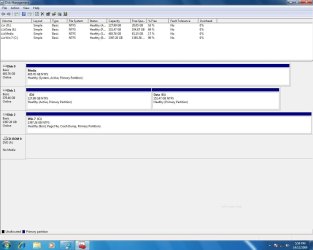
My machine has three physical drives, 320gb, 500gb and 1.5tb, the 320gb is split into two partitions of equal size and the original c: drive petition on that drive houses my Vista o/s. The 1.5tb drive is a brand new drive, which I had formatted in Vista prior to attempting the Win 7 install; it has no data on it prior to the Win 7 install. I created a bootable disc from my downloaded copy of the Win 7 upgrade and booted the machine via the disc and installed it onto the 1.5tb drive. Install went fine with no errors and Win 7 runs without issue. My problem is that now whenever I boot the machine it doesn’t provide the option of booting into Vista it just goes straight into Win 7. Also I cant see all of my drives in Win 7, I can see one of the 320gb petitions (the non Vista OS petition) and the 1.5tb drive but I cant see the 500gb at all (it only holds media files). I haven’t looked into disk management yet to see if the drives are visible that way.
If theres any further info needed to come up with a solution please let me know as I’m keen to still run Vista for a while whilst I transition data to Win 7.
Thanks for your assistance.
Gls
I attempted to create a dual boot machine when installing Win 7 alongside Vista but have hit an unexpected problem where Win 7, after successfully installing, doesn’t provide the option on boot up of selecting which operating system to use, it just goes straight into Win 7. Here’s the process I followed:
My machine has three physical drives, 320gb, 500gb and 1.5tb, the 320gb is split into two partitions of equal size and the original c: drive petition on that drive houses my Vista o/s. The 1.5tb drive is a brand new drive, which I had formatted in Vista prior to attempting the Win 7 install; it has no data on it prior to the Win 7 install. I created a bootable disc from my downloaded copy of the Win 7 upgrade and booted the machine via the disc and installed it onto the 1.5tb drive. Install went fine with no errors and Win 7 runs without issue. My problem is that now whenever I boot the machine it doesn’t provide the option of booting into Vista it just goes straight into Win 7. Also I cant see all of my drives in Win 7, I can see one of the 320gb petitions (the non Vista OS petition) and the 1.5tb drive but I cant see the 500gb at all (it only holds media files). I haven’t looked into disk management yet to see if the drives are visible that way.
If theres any further info needed to come up with a solution please let me know as I’m keen to still run Vista for a while whilst I transition data to Win 7.
Thanks for your assistance.
Gls
My Computer
At a glance
Win 7 & Vista
- OS
- Win 7 & Vista