Solved Laptop Drive share

Megahertz07

Wish to be flying
Guru
VIP
Local time
4:38 PM
Messages
7,400
Location
Brazil
It was a long time ago that I once configured a drive share to another computer.
I know a little bit more than nothing about network, so please explain as you do for normal people.

I have a laptop with Win 7 Pro that is my backup computer and I eventually travel with it.
I removed the ODD and replaced with a caddy to hold a HDD and on the HDD slot I have installed a small SSD for Windows and programs. I also moved C:\users (SSD) to D:\users (HDD).
So D: isn't only a data drive as \users is a system folder.
Only user is D:\users\Luiz
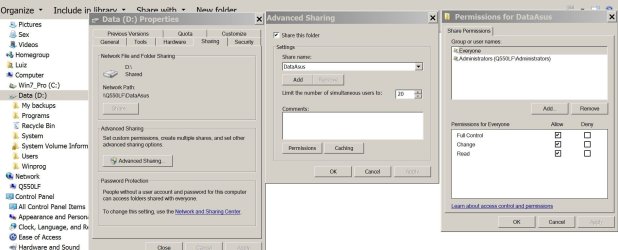
Asus Share.JPG

I also have a desktop with Win 7 HP. I want to access the laptop D: drive (read and write) so I can synchronize files and folders.
Only user is D:\users\Backup

From the Desktop I can see the laptop (Q550LF) but it says I don't have the permissions.
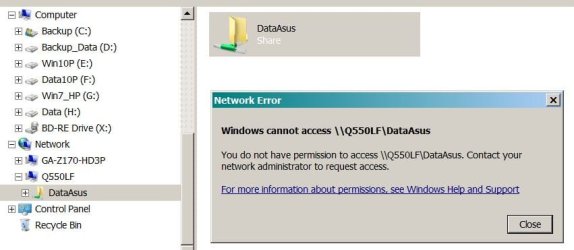
Share Desktop.JPG

How to set the permissions so I can map the D: drive on the Desktop?
 

My Computers

System One System Two

  • Computer type
    PC/Desktop
    Computer Manufacturer/Model Number
    custom build
    OS
    Windows 7 HP 64
    CPU
    i5 6600K - 800MHz to 4200MHz
    Motherboard
    GA-Z170-HD3P
    Memory
    4+4G GSkill DDR4 3000
    Graphics Card(s)
    IG - Intel 530
    Monitor(s) Displays
    Samsung 226BW
    Screen Resolution
    1680x1050
    Hard Drives
    (1) -1 SM951 – 128GB M.2 AHCI PCIe SSD drive for Windows 7 and Lubuntu
    (2) -1 WD SATA 3 - 1T for Data
    (3) -1 WD SATA 3 - 1T for backup
    PSU
    Thermaltake 450W TR2 gold
    Keyboard
    Old and good Chicony mechanical keyboard
    Mouse
    Logitech mX performance - 9 buttons (had to disable some)
    Internet Speed
    500Mb/s
    Browser
    Firefox 64
    Other Info
    TinyWall firewall
  • Computer type
    Laptop
    System Manufacturer/Model Number
    Asus Q550LF
    OS
    Windows 7 Pro
    CPU
    i7-4500U 800MHz to 3.0GHz
    Motherboard
    Asus Q550LF
    Memory
    (4+4)G DDR3 1600
    Graphics Card(s)
    IG intel 4400 + NVIDIA GeForce GT 745M
    Sound Card
    Realtek
    Monitor(s) Displays
    LG Display LP156WF4-SPH1
    Screen Resolution
    1920 x 1080
    Hard Drives
    BX500 120G SSD for Windows and programs +
    1T HDD for data
    Internet Speed
    500 Mb/s
    Browser
    Firefox
    Other Info
    TinyWall firewall
How to set the permissions so I can map the D: drive on the Desktop?

There are two sets of permissions to set, the Sharing permissions and the ntfs permissions. How those permissions are applied to you when you connect depends on the account you are trying to connect with.

When you connect from the laptop you will by default pass the user name and password of the account you signed in on the laptop to the desktop. If that username/password is also an account on the desktop you will have the same access as that local account on the desktop.

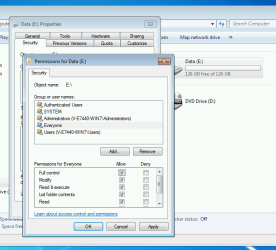
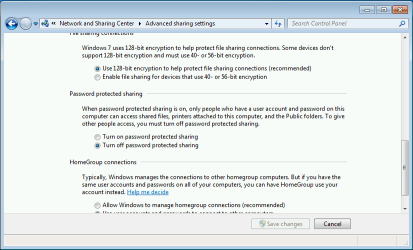
If you are not that concerned about security, then you can set the Sharing permission for Everyone to have Full control. However, you will still be subject the NTFS permissions on that drive. To have full access you will need to add the Everyone group to the drive's permissions and grant it Full control. You should also turn off Password Protected Sharing in the Network ans Sharing Centre.

image.png

image.png
 

My Computers

System One System Two

  • Computer type
    Laptop
    Computer Manufacturer/Model Number
    Toshiba satellite C650D
    OS
    Windows 7 Home Premium x64
    CPU
    AMD V120
    Memory
    4GB
    Internet Speed
    150 Mbps
    Antivirus
    MSE
    Browser
    IE11, Edge, Firefox
    Other Info
    I also have W7 Pro on my System Two, and several W7 Hyper-V VMs. My other machines run Windows 10/11. Their specs are in my Ten Forums & Eleven Forum profiles.
  • Computer type
    Laptop
    System Manufacturer/Model Number
    Lenovo Thinkpad T430
    OS
    Windows 7 Pro x64
    CPU
    Intel i5-3320M
    Memory
    8 GB
    Hard Drives
    250GB Samsung SSD 860 EVO
    Other Info
    Antivirus: MSE
There are two sets of permissions to set, the Sharing permissions and the ntfs permissions. How those permissions are applied to you when you connect depends on the account you are trying to connect with.

Thanks Bree
Big progress. Once I have set permission for Everyone on the laptop drive, I was able to connect to the laptop drive on the desktop. I thought that all I needed was to give permission for everyone on the sharing permission (first image on post #1).

Questions: Can I create a user under permissions for \\Desktop\users\Backup so only backup user can have full access via the network?
 

My Computers

System One System Two

  • Computer type
    PC/Desktop
    Computer Manufacturer/Model Number
    custom build
    OS
    Windows 7 HP 64
    CPU
    i5 6600K - 800MHz to 4200MHz
    Motherboard
    GA-Z170-HD3P
    Memory
    4+4G GSkill DDR4 3000
    Graphics Card(s)
    IG - Intel 530
    Monitor(s) Displays
    Samsung 226BW
    Screen Resolution
    1680x1050
    Hard Drives
    (1) -1 SM951 – 128GB M.2 AHCI PCIe SSD drive for Windows 7 and Lubuntu
    (2) -1 WD SATA 3 - 1T for Data
    (3) -1 WD SATA 3 - 1T for backup
    PSU
    Thermaltake 450W TR2 gold
    Keyboard
    Old and good Chicony mechanical keyboard
    Mouse
    Logitech mX performance - 9 buttons (had to disable some)
    Internet Speed
    500Mb/s
    Browser
    Firefox 64
    Other Info
    TinyWall firewall
  • Computer type
    Laptop
    System Manufacturer/Model Number
    Asus Q550LF
    OS
    Windows 7 Pro
    CPU
    i7-4500U 800MHz to 3.0GHz
    Motherboard
    Asus Q550LF
    Memory
    (4+4)G DDR3 1600
    Graphics Card(s)
    IG intel 4400 + NVIDIA GeForce GT 745M
    Sound Card
    Realtek
    Monitor(s) Displays
    LG Display LP156WF4-SPH1
    Screen Resolution
    1920 x 1080
    Hard Drives
    BX500 120G SSD for Windows and programs +
    1T HDD for data
    Internet Speed
    500 Mb/s
    Browser
    Firefox
    Other Info
    TinyWall firewall
Questions: Can I create a user under permissions for \\Desktop\users\Backup so only backup user can have full access via the network?
Yes. To set specific user permissions on a share you can only select from users or groups on the PC that is doing the sharing. If you choose a group, then you will need to connect as any local account on the PC doing the sharing that is a member of that group.

So if you want the share on Desktop to only be accessible by a user named Backup, then, first remove full control for Everyone from the share, then you have to create a user account named Backup on Desktop, add it to permissions for the share, then set it to have the appropriate permissions.

Then when connecting from Laptop to the share on Desktop you need to connect as a user Backup with the correct password for that user account on Desktop. The easiest way to make sure you are doing so is the be signed into an account on Laptop that has the name Backup with the same password as the account on Desktop.

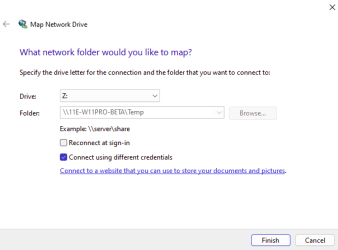
If the password differs, or you are signed in with a different account name, then you will have to connect using different credentials. Then supply the username and password of the local account on the PC you are connecting to.

image.png
 

My Computers

System One System Two

  • Computer type
    Laptop
    Computer Manufacturer/Model Number
    Toshiba satellite C650D
    OS
    Windows 7 Home Premium x64
    CPU
    AMD V120
    Memory
    4GB
    Internet Speed
    150 Mbps
    Antivirus
    MSE
    Browser
    IE11, Edge, Firefox
    Other Info
    I also have W7 Pro on my System Two, and several W7 Hyper-V VMs. My other machines run Windows 10/11. Their specs are in my Ten Forums & Eleven Forum profiles.
  • Computer type
    Laptop
    System Manufacturer/Model Number
    Lenovo Thinkpad T430
    OS
    Windows 7 Pro x64
    CPU
    Intel i5-3320M
    Memory
    8 GB
    Hard Drives
    250GB Samsung SSD 860 EVO
    Other Info
    Antivirus: MSE
Finally I was able to access the laptop D drive from the desktop.
What a nightmare.
- I first shared the D: drive to Everyone (full access) and was able to see it on the Desktop but couldn't access it.
- Then with a big help from my friend, I learned that, as the laptop and the desktop has different logged on user, you have also to set the drive security permissions also to Everyone. Two places for same thing. Sharing should also set Security but it doesn't.
- On the desktop I was able to map the laptop drive but, as I discovered later, I didn't have full access to the sub folders. So I had to share and change security to the sub folder I wanted to have access. Why if I set the whole D: drive a full access?

So I ended to have on the laptop, not only the D: drive shared but also all other four sub folders I wanted to access from the desktop.
It was working but then the last Bree paragraph call my attention:

If the password differs, or you are signed in with a different account name, then you will have to connect using different credentials. Then supply the username and password of the local account on the PC you are connecting to.

So I started all over.
- On the laptop I removed all folder share and security permissions for Everyone. Left only D: drive share and security permissions for Everyone.
- On the Desktop I disconnected the mapped drive and reconnected using "Connect using different credentials" and supplied the password of the local account on the Laptop.
For what I see, it is a security violation. To give access to a drive or a folder, the Desktop user has to know the laptop user password. Makes no sense.

I once build a Linux server for a small office. Every user had his own folder on the sever. Not only the user had the folder permission but also the manager. All other users on the network had access only to his folder. And there was a folder witch every one had access.
To give permission to a folder you could give the path to the user like \\laptop15\Marc. If the server received a request from laptop15 and user Marc, no password was needed.

Bree, once again, thank you. Couldn't done without you.
 
Last edited:

My Computers

System One System Two

  • Computer type
    PC/Desktop
    Computer Manufacturer/Model Number
    custom build
    OS
    Windows 7 HP 64
    CPU
    i5 6600K - 800MHz to 4200MHz
    Motherboard
    GA-Z170-HD3P
    Memory
    4+4G GSkill DDR4 3000
    Graphics Card(s)
    IG - Intel 530
    Monitor(s) Displays
    Samsung 226BW
    Screen Resolution
    1680x1050
    Hard Drives
    (1) -1 SM951 – 128GB M.2 AHCI PCIe SSD drive for Windows 7 and Lubuntu
    (2) -1 WD SATA 3 - 1T for Data
    (3) -1 WD SATA 3 - 1T for backup
    PSU
    Thermaltake 450W TR2 gold
    Keyboard
    Old and good Chicony mechanical keyboard
    Mouse
    Logitech mX performance - 9 buttons (had to disable some)
    Internet Speed
    500Mb/s
    Browser
    Firefox 64
    Other Info
    TinyWall firewall
  • Computer type
    Laptop
    System Manufacturer/Model Number
    Asus Q550LF
    OS
    Windows 7 Pro
    CPU
    i7-4500U 800MHz to 3.0GHz
    Motherboard
    Asus Q550LF
    Memory
    (4+4)G DDR3 1600
    Graphics Card(s)
    IG intel 4400 + NVIDIA GeForce GT 745M
    Sound Card
    Realtek
    Monitor(s) Displays
    LG Display LP156WF4-SPH1
    Screen Resolution
    1920 x 1080
    Hard Drives
    BX500 120G SSD for Windows and programs +
    1T HDD for data
    Internet Speed
    500 Mb/s
    Browser
    Firefox
    Other Info
    TinyWall firewall
D is shared by default as d$ it often confuses things if you share it again for d$ you need to pass an admin username/password much safer
 

My Computer

Computer type
PC/Desktop
OS
win 8 32 bit
Back
Top