Library Question, Is this possible

Pdog

New member
Local time
4:24 AM
Messages
3
I have my music Library configured the way I like it. (Large Icon view)with two sub folders Singles Folder and Album Folder

When I click in the Album folder and click into an Album, I want to have certain columns configured, Size/Bit Rate/Artist etc etc.

If I attempt to configure it this way, every time I click on album it shows Large Icons :mad:

I achieved this by opening the main album folder, setting the required columns, and set all the sub folders to inherit this view. I confirmed it was working. I then changed the Album folder view to Large Icons. I did not reapply the settings to the sub folders, however when i open an album the view has changed to the default large icons!!!!


I've read the only way of doing it is to amend the Libraries button on the Task bar to launch Windows Explorer instead of the libraries view.

Can anyone recommend another option?

I would like to keep the Libraries button the way it is.

Cheers

Pdog
 

My Computer

OS
Windows 7 Hom Premium
Hi Pdog,

I'm looking into this, but haven't come across a workaround yet. It is a bit annoying - what seems to be happening is that you can arrange the main library to show a particular view and all child folders in that library automatically adopt that view. This is OK for when you create a new child folder. However, changing the view arrangement of either a child folder or its parent library causes all child folders and the parent library to adopt the latest arrangement.
 

My Computer

Computer type
PC/Desktop
Computer Manufacturer/Model Number
Dwarf Dwf/11/2012 r09/2013
OS
Windows 8.1 Pro RTM x64
CPU
Intel Core-i5-3570K 4-core @ 3.4GHz (Ivy Bridge) (OC 4.4GHz)
Motherboard
ASRock Z77 Extreme4-M
Memory
4 x 4GB DDR3-1600 Corsair Vengeance CMZ8GX3M2A1600C9B (16GB)
Graphics Card(s)
MSI GeForce GTX770 Gaming OC 2GB
Sound Card
Realtek High Definition on board solution (ALC 898)
Monitor(s) Displays
ViewSonic VA1912w Widescreen (VGA)
Screen Resolution
1440x900
Hard Drives
OCZ Agility 3 SSD 120GB SATA III x2 (RAID 0)
Samsung HD501LJ 500GB SATA II x2
Hitachi HDS721010CLA332 1TB SATA II
Iomega 1.5TB Ext USB 2.0
WD 2.0TB Ext USB 3.0
PSU
XFX Pro Series 850W Semi-Modular
Case
Gigabyte IF233
Cooling
1 x 120mm Front Inlet 1 x 120mm Rear Exhaust
Keyboard
Microsoft Comfort Curve Keyboard 3000 (USB)
Mouse
Microsoft Comfort Mouse 3000 for Business (USB)
Internet Speed
NetGear DG834Gv3 ADSL Modem/Router (Ethernet) ~4.0 Mb/s (O2)
Antivirus
Avast! 8.0.1497
Browser
IE 11
Other Info
Optical Drive: HL-DT-ST BD-RE BH10LS30 SATA Bluray
Lexmark S305 Printer/Scanner/Copier (USB)
WEI Score: 8.1/8.1/8.5/8.5/8.25
Asus Eee PC 1011PX Netbook (Windows 7 x86 Starter)
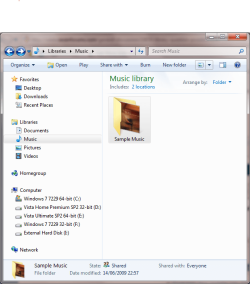
Here you go. I am using the Sample Music folder for this example.

This image shows the Music Library with the view set to Large Icons and Arrange by set to Folders.
Capture.PNG

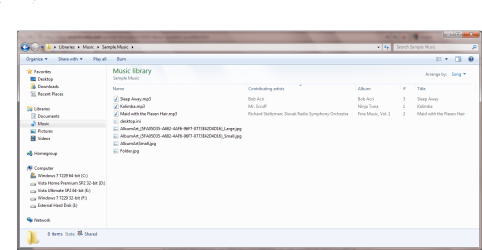
Here I have opened the Sample Music folder and have changed it to show a different view, as illustrated by the view icon. However, I did not change the view there. Instead, I changed it by setting Arrange by to Songs.
Capture1.PNG
 

My Computer

Computer type
PC/Desktop
Computer Manufacturer/Model Number
Dwarf Dwf/11/2012 r09/2013
OS
Windows 8.1 Pro RTM x64
CPU
Intel Core-i5-3570K 4-core @ 3.4GHz (Ivy Bridge) (OC 4.4GHz)
Motherboard
ASRock Z77 Extreme4-M
Memory
4 x 4GB DDR3-1600 Corsair Vengeance CMZ8GX3M2A1600C9B (16GB)
Graphics Card(s)
MSI GeForce GTX770 Gaming OC 2GB
Sound Card
Realtek High Definition on board solution (ALC 898)
Monitor(s) Displays
ViewSonic VA1912w Widescreen (VGA)
Screen Resolution
1440x900
Hard Drives
OCZ Agility 3 SSD 120GB SATA III x2 (RAID 0)
Samsung HD501LJ 500GB SATA II x2
Hitachi HDS721010CLA332 1TB SATA II
Iomega 1.5TB Ext USB 2.0
WD 2.0TB Ext USB 3.0
PSU
XFX Pro Series 850W Semi-Modular
Case
Gigabyte IF233
Cooling
1 x 120mm Front Inlet 1 x 120mm Rear Exhaust
Keyboard
Microsoft Comfort Curve Keyboard 3000 (USB)
Mouse
Microsoft Comfort Mouse 3000 for Business (USB)
Internet Speed
NetGear DG834Gv3 ADSL Modem/Router (Ethernet) ~4.0 Mb/s (O2)
Antivirus
Avast! 8.0.1497
Browser
IE 11
Other Info
Optical Drive: HL-DT-ST BD-RE BH10LS30 SATA Bluray
Lexmark S305 Printer/Scanner/Copier (USB)
WEI Score: 8.1/8.1/8.5/8.5/8.25
Asus Eee PC 1011PX Netbook (Windows 7 x86 Starter)
Interesting, I'll have a play when I get in. I presume if you came out of the sample music folder, reopened the Music folder in the library it will keep the setting?

The problem I have in my Album folder I have many albums, so I would have to potentially go into every album and select arrange by "Songs"
 

My Computer

OS
Windows 7 Hom Premium
Indeed it does. Providing the option Arrange by is not set to Folder, then the view arrangement of that folder remains as you set it. In fact, it is possible to have different child folders showing different views if you so wish.
 

My Computer

Computer type
PC/Desktop
Computer Manufacturer/Model Number
Dwarf Dwf/11/2012 r09/2013
OS
Windows 8.1 Pro RTM x64
CPU
Intel Core-i5-3570K 4-core @ 3.4GHz (Ivy Bridge) (OC 4.4GHz)
Motherboard
ASRock Z77 Extreme4-M
Memory
4 x 4GB DDR3-1600 Corsair Vengeance CMZ8GX3M2A1600C9B (16GB)
Graphics Card(s)
MSI GeForce GTX770 Gaming OC 2GB
Sound Card
Realtek High Definition on board solution (ALC 898)
Monitor(s) Displays
ViewSonic VA1912w Widescreen (VGA)
Screen Resolution
1440x900
Hard Drives
OCZ Agility 3 SSD 120GB SATA III x2 (RAID 0)
Samsung HD501LJ 500GB SATA II x2
Hitachi HDS721010CLA332 1TB SATA II
Iomega 1.5TB Ext USB 2.0
WD 2.0TB Ext USB 3.0
PSU
XFX Pro Series 850W Semi-Modular
Case
Gigabyte IF233
Cooling
1 x 120mm Front Inlet 1 x 120mm Rear Exhaust
Keyboard
Microsoft Comfort Curve Keyboard 3000 (USB)
Mouse
Microsoft Comfort Mouse 3000 for Business (USB)
Internet Speed
NetGear DG834Gv3 ADSL Modem/Router (Ethernet) ~4.0 Mb/s (O2)
Antivirus
Avast! 8.0.1497
Browser
IE 11
Other Info
Optical Drive: HL-DT-ST BD-RE BH10LS30 SATA Bluray
Lexmark S305 Printer/Scanner/Copier (USB)
WEI Score: 8.1/8.1/8.5/8.5/8.25
Asus Eee PC 1011PX Netbook (Windows 7 x86 Starter)
Is there a way to achieve the following:

In my "Pictures" library, I would prefer to have the main parent and it's immediate subfolders be set to the "details" view. But then the folders on the third level beneath the "Pictures" folder, I would prefer to have using large icons because they contain actual photos that I would like to view displayed as thumbnails. So far, the only way I've been able to see the photos in the third sublevel folders as thumbnails is to have the parent folders also set to large icons, which is a mild annoyance, but I can live with it if I have to, as I find the library feature very useful.
 

My Computer

Computer Manufacturer/Model Number
HP DV8t quad
OS
Windows 7 Ultimate x64 (Retail)
CPU
i7-Q 720
Motherboard
Motherboard Chipset Intel Ibex Peak-M PM55, Intel Lynnfield
Memory
6 GB
Graphics Card(s)
nVidia GeForce GT 230M (1GB)
Sound Card
IDT High Definition Audio CODEC
Monitor(s) Displays
18.4 inch HP Infinity FHD (Samsung 184HT03-001)
Screen Resolution
1920 x 1080
Hard Drives
Hitachi 500GB 7200 rpm (x2)
Seagate FreeAgent 1.5 TB External USB (x2)
Thermaltake BlacX eSATA/USB 2.0 3.5/2.5 HD dock
Cooling
Zalman NC-2000 notebook cooling pad
Keyboard
laptop
Mouse
Logitech VX Revolution
Other Info
Backup Unit: Lenovo T61p
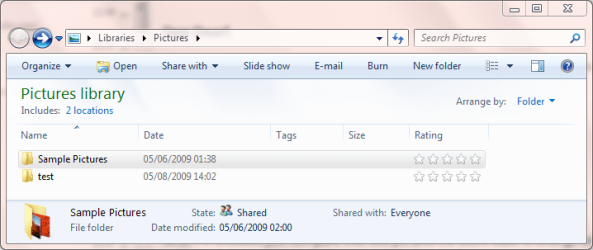
There is a way around this, although it is probably not ideal. It is the best that I can come up with. I am using the Sample Pictures folder for this example.

This image shows the Pictures Library with the view set to Details and Arrange by set to Folders.
Capture.PNG

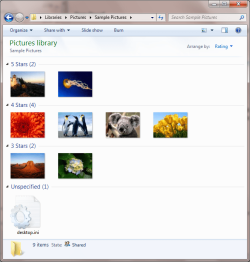
Here I have opened the Sample Pictures folder and have changed it to show a different view, as illustrated by the view icon. However, I did not change the view there. Instead, I changed it by setting Arrange by to Rating.
Capture1.PNG
 

My Computer

Computer type
PC/Desktop
Computer Manufacturer/Model Number
Dwarf Dwf/11/2012 r09/2013
OS
Windows 8.1 Pro RTM x64
CPU
Intel Core-i5-3570K 4-core @ 3.4GHz (Ivy Bridge) (OC 4.4GHz)
Motherboard
ASRock Z77 Extreme4-M
Memory
4 x 4GB DDR3-1600 Corsair Vengeance CMZ8GX3M2A1600C9B (16GB)
Graphics Card(s)
MSI GeForce GTX770 Gaming OC 2GB
Sound Card
Realtek High Definition on board solution (ALC 898)
Monitor(s) Displays
ViewSonic VA1912w Widescreen (VGA)
Screen Resolution
1440x900
Hard Drives
OCZ Agility 3 SSD 120GB SATA III x2 (RAID 0)
Samsung HD501LJ 500GB SATA II x2
Hitachi HDS721010CLA332 1TB SATA II
Iomega 1.5TB Ext USB 2.0
WD 2.0TB Ext USB 3.0
PSU
XFX Pro Series 850W Semi-Modular
Case
Gigabyte IF233
Cooling
1 x 120mm Front Inlet 1 x 120mm Rear Exhaust
Keyboard
Microsoft Comfort Curve Keyboard 3000 (USB)
Mouse
Microsoft Comfort Mouse 3000 for Business (USB)
Internet Speed
NetGear DG834Gv3 ADSL Modem/Router (Ethernet) ~4.0 Mb/s (O2)
Antivirus
Avast! 8.0.1497
Browser
IE 11
Other Info
Optical Drive: HL-DT-ST BD-RE BH10LS30 SATA Bluray
Lexmark S305 Printer/Scanner/Copier (USB)
WEI Score: 8.1/8.1/8.5/8.5/8.25
Asus Eee PC 1011PX Netbook (Windows 7 x86 Starter)
I've actually found that the Libraries feature works best for me, and I've had no issues with it displaying my files in the way I want. Case in point, with the Music library.

The following screenshot shows my Music library arranged by Album:

music_library_1.jpg
The Album Art thumbnails are displayed in Music Library Album view

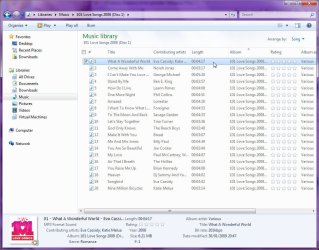
I then open a particular album, and change the view to "Details", and Arrange By to "Song", as shown in this screenshot:

music_library_2.jpg
Organize your Music Library AS Music, NOT as Filenames!


When viewing the details of an album, I customized the columns to the following arrangement:
  1. # (Track Number)
  2. Title
  3. Contributing Artists
  4. Length
  5. Album
  6. Rating
  7. Album Artist
  8. Name (Filename)
That arrangement is used with the entire Music library. If I open Windows Explorer, and go to the Music Library and then change the Album view to Artist, I can open any particular Artist to see a collection of his/her Albums, and then drill down deeper into an Album to see the particular tracks of that album.

It almost makes the Windows Media Player Library obsolete, since I now only use WMP for Playback and not file management. I find it so much easier to manage my music in Windows Explorer as such, instead of a collection of filenames. :D

Note that I only had to configure my Music library view preferences once for each desired view, and then my configurations automaticaly propogated to the entire Music Library...

I only wish there was an easy way to quickly edit the Metadata for AVI/DivX/xVid video files... :cry:
 

My Computer

Computer type
PC/Desktop
Computer Manufacturer/Model Number
Virtual Machine
OS
Windows 7 Professional 32-bit SP1
CPU
AMD A4/A6
Motherboard
Intel Corporation 440BX Desktop Reference Platform
Memory
3.00GB EDO
Graphics Card(s)
VMware SVGA 3D
Sound Card
High Definition Audio Device
Monitor(s) Displays
Generic Non-PnP Monitor on VMware SVGA 3D
Screen Resolution
1440x900
Hard Drives
1 x 60GB VMware Virtual SATA Hard Drive ATA Device
Antivirus
Kaspersky Total Security
Thanks all for your help,

I have successfully managed to sort it out. I originally could not see sort by "Song" the folder was set as "General" changed to music and it worked gave me the option to view by songs.

So The root Music folder has :

Arrange by: Folder
View: Extra Large Icons
Album Directory: Arrange by: Album
Within the Album: Arrange by Song

:)
 

My Computer

OS
Windows 7 Hom Premium
You're welcome, Pdog. I'm glad that you have got it sorted. It's just a matter sometimes of experimenting with the various combinations until you find one that does what you want without upsetting everything else.
 

My Computer

Computer type
PC/Desktop
Computer Manufacturer/Model Number
Dwarf Dwf/11/2012 r09/2013
OS
Windows 8.1 Pro RTM x64
CPU
Intel Core-i5-3570K 4-core @ 3.4GHz (Ivy Bridge) (OC 4.4GHz)
Motherboard
ASRock Z77 Extreme4-M
Memory
4 x 4GB DDR3-1600 Corsair Vengeance CMZ8GX3M2A1600C9B (16GB)
Graphics Card(s)
MSI GeForce GTX770 Gaming OC 2GB
Sound Card
Realtek High Definition on board solution (ALC 898)
Monitor(s) Displays
ViewSonic VA1912w Widescreen (VGA)
Screen Resolution
1440x900
Hard Drives
OCZ Agility 3 SSD 120GB SATA III x2 (RAID 0)
Samsung HD501LJ 500GB SATA II x2
Hitachi HDS721010CLA332 1TB SATA II
Iomega 1.5TB Ext USB 2.0
WD 2.0TB Ext USB 3.0
PSU
XFX Pro Series 850W Semi-Modular
Case
Gigabyte IF233
Cooling
1 x 120mm Front Inlet 1 x 120mm Rear Exhaust
Keyboard
Microsoft Comfort Curve Keyboard 3000 (USB)
Mouse
Microsoft Comfort Mouse 3000 for Business (USB)
Internet Speed
NetGear DG834Gv3 ADSL Modem/Router (Ethernet) ~4.0 Mb/s (O2)
Antivirus
Avast! 8.0.1497
Browser
IE 11
Other Info
Optical Drive: HL-DT-ST BD-RE BH10LS30 SATA Bluray
Lexmark S305 Printer/Scanner/Copier (USB)
WEI Score: 8.1/8.1/8.5/8.5/8.25
Asus Eee PC 1011PX Netbook (Windows 7 x86 Starter)
Back
Top