
You are using an out of date browser. It may not display this or other websites correctly.
You should upgrade or use an alternative browser.
You should upgrade or use an alternative browser.
lost win7 drive capacity
- Thread starter rbt2
- Start date

Can you post a picture of Disk Management.
My Computer
- Computer Manufacturer/Model Number
- HP, Dell, Gateway, Toshiba - 4 laptops and 2 desktops
- OS
- Vista, Windows7, Mint Mate, Zorin, Windows 8
- CPU
- from 1.6GHz Duo to i7
- Monitor(s) Displays
- 2x HP w2207
- Hard Drives
- 5x HDD, 7x SSD, 12x Externals
- Keyboard
- with trackball - no mices
- Mouse
- Trackball mice
- Internet Speed
- DSL 6000


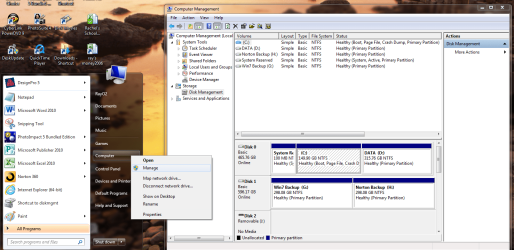
You posted the Device Manager. Have a look at Theog's post - that is Disk Management.
My Computer
- Computer Manufacturer/Model Number
- HP, Dell, Gateway, Toshiba - 4 laptops and 2 desktops
- OS
- Vista, Windows7, Mint Mate, Zorin, Windows 8
- CPU
- from 1.6GHz Duo to i7
- Monitor(s) Displays
- 2x HP w2207
- Hard Drives
- 5x HDD, 7x SSD, 12x Externals
- Keyboard
- with trackball - no mices
- Mouse
- Trackball mice
- Internet Speed
- DSL 6000
rbt2,
HOW TO POST A SNAPSHOT OF DISK MANAGEMENT DISPLAY
Run disk management:
WIN | type DISKMGMT.MSC | ENTER
WIN is the key with the wavy flag.
Maximize the output of Disk Management:
ALT-Spacebar key combo (this pops up a menu) followed by X key (selects Maximize) |
Drag the field separators (such as between Status and Capacity) to show entire field. This is very important, otherwise, needed info is not visible.
Make a snapshot:
WIN | type SNIPPING | ENTER | New
Drag the cursor around the area you want to snip.
File | Save as | select save location and name | Save
Post the snapshot:
· Click on the paperclip icon in that row of icons at the top of the message box.
· BROWSE button. There are 5 choices.
· Navigate to the folder containing the snapshot.
· Click on the snapshot.
· OPEN
· UPLOAD button which is adjacent to the 5th BROWSE button.
· Close the MANAGE ATTACHMENTS window.
· Position the cursor at the spot in the message where you want the
snapshot to appear.
· Click on the PaperClip again.
· Click on the file which you want to insert
· Attach code will be inserted into your message.
HOW TO POST A SNAPSHOT OF DISK MANAGEMENT DISPLAY
Run disk management:
WIN | type DISKMGMT.MSC | ENTER
WIN is the key with the wavy flag.
Maximize the output of Disk Management:
ALT-Spacebar key combo (this pops up a menu) followed by X key (selects Maximize) |
Drag the field separators (such as between Status and Capacity) to show entire field. This is very important, otherwise, needed info is not visible.
Make a snapshot:
WIN | type SNIPPING | ENTER | New
Drag the cursor around the area you want to snip.
File | Save as | select save location and name | Save
Post the snapshot:
· Click on the paperclip icon in that row of icons at the top of the message box.
· BROWSE button. There are 5 choices.
· Navigate to the folder containing the snapshot.
· Click on the snapshot.
· OPEN
· UPLOAD button which is adjacent to the 5th BROWSE button.
· Close the MANAGE ATTACHMENTS window.
· Position the cursor at the spot in the message where you want the
snapshot to appear.
· Click on the PaperClip again.
· Click on the file which you want to insert
· Attach code will be inserted into your message.
My Computer
- Computer Manufacturer/Model Number
- Toshiba Satellite S875D-S7239 laptop
- OS
- MS Windows 7 Ultimate SP1 64-bit
- CPU
- AMD A10-4600M
- Motherboard
- AMD Pumori (Socket FT1)
- Memory
- 6.00 GB Dual-Channel DDR3 @ 798MHz (11-11-12-28)
- Graphics Card(s)
- AMD Radeon HD 7660G
- Sound Card
- High Definition Audio Device
- Monitor(s) Displays
- Generic PnP Monitor (1600x900@60Hz)
- Screen Resolution
- 1600x900@60Hz
- Hard Drives
- SSD 119GB Corsair CSSD-V128GB2 ATA Device
- Keyboard
- Standard PS/2 Keyboard
- Mouse
- HP Wireless Optical Mobile Mouse Model FHA-3410
- Internet Speed
- What the local pub, local coffee shop offers.
- Other Info
- Optical Drive:MATSHITA BD-CMB UJ160B ATA Device
Also have an Asus ha1002xp netbook with Win 7 Ultimate installed.
Thank you all for your assistance. The problem I had w/disk capacity at least all day yesterday as well as probably longer (but just wasn't aware of it) resolved itself. That's the good news. The bad news is I don't know what would have happened last night to fix the issue.
At least I learned how to pull up diskmanagment. That's a good thing as well.
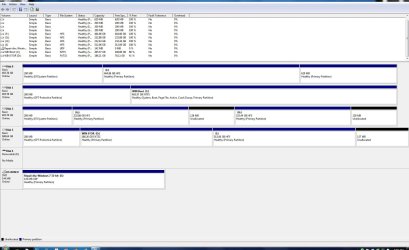
Anyway thanks again for your help and here is my scrnshot of diskmanagment.
BTW, I'm running win7 pro on a dual boot mac.
At least I learned how to pull up diskmanagment. That's a good thing as well.
Anyway thanks again for your help and here is my scrnshot of diskmanagment.
BTW, I'm running win7 pro on a dual boot mac.
My Computer
- OS
- windows 7 Pro 32-bit
Your C shos full capacity. So I guess your problem is fixed. Who knows what had happened earlier.
My Computer
- Computer Manufacturer/Model Number
- HP, Dell, Gateway, Toshiba - 4 laptops and 2 desktops
- OS
- Vista, Windows7, Mint Mate, Zorin, Windows 8
- CPU
- from 1.6GHz Duo to i7
- Monitor(s) Displays
- 2x HP w2207
- Hard Drives
- 5x HDD, 7x SSD, 12x Externals
- Keyboard
- with trackball - no mices
- Mouse
- Trackball mice
- Internet Speed
- DSL 6000