Before we continue: Please be aware that
removing Malware is a hazardous undertaking. I will take care not to knowingly suggest courses of action that might damage your computer. However it is impossible for me to foresee all interactions that may happen between the software on your computer and those we'll use to clear you of infection, and
I cannot guarantee the safety of your system. It is possible that we might encounter situations where the only recourse is to re-format and re-install your operating system, or to necessitate you taking your computer to a repair shop.
In light of this it would be wise for you to back up any files and folders that you don't want to lose
now.
==============================================
Multiple Anti-virus Programs
You are operating your computer with multiple Anti-virus programs installed:
Avast!
Microsoft Security Essentials
Anti-virus programs take up an enormous amount of your computer's resources when they are actively scanning your computer. Having two anti-virus programs running at the same time can cause your computer to run very slow, become unstable and even, in rare cases, crash. Please remove one of them NOW.
==============================================
Defogger
CD Emulator Software (Daemon Tools, Alcohol, etc) use drivers that can interfere with rootkit scans, so we'll temporarily disable them.
Disable Drivers
Please download
DeFogger... by
jpshortstuff. Save it to your
desktop.
- Double click DeFogger.exe to run the tool. The application window will appear.
- Click the Disable button to disable your CD Emulation drivers.
- Click Yes to continue. A 'Finished!' message will appear. Click OK.
- Click OK when DeFogger asks to reboot the machine.
Do not re-enable these drivers until otherwise instructed.
IMPORTANT! If you receive an error message while running DeFogger, please post the log
defogger_disable which will appear on your desktop.
==============================================
GMER
Please download
GMER Rootkit Scanner from
Here.
- Right-click the .exe file and select "Run as Administrator" If asked to allow .sys driver to load, please consent.
- If it gives you a warning about rootkit activity and asks if you want to run scan...click on NO
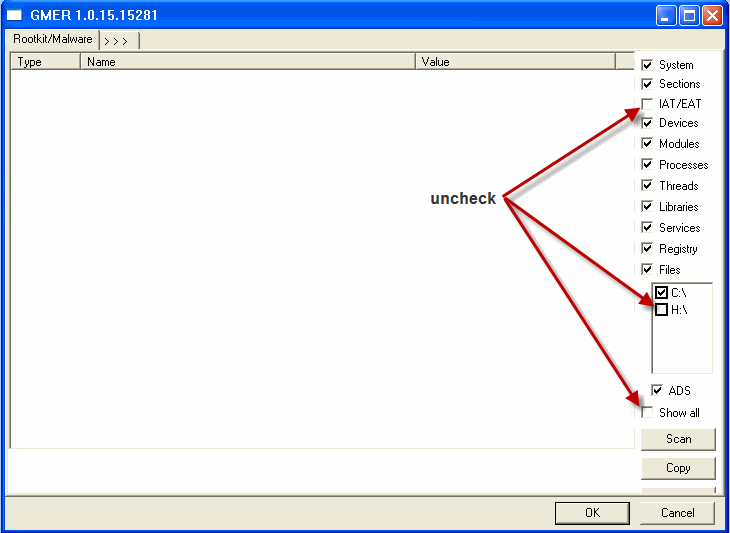
- In the right panel, you will see several boxes that have been checked. Uncheck the following ...
- IAT/EAT
- Drives/Partition other than Systemdrive (typically C:\)
- Show All << (don't miss this one)
See image below, Click the image to enlarge it
- Then click the Scan button & wait for it to finish
- Once done click on the [Save..] button, and in the File name area, type in "Gmer.txt" or it will save as a .log file
- Save it where you can easily find it, such as your desktop, and post it in your next reply
**Caution**
Rootkit scans often produce false positives. Do NOT take any action on any "<--- ROOKIT" entries
Note: Do not run any programs while Gmer is running.
If GMER crashes, then restart your computer and try again, this time also uncheck
Devices. You can also try the scan in safe mode if necessary. You might want to save these instructions with notepad or print them because there's no internet in safe mode:
- Restart your computer
- During startup, but before the Windows logo appears, tap the F5/F8 key continually or hold down the Shift key;
- Instead of Windows loading as normal, the Advanced Options Menu should appear;
- Select the first option, to run Windows in Safe Mode, then press Enter.
- Choose your usual account.
- When asked to proceed to safe mode, click Yes.
- Make sure Trend Micro Antivirus is disabled, then follow the GMER instructions.
- When finished reboot the computer.
==============================================
Please post the contents of GMER.txt