BusConsultBSI
New member
- Local time
- 5:53 PM
- Messages
- 6
Made error w/"Location" tool: Made changes I cannot undo: Local Disk
I am a novice that has run into trouble with Location tools.I have tried Googling the issue, but I am not exactly sure what I have done.
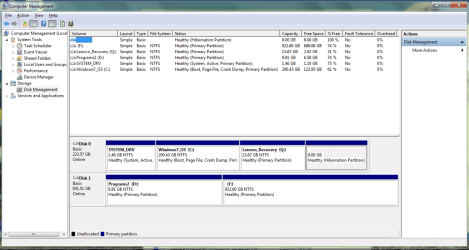
I am rebuilding my laptop which has a medium size SSD and a 1Tb hard drive running Windows 7 Professional 64. I have much of my software installed to the SSD ( C: ), some installed to a small partition ( D: ) on the 1TB disk, and my files to a second partition (F: ) on the 1TB disk.
My Dropbox is in F, and I successfully used the “Location” tool to move my “Downloads” folder to F.
1.I went to move my Favorites folder with the location tool and fat-brained/fat fingered something and I found the individual elements (items and subfolders) of my Favorites folder in F without being part of the folder Favorites.
2.There was an option to return to the “default” which I assumed was like “Undo”.As usual a bad assumption.My individual Favorites stayed on the F Drive and copy of the F Drive appeared in my user folder.
3.I now have a “Local Disk ( F: )” in my User Folder on C:, but luckily it is not “taking up space” on C:. I cannot delete it or drag it. I also have my Favorites (items and subfolders) on F: with a Favorites Folder.
4.One more unusual note…. In one view of my User folder I see “Local Disk F:”, but when I go through Windows: User: I do not see “Local Disk f:”See attached screenshot to see that circumstance and for additional illustration of my issue.I masked my actual user name to protect the ignorant (me).
I wish to:
1.Remove the “Local Disk F:” from my User Folder
2.Remove the individual elements of My Favorites from Local Disk F and place them back where they belong in the Favorites Folder.
Thanks in advance, and if the answer exists on this forum already I am not savvy enough to identify it.
I am a novice that has run into trouble with Location tools.I have tried Googling the issue, but I am not exactly sure what I have done.
I am rebuilding my laptop which has a medium size SSD and a 1Tb hard drive running Windows 7 Professional 64. I have much of my software installed to the SSD ( C: ), some installed to a small partition ( D: ) on the 1TB disk, and my files to a second partition (F: ) on the 1TB disk.
My Dropbox is in F, and I successfully used the “Location” tool to move my “Downloads” folder to F.
1.I went to move my Favorites folder with the location tool and fat-brained/fat fingered something and I found the individual elements (items and subfolders) of my Favorites folder in F without being part of the folder Favorites.
2.There was an option to return to the “default” which I assumed was like “Undo”.As usual a bad assumption.My individual Favorites stayed on the F Drive and copy of the F Drive appeared in my user folder.
3.I now have a “Local Disk ( F: )” in my User Folder on C:, but luckily it is not “taking up space” on C:. I cannot delete it or drag it. I also have my Favorites (items and subfolders) on F: with a Favorites Folder.
4.One more unusual note…. In one view of my User folder I see “Local Disk F:”, but when I go through Windows: User: I do not see “Local Disk f:”See attached screenshot to see that circumstance and for additional illustration of my issue.I masked my actual user name to protect the ignorant (me).
I wish to:
1.Remove the “Local Disk F:” from my User Folder
2.Remove the individual elements of My Favorites from Local Disk F and place them back where they belong in the Favorites Folder.
Thanks in advance, and if the answer exists on this forum already I am not savvy enough to identify it.
Attachments

Last edited:
My Computer
- Computer type
- Laptop
- Computer Manufacturer/Model Number
- Thinkpad W530
- OS
- Windows 7 Professional 64bit
- CPU
- Intel Core i7
- Memory
- 16GB
- Hard Drives
- SSD 240GB
HHD 1TB
- Antivirus
- Norton
- Browser
- IE