Managing System Image & Backups

keithfrench

New member
Local time
5:59 AM
Messages
8
I use Backup & Restore in Windows 7 Home Premium to save backups to an internal hard drive (not the ststem drive) and use a USB hard disk to save System Images on.

If I want to delete any backups that is no problem using the "Manage Space" in Backup & Restore.

However, if I want to delete an old image that is on my USB drive, I cannot use the "Manage Space", as that is looking at my secondary internal hard disk and hence says that there are no System Images on the drive. I then have to customise my backups to save to the USB hard drive and run a new backup, before it will let me manage the System Image on this USB drive.

Is there a registry edit or similar that will allow "Manage Space" to look to the two seperate hard disks, one for backups & the other for system images?

Keith French.
 

My Computer

OS
Windows 7
Welcome Keith!

You can simply delete the WindowsImageBackup folder from wherever you saved the system image.
 

My Computer

Computer Manufacturer/Model Number
Custom
OS
Windows 7 Professional x64
CPU
Intel i7 2600K OC'd @ 4620 MHz
Motherboard
Asus P8Z68-V Pro
Memory
16GB GSkill Sniper 2133 Mhz (4x4GB)
Graphics Card(s)
EVGA GeForce GTX 480 SuperClocked+
Sound Card
Realtek High Definition Audio
Monitor(s) Displays
2x Acer S273HLbmii 27"
Screen Resolution
2 x 1920x1080
Hard Drives
64GB Crucial M4 SSD

Storage: Hitachi 1TB 5400RPM, Samsung 1.5TB 5400RPM
PSU
Corsair HW Series 750w (modular)
Case
Cooler Master HAF 932 Advanced Blue Edition
Cooling
CM Hyper 212+ CPU cooler, 3x 230mm + 1x 140mm case fans
Keyboard
Logitech MK320 (wireless)
Mouse
Logitech MK320 (wireless)
Internet Speed
30 Mb/s : 2 Mb/s
Cannot manage space on a USB flash drive

If one is using a USB flash drive for data backups only, then, I don't believe Windows 7 let's you manage the space.
You can schedule file backups to go to the USB drive, but that will then fill up the USB drive, eventually; unless you manually delete file backups from time to time. (Perhaps it won't fill up quickly if subsequent backups are incremental).

Can someone shed some light on this?
 

My Computer

Computer Manufacturer/Model Number
MSI
OS
Windows 7 Ultimate
CPU
Intel-Atom
Memory
2 GB
Monitor(s) Displays
LG 23"
Hard Drives
700 GB IDE
Welcome Steven!

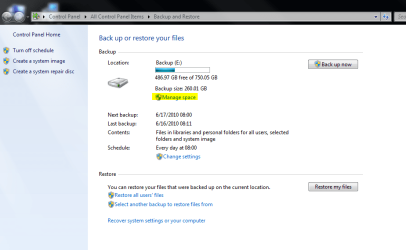
Does this option appear for you?

Capture.PNG
 

My Computer

Computer Manufacturer/Model Number
Custom
OS
Windows 7 Professional x64
CPU
Intel i7 2600K OC'd @ 4620 MHz
Motherboard
Asus P8Z68-V Pro
Memory
16GB GSkill Sniper 2133 Mhz (4x4GB)
Graphics Card(s)
EVGA GeForce GTX 480 SuperClocked+
Sound Card
Realtek High Definition Audio
Monitor(s) Displays
2x Acer S273HLbmii 27"
Screen Resolution
2 x 1920x1080
Hard Drives
64GB Crucial M4 SSD

Storage: Hitachi 1TB 5400RPM, Samsung 1.5TB 5400RPM
PSU
Corsair HW Series 750w (modular)
Case
Cooler Master HAF 932 Advanced Blue Edition
Cooling
CM Hyper 212+ CPU cooler, 3x 230mm + 1x 140mm case fans
Keyboard
Logitech MK320 (wireless)
Mouse
Logitech MK320 (wireless)
Internet Speed
30 Mb/s : 2 Mb/s
Yes, Jonathan, the 'Manage Space' option does appear. However, for a 'File' backup (to a USB flash drive), when you click on that option, it just allows you to view the saved backups and then manually delete selected backups. I don't believe there is a way of having the backup program manage the space automatically.
 

My Computer

Computer Manufacturer/Model Number
MSI
OS
Windows 7 Ultimate
CPU
Intel-Atom
Memory
2 GB
Monitor(s) Displays
LG 23"
Hard Drives
700 GB IDE
Keith French
The MS Backup restore options are restrictive in my opinion.
But for images you can just delete them like any other folder.
Given that you have heaps of cheap space on a USB hard drive you can rename the folder by adding something to the end of the name. MS will then create a new image when told to and leave this renamed one alone otherwise it will overwrite images in the same partition. If for some reason you want to recover from the old image rename it back to the [WindowsImageBackup] and recover from it.
I actually keep more than one image on 2 separate ext HDDs along with file backups on the ext HDDs.

I would like an option off to the left under "Create a system image" which says "create a full backup now" at a location of my choosing without going into "Change Settings"
 

My Computer

Computer type
PC/Desktop
Computer Manufacturer/Model Number
Own build
OS
Windows 7x64 Home Premium SP1
CPU
Intel i7 2600k
Motherboard
ASUS P8Z68 Deluxe
Memory
G.Skill Ripjaws (DDR3-1600) 2x4GB
Graphics Card(s)
Nvidia GeForce GTS 450; Intel HD Graphics 3000(GT2+)
Monitor(s) Displays
Dell Ultrasharp IPS panel U2311H, Samsung SyncMaster P2350
Screen Resolution
1920x1080
Hard Drives
Samsung 850 Pro SSD 256GB, Samsung SSD 840 120GB, Seagates 1TB Barracuda ST31000528AS x2
PSU
Seasonic M12II 520W
Case
Lian Li Lancool PC-K60
Cooling
Case: 1x120mm, 3x140mm CPU: Hyper 212+
Keyboard
Logitech MK520 (wireless)
Mouse
Logitech MK520
Internet Speed
6-7 Mbps
Antivirus
Norton Security Premium, Malwarebytes on 2 (MSE on 3rd PC)
Browser
FireFox
Other Info
Audio: Logitech Z523 2.1
Back
Top