Manually moving files or using backup softwares?

angelbeats96

New member
Member
VIP
Local time
6:54 AM
Messages
101
This might be a stupid question but when it comes to backing up your personal files, is there any difference between manually copying the files to another location or using backup software?

I've been backing up terabytes of video and music files manually (i.e copying the files directly to the drive) from my internal HDD to external HDD however, I've been told that such method is not recommended. Instead using dedicated backup software is a lot more "safer and reliable" which I'm not sure how such method differs from just copying and pasting the files.

Ultimately I haven't been paying attention to various ways of backing up the data such as using cloud services, raids etc as I always manually copied and pasted the files to another location. I'm not sure such practices is dangerous or not though I was wondering if I should start using backup software to back up my files.

Thank you and I appreciate your help.
 

My Computer

OS
Windows 7 Ultimate x64
Backup, or even sync, software is better because you can save jobs and then do everything with one click. You get a log which details any failures. You can do mirror backups which delete unwanted files on the receiving end. And they usually can use the volume shadow service to back up open files. You also get compression options, should you want to use them, and encryption options for privacy, and you can schedule the jobs to run automatically.
 

My Computer

Computer type
PC/Desktop
Computer Manufacturer/Model Number
dell precision t3400 tower
OS
Linux Lite 3.2 x64; Windows 7, 8.1
CPU
Core2Duo 2.4
Memory
6GB ddr2
Graphics Card(s)
nVidia
Hard Drives
120gb SSD, 1TB HD, 2TB HD; sata II
Internet Speed
12/2
Browser
Vivaldi, Slimjet (Chromium) x64
Backup, or even sync, software is better because you can save jobs and then do everything with one click. You get a log which details any failures. You can do mirror backups which delete unwanted files on the receiving end. And they usually can use the volume shadow service to back up open files. You also get compression options, should you want to use them, and encryption options for privacy, and you can schedule the jobs to run automatically.

Thank you for the reply.

Does software also "remember" the last files you've saved and thus, next time when you backup it will just save the new data and not overwriting the existing one? Sorry I can't explain it well but basically can it automatically save new contents each time without needing me to manually remember the last saves and such?
 

My Computer

OS
Windows 7 Ultimate x64
Yes, you can set it that way, usually. It's called incremental backup. Some sophisticated software even does it at the "block level", so that only the changed parts of files have to be copied, which saves on bandwidth big time.

Or you can do a mirror backup using a sync program, which will only copy changed files and will also delete existing destination files no longer in the source.
 

My Computer

Computer type
PC/Desktop
Computer Manufacturer/Model Number
dell precision t3400 tower
OS
Linux Lite 3.2 x64; Windows 7, 8.1
CPU
Core2Duo 2.4
Memory
6GB ddr2
Graphics Card(s)
nVidia
Hard Drives
120gb SSD, 1TB HD, 2TB HD; sata II
Internet Speed
12/2
Browser
Vivaldi, Slimjet (Chromium) x64
Hmm, if that's the case then which paid backup software is recommended as of right now? For backing up personal files and whole drive/partition?

It looks like Second Copy by Centered Systems is being recommended from the other thread for a beginner though if possible, I'd like an affirmation or other suggestions before I pull the trigger on one of these back up softwares.

More so, should I also look into imaging/cloning as well? Or is this specifically for backing up the whole system instead of personal files?
 

My Computer

OS
Windows 7 Ultimate x64
I always keep both a drive image and file backups. This way I'm covered no matter what. For imaging I use Aomei's Backupper. The free version does both image and file backups, and does incrementals, but does not manage the backup files. The paid version does. A lot of people here like Macrium free, but I don't like the interface. For file sync I use either SyncBack free or FreeFileSync
 

My Computer

Computer type
PC/Desktop
Computer Manufacturer/Model Number
dell precision t3400 tower
OS
Linux Lite 3.2 x64; Windows 7, 8.1
CPU
Core2Duo 2.4
Memory
6GB ddr2
Graphics Card(s)
nVidia
Hard Drives
120gb SSD, 1TB HD, 2TB HD; sata II
Internet Speed
12/2
Browser
Vivaldi, Slimjet (Chromium) x64
Hmm, if that's the case then which paid backup software is recommended as of right now? For backing up personal files and whole drive/partition?

It looks like Second Copy by Centered Systems is being recommended from the other thread for a beginner though if possible, I'd like an affirmation or other suggestions before I pull the trigger on one of these back up softwares.

More so, should I also look into imaging/cloning as well? Or is this specifically for backing up the whole system instead of personal files?

Second Copy is an excellent program. As far as I know, it's about $30, with a 30 day free trial. I can't think of a better paid program.

BUT: it is not an imaging program. It just backs up files. You can include or exclude by file name, file extension, or folder. It will not back up your Windows installation in any form that could later be restored.

The best known imaging programs include Macrium, Aomei, Acronis, Paragon, and Easeus. Most have several versions, some of which would include a file backup capability as well as imaging. Some versions are free and some are paid.
 

My Computer

Computer type
PC/Desktop
Computer Manufacturer/Model Number
Ignatz Special; 4 speed manual gearbox; factory air conditioning; one of one
OS
Windows 7 Home Premium SP1, 64-bit
CPU
Intel Skylake i5-6600K, not overclocked
Motherboard
AsRock Z170M Extreme 4, micro ATX
Memory
8 GB HyperX DDR4-2666 (2 x 4 GB)
Graphics Card(s)
none; graphics are integrated on CPU
Sound Card
onboard: Realtek ALC1150; external: USB Behringer UF0-202
Monitor(s) Displays
Dell S2340M 23 inch IPS
Screen Resolution
1600 x 900
Hard Drives
System: Crucial MX100 series SSD, 128 GB;
Data: Samsung Spinpoint 103SJ, 1 TB;
Backup: WD Caviar Green WD30EZRX-00D8PB0, 3 TB
PSU
Rosewill SilentNight 500 watt fanless, semi-modular
Case
Antec Solo II
Cooling
Noctua NH-U12S; Noctua F12 intake, Noctua S12A exhaust
Keyboard
Microsoft 200 6JH-00001 USB
Mouse
Dell or Microsoft optical wired; USB
Antivirus
Microsoft Security Essentials and Malwarebytes Premium
Browser
Pale Moon
Other Info
All fans PWM; speeds at idle: CPU circa 500 rpm; intake circa 600 rpm; exhaust circa 600 rpm; CPU temps 27 idle and 47 C load in a warm room (27 C/81 F) when running Intel Extreme Tuning Utility stress test.
I recommend Macrium Reflect Free (here is a good tutorial on how to use Macrium Reflect) for backing up System files (OS and Programs) and FreeFileSync for backing up data. I have my System installed on its own drive (a SSD) and my data on their own HDDs. If one has only one drive, the System should be installed on its own partitions (normally, the C: and System Reserved) and the data on its own partition.
 

My Computer

Computer type
PC/Desktop
Computer Manufacturer/Model Number
Custom Build
OS
Win 7 Ultimate 64 bit
CPU
Intel i7-3930K
Motherboard
ASUS P9X79 WS
Memory
Kingston HyperX Genesis 32GB Kit (8x4GB Modules) 1600MHz DDR
Graphics Card(s)
MSI R7850 Twin Frozr 2GD5/OC Radeon HD 7850 2GB 256-bit GDDR
Sound Card
Asus Xonar Essence STX
Monitor(s) Displays
3x Asus VG248QE 24", Vizio 32" TV
Screen Resolution
1920 x 1080, ?
Hard Drives
Samsung 128GB 840 Pro SSD (1),
Samsung 4TB 850 EVO SSDs (4)
Samsung 4TB 850 EVO SSDs (16) external backup drives used in 2.5" hot swap bays in the computer.
PSU
Corsair HX750w
Case
Antec Two Hundred v2 (modified)
Cooling
Cooler Master GeminII S524 120mm (fan replaced with a 140mm)
Keyboard
Logitech G510s
Mouse
Logitech M525 (two in use)
Internet Speed
=< 32Mbps down, 8Mbps up
Antivirus
AVAST!, MBAM, SAS, Spybot S&D (all but MBAM free) Glary Util
Browser
IE11
Other Info
LSI 9211-8i HBA card (8 SATA III ports), 2.5" & 3.5" Hot Swap Bays, HooToo HT-CR001 PCI-E to USB 3.0 Internal Hub + 6 Slot Card Reader, and LG Model CH12LS28 BD-ROM Optical Drive. Also, ScanSnap S1500 ADF duplexing scanner, Canon 9000F flat bed scanner, Corsair SP2500 2.1 speakers, Samsung CLP 415nw laser color printer, Cyberpower PP2200SW UPS
Thanks for the replies guys.

Last question: if I want to just backup one specific drive for one time only (replacing internal HDD), will both freesynchfile and second copy does the job of just backing up everything in that drive to my external HDD? Without setting up automatic backup and such?
 

My Computer

OS
Windows 7 Ultimate x64
They both will assuming you configure them properly, but............................

Why bother installing anything or taking the time to learn about the program?

If it's a one time deal, just drag and drop without installing anything. That's effectively what FFS and SC would do.

Unless there's something you haven't mentioned, I can't imagine why you'd install an app for a one-time backup.
 

My Computer

Computer type
PC/Desktop
Computer Manufacturer/Model Number
Ignatz Special; 4 speed manual gearbox; factory air conditioning; one of one
OS
Windows 7 Home Premium SP1, 64-bit
CPU
Intel Skylake i5-6600K, not overclocked
Motherboard
AsRock Z170M Extreme 4, micro ATX
Memory
8 GB HyperX DDR4-2666 (2 x 4 GB)
Graphics Card(s)
none; graphics are integrated on CPU
Sound Card
onboard: Realtek ALC1150; external: USB Behringer UF0-202
Monitor(s) Displays
Dell S2340M 23 inch IPS
Screen Resolution
1600 x 900
Hard Drives
System: Crucial MX100 series SSD, 128 GB;
Data: Samsung Spinpoint 103SJ, 1 TB;
Backup: WD Caviar Green WD30EZRX-00D8PB0, 3 TB
PSU
Rosewill SilentNight 500 watt fanless, semi-modular
Case
Antec Solo II
Cooling
Noctua NH-U12S; Noctua F12 intake, Noctua S12A exhaust
Keyboard
Microsoft 200 6JH-00001 USB
Mouse
Dell or Microsoft optical wired; USB
Antivirus
Microsoft Security Essentials and Malwarebytes Premium
Browser
Pale Moon
Other Info
All fans PWM; speeds at idle: CPU circa 500 rpm; intake circa 600 rpm; exhaust circa 600 rpm; CPU temps 27 idle and 47 C load in a warm room (27 C/81 F) when running Intel Extreme Tuning Utility stress test.
Thanks for the replies guys.

Last question: if I want to just backup one specific drive for one time only (replacing internal HDD), will both freesynchfile and second copy does the job of just backing up everything in that drive to my external HDD? Without setting up automatic backup and such?

Yes but for a onetime full copy like that, it would be easier to just clone it using Macrium Reflect.

Also, I do not recommend automatic backups since that would require that you keep your backup drives connected to the computer at all times (I also do not recommend backing up to internal drives). If you leave your backup drives connected to the computer, viruses and malware could infect the backup drives before you have a chance to catch them, rendering your backup useless. Once you have your backup programs set up, it doesn't take very long to run a backup.
 

My Computer

Computer type
PC/Desktop
Computer Manufacturer/Model Number
Custom Build
OS
Win 7 Ultimate 64 bit
CPU
Intel i7-3930K
Motherboard
ASUS P9X79 WS
Memory
Kingston HyperX Genesis 32GB Kit (8x4GB Modules) 1600MHz DDR
Graphics Card(s)
MSI R7850 Twin Frozr 2GD5/OC Radeon HD 7850 2GB 256-bit GDDR
Sound Card
Asus Xonar Essence STX
Monitor(s) Displays
3x Asus VG248QE 24", Vizio 32" TV
Screen Resolution
1920 x 1080, ?
Hard Drives
Samsung 128GB 840 Pro SSD (1),
Samsung 4TB 850 EVO SSDs (4)
Samsung 4TB 850 EVO SSDs (16) external backup drives used in 2.5" hot swap bays in the computer.
PSU
Corsair HX750w
Case
Antec Two Hundred v2 (modified)
Cooling
Cooler Master GeminII S524 120mm (fan replaced with a 140mm)
Keyboard
Logitech G510s
Mouse
Logitech M525 (two in use)
Internet Speed
=< 32Mbps down, 8Mbps up
Antivirus
AVAST!, MBAM, SAS, Spybot S&D (all but MBAM free) Glary Util
Browser
IE11
Other Info
LSI 9211-8i HBA card (8 SATA III ports), 2.5" & 3.5" Hot Swap Bays, HooToo HT-CR001 PCI-E to USB 3.0 Internal Hub + 6 Slot Card Reader, and LG Model CH12LS28 BD-ROM Optical Drive. Also, ScanSnap S1500 ADF duplexing scanner, Canon 9000F flat bed scanner, Corsair SP2500 2.1 speakers, Samsung CLP 415nw laser color printer, Cyberpower PP2200SW UPS
Oh it's just that I'd like to use this opportunity to start using dedicated backup software from here on... As I've always been using "drag and drop" for backing up my personal files.
 

My Computer

OS
Windows 7 Ultimate x64
If you want to replace your hard drive, you need to either image the existing one (preferable, so that you will have a copy for future use) or clone it directly. FreeFileSync will not do this, and the resulting drive copy will not be bootable.

LF is right about internal drives having some vulnerabilities, but the advantages to regularly scheduled backups are great. Here I think the best plan is to have frequent scheduled file and image backups to an internal drive (as in daily for files, weekly for incremental images), and less frequent full images to an external store done manually. If you're limited on internal space just do the file backups there, and images to an external.
 

My Computer

Computer type
PC/Desktop
Computer Manufacturer/Model Number
dell precision t3400 tower
OS
Linux Lite 3.2 x64; Windows 7, 8.1
CPU
Core2Duo 2.4
Memory
6GB ddr2
Graphics Card(s)
nVidia
Hard Drives
120gb SSD, 1TB HD, 2TB HD; sata II
Internet Speed
12/2
Browser
Vivaldi, Slimjet (Chromium) x64
Wait so it's better to use image/clone instead of backing up via sync or "drag and drop"? I'm trying to backup a 2TB drive which contains bunch of files only (images, vidoes and music). Nothing is installed in that drive including system.
 

My Computer

OS
Windows 7 Ultimate x64
Oh, ok. I thought you meant backing up a system drive. Sorry for the confusion. In this case imaging is not necessary.
 

My Computer

Computer type
PC/Desktop
Computer Manufacturer/Model Number
dell precision t3400 tower
OS
Linux Lite 3.2 x64; Windows 7, 8.1
CPU
Core2Duo 2.4
Memory
6GB ddr2
Graphics Card(s)
nVidia
Hard Drives
120gb SSD, 1TB HD, 2TB HD; sata II
Internet Speed
12/2
Browser
Vivaldi, Slimjet (Chromium) x64
Wait so it's better to use image/clone instead of backing up via sync or "drag and drop"? I'm trying to backup a 2TB drive which contains bunch of files only (images, vidoes and music). Nothing is installed in that drive including system.

No, there is no need to image or clone for data files.

Use either FFS or Second Copy. Either will work fine.

Second Copy is easier to understand and has a better interface. Only disadvantage is it costs $30, but there is a 30 day free trial.

Will you be moving to Windows 10? If so, you might want to contact Centered Systems by email and find out about support for Win 10. The current version may or may not support 10. If it doesn't, they might give you a free upgrade from the current version to the Win 10 version---or maybe not. You ought to find that out before paying if you have Win 10 in your future.

You have to decide on this issue:

If you have a file named X, it will be backed up to your backup drive.

If you delete file X from your originals, do you want to keep it on the backup drive? Or delete it from there too? Both Second Copy and FFS can be set up either way, but you have to come to a conclusion on how to handle that. I've always deleted from the backup if I delete from the originals, but some folks don't.
 

My Computer

Computer type
PC/Desktop
Computer Manufacturer/Model Number
Ignatz Special; 4 speed manual gearbox; factory air conditioning; one of one
OS
Windows 7 Home Premium SP1, 64-bit
CPU
Intel Skylake i5-6600K, not overclocked
Motherboard
AsRock Z170M Extreme 4, micro ATX
Memory
8 GB HyperX DDR4-2666 (2 x 4 GB)
Graphics Card(s)
none; graphics are integrated on CPU
Sound Card
onboard: Realtek ALC1150; external: USB Behringer UF0-202
Monitor(s) Displays
Dell S2340M 23 inch IPS
Screen Resolution
1600 x 900
Hard Drives
System: Crucial MX100 series SSD, 128 GB;
Data: Samsung Spinpoint 103SJ, 1 TB;
Backup: WD Caviar Green WD30EZRX-00D8PB0, 3 TB
PSU
Rosewill SilentNight 500 watt fanless, semi-modular
Case
Antec Solo II
Cooling
Noctua NH-U12S; Noctua F12 intake, Noctua S12A exhaust
Keyboard
Microsoft 200 6JH-00001 USB
Mouse
Dell or Microsoft optical wired; USB
Antivirus
Microsoft Security Essentials and Malwarebytes Premium
Browser
Pale Moon
Other Info
All fans PWM; speeds at idle: CPU circa 500 rpm; intake circa 600 rpm; exhaust circa 600 rpm; CPU temps 27 idle and 47 C load in a warm room (27 C/81 F) when running Intel Extreme Tuning Utility stress test.
Backup, or even sync, software is better because you can save jobs and then do everything with one click. You get a log which details any failures. You can do mirror backups which delete unwanted files on the receiving end. And they usually can use the volume shadow service to back up open files. You also get compression options, should you want to use them, and encryption options for privacy, and you can schedule the jobs to run automatically.

Thank you for the reply.

Does software also "remember" the last files you've saved and thus, next time when you backup it will just save the new data and not overwriting the existing one? Sorry I can't explain it well but basically can it automatically save new contents each time without needing me to manually remember the last saves and such?

It might be my recent post elsewhere recommending Second Copy that you saw.

On your question (if I have got it right) if incremental backup is set up, this means that if a file in the source is altered (added to, parts deleted or amended), the file on the destination (which was created during an earlier backup) will not be over-written by the source file and replaced by it. Instead only the info about the successive changes will be stored with it (I think this is invisible) specifying the changes. If you then open that destination file the parts will be stitched together and the whole amended file displayed. (At least that is how I believe it is done). I think incremental backup is quicker because only the changed info is written to the destination. I don't use it because speed is not an issue for me. (See Wikipedia on Incremental Backup).

On your other question, I am sure that manually copying or moving files between folders or drives is the same as using a backup program without incremental backup set (unles perhaps the backup program is very sophistcated).

On another subject, Second Copy can be easily set to delete any file on the destination folder that is not on the corresponding source folder. This is how I have set up mine. Ignatzasonic also. This prevents destination folders getting clogged up. Second Copy calls this setting "Exact Copy"). You need to be aware that this means that if you delete a file from a folder in the source and then do a backup, that file in the destination folder will be deleted. This also applies to moving that file in the source to another folder on the source. Both is OK becaue you (hopefully) meant to delete the file, or it is still in existence where it was moved to.

On Lady Fitzgerald's point about automatic backups, mine are set to manual. Every third day or longer (or immediately if an important new file needs to be backed up soon) I switch on my two external USB HDDs and do manual backups (I have one for each folder), which occurs in the background, then I switch the drives off. I am wary of backups being done very frequently (say every few hours) because most backup systems work by moving files from one drive to another, and the next time they are moved on again. If a file is unknowingly corrupted or deleted, that corruption or deletion will worlk its way up the HDD line and soon disappear for good.

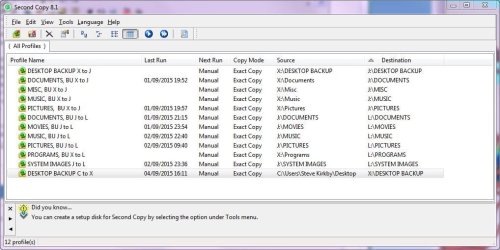
In case it is interesting, here is my full suite of backup routines. The gaps in the Last Run column reflect some re-organising I did recently. (I have yet to put them into groups, each group containing the same source and destination, eg. C to X; X to J; J to L.) The J to L ones are executed first, then the X to J, then the C to X. This shifts the data up one HDD at a time, new files and deletions entering at the beginning of the chain (C and X) and the oldest (L) still having files now deleted from (X) (which can be a safety feature, which is another reason why I don't do a backup more frequently than every few days). The only (C) file involved is the Desktop (in case I have lazily left a file (rather than a shortcut) on it). I don't have any personal files on (C) such as Documents, Pictures etc.

Any comments from anyone on this setup?

 

Attachments

  • Capture kjhkh.JPG
    Capture kjhkh.JPG
    82.1 KB · Views: 1
Last edited:

My Computer

Computer type
PC/Desktop
Computer Manufacturer/Model Number
Gigabyte ATX case with 500 W power supply GZ-M1
OS
Windows 7 Home Premium 64bit
CPU
Intel Pentium Edition G3220 3.0 GHz
Motherboard
Gigabyte Socket 1150 MicroATX Mot Ultra Durable, GA-H81M-S2H
Memory
8 GB DDR3 1600 MHz DIMM
Graphics Card(s)
Not Known
Sound Card
Not known
Monitor(s) Displays
Samsung LS24D590 23.6"
Screen Resolution
1920 x 1080
Hard Drives
256 GB Solid State Drive (C: on which Windows 7 is installed)-
1 TB internal conventional HD (X:)-
Two WD "Elements" " 2TB USB drives as backups
PSU
500 W
Case
Gigabyte ATX case
Cooling
Several fans!
Keyboard
Accuratus 301 USB Compact, white.
Mouse
Microsoft Basic Optical Mouse v2.0, two-button, tethered
Internet Speed
10 to 12 Mb per second
Antivirus
Kaspersky Internet Security 2016, Malwarebytes (paid)
Browser
Firefox (ocassionally Safari)
Other Info
The 256 GB SSD (C:) also has Adobe Photoshop CS6 and InDesign CS6, MS Office, Adobe Lightroom, and other small programs.
Backup, or even sync, software is better because you can save jobs and then do everything with one click. You get a log which details any failures. You can do mirror backups which delete unwanted files on the receiving end. And they usually can use the volume shadow service to back up open files. You also get compression options, should you want to use them, and encryption options for privacy, and you can schedule the jobs to run automatically.

Thank you for the reply.

Does software also "remember" the last files you've saved and thus, next time when you backup it will just save the new data and not overwriting the existing one? Sorry I can't explain it well but basically can it automatically save new contents each time without needing me to manually remember the last saves and such?

It might be my recent post elsewhere recommending Second Copy that you saw.

On your question (if I have got it right) if incremental backup is set up, this means that if a file in the source is altered (added to, parts deleted or amended), the file on the destination (which was created during an earlier backup) will not be over-written by the source file and replaced by it. Instead only the info about the successive changes will be stored with it (I think this is invisible) specifying the changes. If you then open that destination file the parts will be stitched together and the whole amended file displayed. (At least that is how I believe it is done). I think incremental backup is quicker because only the changed info is written to the destination. I don't use it because speed is not an issue for me. (See Wikipedia on Incremental Backup).

On your other question, I am sure that manually copying or moving files between folders or drives is the same as using a backup program without incremental backup set (unles perhaps the backup program is very sophistcated).

On another subject, Second Copy can be easily set to delete any file on the destination folder that is not on the corresponding source folder. This is how I have set up mine. Ignatzasonic also. This prevents destination folders getting clogged up. Second Copy calls this setting "Exact Copy"). You need to be aware that this means that if you delete a file from a folder in the source and then do a backup, that file in the destination folder will be deleted. This also applies to moving that file in the source to another folder on the source. Both is OK becaue you (hopefully) meant to delete the file, or it is still in existence where it was moved to.

On Lady Fitzgerald's point about automatic backups, mine are set to manual. Every third day or longer (or immediately if an important new file needs to be backed up soon) I switch on my two external USB HDDs and do manual backups (I have one for each folder), which occurs in the background, then I switch the drives off. I am wary of backups being done very frequently (say every few hours) because most backup systems work by moving files from one drive to another, and the next time they are moved on again. If a file is unknowingly corrupted or deleted, that corruption or deletion will worlk its way up the HDD line and soon disappear for good.

In case it is interesting, here is my full suite of backup routines. The gaps in the Last Run column reflect some re-organising I did recently. (I have yet to put them into groups, each group containing the same source and destination, eg. C to X; X to J; J to L.) The J to L ones are executed first, then the X to J, then the C to X. This shifts the data up one HDD at a time, new files and deletions entering at the beginning of the chain (C and X) and the oldest (L) still having files now deleted from (X) (which can be a safety feature, which is another reason why I don't do a backup more frequently than every few days). The only (C) file involved is the Desktop (in case I have lazily left a file (rather than a shortcut) on it). I don't have any personal files on (C) such as Documents, Pictures etc.

Any comments from anyone on this setup?

Thank you very much for you detailed explanation.

I will try the trial version of second copy and see how it goes.
 

My Computer

OS
Windows 7 Ultimate x64
Back
Top