Merge boot and system partitions

Unibond7

New member
Local time
7:31 AM
Messages
4
Hi all,

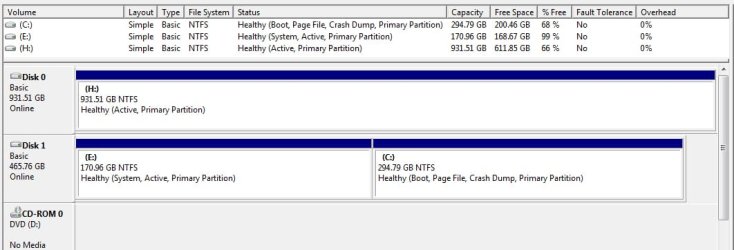
I've recently installed a new, 2nd, hard drive on my computer which I'll be using to store data on. All went well, fairly easy installation, but this meant that I ended up playing about with partitions on my 1st HDD (the one where windows is installed).

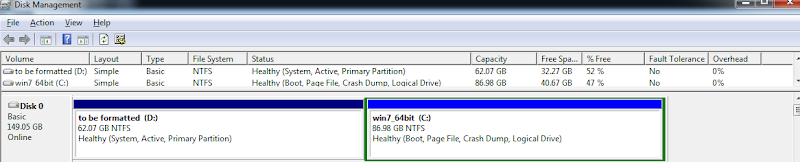
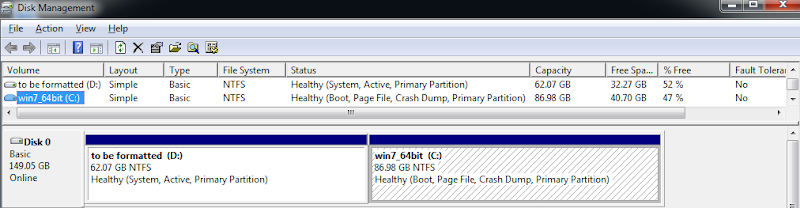
I managed to allocate my 1st HDD into two final partitions, one being the system partition and the other being the boot partition (the files were allocated in 2 different partitions, I'm assuming when I installed windows, but never really noticed/bothered me). This is where the problem lies. What do I need to do to merge these 2 partitions together?

Seeing as one has the system files and the other has the boot files, I realise that using disk manager is not possible (I do have Acronis Disk Director if it helps), but am comfortable with using command prompt.

I tried doing this myself, by searching for info over the web and mainly this forum, but my best result was to have an unbootable windows :) (Managed to get it back to normal so no worries there).

I would appreciate it if I could get some help on how to do this. I'm attaching a pic of disk management for further clarification of my system.

P.S. should I be able to get the partitions merged, if I want to repartition them again, this time with the system and boot files on the same partition, is the process easily done via disk manager?

P.P.S. on a slightly different note, should Disk 1 where windows is installed, be actually Disk 0, or it doesn't make a difference? and if so how would I go about doing this?

Thanks for all the help in advance
 

Attachments
  • DiskManagment.jpg
    DiskManagment.jpg
    62.6 KB · Views: 603

My Computer

OS
Windows 7 Professional x64

My Computer

Computer Manufacturer/Model Number
Dell and Custom
OS
Systems 1 and 2: Windows 7 Enterprise x64, Win 8 Developer
CPU
System 1: i7 [email protected], System 2: AMD FX-4100 Zambezi 3.6G
Motherboard
System 1:Dell 06NWYK System 2: ASUS M5A97 AM3+
Memory
System 1: 8GB System 2: 8GB
Graphics Card(s)
System 1: ATI FirePro V4800 System 2: Radeon HD 6850
Sound Card
System 1: onboard System 2: onboard
Monitor(s) Displays
System1: Viewsonic HDMI 24"
Screen Resolution
System 1: 1920x1080 System 2: 1920x1080
Hard Drives
System 1: Mirrored .5B drives System 2: Seagate Barracuda ST1000DM003 1TB 7200 RPM 64MB Cache SATA 6.0Gb/s
Case
System 1: Dell System 2: Cooler Master
Internet Speed
10 MBPS
Hi Lemur that was a fast reply.

I tried installing Easeus Partition Master Home Edition previously and during setup it said I cannot install it as I was trying to do this on windows 7 x64 and advised me to purchase Easeus Partition Master 6.1.1 Professional Edition.

Also as I stated in my original post I do have Acronis Disk Director which provides the same solutions as Easeus.

The problem here is that the system and boot files are on 2 different partitions and cannot be easily merged, also this is given as an error message on Acronis when one tries to merge partitions of this sort.

Now as stated in this thread by torrentg it seems that some sort of preparative work will be needed.

What I would like to know is what sort of preparative work this is.
 

My Computer

OS
Windows 7 Professional x64
What I would do in your case is use free Partition Wizard bootable CD to rightclick C>Modify, set to Active, click OK.,

Then click on the HD to highlight it, from Disk tab select Rebuild MBR, click OK, Apply.

Reboot, if Win7 doesn't start then boot into Win7 DVD or System Repair CD to run Startup Repair - Run 3 Separate Times until Win7 starts and holds the System Active flags.

Now that we know the boot files are moved correctly by the only method which also preserves the F8 Repair options, you can back up your files on D, boot into PW CD to rightclick D> Delete, then rightclick C to Resize, drag it's left border all the way to the left so it's in the best position on the HD. If you want to resize it's right border to the left to make room for a new data partition, you can do it at the same time. Click OK for each, then Apply. You may have to run Repair again when resizing on the boot sector.
 
Last edited:
Hi Greg,

thanks for the link, feeling a bit stupid now that I spent the day searching for that info and couldn't find it, when it's given as a tutorial.

got it to work and I'll make sure I'll rep BFK, as well as yourself for the help.
 

My Computer

OS
Windows 7 Professional x64
Hi All - sorry for bumping this old thread...but I have the same problem with my windows 7 installtion - My D partition is the Primary, Active & Boot and my C partition is Logical and System

I have windows installed on my C partition and I am dying to get rid of "D" in order to have one partition as Boot and System under "C".
I could'nt manage on doing this and keeping my windows installation as is.

I understand from Greg's response to
Follow Option Two in this tutorial which deals exactly with your situation: Partition Wizard : Use the Bootable CD

but "option 2" is WIPING the partition "D" - and I am wondering whether this will impact the installtion and make my PC unbootable at all?
When I tried to run this from Partition Wizard (from windows and not from bootable CD) I got the warning:

---------------------------
Warning
---------------------------
This partition is system partition, wiping system partition may cause your computer to be unbootable!
Are you sure that you want to wipe this partition?
---------------------------
&Yes &No
---------------------------

how would you recommend for me to proceed here?
 

My Computer

OS
win 7 64 bit
The tutorial appears to havee been changed since this thread first appeared in 2010, so I have rewritten the steps involved above. This avoids using a Partition manager's Merge function which doesn't always work, instead using the method we've found works best to rewrite the System boot files while preserving other important functions like F8 Repair options.

However in your case if C is indeed on a Logical Partition then a different procedure may be needed since boot files cannot be written to a Logical partition without using PW CD to convert it first. So I'd post back a screenshot of your maximized Disk Mgmt Drive map with listings, using Snipping Tool in Start Menu, so we can give you Custom steps. Tell us what's on each drive, and repeat what you want to do exactly.
 
Thank you for the response

I assumed the post has been changed as it didnt make sense to me for this matter. I would like to have C as primary (is there any reason to have it as logical)?

Once I have C partition as primary on this HDD, I will create another partition on it for storing data (as Logical), but this should already be a simple operation once we get this issue fixed.

Here's the screenshot (taken from another partitiona manager SW) - I also gave the titles to the partitions to understand what I wand to keep and what to delete:

myHDDs.png


and another from windows

myHDDs1.png


Appreciated.
 
Last edited:

My Computer

OS
win 7 64 bit
No, there is no reason in this situation for C to be logical.

For that matter, there is no reason for a third partition for data to be logical, but it's fine for it to be logical if you prefer.

Logicals are typically used when there are at least 4 partitions total.

Looks like you need to convert C to primary and then move system files to C.
 

My Computer

Computer type
PC/Desktop
Computer Manufacturer/Model Number
Ignatz Special; 4 speed manual gearbox; factory air conditioning; one of one
OS
Windows 7 Home Premium SP1, 64-bit
CPU
Intel Skylake i5-6600K, not overclocked
Motherboard
AsRock Z170M Extreme 4, micro ATX
Memory
8 GB HyperX DDR4-2666 (2 x 4 GB)
Graphics Card(s)
none; graphics are integrated on CPU
Sound Card
onboard: Realtek ALC1150; external: USB Behringer UF0-202
Monitor(s) Displays
Dell S2340M 23 inch IPS
Screen Resolution
1600 x 900
Hard Drives
System: Crucial MX100 series SSD, 128 GB;
Data: Samsung Spinpoint 103SJ, 1 TB;
Backup: WD Caviar Green WD30EZRX-00D8PB0, 3 TB
PSU
Rosewill SilentNight 500 watt fanless, semi-modular
Case
Antec Solo II
Cooling
Noctua NH-U12S; Noctua F12 intake, Noctua S12A exhaust
Keyboard
Microsoft 200 6JH-00001 USB
Mouse
Dell or Microsoft optical wired; USB
Antivirus
Microsoft Security Essentials and Malwarebytes Premium
Browser
Pale Moon
Other Info
All fans PWM; speeds at idle: CPU circa 500 rpm; intake circa 600 rpm; exhaust circa 600 rpm; CPU temps 27 idle and 47 C load in a warm room (27 C/81 F) when running Intel Extreme Tuning Utility stress test.
Thanks

I am still waiting to hear on how to do that....
 

My Computer

OS
win 7 64 bit

My Computer

Computer type
PC/Desktop
Computer Manufacturer/Model Number
Ignatz Special; 4 speed manual gearbox; factory air conditioning; one of one
OS
Windows 7 Home Premium SP1, 64-bit
CPU
Intel Skylake i5-6600K, not overclocked
Motherboard
AsRock Z170M Extreme 4, micro ATX
Memory
8 GB HyperX DDR4-2666 (2 x 4 GB)
Graphics Card(s)
none; graphics are integrated on CPU
Sound Card
onboard: Realtek ALC1150; external: USB Behringer UF0-202
Monitor(s) Displays
Dell S2340M 23 inch IPS
Screen Resolution
1600 x 900
Hard Drives
System: Crucial MX100 series SSD, 128 GB;
Data: Samsung Spinpoint 103SJ, 1 TB;
Backup: WD Caviar Green WD30EZRX-00D8PB0, 3 TB
PSU
Rosewill SilentNight 500 watt fanless, semi-modular
Case
Antec Solo II
Cooling
Noctua NH-U12S; Noctua F12 intake, Noctua S12A exhaust
Keyboard
Microsoft 200 6JH-00001 USB
Mouse
Dell or Microsoft optical wired; USB
Antivirus
Microsoft Security Essentials and Malwarebytes Premium
Browser
Pale Moon
Other Info
All fans PWM; speeds at idle: CPU circa 500 rpm; intake circa 600 rpm; exhaust circa 600 rpm; CPU temps 27 idle and 47 C load in a warm room (27 C/81 F) when running Intel Extreme Tuning Utility stress test.
I wrote out exactly how to do this above in Post 4. All you need to do is first add the step to convert C to Primary from the booted Partition Wizard bootable CD: How to set partition as Primary or Logical.

As it explains in the post, we arrived at using Startup Repair - Run 3 Separate Times because it is the only method which preserves the Repair Console on F8 Advanced Boot Tools by rewriting the System Boot Files just as it's done during Install.
 
Thanks.
done both actions
Here's how it looks now:

myHDDs2.png


note the only change is that "C" partition is marked as "Primary" and not "Logical"

Now - can I can "wipe" or "format" the D parition? and use it for something else as "non-system"?

I am afraid to do so, since its still marked as "system" and "active" (which "C" isnt) and I also get this warning from partition wizard before I click Apply on Wiping "D"

---------------------------
Warning
---------------------------
This partition is system partition, wiping system partition may cause your computer to be unbootable!
Are you sure that you want to wipe this partition?
---------------------------
&Yes &No
---------------------------

Perhaps I should "format" and not "wipe"....? not sure :sarc:
 

My Computer

OS
win 7 64 bit
You haven't even begun on the Steps I wrote out in Post 4.

They sequence how to move the System flag to Active C, then only after you know it's going to start deleting D and Resizing C into the space.
 
@Greg


I didnt see your response (we probably posted together) therefore wasnt sure what you meant by "step 4", now its clear - I have my "C" as primary and will commence with your steps.


In regards to the Startup Repair - Run 3 Separate Times - is this process necessary for me if I plan to upgrade my windows 7 to 8 tonight (i.e. dont mind the recovery options)
 

My Computer

OS
win 7 64 bit
Ok guys - progress :D
I was able to do the required steps and have a much better configuration now - C is System and Boot (I didnt run the Recovery 3 times though, it just booted).

The only issue now is that I have this 8 MB partition at the begining of the disk which I couldnt get rid of during the process

myHDDs3.png


What can be done to merge it with "C"? (it didnt work via PW when I tried it)
 

My Computer

OS
win 7 64 bit
PW should have been able to delete the partition to resize into the space. If not it's not worth bothering with.

Why are you downgrading to Win8? Does the system have touch screen to use the wall of buttons?
 
I will let it go then...how can I "hide" it?

Windows 8 new Metro UI is great (after you get used to it) even for non-touch. It also seemlesly integrates with all your online social networks and works much faster than W7

I also purchased it for the promotional price of 15$ - so what the heck.:p
 

My Computer

OS
win 7 64 bit
It also seemlesly integrates with all your online social networks

If that is all you are using a your machine for - then win8 is alright for that - not for doing anything constructive/productive. It was designed to get the unsuspecting into the MS clouds - then they will introduce their subscription service.

works much faster than Windows 7

Not that I can notice.

Perhaps you are comparing a fresh clean install of win8 - with an old install of win7 - with lots of programs , bloatware, etc. A new install will always appear snappier than one you have had for a while.


I also purchased it for the promotional price of 15$

Yes, exactly - why do you think they are practically giving it away?

Because they are going to reap benefits from you further down the line.
 

My Computers

System One System Two

  • Computer type
    PC/Desktop
    OS
    7 X64
    CPU
    i5 8400
    Motherboard
    gigabyte b365m ds3h
    Memory
    2x8gb 3200mhz
    Hard Drives
    various
    PSU
    pure power 11 400w cm
    Case
    Coolermaster
    Cooling
    cryorig m9i
  • Computer type
    PC/Desktop
    OS
    7x64
    CPU
    g5400
    Motherboard
    ga b365m ds3h
    Memory
    8gb ddr4 2400
    PSU
    xfx pro 450w
Back
Top