merging two partitions

gagbel

New member
Local time
6:00 AM
Messages
10
dear w7 experts

Because of recent problem while trying out Ubuntu, I had to partition my harddrive

My hd capacity - 500 gb

C: - 48.8gb - Windows 7 OS + programme files
D: - 416gb - Storage memory - nothing so important
Total - 464.8 [could this be 500gb in marketing terms?]

I would be more happier if I could have a single hd with Full ~500gb in it

Could anyone help me doing this - even if it takes to format the WHOLE hdd, I am ok

Thanks a million for all of you for supporting junior enthusiasts like me

Gagbel
 

My Computer

Computer Manufacturer/Model Number
Acer 7736G
OS
windows 7
CPU
Intel Core 2 Duo T6600
Memory
4GB
Graphics Card(s)
Nvidia 500mb
Hard Drives
500GB
dear w7 experts

Because of recent problem while trying out Ubuntu, I had to partition my harddrive

My hd capacity - 500 gb

C: - 48.8gb - Windows 7 OS + programme files
D: - 416gb - Storage memory - nothing so important
Total - 464.8 [could this be 500gb in marketing terms?]

I would be more happier if I could have a single hd with Full ~500gb in it

Could anyone help me doing this - even if it takes to format the WHOLE hdd, I am ok

Thanks a million for all of you for supporting junior enthusiasts like me

Gagbel

Hi gagbel and welcome

Only junior by experience. that will come. We all come here with none.

I am not sure why you want to have one huge partition. It has disadvantages.
For example, defragging will take longer.

what we (I) generally do is a 50 gig OS partition, a data partition, and a media partiton. anyway of you want to lets do it

Ok if you dont need anything on either partition it iis a pretty easy thing to do.

The easiest way to do it is using a 3rd party app like parigon disk suite 2009. The trial is free. DL and install. use it to delete "D".

Then use it to expand the "C" partition to max.

Then put your win 7 dvd in, and boot from it. click install and away you go. You might want to get your wifi driver before hand in case.

Disclaimer: if you hav espace on anoter HD backup Just In Case.


Let us know if you need anything


Kenn J+
 

My Computer

Computer Manufacturer/Model Number
HP Pavillion dv-7 1005 Tx
OS
Win 8 Release candidate 8400
CPU
[email protected]
Memory
4 gigs
Graphics Card(s)
Nvidia 9600M
Sound Card
HD built-in
Monitor(s) Displays
17" Wxga
Screen Resolution
1440x900
Cooling
none
Internet Speed
45Mb down 5Mb up

My Computer

Computer Manufacturer/Model Number
Acer Aspire 5750
OS
Windows 7 Home Premium 64bit
CPU
Intel Core i3-2310M
Motherboard
Acer OEM
Memory
8GB
Graphics Card(s)
Intel HD3000
Screen Resolution
1366x768
Hard Drives
320GB Toshiba
You can also move your files off the storage drive, then in Disk Management right click on that drive and Delete, then right click WIndows 7 drive and extend into the space.

This can also be achieved using Easeus Partition manager or Partition Wizard, excellent free programs.
 
How about this then?

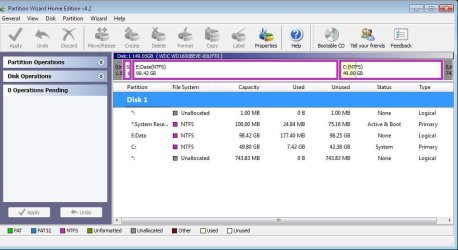
I can't seem to shift these un-named and un-nameable partitions. :confused:
 

Attachments

  • Clipboard01.jpg
    Clipboard01.jpg
    65 KB · Views: 107

My Computer

Computer type
PC/Desktop
Computer Manufacturer/Model Number
Custom
OS
7 x64 Ultimate
CPU
AMD Ryzen 5
Motherboard
Gigabyte GA-AB350-Gaming
Memory
16GB DDR4
Graphics Card(s)
Radeon R7 360
Monitor(s) Displays
2 x Dell U2518D
Screen Resolution
2560x1440 2560x1440
Hard Drives
WD 500GB x2
Samsung SSD 128MB (OS)
XPG SX8200 Pro M.2 2280 1TB
PSU
Antec 500
Cooling
Hyper 212 EVO
Keyboard
Logitech cordless K800
Mouse
Logitech M510
Antivirus
Avira
They could be leftovers from partitions. I would reboot with the 7 disc in the drive, and then delete every partition, then allowing 7 to create the partitions it needs.
 

My Computer

Computer Manufacturer/Model Number
Sony Vaio Z46GDU
OS
Windows 7 Ultimate x86-64
CPU
[email protected] 1066MHz FSB
Motherboard
Sony branded
Memory
6GB DDR3 1066MHz
Graphics Card(s)
9300M GS 256MB Dedicated (Speed) + Intel4500MHD (Stamina)
Sound Card
Realtek HD Audio
Monitor(s) Displays
13.1' WXGA
Screen Resolution
1600x900
Hard Drives
320GB 7200RPM w/ 16MB cache
Internet Speed
1MB/s
OK I see now that you have the data partition in the lower address where Win7 should be.

Back up your Data and right click Data partition to delete.

I would not delete the first 100mb System Reserved partition as it makes Repair console available by tapping F8 at bootup and contains the MBR. If you want to get rid of the 1mb unallocated space at the very left side, right click on 100mb SysReserved partition and Resize/Move then slide the left border over to collect it into the partition.

Then right click on the Win7 partition to Resize/Move and slide the left border all the way over to cover the old Data partition space until it is snug up against the 100mb System partition (or left border if you are going to ditch 100mb). Apply all steps and restart.

If it doesn't boot, tap F8 during bootup or boot Win7 DVD to Repair console and run Startup Repair 3 times.

You can also do the Startup Repair from DVD if you decide to delete the 100mb partition to recover MBR to WIn7 partition and also get rid of that 1mb unallocated space before the first partition.
 
The back story here is a new HDD in an old lappy that I could ONLY access through booting the Win7 disc. The original install didn't give me any formatting options.

Once installed I tried to create a Data partition, but the lowest letter it would allow is E:/ I don't mind leaving the reserve 100MB, just want to normalize the nomenclature and remove small spurious partitions before I end up with a bunch of shortcuts pointing to an E: drive.

I'm using partition Wizard, but it won't allow me to delete the unallocated logical discs.
 

My Computer

Computer type
PC/Desktop
Computer Manufacturer/Model Number
Custom
OS
7 x64 Ultimate
CPU
AMD Ryzen 5
Motherboard
Gigabyte GA-AB350-Gaming
Memory
16GB DDR4
Graphics Card(s)
Radeon R7 360
Monitor(s) Displays
2 x Dell U2518D
Screen Resolution
2560x1440 2560x1440
Hard Drives
WD 500GB x2
Samsung SSD 128MB (OS)
XPG SX8200 Pro M.2 2280 1TB
PSU
Antec 500
Cooling
Hyper 212 EVO
Keyboard
Logitech cordless K800
Mouse
Logitech M510
Antivirus
Avira
The back story here is a new HDD in an old lappy that I could ONLY access through booting the Win7 disc. The original install didn't give me any formatting options.

Once installed I tried to create a Data partition, but the lowest letter it would allow is E:/ I don't mind leaving the reserve 100MB, just want to normalize the nomenclature and remove small spurious partitions before I end up with a bunch of shortcuts pointing to an E: drive.

I'm using partition Wizard, but it won't allow me to delete the unallocated logical discs.
Here is a step by step tutorial inspired by DarkDavil's asking how to remove the Linux partition from his hard drive:

http://www.sevenforums.com/software/22723-hard-drive-partitions-changing-gparted.html

And this one restores the boot code after Linus is gone:

http://www.sevenforums.com/tutorials/20864-mbr-restore-windows-7-master-boot-record.html

Hope some of this helps with some ideas and suggestions?

Cheers!
Robert

.
 
Last edited:

My Computer

OS
...
The back story here is a new HDD in an old lappy that I could ONLY access through booting the Win7 disc. The original install didn't give me any formatting options.

Once installed I tried to create a Data partition, but the lowest letter it would allow is E:/ I don't mind leaving the reserve 100MB, just want to normalize the nomenclature and remove small spurious partitions before I end up with a bunch of shortcuts pointing to an E: drive.

I'm using partition Wizard, but it won't allow me to delete the unallocated logical discs.

You can't delete unallocated space as it is already deleted.

Do you still want to delete the E: drive to move Win7 over into that space?
 
What I would really like is to remove unallocated spaces ( i.e. allocate them) and have my data drive as D:
 

My Computer

Computer type
PC/Desktop
Computer Manufacturer/Model Number
Custom
OS
7 x64 Ultimate
CPU
AMD Ryzen 5
Motherboard
Gigabyte GA-AB350-Gaming
Memory
16GB DDR4
Graphics Card(s)
Radeon R7 360
Monitor(s) Displays
2 x Dell U2518D
Screen Resolution
2560x1440 2560x1440
Hard Drives
WD 500GB x2
Samsung SSD 128MB (OS)
XPG SX8200 Pro M.2 2280 1TB
PSU
Antec 500
Cooling
Hyper 212 EVO
Keyboard
Logitech cordless K800
Mouse
Logitech M510
Antivirus
Avira
OK go to your Disk Management map and browse down to see if D: is taken (poss by DVD drive).

You can then change it to X: temporarily.

Now right click on the Data drive to Change Letter and claim D: for it as desired.

Then right click C: drive and Resize to include right-most unallocated space.

Are you sure you don't want C: drive in the left-most space? Lower addresses have faster disk read. We do them all the time here.
 
Last edited:
Are you sure you don't want C: drive in the left-most space? Lower addresses have faster disk read. We do them all the time here.

Hmmm ... how do I do that?
 

My Computer

Computer type
PC/Desktop
Computer Manufacturer/Model Number
Custom
OS
7 x64 Ultimate
CPU
AMD Ryzen 5
Motherboard
Gigabyte GA-AB350-Gaming
Memory
16GB DDR4
Graphics Card(s)
Radeon R7 360
Monitor(s) Displays
2 x Dell U2518D
Screen Resolution
2560x1440 2560x1440
Hard Drives
WD 500GB x2
Samsung SSD 128MB (OS)
XPG SX8200 Pro M.2 2280 1TB
PSU
Antec 500
Cooling
Hyper 212 EVO
Keyboard
Logitech cordless K800
Mouse
Logitech M510
Antivirus
Avira
Back up your files and a Win7 image as moving/copying operations can fail. If so, reimage and try again.

In Disk Management query how much space is available to shrink Win7 partition. Shrink as much as possible temporarily.

Then boot into Partition Wizard, right click Resize/Move Win7 partition to move it over to the far right temporarily.

Next rightclick Resize/Move on Data partition and slide right border over to newly-sized Win7 partition. Then slide left border over making room between 100mb and Data partitions for the size you want for your Windows 7 partition.

Right click WIndows 7 partition and Copy over into unallocated space created for it. THen rightclick delete old Windows 7 partition.

Adjust remaining partitions size as desired. Apply all steps.

After restart Win7 should start up since MBR is in 100mb and unaffected by changes. If not, boot into Win7 DVD and run Startup Repair 3 times as there may be multiple issues.

When job is completed, rightclick to run File System check and Surface Scan on all partitions.
 
Thanks to all of you for your wonderful support to the junior member. Love you all. my problem is fixed !!!
i am so happy.
Thanks a million again
gagbel
 

My Computer

Computer Manufacturer/Model Number
Acer 7736G
OS
windows 7
CPU
Intel Core 2 Duo T6600
Memory
4GB
Graphics Card(s)
Nvidia 500mb
Hard Drives
500GB
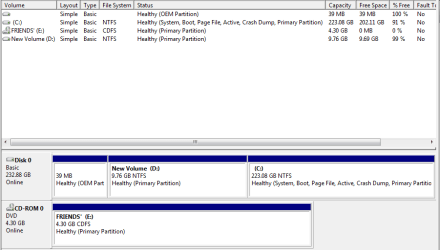
i needed some help with merging two partitions. i have 3 partitions in my hard drive
MBR (around 35 MB)
D drive (empty)
C drive (has Win 7 in it)

i want to merge C & D partitions and then create two partitions with almost equal capacity. Since D is to left of C, Disk management does not allow me to extend into D (by deleting D).

please advise.
 

Attachments

  • Hard drive.png
    Hard drive.png
    11.7 KB · Views: 54

My Computer

OS
Windows &
i needed some help with merging two partitions. i have 3 partitions in my hard drive
MBR (around 35 MB)
D drive (empty)
C drive (has Win 7 in it)

i want to merge C & D partitions and then create two partitions with almost equal capacity. Since D is to left of C, Disk management does not allow me to extend into D (by deleting D).

please advise.
I suggest you get rid of the OEM Recovery partition since it is probably not functional after installing Win7, and is occupying valuable lower address. If you want to know for sure, select Recovery F key listed on first boot screen and see if it starts up to Vista recovery (doubtful).

Download free Partition Wizard and burn to CD. Boot into it.

Right click on OEM recovery 1st partition and Delete.

Right click on D: and Delete.

Right click on C: and Resize/Move, dragging left border all the way over against left side of drive.

Now drag C: right border over to make desired C: partition size, click OK.

Right click Unallocated space to right of C: and create a new partition, format Logical NTFS or as desired.

Apply all steps, when complete boot into Windows 7 DVD Repair console and run Startup Repair 3 times as it will attempt repair and then rewrite MBR.

Make a backup image save externally of finished job so you never have to reinstall again.
 
Thank you for your reply gregrocker. i am a little skeptical about deleting the OEM partition (as i am new to disk management). i had tried something similar to what you said for C and D. i deleted the D partition and tried to move C partition into leftmost. But what i found was that the C does not completely swallow D partition and there is some space left behind. please correct me i am wrong or if i am doing it incorrectly.

i tried installing Acronis Disk Director suite(trial). After performing merging operation, it wont let me complete it because it is a trial version.

Then i tried installing XP on D drive from where i could join C and D (i have a running version of partition magic which can work in XP). But to my dismay, XP could not recognize any hard drive in the system.
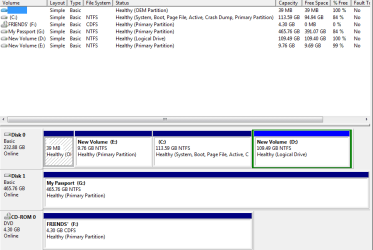
so, i left it as it was and created another partition (please refer the screenshot).

is it possible that now i can join the D and E partitions with C untouched.

thank you
 

Attachments

  • Hard Drive.png
    Hard Drive.png
    15.4 KB · Views: 36

My Computer

OS
Windows &
To find out if that Recovery partition even works anymore (most won't after installing new OS), look on first screen during bootup for F-Key to Recover and try it. If it doesn't work then it is wasted space.

Download and burn to CD free Partition Wizard which is the best anyway.

Right click on E partition: Delete, click OK

Right click C: Windows 7 drive and Resize/Move, drag left border over to take up all of unallocated space where E: drive was. Then drag right border to where you want it. Click OK.

Now right click on D: partition and Reisze/Move, drag left border into unallocated space from resizing C: Click OK.

Now apply all steps and restart.

If you decide to get rid of the useless OEM partition, post back for help.
 
Back
Top