Mic won't work after Win 7 install

Diogones

New member
Member
Local time
1:02 PM
Messages
70
Microphone jack won't work after Win 7 install

I have an HP Pavilion dv9812us Entertainment PC that had Vista Home Premium 32-bit installed on it. I performed a fresh installation of Windows 7 Pro 64-bit on it, and ensured that all Windows Updates and HP drivers were installed. Unfortunately, I do have one problem as a result of this upgrade. The mic jack does not seem to work. The built-in mic works just fine, and I've tried different mics on this and other computers, just to confirm that it wasn't a problem with the mic. However, whenever I plug the mic into the mic jack on the HP, it simply doesn't appear in the "Recording" tab under the "Sound" menu. I've checked to ensure that all disabled and disconnected devices are also visible, and I've downloaded the Realtek Audio Manager from their website. I also downloaded the latest audio drivers from HP's support site, and ran DriverMax to ensure I had the latest drivers. Yet despite this, Windows will not recognize any mics besides the built-in one.

I also found that HP does not support Win 7 on this particular model, so while I have downloaded the Vista 64-bit versions that are offered, I'm not sure if they will work with the 7 installation that I have now. I'm completely stumped - and any advice would be most appreciated!
 
Last edited:

My Computer

Computer Manufacturer/Model Number
Digital Storm Custom built
OS
Windows 7 Professional x64
CPU
i7 920 OC to 3.2GHz
Motherboard
EVGA
Memory
6GB DDR3 (speed unknown) Digital Storm certified
Graphics Card(s)
ATI Radeon 5850 HD 1GB VRAM
Sound Card
On-board audio.
Monitor(s) Displays
HP 24z IPS
Hard Drives
120GB Intel 320 SSD with Windows 7 OS installed.
500GB 7200RPM WD with Windows 7 data and user profile installed.
PSU
Corsair 750W
Case
CM Storm Scout
Cooling
Thermaltake Fans
Keyboard
IBM Model M Keyboard
Mouse
Generic Microsoft Mouse
Internet Speed
12Gbps download speed
Other Info
Upgraded a PCIe slot with a USB 3.0 adapter, and upgraded a PCI slot with a Firewire 400 slot.
Might want to double check the model number on that HP, makes it easier to look things up. Reason for saying that is that a Google search returns a grand total of 1 result with that model number,

dv8912us - Google Search
 

My Computer

Computer type
PC/Desktop
Computer Manufacturer/Model Number
Me
OS
Win 7 Ultimate x64
CPU
FX-8350 @ 4.6 GHz so far
Motherboard
Asus M5A97 EVO
Memory
ADATA XPG V1 Series Black 8GB DDR3 1600
Graphics Card(s)
Sapphire R9 270x Dual-X
Sound Card
Xonar DGX w/ Corsair Vengence 1300
Monitor(s) Displays
Acer S232HL Abid
Screen Resolution
1920x1080
Hard Drives
120 GB OCZ Vertex 3
500 GB Seagate 7200.12
PSU
Antec Earthwatts 650W Green
Case
Antec Three Hundred
Cooling
Cooler Master 212 EVO
Keyboard
Logitech G510
Mouse
Logitech G500s
Internet Speed
35000/3000
Did you try to use HP SUPPORT ASSISTANT?
 

My Computer

Computer Manufacturer/Model Number
HP pavilion DV6-Laptop
OS
win7 home premium-64bit-SP1-IE9RTM
CPU
Intel core2 duo - T6600 2.2GHZ
Memory
4.00Gb
Graphics Card(s)
ATI Mobility Radeon HD 4530
Sound Card
IDT audio Monitor
Screen Resolution
32Bpp,1366x768
Hard Drives
Western Digital 500Gb
Internet Speed
Fast DSL
Not sure if this will help as you may have problems with your drivers. Maybe you should try plugging your mic on another jack. If you plugged it on the front pink jack, try plugging it on the rear pink jack or vice versa.

On the list of your Recording Devices, right-click an empty space and make sure that "Show Disconnected Devices" and "Show Disabled Devices" are checked.
 

My Computer

Computer Manufacturer/Model Number
Custom Built
OS
Windows 7 Ultimate 32 Bit, Windows Developer Preview, Linux Mint 9 Gnome 32 Bit
CPU
Intel Pentium Dual CPU E2180@2GHz
Motherboard
Elitegroup 671T-M3
Graphics Card(s)
NVIDIA GeForce 7200 GS
Monitor(s) Displays
AOC TFT1560 15" LCD Monitor
Screen Resolution
1024x768
Keyboard
Logitech USB Keyboard
Thanks everyone for your replies! Good dog, stormy13! :cool: Thanks for catching that typo - I fixed it now. Should have been 9812us, not 8912us! I have used the HP Update and HP Support Assistant, John47 - unfortunately with no luck - but thank you for the suggestion.

I have indeed checked the "Show Disconnected Devices" and "Show Disabled Devices" options, Vertex - an excellent idea. Sadly, there is only one mic jack - the front one. The other two front jacks are for headphones. I just find it very curious that the built-in mic works, but Windows simply will not pick up a mic attached through the mic jack. I wouldn't be surprised if it were some sort of a device driver issue with this particular HP model and the lack of Win 7 support provided for it.
 

My Computer

Computer Manufacturer/Model Number
Digital Storm Custom built
OS
Windows 7 Professional x64
CPU
i7 920 OC to 3.2GHz
Motherboard
EVGA
Memory
6GB DDR3 (speed unknown) Digital Storm certified
Graphics Card(s)
ATI Radeon 5850 HD 1GB VRAM
Sound Card
On-board audio.
Monitor(s) Displays
HP 24z IPS
Hard Drives
120GB Intel 320 SSD with Windows 7 OS installed.
500GB 7200RPM WD with Windows 7 data and user profile installed.
PSU
Corsair 750W
Case
CM Storm Scout
Cooling
Thermaltake Fans
Keyboard
IBM Model M Keyboard
Mouse
Generic Microsoft Mouse
Internet Speed
12Gbps download speed
Other Info
Upgraded a PCIe slot with a USB 3.0 adapter, and upgraded a PCI slot with a Firewire 400 slot.
Did you remember to install the audio driver? Doesn't help much that HP lists two totally differnt audio rivers for that laptop; one Conexant and one Realtek. If you didn't and it is the Conexant, I would go with the Vista driver for it from HP (unless someone knows of a Windows 7 driver). If it is the Realtek I wold go with the latest directly from Realtek,

http://www.sevenforums.com/sound-audio/3756-latest-realtek-hd-audio-driver-version.html
 

My Computer

Computer type
PC/Desktop
Computer Manufacturer/Model Number
Me
OS
Win 7 Ultimate x64
CPU
FX-8350 @ 4.6 GHz so far
Motherboard
Asus M5A97 EVO
Memory
ADATA XPG V1 Series Black 8GB DDR3 1600
Graphics Card(s)
Sapphire R9 270x Dual-X
Sound Card
Xonar DGX w/ Corsair Vengence 1300
Monitor(s) Displays
Acer S232HL Abid
Screen Resolution
1920x1080
Hard Drives
120 GB OCZ Vertex 3
500 GB Seagate 7200.12
PSU
Antec Earthwatts 650W Green
Case
Antec Three Hundred
Cooling
Cooler Master 212 EVO
Keyboard
Logitech G510
Mouse
Logitech G500s
Internet Speed
35000/3000
If your mic should display in there, enable it first by right clicking it and choosing Properties then "use this device".

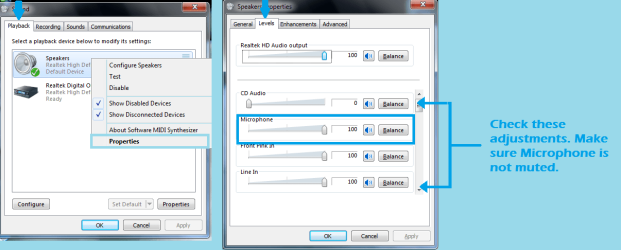
OK, right-click on the speaker icon on the side panel of the Taskbar. And choose Playback Devices, then follow the directions on the first screenshot in the left. Make sure the volume for "Microphone" is not zero or muted so adjust it to 100.

Then right-click on the speaker icon on the side panel of the Taskbar again. this time choose Recording Devices, then follow the directions on the second screenshot.

Check your mic if you hear anything.
 

Attachments

  • Mic Volume.png
    Mic Volume.png
    34 KB · Views: 285
  • Recording.png
    Recording.png
    40.8 KB · Views: 279

My Computer

Computer Manufacturer/Model Number
Custom Built
OS
Windows 7 Ultimate 32 Bit, Windows Developer Preview, Linux Mint 9 Gnome 32 Bit
CPU
Intel Pentium Dual CPU E2180@2GHz
Motherboard
Elitegroup 671T-M3
Graphics Card(s)
NVIDIA GeForce 7200 GS
Monitor(s) Displays
AOC TFT1560 15" LCD Monitor
Screen Resolution
1024x768
Keyboard
Logitech USB Keyboard
Back
Top