
How to Turn On or Off "Two-step Verification" for your Microsoft Account
Information
"Microsoft account" is the new name for what used to be called a "Windows Live ID." Your Microsoft account is the combination of an email address and a password that you use to sign in to Windows 8 or services like Hotmail, Messenger/Skype, SkyDrive, Windows Phone, Xbox LIVE, Zune, Office Live, and Outlook.com. If you use an email address and password to sign in to these or other services, you already have a Microsoft account—but you can also sign up for a new one at any time.
Two-step verification uses two ways to verify your identity whenever you sign in to your Microsoft account:
For more information, see:
This tutorial is a full guide to show you how to either turn on or turn off two-step verification for your Microsoft account.
Two-step verification uses two ways to verify your identity whenever you sign in to your Microsoft account:
- Your Microsoft account password
- An extra security code
For more information, see:
- Microsoft Account Gets More Secure - The Official Microsoft Blog - Site Home - TechNet Blogs
- Two-step verification: FAQ - Microsoft Windows
This tutorial is a full guide to show you how to either turn on or turn off two-step verification for your Microsoft account.
Note
Some apps (like the mail apps on some smartphones) or devices (like the Xbox 360, for example) can't prompt you to enter a security code when you try to sign in. If you get an incorrect password error with an app or device, you'll need to create a unique app password to sign in. Once you've signed in with your app password, you're all set to use that app or device. You'll need to create and sign in with an app password once for each app or device that can't prompt you for a security code.
For how, see:
Create or Remove App Passwords in your Microsoft Account when Two-Step Verification is Turned On
For how, see:
Create or Remove App Passwords in your Microsoft Account when Two-Step Verification is Turned On
OPTION ONE
To Turn On "Two-step Verification" for your Microsoft Account
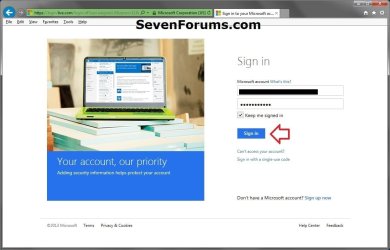
1. If not already, sign in to your Microsoft account that you want to turn on two-step verification for. (see screenshot below)
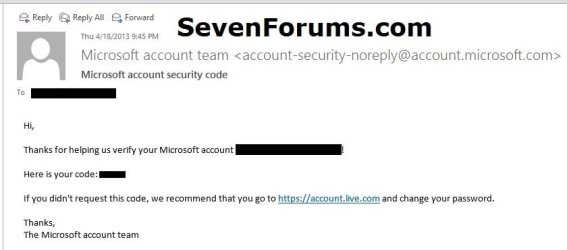
2. If this PC or device is not a trusted device, then you will be prompted to enter and submit a security code sent to your phone or alternate email address. (see screenshots below)

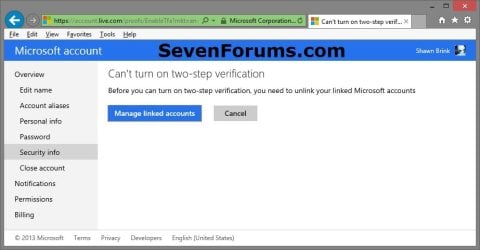
3. You will first need to unlink all Microsoft accounts that are currently linked to the Microsoft account that you want to turn on two-step verification for.
Note
If you do not unlink the accounts, then you will get a "Can't turn on two-step verification message" below when you try to turn on two-step verification instead.
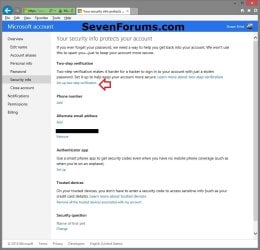
4. Go to the Microsoft account Security info overview webpage.
5. Under the Two-step verification section, click/tap on Set up two-step verification. (see screenshot below)
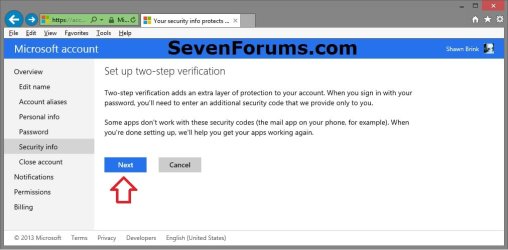
6. Click/tap on Next. (see screenshot below)
7. Do step 8, 9, or 10 below for how you would like to receive you first or second verification code.
Note
If you had turned off two-step verification (Option Two below) and are just turning it back on, then you will see step 12 below instead if you still have the security info filled out for at least two of the phone number, alternate email address, or authenticator app options.
8. To Use your Alternate Email Address to Receive Code
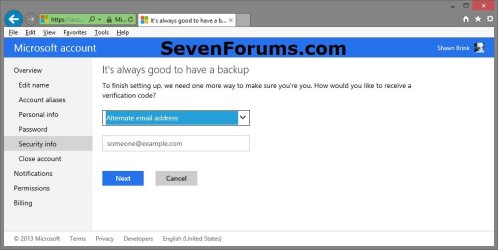
A) Select Alternate email address, type in an email address, and click/tap on Next. (see screenshot below)
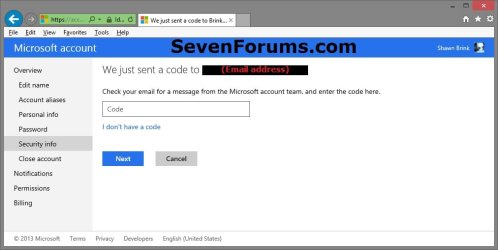
B) Check the inbox of this email address for a message from the Microsoft account team, enter the code, and click/tap on Next. (see screenshots below)
C) Go to step 11 below.
9. To Use a Phone Number to Receive Code
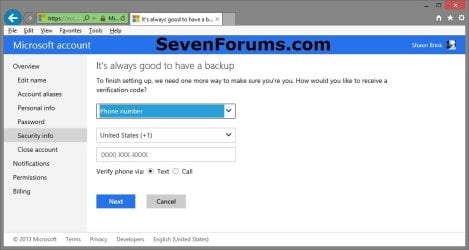
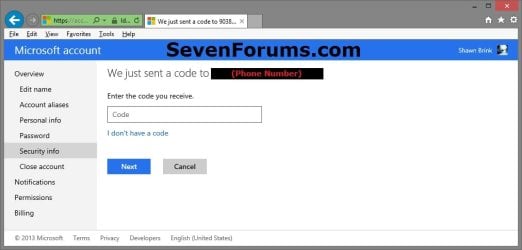
A) Select Phone number, select your location, enter your phone number, select to get the code with a text message or automated call, and click/tap on Next. (see screenshot below)
B) Enter the code from the text or call, click/tap on Next, and go to step 11 below. (see screenshot below)
10. To Use Authenticator App on Smart Phone or Device to Receive Code
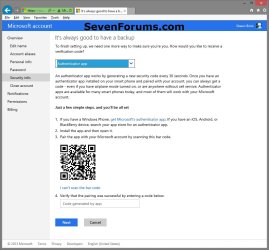
A) Select Authenticator app, and do step 10B or 10C below depending on what type of phone or device you have. (see screenshot below)
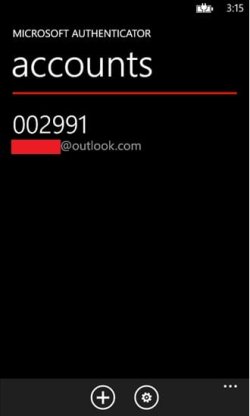
B) If you have a Windows 8 Phone, then while on the phone get and install the Microsoft's authenticator app, and go to step 10D.


C) If you have an iOS, Android, or BlackBerry device/phone, then while on the phone or device, search your app store for an "authenticator app", install it on the device/phone, and go to step 10D.
Tip
Here are some good free authenticator apps:
Android - Google Authenticator with Barcode Scanner installed.
iOS - Google Authenticator
Android - Google Authenticator with Barcode Scanner installed.
iOS - Google Authenticator
D) Open the authenticator app, and scan the bar code in the left screenshot below step 10E.
E) The authenticator app will now generate a code. Enter this code, click/tap on Next, and go to step 11 below.
11. Repeat step 7 above to receive a second verification code using a different method (steps 7-9) than what you used the first time. Afterwards, continue on to step 12 below.
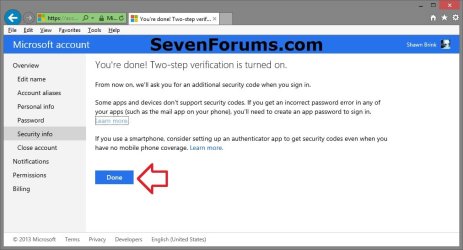
12. Two-step verification is now turned on for your Microsoft account. Click/tap on Done. (see screenshot below)
OPTION TWO
To Turn Off "Two-step Verification" for your Microsoft Account
1. Go to the Microsoft account Security info overview webpage.
2. If not already, sign in to your Microsoft account. (see screenshot below)
3. If this PC or device is not a trusted device, then you will be prompted to enter and submit a security code sent to your phone or alternate email address. (see screenshots below)
4. Under the Two-step verification section, click/tap on Turn off two-step verification. (see screenshot below)

5. Click/tap on Yes to confirm. (see screenshot below)
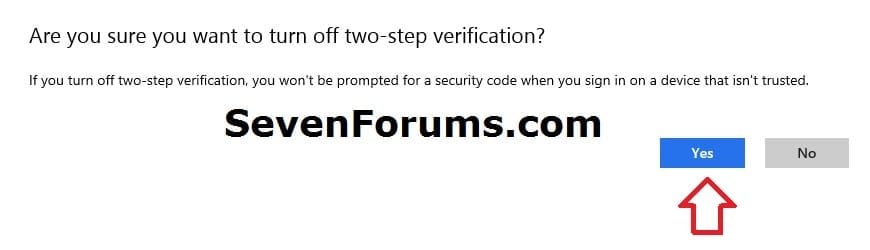
6. Two-step verification is now turned off for your Microsoft account.
That's it,
Shawn
Related Tutorials
- Create or Remove App Passwords in your Microsoft Account when Two-Step Verification is Turned On
- How to Sign up for and Create a Microsoft Account
- How to Close Your Microsoft Account
- How to Add a New User Account in Windows 8 and 8.1
- How to Add or Remove Trusted Devices for your Microsoft Account
- How to Switch from a Local Account to a Microsoft Account in Windows 8 and 8.1
- How to Switch from a Microsoft Account to a Local Account in Windows 8 and 8.1
- How to Change the Email Address of Your "Microsoft Account" in Windows 8 and 8.1
- How to Add or Remove Aliases for your Microsoft Account
- How to Change your Microsoft Account Primary Alias Email Address
- How to Change your Microsoft Account Display Name
- How to Change or Reset Password of Your Microsoft Account in Windows 8 and 8.1
- How to Sync Your Settings Between PCs in Windows 8 and 8.1
- How to Allow to Block "Microsoft Accounts" in Windows 8 and 8.1
Last edited:


