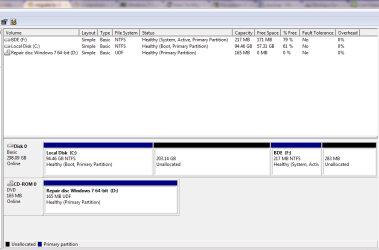
migrate to SSD error due to BDE or ?

winmerg7

New member
Local time
6:26 PM
Messages
7
Hello all,

So i am trying very hard to migrate my window 7 from regular HDD to SSD. But have been failing from last couple of days. So thoughts it about time to ask the experts out here. So here is the situation. My laptop have a 350GB HDD, my new SSD is 180GB.

Please keep in my my 350GB HDD has only 40GB worth of data, i have it shrink that down to 80GB(which is my C drive)....also out of the 350GB is something called BDE drive(after reserach found out its the bitlocker drive)....so i have followed the below article to the tee and as it said i ran into couple of errors as list at the below page...and i tried using the recommendation ....still no luck...but i think my problem might be the BDE drive....its only 500MB(out of which 50MB is taken, rest is free)....

so as i ran into this problem...i actually did the whole decryption of my HDD, so there is no bitlocker on it....but i still have the BDE drive...how can i get rid of this BDE drive ??? in disk management it dose not give me option delete drive or i wanted to extened the drive by 1GB (as the article suggest shrink to the lowest possible size and then add/keep 1GB on time for it to grow)...i have 200GB of unallocated space...but cant extened that BDE volume(its grayed out)...


Windows 7 System Image Disc Recovery | Windows 7,System Image,Restore,0x80042403,0x80070057,Recovering Windows 7 with System Image Restore Disks,Instructional Guide: Recovering Windows 7 with System Image Restore Disks and Resolving Failed Errors 0x8

any help would be greatly appericated...

as i said earlier i have taken backup 10 different time and tried restoring it to SSD but alway run into the 2 error in the article.....so now the only thing i can think of is to delete BDE drive...

also one more thing i did was to shrink my C drive....it had some things sitting on the end of the sector(pagefile), so had to disable pagefile to shrink my volume for C drive...
Thanks...
 

My Computer My Computer

OS
Windows 7

My Computer My Computer

Computer Manufacturer/Model Number
Toshiba Satellite S875D-S7239 laptop
OS
MS Windows 7 Ultimate SP1 64-bit
CPU
AMD A10-4600M
Motherboard
AMD Pumori (Socket FT1)
Memory
6.00 GB Dual-Channel DDR3 @ 798MHz (11-11-12-28)
Graphics Card(s)
AMD Radeon HD 7660G
Sound Card
High Definition Audio Device
Monitor(s) Displays
Generic PnP Monitor (1600x900@60Hz)
Screen Resolution
1600x900@60Hz
Hard Drives
SSD 119GB Corsair CSSD-V128GB2 ATA Device
Keyboard
Standard PS/2 Keyboard
Mouse
HP Wireless Optical Mobile Mouse Model FHA-3410
Internet Speed
What the local pub, local coffee shop offers.
Other Info
Optical Drive:MATSHITA BD-CMB UJ160B ATA Device


Also have an Asus ha1002xp netbook with Win 7 Ultimate installed.
Here you go...
 

Attachments

  • disk.PNG
    disk.PNG
    18.3 KB · Views: 61

My Computer My Computer

OS
Windows 7
It's long past my bedtime so let's hope that GregRocker comes along to fill in the details for you, but here's what you need to do:
Booting from your System Repair Disc, you need to:
go to a command prompt and use Diskpart to make your F partition INACTIVE,
make your C partition ACTIVE
exit from diskpart
run the commands to restore your boot record.
Here are a few notes on that:
BOOTREC
WRITE A NEW BOOT SECTOR
REPAIR MASTER BOOT RECORD


If your boot sector is messed up, then using a System Repair Disc, execute: bootrec /fixboot followed by bootrec /fixmbr.


[FONT=&quot]Bootrec /FixBoot[/FONT][FONT=&quot][/FONT]

Writes the Win 7 compatible boot sector to the system partition.


Bootrec /FixMbr

Writes the Win7 master boot record to the system partition.
Does NOT overwrite the existing partition table.


Bootrec /ScanOs

Scan all disks for Win 7 compatible installations.
Displays entries that are not in the boot configuration data store.


Bootrec /RebuildBcd

Scan all disks for Win 7 compatible installations.
Allow the user to choose which to add to the boot configuration store.
=======================================================

If it still doesn't work, then you use the System Repair option of the System Repair Disc 3 times to get you boot sector and boot record back in order.

This is the road map to show you one approach. There are other approaches.

Basically, though F inactive, C active and restore the boot record.

Between sleep and watching the NBA game later, I'll be out for awhile.

karl
 

My Computer My Computer

Computer Manufacturer/Model Number
Toshiba Satellite S875D-S7239 laptop
OS
MS Windows 7 Ultimate SP1 64-bit
CPU
AMD A10-4600M
Motherboard
AMD Pumori (Socket FT1)
Memory
6.00 GB Dual-Channel DDR3 @ 798MHz (11-11-12-28)
Graphics Card(s)
AMD Radeon HD 7660G
Sound Card
High Definition Audio Device
Monitor(s) Displays
Generic PnP Monitor (1600x900@60Hz)
Screen Resolution
1600x900@60Hz
Hard Drives
SSD 119GB Corsair CSSD-V128GB2 ATA Device
Keyboard
Standard PS/2 Keyboard
Mouse
HP Wireless Optical Mobile Mouse Model FHA-3410
Internet Speed
What the local pub, local coffee shop offers.
Other Info
Optical Drive:MATSHITA BD-CMB UJ160B ATA Device


Also have an Asus ha1002xp netbook with Win 7 Ultimate installed.

My Computer My Computer

Computer Manufacturer/Model Number
HP, Dell, Gateway, Toshiba - 4 laptops and 2 desktops
OS
Vista, Windows7, Mint Mate, Zorin, Windows 8
CPU
from 1.6GHz Duo to i7
Monitor(s) Displays
2x HP w2207
Hard Drives
5x HDD, 7x SSD, 12x Externals
Keyboard
with trackball - no mices
Mouse
Trackball mice
Internet Speed
DSL 6000
To preserve your System Recovery Options hotlink on the F8 Advanced Boot Options,
write the System boot files to C by Marking Partition Active then running Startup Repair - Run 3 Separate Times.

Note that you'll not be able to use Bitlocker again without it's partition, so include it if you think you might need it. Or you can later build a 100mb System Reserved partition with our help.

This will allow you to delete the Bitlocker System partition and transfer C to SSD. SSD - Install and transfer the Operating System
 

My Computer My Computer

Computer Manufacturer/Model Number
HP, Dell, Gateway, Toshiba - 4 laptops and 2 desktops
OS
Vista, Windows7, Mint Mate, Zorin, Windows 8
CPU
from 1.6GHz Duo to i7
Monitor(s) Displays
2x HP w2207
Hard Drives
5x HDD, 7x SSD, 12x Externals
Keyboard
with trackball - no mices
Mouse
Trackball mice
Internet Speed
DSL 6000
Hi Wolfgang -

As shown in this blue link the System Recovery Options are the WinRe repair options which are conveniently placed on the F8 Advanced Boot Options menu during installation, preinstallation or reinstallation of Win7.

However if the System boot files are moved, the hotlink to F8 is lost unless repaired or rewritten using Startup Repair - Run 3 Separate Times. This is another reason why this method was settled upon here several years ago as the most comprehensive to move or restore the boot files.
 
To preserve your System Recovery Options hotlink on the F8 Advanced Boot Options,
write the System boot files to C by Marking Partition Active then running Startup Repair - Run 3 Separate Times.

Note that you'll not be able to use Bitlocker again without it's partition, so include it if you think you might need it. Or you can later build a 100mb System Reserved partition with our help.

This will allow you to delete the Bitlocker System partition and transfer C to SSD. SSD - Install and transfer the Operating System

So if i have it right, i need to move the bootmgr from BDE partition to C?
and thenpreserve my system reocery option hotlink on the F8 advanced boot option?
and then try the migrataion again or i have the steps all messed up??

if so could you please give me a step-step approch ?

THANK YOU AND GOD BLESS YOU ALL
 

My Computer My Computer

OS
Windows 7
Also is there a good tool that i can use to deal with all this situation ?? in a way where i can just hook up by SSD and do a clone/make a image copy and then put my remove my HDD and put back in the SSD and everything is back to normal but on SSD ?
 

My Computer My Computer

OS
Windows 7
Greg is right in case you have a system recovery partition (which I do not see in your Disk Management) or a repair disc.

However, I prefer another approach.

1. Move the bootmgr to C
2. Move C only to the SSD
3. Image C from the SSD - the image is my recovery vehicle.

But if you want to maintain the recovery option (provided you have a valid SP1 recovery DVD), then you should follow the classic route as described by Greg.
 

My Computer My Computer

Computer Manufacturer/Model Number
HP, Dell, Gateway, Toshiba - 4 laptops and 2 desktops
OS
Vista, Windows7, Mint Mate, Zorin, Windows 8
CPU
from 1.6GHz Duo to i7
Monitor(s) Displays
2x HP w2207
Hard Drives
5x HDD, 7x SSD, 12x Externals
Keyboard
with trackball - no mices
Mouse
Trackball mice
Internet Speed
DSL 6000
To preserve your System Recovery Options hotlink on the F8 Advanced Boot Options,
write the System boot files to C by Marking Partition Active then running Startup Repair - Run 3 Separate Times.

Note that you'll not be able to use Bitlocker again without it's partition, so include it if you think you might need it. Or you can later build a 100mb System Reserved partition with our help.

This will allow you to delete the Bitlocker System partition and transfer C to SSD. SSD - Install and transfer the Operating System

So if i have it right, i need to move the bootmgr from BDE partition to C?
and thenpreserve my system reocery option hotlink on the F8 advanced boot option?
and then try the migrataion again or i have the steps all messed up??

if so could you please give me a step-step approch ?

THANK YOU AND GOD BLESS YOU ALL

The steps I gave you will move the System boot files to C while preserving your Repair options on the F8 menu:

1) Mark Win7 (C) Partition Active

2) Power down to Unplug the other HD, then at boot enter BIOS setup to make sure Win7 HD is set first HD to boot in BIOS setup, after DVD drive.

3) Boot Win7 DVD System Recovery Options to run Startup Repair - Run 3 Separate Times until Win7 starts on its own and C holds the System boot files.

4) In Win7 Disk Management you can delete the Bitlocker partition.

5) Plug back in the other HD, boot any other OS as needed by using the one-time BIOS Boot Menu key at boot. When ready to get rid of any remaining OS, move the data off to wipe the HD using Diskpart Clean Command before repartitioning in Disk Mgmt: Partition or Volume - Create New .
 

My Computer My Computer

Computer Manufacturer/Model Number
HP, Dell, Gateway, Toshiba - 4 laptops and 2 desktops
OS
Vista, Windows7, Mint Mate, Zorin, Windows 8
CPU
from 1.6GHz Duo to i7
Monitor(s) Displays
2x HP w2207
Hard Drives
5x HDD, 7x SSD, 12x Externals
Keyboard
with trackball - no mices
Mouse
Trackball mice
Internet Speed
DSL 6000
Greg is right in case you have a system recovery partition (which I do not see in your Disk Management) or a repair disc.

However, I prefer another approach.

1. Move the bootmgr to C
2. Move C only to the SSD
3. Image C from the SSD - the image is my recovery vehicle.

But if you want to maintain the recovery option (provided you have a valid SP1 recovery DVD), then you should follow the classic route as described by Greg.

I am not referring to a Recovery Partition here but the WinRe repair tools which are placed on F8 menu during install or repair.

The link to these is only rewritten by the second or third Startup Repair - Run 3 Separate Times.
 
Last edited:
Greg, I understand. But you need the installation DVD or a repair disc. But since many people do not have either, I suggest to go the image route. That provides for a safe recovery option. At least it is an easy alternative.
 

My Computer My Computer

Computer Manufacturer/Model Number
HP, Dell, Gateway, Toshiba - 4 laptops and 2 desktops
OS
Vista, Windows7, Mint Mate, Zorin, Windows 8
CPU
from 1.6GHz Duo to i7
Monitor(s) Displays
2x HP w2207
Hard Drives
5x HDD, 7x SSD, 12x Externals
Keyboard
with trackball - no mices
Mouse
Trackball mice
Internet Speed
DSL 6000
winmerg7,

Follow precisely the instructions given to you by GregRocker.

Do not deviate. Do not get creative.

You have received advice from a professional in this area. You are very fortunate.

@Wolfgang My sincerest apologies. Eile macht Weile. Haste makes waste.
 
Last edited:

My Computer My Computer

Computer Manufacturer/Model Number
Toshiba Satellite S875D-S7239 laptop
OS
MS Windows 7 Ultimate SP1 64-bit
CPU
AMD A10-4600M
Motherboard
AMD Pumori (Socket FT1)
Memory
6.00 GB Dual-Channel DDR3 @ 798MHz (11-11-12-28)
Graphics Card(s)
AMD Radeon HD 7660G
Sound Card
High Definition Audio Device
Monitor(s) Displays
Generic PnP Monitor (1600x900@60Hz)
Screen Resolution
1600x900@60Hz
Hard Drives
SSD 119GB Corsair CSSD-V128GB2 ATA Device
Keyboard
Standard PS/2 Keyboard
Mouse
HP Wireless Optical Mobile Mouse Model FHA-3410
Internet Speed
What the local pub, local coffee shop offers.
Other Info
Optical Drive:MATSHITA BD-CMB UJ160B ATA Device


Also have an Asus ha1002xp netbook with Win 7 Ultimate installed.
Karl, no problem. I know that my approach is not exactly by the book. But it has always worked for me because I never recover a system with the WinPE capabilities but always with my images.

Besides, if you do not move the bootmgr to C, you may end up with an extra partition on your SSD - examples are Dell systems where the bootmgr is on the recovery partition.
 

My Computer My Computer

Computer Manufacturer/Model Number
HP, Dell, Gateway, Toshiba - 4 laptops and 2 desktops
OS
Vista, Windows7, Mint Mate, Zorin, Windows 8
CPU
from 1.6GHz Duo to i7
Monitor(s) Displays
2x HP w2207
Hard Drives
5x HDD, 7x SSD, 12x Externals
Keyboard
with trackball - no mices
Mouse
Trackball mice
Internet Speed
DSL 6000
Back
Top