Missing Gigs After Installation?

rpurcell

New member
Local time
1:04 AM
Messages
16
Hello to the W7F community! I learned of your website when I found this tutorial. YouTube - How to Clean Install Windows 7 (Part 1 of 2) Thanks very much for that.

So I installed Win 7 and everything went fine. After it was installed though, I noticed something strange. When I go into My Computer and click on the hard drive icon, it tells me that I have 235 GB available out of 298 GB.

The Windows files are about 13 GB. The program files are about 1 GB. There's an Acer file that is about 1 GB, and some various folders that might equal 1 GB max. There's nothing to speak of in Documents or Downloads, only a few MB. There's less than 20 GB total used on the disk. So that leaves approximately 40 GB that are unaccounted for.

I went into the Disk Managementsectionto find out if there was a partition there, but it doesn't show any. It just shows the primary disk (Disk 0 with 298 GB) and the DVD drive (CD Drive 0). I also read up on your thread here. http://www.sevenforums.com/tutorials/2668-partition-volume-delete.html
I also checked this before I did the installation because I wanted to make sure that there wasn't a partition there to begin with. It was the same.

So if I don't have a partition, I have no idea where these missing GB could be. It's probably just something that I'm just not realizing, or overlooking, but I'd like to be able to use those GBs in the future. I also want to make sure that all the previous information is off this computer.

This is an Acer laptop. 298 GB. 3 GB memory. AMD Athlon 64x2 Processor. I'm using Win 7 Professional.

Can somebody tell me why this is, or where these missing GB could be? Thanks in advance.
 

My Computer

OS
Windows 7 Professional x64
Have you set folder options to view hidden and system files?

I'm not sure that matters, but it might.

System restore and hibernation files take up quite a bit of space as well and they may not show.

There is an app called WinDirStat that you can download that should give you greater insight into what is taking up space.
 

My Computer

Computer type
PC/Desktop
Computer Manufacturer/Model Number
Ignatz Special; 4 speed manual gearbox; factory air conditioning; one of one
OS
Windows 7 Home Premium SP1, 64-bit
CPU
Intel Skylake i5-6600K, not overclocked
Motherboard
AsRock Z170M Extreme 4, micro ATX
Memory
8 GB HyperX DDR4-2666 (2 x 4 GB)
Graphics Card(s)
none; graphics are integrated on CPU
Sound Card
onboard: Realtek ALC1150; external: USB Behringer UF0-202
Monitor(s) Displays
Dell S2340M 23 inch IPS
Screen Resolution
1600 x 900
Hard Drives
System: Crucial MX100 series SSD, 128 GB;
Data: Samsung Spinpoint 103SJ, 1 TB;
Backup: WD Caviar Green WD30EZRX-00D8PB0, 3 TB
PSU
Rosewill SilentNight 500 watt fanless, semi-modular
Case
Antec Solo II
Cooling
Noctua NH-U12S; Noctua F12 intake, Noctua S12A exhaust
Keyboard
Microsoft 200 6JH-00001 USB
Mouse
Dell or Microsoft optical wired; USB
Antivirus
Microsoft Security Essentials and Malwarebytes Premium
Browser
Pale Moon
Other Info
All fans PWM; speeds at idle: CPU circa 500 rpm; intake circa 600 rpm; exhaust circa 600 rpm; CPU temps 27 idle and 47 C load in a warm room (27 C/81 F) when running Intel Extreme Tuning Utility stress test.
Your whole arithmatic is flawed. Do the following:

1. Run WinDirStat as suggested. That will tell you how much OS and userfiles are there.
2. Run Command Prompt as administrator with this command: vssadmin list shadowstorage. That will tell you how much space is taken by your Restore Points. It is the Allocated number that counts.
3. Add 1 and 2 and then it should compute.
 

My Computer

Computer Manufacturer/Model Number
HP, Dell, Gateway, Toshiba - 4 laptops and 2 desktops
OS
Vista, Windows7, Mint Mate, Zorin, Windows 8
CPU
from 1.6GHz Duo to i7
Monitor(s) Displays
2x HP w2207
Hard Drives
5x HDD, 7x SSD, 12x Externals
Keyboard
with trackball - no mices
Mouse
Trackball mice
Internet Speed
DSL 6000
OK, thanks. I ran WinDirStat and see that the System Volume Information is 42 GB. So there are the GBs I couldn't find. What is System Volume Information? I see that it has a black box next to it in WinDir, instead of a folder icon. Is that for the system restore, hibernation, etc.? Is it normal for it to take up over 40 Gigs of space? I haven't had a new computer for about 2 years, and this is my first time using Win 7, but that just seems like a ridiculous amount of space to me.
 

My Computer

OS
Windows 7 Professional x64
I cannot give you a generic answer. You have to look at the bits. Look for all the big fields in the colored picture and see what it is (if you double click on a color field it will tell you above what it is).

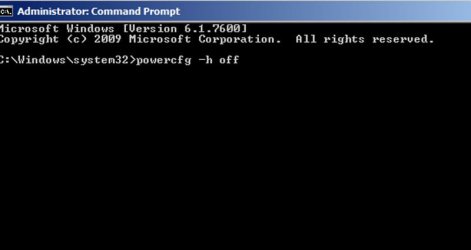
Depending on the size of your RAM, you could e.g. have a very large hiberfile and pagefile. The hiberfile is easy to get rid of. The cmd command is powercfg -h off.

Maybe you want to post a picture of your WinDirStat output. Then we will have a look.
 

My Computer

Computer Manufacturer/Model Number
HP, Dell, Gateway, Toshiba - 4 laptops and 2 desktops
OS
Vista, Windows7, Mint Mate, Zorin, Windows 8
CPU
from 1.6GHz Duo to i7
Monitor(s) Displays
2x HP w2207
Hard Drives
5x HDD, 7x SSD, 12x Externals
Keyboard
with trackball - no mices
Mouse
Trackball mice
Internet Speed
DSL 6000
I set the folder options to show hidden and system files but I still can't see the hiberfile.

If the cmd command is powercfg -h off, can it be turned back on easily? How exactly do I enter that as a command prompt in Win 7? Is there a way to do it in the Win 7 control panel?

I don't know how to make a screenshot of a program. Can you tell me how to do that?

Thanks
 

My Computer

OS
Windows 7 Professional x64
You can paste that command right into a command prompt window. Then hit the enter key.

You might have to use an "elevated" command prompt aka command prompt run as administrator. I don't recall.

You can turn it back on as easily as you turned it off.

"powercfg -h on" - Google Search
 

Attachments

  • Untitled-1.jpg
    Untitled-1.jpg
    28.7 KB · Views: 6

My Computer

Computer type
PC/Desktop
Computer Manufacturer/Model Number
Ignatz Special; 4 speed manual gearbox; factory air conditioning; one of one
OS
Windows 7 Home Premium SP1, 64-bit
CPU
Intel Skylake i5-6600K, not overclocked
Motherboard
AsRock Z170M Extreme 4, micro ATX
Memory
8 GB HyperX DDR4-2666 (2 x 4 GB)
Graphics Card(s)
none; graphics are integrated on CPU
Sound Card
onboard: Realtek ALC1150; external: USB Behringer UF0-202
Monitor(s) Displays
Dell S2340M 23 inch IPS
Screen Resolution
1600 x 900
Hard Drives
System: Crucial MX100 series SSD, 128 GB;
Data: Samsung Spinpoint 103SJ, 1 TB;
Backup: WD Caviar Green WD30EZRX-00D8PB0, 3 TB
PSU
Rosewill SilentNight 500 watt fanless, semi-modular
Case
Antec Solo II
Cooling
Noctua NH-U12S; Noctua F12 intake, Noctua S12A exhaust
Keyboard
Microsoft 200 6JH-00001 USB
Mouse
Dell or Microsoft optical wired; USB
Antivirus
Microsoft Security Essentials and Malwarebytes Premium
Browser
Pale Moon
Other Info
All fans PWM; speeds at idle: CPU circa 500 rpm; intake circa 600 rpm; exhaust circa 600 rpm; CPU temps 27 idle and 47 C load in a warm room (27 C/81 F) when running Intel Extreme Tuning Utility stress test.
Thanks. Yes, that's the problem I had before. I don't know how to run the "elevated" command prompt aka command prompt run as administrator. It gives me the error message saying as much. I thought I would automatically be the admin. Can you tell me how to do that?

Thanks
 

My Computer

OS
Windows 7 Professional x64
Right click the command. you should see "run as administrator" as a menu choice.

You should get in the habit of investigating right clicks constantly. It's a very important part of Windows.
 

My Computer

Computer type
PC/Desktop
Computer Manufacturer/Model Number
Ignatz Special; 4 speed manual gearbox; factory air conditioning; one of one
OS
Windows 7 Home Premium SP1, 64-bit
CPU
Intel Skylake i5-6600K, not overclocked
Motherboard
AsRock Z170M Extreme 4, micro ATX
Memory
8 GB HyperX DDR4-2666 (2 x 4 GB)
Graphics Card(s)
none; graphics are integrated on CPU
Sound Card
onboard: Realtek ALC1150; external: USB Behringer UF0-202
Monitor(s) Displays
Dell S2340M 23 inch IPS
Screen Resolution
1600 x 900
Hard Drives
System: Crucial MX100 series SSD, 128 GB;
Data: Samsung Spinpoint 103SJ, 1 TB;
Backup: WD Caviar Green WD30EZRX-00D8PB0, 3 TB
PSU
Rosewill SilentNight 500 watt fanless, semi-modular
Case
Antec Solo II
Cooling
Noctua NH-U12S; Noctua F12 intake, Noctua S12A exhaust
Keyboard
Microsoft 200 6JH-00001 USB
Mouse
Dell or Microsoft optical wired; USB
Antivirus
Microsoft Security Essentials and Malwarebytes Premium
Browser
Pale Moon
Other Info
All fans PWM; speeds at idle: CPU circa 500 rpm; intake circa 600 rpm; exhaust circa 600 rpm; CPU temps 27 idle and 47 C load in a warm room (27 C/81 F) when running Intel Extreme Tuning Utility stress test.
Right click in the black command box? I don't know what you mean. I'm sorry. Also, how do I even find the Hiberfile to find out how much it's using?

Thanks
 

My Computer

OS
Windows 7 Professional x64
No.

Not in the command box.

Shut the command box.

Go back to "command prompt", whereever you found it. I think it is usually under the accessories menu. Right click there and look for "run as adminstrator". When a new command box opens, type that EXACT command there. Or paste it in.

You should be able to get a good estimate of the hiber file size by comparing the size of C before you issue the power off command to the size of C after you issue it. I think it is equal to the size of installed RAM??
 

My Computer

Computer type
PC/Desktop
Computer Manufacturer/Model Number
Ignatz Special; 4 speed manual gearbox; factory air conditioning; one of one
OS
Windows 7 Home Premium SP1, 64-bit
CPU
Intel Skylake i5-6600K, not overclocked
Motherboard
AsRock Z170M Extreme 4, micro ATX
Memory
8 GB HyperX DDR4-2666 (2 x 4 GB)
Graphics Card(s)
none; graphics are integrated on CPU
Sound Card
onboard: Realtek ALC1150; external: USB Behringer UF0-202
Monitor(s) Displays
Dell S2340M 23 inch IPS
Screen Resolution
1600 x 900
Hard Drives
System: Crucial MX100 series SSD, 128 GB;
Data: Samsung Spinpoint 103SJ, 1 TB;
Backup: WD Caviar Green WD30EZRX-00D8PB0, 3 TB
PSU
Rosewill SilentNight 500 watt fanless, semi-modular
Case
Antec Solo II
Cooling
Noctua NH-U12S; Noctua F12 intake, Noctua S12A exhaust
Keyboard
Microsoft 200 6JH-00001 USB
Mouse
Dell or Microsoft optical wired; USB
Antivirus
Microsoft Security Essentials and Malwarebytes Premium
Browser
Pale Moon
Other Info
All fans PWM; speeds at idle: CPU circa 500 rpm; intake circa 600 rpm; exhaust circa 600 rpm; CPU temps 27 idle and 47 C load in a warm room (27 C/81 F) when running Intel Extreme Tuning Utility stress test.
Best is to set cmd permanently to elevated mode. Go to All Programs > Accessories > Right click on Command Prompt > Properties > Advanced > Check the box " Run as Administrator" > OK > Apply (don't forget Apply). Now cmd will always run in elevated mode. It is also useful to pin it to the taskbar. And maybe you want to make the window a bit more readable: cmd window setup on Vimeo

PS: the size of the hiberfile is equal to the size of your RAM.
 

My Computer

Computer Manufacturer/Model Number
HP, Dell, Gateway, Toshiba - 4 laptops and 2 desktops
OS
Vista, Windows7, Mint Mate, Zorin, Windows 8
CPU
from 1.6GHz Duo to i7
Monitor(s) Displays
2x HP w2207
Hard Drives
5x HDD, 7x SSD, 12x Externals
Keyboard
with trackball - no mices
Mouse
Trackball mice
Internet Speed
DSL 6000
OK, got that set to elevated mode. Thank you for that info. Hib is off, and I see the Hibernation option is gone from the shut down menu. So after I turned the hib off, I don't see any difference on the space on the harddrive, according to my computer at least. In My Computer it still shows that 83 GB are used, but in the WinDirStat, it shows 43 GB for the same C: drive. (That seems correct, if I regained the 40) I don't understand it. Even in WinDirStat, it only shows the C drive and the CD drive. Could I have a hidden partition somewhere? Why would my computer read different than the WinDirStat?
 

My Computer

OS
Windows 7 Professional x64
You never looked into the shadowstorage as I suggested earlier. Now that your cmd works, run this command: vssadmin list shadowstorage - look for the Allocated number.
 

My Computer

Computer Manufacturer/Model Number
HP, Dell, Gateway, Toshiba - 4 laptops and 2 desktops
OS
Vista, Windows7, Mint Mate, Zorin, Windows 8
CPU
from 1.6GHz Duo to i7
Monitor(s) Displays
2x HP w2207
Hard Drives
5x HDD, 7x SSD, 12x Externals
Keyboard
with trackball - no mices
Mouse
Trackball mice
Internet Speed
DSL 6000
OK, I see. Used shadow storage 41GB. Allocated 42GB. Maximum 43GB.

So what does that mean? I can never use those those allocated GBs anyway?

Thanks
 

My Computer

OS
Windows 7 Professional x64
You can reduce the amount of space that system restore can use if you want to. Right now, the maximum it will use is 43 gb and you are now using 41 of the 43. Drill into your system restore setting if you want to reduce that amount. I only allow about 10 gigs to be used. It's a personal choice. The more space you give it, the farther back in time you can go when you choose a restore point.
 

My Computer

Computer type
PC/Desktop
Computer Manufacturer/Model Number
Ignatz Special; 4 speed manual gearbox; factory air conditioning; one of one
OS
Windows 7 Home Premium SP1, 64-bit
CPU
Intel Skylake i5-6600K, not overclocked
Motherboard
AsRock Z170M Extreme 4, micro ATX
Memory
8 GB HyperX DDR4-2666 (2 x 4 GB)
Graphics Card(s)
none; graphics are integrated on CPU
Sound Card
onboard: Realtek ALC1150; external: USB Behringer UF0-202
Monitor(s) Displays
Dell S2340M 23 inch IPS
Screen Resolution
1600 x 900
Hard Drives
System: Crucial MX100 series SSD, 128 GB;
Data: Samsung Spinpoint 103SJ, 1 TB;
Backup: WD Caviar Green WD30EZRX-00D8PB0, 3 TB
PSU
Rosewill SilentNight 500 watt fanless, semi-modular
Case
Antec Solo II
Cooling
Noctua NH-U12S; Noctua F12 intake, Noctua S12A exhaust
Keyboard
Microsoft 200 6JH-00001 USB
Mouse
Dell or Microsoft optical wired; USB
Antivirus
Microsoft Security Essentials and Malwarebytes Premium
Browser
Pale Moon
Other Info
All fans PWM; speeds at idle: CPU circa 500 rpm; intake circa 600 rpm; exhaust circa 600 rpm; CPU temps 27 idle and 47 C load in a warm room (27 C/81 F) when running Intel Extreme Tuning Utility stress test.
I would not reduce it. This is your lifeline if you ever have to set your system back to an earlier restore point.You can also recover lost data from there - with Shadow Explorer. Unless you desperately need that space, I would leave it alone.

BTW: If you reduce the shadowstorage space, you lose all restore points - except the last one.
 

My Computer

Computer Manufacturer/Model Number
HP, Dell, Gateway, Toshiba - 4 laptops and 2 desktops
OS
Vista, Windows7, Mint Mate, Zorin, Windows 8
CPU
from 1.6GHz Duo to i7
Monitor(s) Displays
2x HP w2207
Hard Drives
5x HDD, 7x SSD, 12x Externals
Keyboard
with trackball - no mices
Mouse
Trackball mice
Internet Speed
DSL 6000
I see. Yes, that makes sense. Thanks. Can you tell me how to get to those system restore settings in Win7 in case I choose to do it?

whs, thanks. I will keep that in mind before I reduce it. So you think that anything under 40 GB in the restore system is dangerous? All advice and opinions are appreciated.
 
Last edited:

My Computer

OS
Windows 7 Professional x64
control panel/system/system protection/configure

move the slider wherever you want it.
 

My Computer

Computer type
PC/Desktop
Computer Manufacturer/Model Number
Ignatz Special; 4 speed manual gearbox; factory air conditioning; one of one
OS
Windows 7 Home Premium SP1, 64-bit
CPU
Intel Skylake i5-6600K, not overclocked
Motherboard
AsRock Z170M Extreme 4, micro ATX
Memory
8 GB HyperX DDR4-2666 (2 x 4 GB)
Graphics Card(s)
none; graphics are integrated on CPU
Sound Card
onboard: Realtek ALC1150; external: USB Behringer UF0-202
Monitor(s) Displays
Dell S2340M 23 inch IPS
Screen Resolution
1600 x 900
Hard Drives
System: Crucial MX100 series SSD, 128 GB;
Data: Samsung Spinpoint 103SJ, 1 TB;
Backup: WD Caviar Green WD30EZRX-00D8PB0, 3 TB
PSU
Rosewill SilentNight 500 watt fanless, semi-modular
Case
Antec Solo II
Cooling
Noctua NH-U12S; Noctua F12 intake, Noctua S12A exhaust
Keyboard
Microsoft 200 6JH-00001 USB
Mouse
Dell or Microsoft optical wired; USB
Antivirus
Microsoft Security Essentials and Malwarebytes Premium
Browser
Pale Moon
Other Info
All fans PWM; speeds at idle: CPU circa 500 rpm; intake circa 600 rpm; exhaust circa 600 rpm; CPU temps 27 idle and 47 C load in a warm room (27 C/81 F) when running Intel Extreme Tuning Utility stress test.
I'd guess if you polled everyone on this forum that you would find less than 10% that had at least 40 gb devoted to restore points.

My entire C drive occupies less than 30 GB.

Many on this forum split their primary drive into 2 partitions: C for Windows and D for data, with C typically between 40 and 100 gb. I use 60, with 29 occupied.

If you have 41 gb worth of restore points, you must have at least 50 different restore points, dating back a month or more.

I normally have about a dozen, dating back a week or two.

It's entirely personal choice. I can't restore to a point from last November and could not care less.

You might be able to do that but you need to ask yourself if last November is preferable to last week.

If November is preferable, don't change from 40 gb. You might even want to increase it to 80 gb so you can restore to last July.

You'd have to examine your own personal restore points to fully see what is going on.
 

My Computer

Computer type
PC/Desktop
Computer Manufacturer/Model Number
Ignatz Special; 4 speed manual gearbox; factory air conditioning; one of one
OS
Windows 7 Home Premium SP1, 64-bit
CPU
Intel Skylake i5-6600K, not overclocked
Motherboard
AsRock Z170M Extreme 4, micro ATX
Memory
8 GB HyperX DDR4-2666 (2 x 4 GB)
Graphics Card(s)
none; graphics are integrated on CPU
Sound Card
onboard: Realtek ALC1150; external: USB Behringer UF0-202
Monitor(s) Displays
Dell S2340M 23 inch IPS
Screen Resolution
1600 x 900
Hard Drives
System: Crucial MX100 series SSD, 128 GB;
Data: Samsung Spinpoint 103SJ, 1 TB;
Backup: WD Caviar Green WD30EZRX-00D8PB0, 3 TB
PSU
Rosewill SilentNight 500 watt fanless, semi-modular
Case
Antec Solo II
Cooling
Noctua NH-U12S; Noctua F12 intake, Noctua S12A exhaust
Keyboard
Microsoft 200 6JH-00001 USB
Mouse
Dell or Microsoft optical wired; USB
Antivirus
Microsoft Security Essentials and Malwarebytes Premium
Browser
Pale Moon
Other Info
All fans PWM; speeds at idle: CPU circa 500 rpm; intake circa 600 rpm; exhaust circa 600 rpm; CPU temps 27 idle and 47 C load in a warm room (27 C/81 F) when running Intel Extreme Tuning Utility stress test.
Back
Top