Solved Missing Registry Path - Roaming\OpenWith\FileExts\

oniiz86

New member
Local time
8:06 AM
Messages
5
I'm trying to disassociate the .srt file extension & for some strange reason this registry path is missing HKEY_CURRENT_USER\SOFTWARE\Microsoft\Windows\Roaming\OpenWith\FileExts\, I believe there are 3 paths I need to access, the other 2 registry paths are present, I haven't used any registry cleaners or messed with regedit, is there any possible way to restore this path?
 

My Computers

System One System Two

  • OS
    W7 Pro SP1 64bit
  • Computer type
    PC/Desktop
Which program on your system is associated with the .srt extension?
 

My Computer

Computer type
Laptop
Computer Manufacturer/Model Number
Dell M6500 Precision Work Station
OS
Windows 7 Pro SP1 64 bit
Memory
8 GB
Screen Resolution
1920x
Internet Speed
30 Mbps
Antivirus
Norton Security
Browser
IE 11
It was Subtitle Edit previously but now it is Notepad, I don't know if it represents the default behaviour of how Windows 7 treats .srt file extensions but I would like to restore the behaviour I had previously when no program was associated with .srt files, I would right-click an .srt file the context menu had 2 "Open" entries which I would like to get back, the first "Open" entry would bring up 2 options to browse my computer & the other to search the web, the second "Open" entry which was not a "Open With" entry gave me the ability to directly open the .srt file in Notepad, is anyone aware if that is normal Windows 7 behaviour?
 

My Computers

System One System Two

  • OS
    W7 Pro SP1 64bit
  • Computer type
    PC/Desktop
Use this:
FileTypesMan - Alternative to 'File Types' manager of Windows
You'll have to scroll almost to the bottom of page for download.

Find the ".srt" in the list right click and select "Edit Selected File Type" empty out the "User Choice" field and save.

Edit:
In the future when using open with you need to un-check the box for always use this program for this file type.
 

My Computer

Computer type
Laptop
Computer Manufacturer/Model Number
Dell Precision 15 7550 Workstation
OS
Windows 10 22H2 Pro
CPU
Intel(R) Xeon W-10885M
Motherboard
Dell
Memory
2x 32 GB DDR4 ECC memory (128 GB max)
Graphics Card(s)
Intel onboard GPU 1080p - Quadro RTX 5000 Max-Q GPU 4K
Hard Drives
500 GB Corsair T500 main M2 SSD
1 TB Intel storage M2 SSD (6 TB max)
Mouse
Logitech MX-25 Bluetooth
Internet Speed
slow
Antivirus
MS
Browser
Pale Moon 33.3.x x64 AVX2 build
In the registry, go here-

HKEY_CURRENT_USER\Software\Microsoft\Windows\CurrentVersion\Explorer\FileExts\.srt

Double click on it and open the "Open with" subkey. Delete all entries except the "Default.

If you wish, you could save the original settings first so that you could add them back in if this doesn't resolve the problem.
 

My Computer

Computer type
Laptop
Computer Manufacturer/Model Number
Dell M6500 Precision Work Station
OS
Windows 7 Pro SP1 64 bit
Memory
8 GB
Screen Resolution
1920x
Internet Speed
30 Mbps
Antivirus
Norton Security
Browser
IE 11
billmcct Thanks so very much for your assistance, I'll look into the utility :)
Thanks for that wither 2, the .srt reg key has 2 sub keys, "OpenWithList" with 2 entries, the first being "a" "notepad.exe" & the second entry "MRUList" "a" & for some strange reason the other sub key "OpenWithProgids" has only one entry "Subtitle Edit.srt", the Type is listed as REG_NONE & the Data mentions (zero-length binary value).
Is there any particular reason why I have this registry path completely missing it is not present at all HKEY_CURRENT_USER\SOFTWARE\Microsoft\Windows\Roaming\OpenWith\FileExts\, I gather my W7 Pro 64bit OS has become corrupted somehow, is the only way to restore it is with a reinstall or repair perhaps?


My Computers

System One System Two

  • OS
    W7 Pro SP1 64bit
  • Computer type
    PC/Desktop
You probably don't have that registry path because \Roaming..................doesn't exist. I checked both the registry and the Users"my user name"\AppData\Roaming............. path on Vista and Win 7 systems and neither exists. I don't know why you think the registry path should exist.

There should be a Default entry in the OpenwithList subkey. I suggested to delete all but the Default to solve your problem. On my Vista system, the "OpenWithProgids" isn't there and, on my Win 7 system I have no .srt extension in the list of extensions I guess because I've never tried to open a .srt file on that system.

Note that I'm not an expert on this stuff.
 

My Computer

Computer type
Laptop
Computer Manufacturer/Model Number
Dell M6500 Precision Work Station
OS
Windows 7 Pro SP1 64 bit
Memory
8 GB
Screen Resolution
1920x
Internet Speed
30 Mbps
Antivirus
Norton Security
Browser
IE 11
You probably don't have that registry path because \Roaming..................doesn't exist. I checked both the registry and the Users"my user name"\AppData\Roaming............. path on Vista and Win 7 systems and neither exists. I don't know why you think the registry path should exist.

There should be a Default entry in the OpenwithList subkey. I suggested to delete all but the Default to solve your problem. On my Vista system, the "OpenWithProgids" isn't there and, on my Win 7 system I have no .srt extension in the list of extensions I guess because I've never tried to open a .srt file on that system.

Note that I'm not an expert on this stuff.
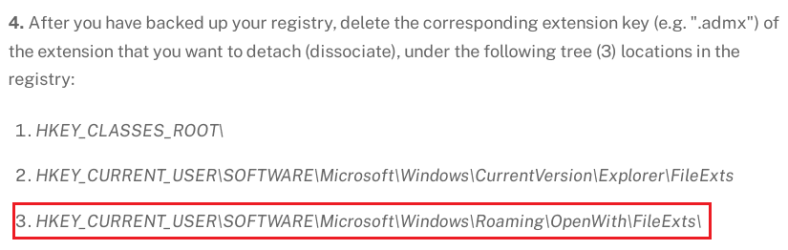
I understand, I greatly appreciate the assistance, the reason why I was concerned about that registry path was because I came across this article here How to change or restore the default file associations in Windows - wintips.org - Windows Tips & How-tos claiming that in order to restore default file type associations, to seek out these 3 registry paths & delete the file extension entries.
Restore File Type Associations.png
 

My Computers

System One System Two

  • OS
    W7 Pro SP1 64bit
  • Computer type
    PC/Desktop

My Computer

Computer type
Laptop
Computer Manufacturer/Model Number
Dell M6500 Precision Work Station
OS
Windows 7 Pro SP1 64 bit
Memory
8 GB
Screen Resolution
1920x
Internet Speed
30 Mbps
Antivirus
Norton Security
Browser
IE 11
Yes I did delete those entries within the "OpenWith" & OpenWithProgids" subkeys which I think did the trick but it did not restore the secondary "Open" entry in the context menu when right-clicking on the .srt file extension, I had to manually add the reg key for the .srt extension under "SystemFileAssociations" via this registry path here, HKEY_CLASSES_ROOT\SystemFileAssociations\.srt\shell\open\command, I added "C:\Windows\notepad.exe" "%1" to the Default entry in the "command" subkey & now it works as it should, not sure why that path was missing as it was there previously but something must of went awry when I accidentally had Subtitle Edit to open .srt subtitles but it should've went back to it's previous behaviour when I removed all file associations, here is an image of how the context menu behaved previously with .srt file extensions when it had no default program but had a nifty shortcut to Notepad by selecting the secondary "Open" entry.
.srt default context menu.png
 
Last edited:

My Computers

System One System Two

  • OS
    W7 Pro SP1 64bit
  • Computer type
    PC/Desktop
I'm glad you've got what you were looking for. However, after deleting those registry entries, you could have just gone to Control Panel, Default Programs and associated Notepad (if that's what you wanted) with the .srt extension and then just open an .srt by doubling clicking on it.
 

My Computer

Computer type
Laptop
Computer Manufacturer/Model Number
Dell M6500 Precision Work Station
OS
Windows 7 Pro SP1 64 bit
Memory
8 GB
Screen Resolution
1920x
Internet Speed
30 Mbps
Antivirus
Norton Security
Browser
IE 11
Back
Top