
Mouse Hover Makes Window Active - Enable

How to Activate a Window by Hovering Over it with the Mouse Pointer

   Information
This will allow you to Activate a window by hovering over it with the mouse pointer for a second to make it easier to switch between open windows.


hello all.
I've been reading this great forum passively for a short while now, its quite the wonderful resource.
what i could not find, though, was information on how to focus on windows by simply hovering over them with the mouse.

Back in XP, you could enable this with Tweak UI, which called it X-mouse.
It was great, i didn't have to click on a window to work in it.
but how to enable this in 7?


OPTION #1
As this article points out, you can switch windows by hovering if you enable it through:
Control Panel> Ease of Access> Change How Your Mouse Works
scroll down, check box "Activate a window by hovering over it with the mouse"
this method raises windows to the front when you hover over them.
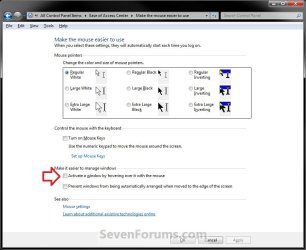
EAC.jpg
OPTION #2
For a true X-mouse experience, you could use this third party software TXMouse:
True X-Mouse Gizmo for Windows
if you are familiar with Linux x-mouse behaviour, you might appreciate its other functions.


OPTION #3
If you don't need those extra functions, you can make a couple swift changes in the registry and achieve the same effect:
[Thanks to original commenter unpaidbill for this particular option]
Step #1:
Open regedit, go to HKEY_CURRENT_USER\Control Panel\Desktop
Edit UserPreferenceMask value to be 9F 3E 07 80 12 00 00 00
[You should only have to modify the first pair]
NOTE: Default value is 98 12 07 80 12 00 00 00.

Step #2:
Also in HKEY_CURRENT_USER\Control Panel\Desktop
Edit ActiveWndTrkTimeout, change 'Base' to Decimal and put in 150 as the 'Value Data'
NOTE: Default value is 500.

[this value is time in milliseconds that it takes for the focus to change.
to avoid some issues with the taskbar I recommended using a value like 150 or so,
but if you'd like to have a different delay before the window loses focus, set it to whatever you like.]

Step #3:
Log off and log back in
   Information
(Added by John Galt)

Here is the registry key to do that if you don't want to edit the registry yourself. View attachment Hover window select.reg

Here is the registry key to restore the default values. View attachment Default Windows hover.reg


This results in windows being active (but not being raised) when you hover over them.


Last edited by a moderator:
I just tried it in Windows 7 Pro. I needed to set the DWORD to "ActiveWndTrkTimeout" to get that to work. I changed the DWORD back to "ActiveWndTrackTimeout" and the delay didn't occur. I checked by clicking on the uparrow thingy in the systray to see more info. Also, I can now see a small (but noticeable delay when hovering over another window.

erple2

Did you change the DWORD name when you did this? I concur that "ActiveWndTrkTimeout" is the entry that controls this delay setting... But what I'm still trying to confirm is... do we need both DWORD entries?

Thanks for your input
 

My Computer

OS
XP and Win7
? I concur that "ActiveWndTrkTimeout" is the entry that controls this delay setting... But what I'm still trying to confirm is... do we need both DWORD entries?

I have ActiveWndTrkTimeout at (150) and
ActiveWndTrackTimeout at (0) and it works for me.
 

My Computer

Computer type
PC/Desktop
Computer Manufacturer/Model Number
Custom
OS
7 x64 Ultimate
CPU
AMD Ryzen 5
Motherboard
Gigabyte GA-AB350-Gaming
Memory
16GB DDR4
Graphics Card(s)
Radeon R7 360
Monitor(s) Displays
2 x Dell U2518D
Screen Resolution
2560x1440 2560x1440
Hard Drives
WD 500GB x2
Samsung SSD 128MB (OS)
XPG SX8200 Pro M.2 2280 1TB
PSU
Antec 500
Cooling
Hyper 212 EVO
Keyboard
Logitech cordless K800
Mouse
Logitech M510
Antivirus
Avira
I just tried it in Windows 7 Pro. I needed to set the DWORD to "ActiveWndTrkTimeout" to get that to work. I changed the DWORD back to "ActiveWndTrackTimeout" and the delay didn't occur. I checked by clicking on the uparrow thingy in the systray to see more info. Also, I can now see a small (but noticeable delay when hovering over another window.
erple2

Did you change the DWORD name when you did this? I concur that "ActiveWndTrkTimeout" is the entry that controls this delay setting... But what I'm still trying to confirm is... do we need both DWORD entries?

Thanks for your input
I'm not sure I understand your question, but here is what I did:

  1. Change the DWORD named "UserPreferencesMask" to "9f 3e 07 80 12 00 00 00" (the 9e changed to 9f)
  2. add a DWORD called "ActiveWndTrackTimeout", with value 150 (decimal)
Result? While focus follows mouse works, there is no delay. If I change the DWORD's name in 2 above to "ActiveWndTrkTimeout", then the delay works. I do not have a DWORD named "ActiveWndTrackTimeout" anymore. Does that answer the question?
 

My Computer

OS
Windows 7 Professional 64 bit
CPU
Core2Duo 6750
Motherboard
ASUS P5B
Memory
4 gb
Graphics Card(s)
XFX 4890
Sound Card
X-Fi
Monitor(s) Displays
hp 2475
If I change the DWORD's name in 2 above to "ActiveWndTrkTimeout", then the delay works. I do not have a DWORD named "ActiveWndTrackTimeout" anymore. Does that answer the question?

erple2...
Yes I believe it does. I am now assuming we can delete the "ActiveWndTrackTimeout" DWORD if we have both that and the "ActiveWndTrkTimeout" DWORD

After I re-read the original post and also googled this setting a bit I found out that the reg file you provided has a typo. Your key uses the word "Track" and it should be the letters "Trk"
(note bold text in keys below)

Your Key: "ActiveWndTrackTimeout"=dword:00000096
Correct Key: "ActiveWndTrkTimeout"=dword:00000096

So therefore I believe that the "ActiveWndTrackTimeout" DWORD was added to the registry when I merged the linked *.reg files provided by John Galt in the green information box included in the original post that has the "Track" typo

John Galt...
I just checked those files you have linked in the first post and they still have the the "ActiveWndTrackTimeout" DWORD typo... you may want to update those with the correct "ActiveWndTrkTimeout" DWORD
 

My Computer

OS
XP and Win7
does anyone know of any software or registry settings to get the active window to not come to the foreground but still stay active so I can scroll or type? Tweak UI does this for winxp. Is there anything equivalent like that for WIndows 7? Any help is greatly appreciated. Thanks in advance.
 

My Computer

OS
Windows 7
does anyone know of any software or registry settings to get the active window to not come to the foreground but still stay active so I can scroll or type? Tweak UI does this for winxp. Is there anything equivalent like that for WIndows 7? Any help is greatly appreciated. Thanks in advance.

Yeah, this is more practical. The setting in the control panel bring the window the the foreground, which is annoying and useless.
 

My Computer

Computer Manufacturer/Model Number
Dell E4300
OS
Windows 7 Ultimate
CPU
Intel C2D SP9400
Motherboard
Intel GS45
Memory
2GB DDR3
Graphics Card(s)
Integrated =(
Sound Card
Integrated =(
Monitor(s) Displays
Matte LCD
Screen Resolution
1280x800
Hard Drives
Intel X25-M Gen 2 SSD
WD Caviar Black
Mouse
MX 518, V470 - Logitech
does anyone know of any software or registry settings to get the active window to not come to the foreground but still stay active so I can scroll or type? Tweak UI does this for winxp. Is there anything equivalent like that for WIndows 7? Any help is greatly appreciated. Thanks in advance.

Yeah, this is more practical. The setting in the control panel bring the window the the foreground, which is annoying and useless.

Option 3 of the first page tells you how to do this. Don't use or set Option 1, and you should be good to go. The delay is set so that some behavior works fine. I had an issue with selecting the "additional hidden" icons on the systray (ie, I could click on the up arrow to show the hidden items in the systray, but as soon as I started to move the mouse to one of the hidden items, the mini-window that shows the hidden items disappeared). Setting the delay to "150" (milliseconds) seemed to solve the problem for me, plus had a minimal impact on the normal behavior on the "focus follows mouse" behavior. BTW, the active window does NOT have to be the top window if you go with Option 3.
 

My Computer

OS
Windows 7 Professional 64 bit
CPU
Core2Duo 6750
Motherboard
ASUS P5B
Memory
4 gb
Graphics Card(s)
XFX 4890
Sound Card
X-Fi
Monitor(s) Displays
hp 2475
Option 3 of the first page tells you how to do this. Don't use or set Option 1, and you should be good to go. The delay is set so that some behavior works fine. I had an issue with selecting the "additional hidden" icons on the systray (ie, I could click on the up arrow to show the hidden items in the systray, but as soon as I started to move the mouse to one of the hidden items, the mini-window that shows the hidden items disappeared). Setting the delay to "150" (milliseconds) seemed to solve the problem for me, plus had a minimal impact on the normal behavior on the "focus follows mouse" behavior. BTW, the active window does NOT have to be the top window if you go with Option 3.

Thanks. Exactly what I want it to do now.
 

My Computer

Computer Manufacturer/Model Number
Dell E4300
OS
Windows 7 Ultimate
CPU
Intel C2D SP9400
Motherboard
Intel GS45
Memory
2GB DDR3
Graphics Card(s)
Integrated =(
Sound Card
Integrated =(
Monitor(s) Displays
Matte LCD
Screen Resolution
1280x800
Hard Drives
Intel X25-M Gen 2 SSD
WD Caviar Black
Mouse
MX 518, V470 - Logitech
Just as a followup, my fresh install of Win 7 Pro x64 already had a key of ActiveWndTrackTimeout. Changing that value did nothing. I had to add a new key of ActiveWndTrkTimeout and set that one.
 

My Computer

OS
Windows 7 Home Premium
i really miss this feature as i migrate to 7.
tq very much
 

My Computer

Computer Manufacturer/Model Number
VPCZ115GG
OS
Windows® 7 Professional 64-bit (English Version)
CPU
Intel® Core™ i5-540M Processor 2.53 GHz with Turbo Boost up
Memory
4 GB DDR3 SDRAM*2
Graphics Card(s)
NVIDIA® GeForce® GT 330M GPU with CUDA™ Technology
Sound Card
Intel® High Definition Audio compatible
The issue I'm having is that when in Explorer, I can't use the scroll wheel when moving from the folder pane to the file pane without FIRST clicking somewhere in the file pane. Years ago I had a mouse driver that allows that and haven't seen that functionality for quite a while now. If anyone knows how to get the scroll wheel to work by placing the cursor within the pane (without having to click inside of that pane), please share how it's done. I miss that functionality!

FYI, the functionality I'm looking for in Explorer does work in Thunderbird. Clicking on a folder, I can hover over the emails list pane and begin scrolling that window with the wheel without having to click somewhere within it first.

I'm using Win7 and WizMouse 1.0.0.7 gave me just what your looking for.
 

My Computer

Computer Manufacturer/Model Number
Acer/ASE380/AST180/APM8
OS
Microsoft Windows 7 Home Premium 6.1.7600 Build 7600
CPU
AMD Athlon 64 X2 Dual Core Processor 6000+, 3000 Mhz
Motherboard
Foxconn EM61SM/EM61PM
Memory
2 GB
Graphics Card(s)
NVIDIA GeForce 7950 GT
Sound Card
Realtek ALC888/1200
Monitor(s) Displays
Insignia 42" LCD HDTV NS-L42Q-10A
Screen Resolution
1920 x 1080
Hard Drives
1 Internal
4 External Hard Drives
1 New Unconnected Seagate Barracuda, 1.5 TB, 3.5", SATA
PSU
Codegen Model:300X1
Case
Systemax
Cooling
Foxconn DC Brushless Fan D80SH-12
PSA:
If OPTION #1 is already in place the delay doesn't kick in until you restart (OKAY/APPLY) the feature in EAC. I was having an annoying time trying to figure out how to get the delay to work on my laptop. With the correct registry changes in place, logging off and/or rebooting was not enough for me.
 

My Computer

Computer Manufacturer/Model Number
Me
OS
Windows 7 Ultimate x64 SP1
CPU
Core i5-2500K 3.3GHz (Sandy Bridge)
Motherboard
ASRock Z68 Professional Gen3
Memory
4GB x 4 G.SKILL DDR3-1600 (F3-12800CL9D-8GBXL)
Graphics Card(s)
Radeon R9 270 X2 Crossfire
Monitor(s) Displays
1x Acer GD235HZ + 2x Acer P235H
Screen Resolution
5760x1080
PSU
SS-760XP platinum
Case
Cooler Master Centurion
Cooling
120mm front, Corsair H60 liquid CPU cooler
Keyboard
MS Natural 4000, Logitech EX110
Mouse
Multiple incl. Logitech Cordless Optical TrackMan trackball
Internet Speed
Cable
Antivirus
Norton Security Suite
Browser
Mostly Chrome
Other Info
ALSO: Gateway - FX6831-03 | OS: Xen Server | CPU: Intel Core i7 860 2.80Ghz Lynnfield | MOBO: H57M01 | MEM: 16GB DDR3 | GPU: Zotac | BOOT: 80GB Intel X25-M | DATA: numerous | PSU: FSP750-80APG | COOLING: 120mm rear, 80mm front || DisplayLink adapters: 2 HP HPNL571AA + Plugable dock
My desk: http://www.biodesk.com/p-5-pro-desk.aspx
does anyone know of any software or registry settings to get the active window to not come to the foreground but still stay active so I can scroll or type? Tweak UI does this for winxp. Is there anything equivalent like that for WIndows 7? Any help is greatly appreciated. Thanks in advance.

Yeah, this is more practical. The setting in the control panel bring the window the the foreground, which is annoying and useless.

Option 3 of the first page tells you how to do this. Don't use or set Option 1, and you should be good to go. The delay is set so that some behavior works fine. I had an issue with selecting the "additional hidden" icons on the systray (ie, I could click on the up arrow to show the hidden items in the systray, but as soon as I started to move the mouse to one of the hidden items, the mini-window that shows the hidden items disappeared). Setting the delay to "150" (milliseconds) seemed to solve the problem for me, plus had a minimal impact on the normal behavior on the "focus follows mouse" behavior. BTW, the active window does NOT have to be the top window if you go with Option 3.

I'm not sure what you are referring to--first page of what? Thanks!
 

My Computer

OS
Windows 7 Ultimate x64
Hello Rplum, and welcome to Seven Forums.

They are referring to the tutorial on the first page/post in this thread. At the bottom and top right corners of this webpage, you will see a "Page # of 6" box. You would just need to click on the "First" option to go to the first page. That's all.

Hope this helps,
Shawn
 

My Computer

Computer type
PC/Desktop
Computer Manufacturer/Model Number
Self built custom
OS
64-bit Windows 11 Pro for Workstations
CPU
Intel i7-8700K OC'd to 5 GHz
Motherboard
ASUS ROG Maximus XI Formula Z390
Memory
64 GB (4x16GB) G.SKILL TridentZ RGB DDR4 3600 MHz
Graphics Card(s)
ASUS ROG-STRIX-GTX1080TI-O11G-GAMING
Sound Card
Integrated
Monitor(s) Displays
2 x Samsung Odyssey G7 27"
Screen Resolution
2560x1440
Hard Drives
1TB Samsung 990 PRO M.2,
4TB Samsung 990 PRO PRO M.2,
TerraMaster F8 SSD Plus NAS
PSU
Seasonic Prime Titanium 850W
Case
Thermaltake Core P3
Cooling
Corsair Hydro H115i
Keyboard
Logitech wireless K800
Mouse
Logitech MX Master 4
Internet Speed
2 Gb/s Download and 100 Mb/s Upload
Antivirus
Malwarebyte Anti-Malware Premium
Browser
Google Chrome
Other Info
Logitech Z625 speaker system,
Logitech BRIO 4K Pro webcam,
HP Color LaserJet Pro MFP M477fdn,
APC SMART-UPS RT 1000 XL - SURT1000XLI,
Galaxy S23 Plus phone
Thanks for this...edit the reg file item to "ActiveWndTrkTimeout" instead of "ActiveWndTrackTimeout" turn out fine. Previously, I am unable to click any thing in the "hidden" notification. I deleted the "ActiveWndTrackTimeout" from the reg. Well done and thanks.
 

My Computer

OS
Windows 7 Ultimate x64/x32
Updated guide for those with custom settings

The 9F 3E 07 80 12 00 00 00 code is for those that use Windows' (you have a decent enough computer system ;)) recommended default setting.

I've changed some of Windows' advanced settings:Type systempropertiesperformance in the start menu and hit enter.
All of these advanced settings affect the above code. For example my UserPreferenceMask value with...

no Active Window Tracking, no Z-Order Activation
94 3C 03 80 12 00 00 00

Active Window Tracking, no Z-Order Activation
95 3C 03 80 12 00 00 00

Active Window Tracking, Z-Order Activation
D5 3C 03 80 12 00 00 00

Because I've un-check-marked menu fading, shadows under windows & smooth scrolling in list boxes.


Registry edit guide/tool for advanced system settings

http://www.silisoftware.com/tools/tweakui.php


Use the above tool to generate registry codes for your preferred setting. Go to the registry key in Option #3 of the original post HKEY_CURRENT_USER\Control Panel\Desktop. Change your UserPreferenceMask value to the one given by the above tool.

or

Simply set your custom advanced settings. Go to the registry key in Option #3 of the original post. Save your new default code.

  • Add 1 hex to the first digit pair to get active window tracking without z-order activation.
  • Add 41 to the first digit pair to get active window tracking with z-order activation.
Log Off ––> Log On and your done.


NOTE:

  • Z-Order Activation does not work without Active Window Tracking. So adding 40 to the digits won't do anything.
  • You will want to adjust the ActiveWndTrkTimeout value to something above zero. I use 333 ms in decimal = 0000014d in hex.
 
Last edited:

My Computer

Computer type
PC/Desktop
Computer Manufacturer/Model Number
iBuyPower
OS
Windows 7 Professional 64-bit (6.1, Build 7601)
CPU
Intel Core i7-960 @ 3.20GHz
Motherboard
MSI X58 Pro-E (MS-7522)
Memory
12GB (3x4GB) DDR3 1600 Crucial Ballistix
Graphics Card(s)
Nvidia GeForce 9800 GT
Sound Card
On Board (Realtek)
Monitor(s) Displays
Samsung Syncmaster T260HD
Screen Resolution
1920x1200 @ 60Hz
Hard Drives
Western Digital 2TB SATA-II 7200RPM (WD20EARS-00MVWB0)
Seagate 40GB ATA Ultra DMA/100 5400RPM (ST340015A)
Hitachi 1TB 7200RPM (HDS7210010CLA332)
PSU
XION 700W (XON-700P12N)
Case
Antec DF-85
Cooling
Stock
Keyboard
HP Wireless Elite, Logitech Wave
Mouse
Logitech G700, Logitech G500
Internet Speed
3Mbps/768kbps
Antivirus
Avira Free Edition
Browser
Firefox 23, Internet Explorer 10, Chrome 29
Other Info
Speakers: Creative GigaWorks T40 Series II
Just wondering,

Is it possible to apply method 3 (by modifying registry) without logging off ?

I wrote little piece in C#, which can enable or disable focus window on mouse over
and I would like to improve it. Maybe there is a way to enforce Windows System to apply focus window on mouse over by, i don't know, another changes in registry or calling some system functions in C# code.

Maybe someone can help? :)
 

My Computer

OS
Windows 7 Ultimate x64
Good old Option 3 is almost what I was looking for. When I go to click over to a window that's behind another, sometimes it opens and becomes foreground and active, but sometimes it becomes active without coming in front of other windows. If I click the title bar in that case, it comes to the front. I believe this ordering of windows is z-order, but I can't figure out what's actually creating that order. Is there a combination of settings that will allow this version: hovering switches control to the new window (so mouse scrolling works) but doesn't bring it to the front, AND clicking the window always brings it to front? My current settings don't achieve this. Thanks for your guidance!
 

My Computer

Computer Manufacturer/Model Number
HP
OS
Windows 7 Home Premium 64bit
CPU
intel core i5
Memory
6 GB
Good old Option 3 is almost what I was looking for. When I go to click over to a window that's behind another, sometimes it opens and becomes foreground and active, but sometimes it becomes active without coming in front of other windows. If I click the title bar in that case, it comes to the front. I believe this ordering of windows is z-order, but I can't figure out what's actually creating that order. Is there a combination of settings that will allow this version: hovering switches control to the new window (so mouse scrolling works) but doesn't bring it to the front, AND clicking the window always brings it to front? My current settings don't achieve this. Thanks for your guidance!

Your halfway there. Use this for Win7 x64 to keep the windows from coming to the front when mousing over.
Set the raise time before unchecking Auto raise

XMouseSetting.zip - File Shared from Box.net - Free Online File Storage

You may be able to scroll the window that your mouse is over.
If not you need this to scroll the moused over window without clicking the window.
Make sure it runs on startup.

WizMouse
 

My Computer

Computer type
PC/Desktop
Computer Manufacturer/Model Number
Made by Dixon Butz
OS
Win7 Win 10, Win 8.1
CPU
AMD FX-8350, Corsair H100i
Motherboard
ASUS Crosshair V Formula-Z
Memory
16GB G.SKILL Ripjaws DDR3
Graphics Card(s)
EVGA GTX 980, EVGA GTX 860
Sound Card
Denon x4200 Dolby AMOS!
Monitor(s) Displays
65" Samsung 4K, +3 27inch
Screen Resolution
4K, 1080x3
Hard Drives
2TB Samsung hd204ui

1X Samsung 850 SSD
PSU
1000w EVGA, 2000VA UPS, 1000VA UPS and many others
Case
Lian Li
Cooling
Corsair H100i
Keyboard
Logitech K800
Mouse
Logitech Couch Mouse
Internet Speed
Gigabit!
Antivirus
Defender
Browser
Slimjet Chrome
Back
Top