
How to Prevent or Allow Themes to Change Mouse Pointers in Windows 7 and Windows 8
Information
This will show you how to allow or prevent the mouse pointers from being changed to the mouse pointers included in a new theme instead in Windows 7, Windows 8, and Windows 8.1.
OPTION ONE
Allow or Prevent Themes to change Mouse Pointers in Desktop Icon Settings
1. Open the Control Panel (icons view) in Windows 7 or Windows 8, and click/tap on the Mouse icon.
2. Close the Control Panel window.
3. Click/tap on the Pointers tab, and do step 4 or 5 below for what you would like to do. (see screenshot below)
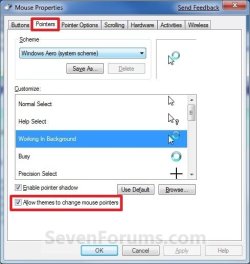
4. To Allow Themes to Change Mouse Pointers
NOTE: This is the default setting.
A) Check the Allow themes to change mouse pointers box, and go to step 6 below. (see screenshot above)
5. To Prevent Themes from Changing Mouse Pointers
A) Uncheck the Allow themes to change mouse pointers box, and go to step 6 below. (see screenshot below step 3)
6. Click/tap on OK. (see screenshot below step 3)
OPTION TWO
Allow or Prevent Themes to change Mouse Pointers using REG File
Note
The .reg files below are for the registry key and value below.
HKEY_CURRENT_USER\Software\Microsoft\Windows\CurrentVersion\Themes
ThemeChangesMousePointers DWORD
0 = Prevent
1 = Allow
HKEY_CURRENT_USER\Software\Microsoft\Windows\CurrentVersion\Themes
ThemeChangesMousePointers DWORD
0 = Prevent
1 = Allow
1. Do step 2 or 3 below for what you would like to do.
2. To Allow Themes to Change Mouse Pointers
NOTE: This is the default setting.
A) Click/tap on the Download button below to download the file below, and go to step 4 below.
Allow_ThemeChangesMousePointers.reg
Download
3. To Prevent Themes from Changing Mouse Pointers
A) Click/tap on the Download button below to download the file below, and go to step 4 below.
Prevent_ThemeChangesMousePointers.reg
Download
4. Save the .reg file to your desktop.
5. Double click/tap on the downloaded .reg file to Merge it.
6. If prompted, click/tap on Run, Yes (UAC), Yes, and OK to approve the merge.
7. When finished, you can delete the downloaded .reg file if you like.
That's it,
Shawn
Related Tutorials
- How to Allow or Prevent Changing Mouse Pointers in Windows 7
- How to Prevent or Allow Themes to Change Desktop Icons in Windows 7 and Windows 8
- How to Change the Mouse Pointers in Windows 7
- How to Change or Save a Windows 7 Theme
- How to Switch Between Themes in Windows 8 and 8.1
- How to Make your own Windows 7 Theme Pack
- How to Apply Custom Themes in Windows 7
- How to Allow or Prevent Changing Theme
- How to Create "Mouse Properties" Shortcuts in Windows 7 and Vista
Attachments
Last edited:


