Mouse Properties Shortcuts - Create

How to Create "Mouse Properties" Shortcuts in Vista, Windows 7, and Windows 8


   Information
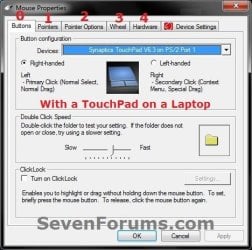
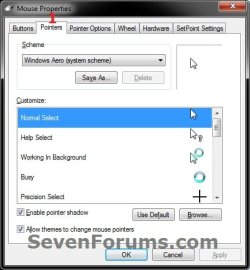
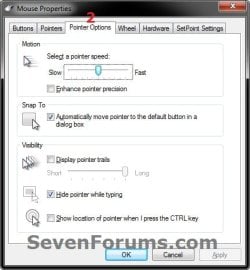
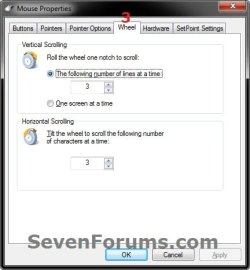
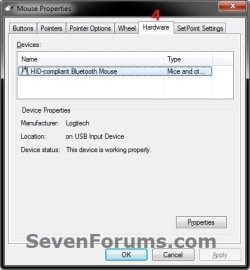
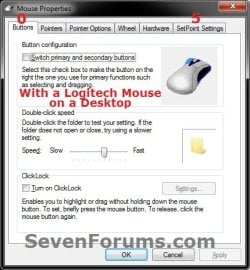
This will show you how to create or download Mouse Properties shortcuts that open to the Buttons, Pointers, Pointer Options, Wheel, and Hardware tabs in Mouse Properties.

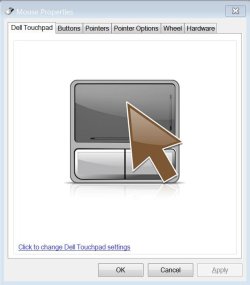
What you have displayed for the tabs wil vary depending on if you have a mouse or touchpad installed, and for what options are included with the device's driver.


EXAMPLE: Mouse Properties
Tab-0.jpgTouchpad-Tab-0.jpg
Tab-1.jpgTab-2.jpg
Tab-3.jpgTab-4.jpg


OPTION ONE

To Download the "Mouse Properties" Shortcut


1. Mouse Properties Shortcut that Opens to the Buttons or Tab 0
A) Click on the download button below to download the file below.
Mouse_Buttons_Properties.zip

Download


2. Mouse Properties Shortcut that Opens to the Pointers or Tab 1
A) Click on the download button below to download the file below.
Mouse_Pointers_Properties.zip

Download


3. Mouse Properties Shortcut that Opens to the Pointer Options or Tab 2
A) Click on the download button below to download the file below.
Mouse_Pointer_Options_Properties.zip

Download


4. Mouse Properties Shortcut that Opens to the Wheel or Tab 3
A) Click on the download button below to download the file below.
Mouse_Wheel_Properties.zip

Download


5. Mouse Properties Shortcut that Opens to the Hardware or Tab 4
A) Click on the download button below to download the file below.
Mouse_Hardware_Properties.zip

Download


6. Mouse Properties Shortcut that Opens to the Device Settings or Tab 5
NOTE: This 5th tab is device and driver specific, and this shortcut may not work on your computer to open to this tab. For example, the Device Settings tab 5 for a Synaptics touchpad will open with this shortcut, but the SetPoint Settings tab 5 for a Logitech mouse will not open with this shortcut.
A) Click on the download button below to download the file below.
Mouse_Properties-Device_Settings.zip

Download


7. Click on Save, and save the .zip file to the desktop.

8. Open the downloaded .zip file and extract the Mouse Properties shortcut to the desktop.

9. Right click on the Mouse Properties shortcut, and click on Properties, General tab, and on the Unblock button. (see screenshot below)
NOTE: If you do not have a Unblock button under the General tab, then the shortcut is already unblocked and you can continue on to step 5.
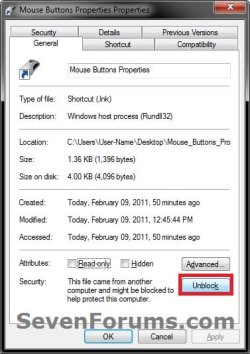
Unblock.jpg
10. In Vista and Windows 7, you can now Pin to Taskbar (Windows 7 only) or Pin to Start Menu, add to Quick Launch, assign a keyboard shortcut to it, or move this shortcut to where you like for easy use.

11. In Windows 8, you can Pin to Taskbar on desktop, Pin to Start screen, add to Quick Launch, assign a keyboard shortcut to it, or move this shortcut to where you like for easy use.


12. When done, you can delete the downloaded .zip file if you like, or save it to use again.


OPTION TWO

To Manually Create the "Mouse Properties" Shortcut


1. Right click on a empty area on desktop, and click on New and Shortcut.


2. Copy and paste the location below into the location area for what tab you want the Mouse Properties shortcut to open to, and click on the Next button. (see screenshot below)
  • Buttons or Tab 0
Code:
%SystemRoot%\System32\rundll32.exe shell32.dll,Control_RunDLL main.cpl,,0

  • Pointers or Tab 1
Code:
%SystemRoot%\System32\rundll32.exe shell32.dll,Control_RunDLL main.cpl,,1

  • Pointer Options or Tab 2
Code:
%SystemRoot%\System32\rundll32.exe shell32.dll,Control_RunDLL main.cpl,,2

  • Wheel or Tab 3
Code:
%SystemRoot%\System32\rundll32.exe shell32.dll,Control_RunDLL main.cpl,,3

  • Hardware or Tab 4
Code:
%SystemRoot%\System32\rundll32.exe shell32.dll,Control_RunDLL main.cpl,,4

  • Device Settings or Tab 5
NOTE: This 5th tab is device and driver specific, and this shortcut may not work on your computer to open to this tab. For example, the Device Settings tab 5 for a Synaptics touchpad will open with this shortcut, but the SetPoint Settings tab 5 for a Logitech mouse will not open with this shortcut.

Code:
%SystemRoot%\System32\rundll32.exe shell32.dll,Control_RunDLL main.cpl,,5
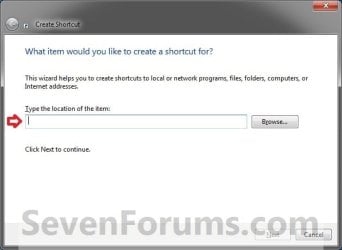
Step1.jpg
3. Type Mouse Buttons Properties using the name of the tab used, and click on the Finish button. (see screenshot below)
NOTE: You can name this anything you would like though.
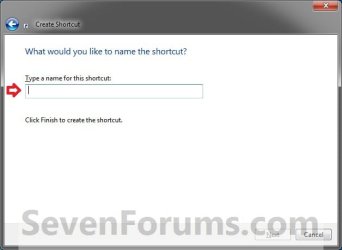
Step2.jpg
4. Right click on the new Mouse Buttons Properties shortcut on the Desktop and click on Properties.

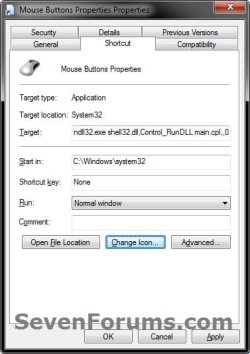
5. Click on the Shortcut tab, then click on the Change Icon button. (see screenshot below)
Step3.jpg
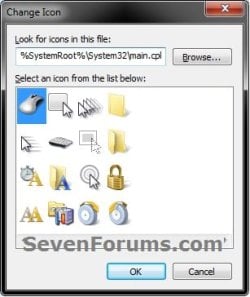
6. In the line under "Look for icons in this file", copy and paste the location below and press Enter. (see screenshot below)
%SystemRoot%\System32\main.cpl
Step4.jpg
7. Select the icon highlighted in blue above and click on OK. (see screenshot above)
NOTE: You can use any icon that you would like instead though.

8. Click on OK. (see screenshot below)
Step5.jpg
9. In Vista and Windows 7, you can now Pin to Taskbar (Windows 7 only) or Pin to Start Menu, add to Quick Launch, assign a keyboard shortcut to it, or move this shortcut to where you like for easy use.

10. In Windows 8, you can Pin to Taskbar on desktop, Pin to Start screen, add to Quick Launch, assign a keyboard shortcut to it, or move this shortcut to where you like for easy use.
That's it,
Shawn


Attachments

Last edited:
Almost worked! I "Manually Created the 'Mouse Properties' Shortcut" per the well written instructions above, and it flashed the tab I wanted (pointer options) on the screen momentarily (less than a second). Then it reverts back to tab 0, which is called Dell Touchpad. I believe I had to install a driver for this touchpad when I first got the computer so I could disable it when an external USB mouse was present. Any advice?
 

My Computer

OS
Windows 7 Enterprise 32bit
Hello Dan, and welcome to Seven Forums.

It may be the same issue as in my tab 5 example due to 3rd party drivers.

Could you post a screenshot of what you see when you open Mouse from the Control Panel (icons view)?
 

My Computer

Computer type
PC/Desktop
Computer Manufacturer/Model Number
Self built custom
OS
64-bit Windows 11 Pro for Workstations
CPU
Intel i7-8700K OC'd to 5 GHz
Motherboard
ASUS ROG Maximus XI Formula Z390
Memory
64 GB (4x16GB) G.SKILL TridentZ RGB DDR4 3600 MHz
Graphics Card(s)
ASUS ROG-STRIX-GTX1080TI-O11G-GAMING
Sound Card
Integrated
Monitor(s) Displays
2 x Samsung Odyssey G7 27"
Screen Resolution
2560x1440
Hard Drives
1TB Samsung 990 PRO M.2,
4TB Samsung 990 PRO PRO M.2,
TerraMaster F8 SSD Plus NAS
PSU
Seasonic Prime Titanium 850W
Case
Thermaltake Core P3
Cooling
Corsair Hydro H115i
Keyboard
Logitech wireless K800
Mouse
Logitech MX Master 4
Internet Speed
2 Gb/s Download and 100 Mb/s Upload
Antivirus
Malwarebyte Anti-Malware Premium
Browser
Google Chrome
Other Info
Logitech Z625 speaker system,
Logitech BRIO 4K Pro webcam,
HP Color LaserJet Pro MFP M477fdn,
APC SMART-UPS RT 1000 XL - SURT1000XLI,
Galaxy S23 Plus phone
Screenshot of Mouse Properties (Dell Touchpad)

Thanks, Brink. Here is the screenshot you requested. If I watch carefully, no matter how I open the mouse properties (shortcut or Control Panel Icon), I briefly see that the Buttons tab is the leftmost tab, then a split-second later the Dell Touchpad tab appears as shown and the other tabs have moved over.

The problem I am trying to solve is not a touchpad vs. mouse pointer speed difference problem - it is the big speed difference I get when I switch between a wired and wireless mouse I am trying to work around. I will be changing back and forth frequently in the near future, hence why I want easy access to the pointer speed control. Do you have a different suggestion if this cannot be fixed? I'm trying to avoid loading any software as this is my work computer. Thanks again for your help.
 

Attachments

  • Mouse Prop.JPG
    Mouse Prop.JPG
    48.3 KB · Views: 28,998

My Computer

OS
Windows 7 Enterprise 32bit
I'm not sure that it's going to work for this. Are you using the command location below to create a shortcut with since it's the 4th tab?

%SystemRoot%\System32\rundll32.exe shell32.dll,Control_RunDLL main.cpl,,4
 

My Computer

Computer type
PC/Desktop
Computer Manufacturer/Model Number
Self built custom
OS
64-bit Windows 11 Pro for Workstations
CPU
Intel i7-8700K OC'd to 5 GHz
Motherboard
ASUS ROG Maximus XI Formula Z390
Memory
64 GB (4x16GB) G.SKILL TridentZ RGB DDR4 3600 MHz
Graphics Card(s)
ASUS ROG-STRIX-GTX1080TI-O11G-GAMING
Sound Card
Integrated
Monitor(s) Displays
2 x Samsung Odyssey G7 27"
Screen Resolution
2560x1440
Hard Drives
1TB Samsung 990 PRO M.2,
4TB Samsung 990 PRO PRO M.2,
TerraMaster F8 SSD Plus NAS
PSU
Seasonic Prime Titanium 850W
Case
Thermaltake Core P3
Cooling
Corsair Hydro H115i
Keyboard
Logitech wireless K800
Mouse
Logitech MX Master 4
Internet Speed
2 Gb/s Download and 100 Mb/s Upload
Antivirus
Malwarebyte Anti-Malware Premium
Browser
Google Chrome
Other Info
Logitech Z625 speaker system,
Logitech BRIO 4K Pro webcam,
HP Color LaserJet Pro MFP M477fdn,
APC SMART-UPS RT 1000 XL - SURT1000XLI,
Galaxy S23 Plus phone
Tried it, same result - it goes to the tab (3rd, 4th, or any tab requested) for just a split second then goes to the screen shot I previously posted - as if something else took over.
 

My Computer

OS
Windows 7 Enterprise 32bit
That's what I was afraid of. It appears that the drivers may be conflicting or preventing it from doing so. :(
 

My Computer

Computer type
PC/Desktop
Computer Manufacturer/Model Number
Self built custom
OS
64-bit Windows 11 Pro for Workstations
CPU
Intel i7-8700K OC'd to 5 GHz
Motherboard
ASUS ROG Maximus XI Formula Z390
Memory
64 GB (4x16GB) G.SKILL TridentZ RGB DDR4 3600 MHz
Graphics Card(s)
ASUS ROG-STRIX-GTX1080TI-O11G-GAMING
Sound Card
Integrated
Monitor(s) Displays
2 x Samsung Odyssey G7 27"
Screen Resolution
2560x1440
Hard Drives
1TB Samsung 990 PRO M.2,
4TB Samsung 990 PRO PRO M.2,
TerraMaster F8 SSD Plus NAS
PSU
Seasonic Prime Titanium 850W
Case
Thermaltake Core P3
Cooling
Corsair Hydro H115i
Keyboard
Logitech wireless K800
Mouse
Logitech MX Master 4
Internet Speed
2 Gb/s Download and 100 Mb/s Upload
Antivirus
Malwarebyte Anti-Malware Premium
Browser
Google Chrome
Other Info
Logitech Z625 speaker system,
Logitech BRIO 4K Pro webcam,
HP Color LaserJet Pro MFP M477fdn,
APC SMART-UPS RT 1000 XL - SURT1000XLI,
Galaxy S23 Plus phone
Thanks for the help. I guess I'll do it the good-old-fashioned way.
 

My Computer

OS
Windows 7 Enterprise 32bit
The registry location for this is HKEY_CURRENT_USER\Control Panel\Mouse\MouseSensitivity
 

My Computer

Computer type
PC/Desktop
Computer Manufacturer/Model Number
Dwarf Dwf/11/2012 r09/2013
OS
Windows 8.1 Pro RTM x64
CPU
Intel Core-i5-3570K 4-core @ 3.4GHz (Ivy Bridge) (OC 4.4GHz)
Motherboard
ASRock Z77 Extreme4-M
Memory
4 x 4GB DDR3-1600 Corsair Vengeance CMZ8GX3M2A1600C9B (16GB)
Graphics Card(s)
MSI GeForce GTX770 Gaming OC 2GB
Sound Card
Realtek High Definition on board solution (ALC 898)
Monitor(s) Displays
ViewSonic VA1912w Widescreen (VGA)
Screen Resolution
1440x900
Hard Drives
OCZ Agility 3 SSD 120GB SATA III x2 (RAID 0)
Samsung HD501LJ 500GB SATA II x2
Hitachi HDS721010CLA332 1TB SATA II
Iomega 1.5TB Ext USB 2.0
WD 2.0TB Ext USB 3.0
PSU
XFX Pro Series 850W Semi-Modular
Case
Gigabyte IF233
Cooling
1 x 120mm Front Inlet 1 x 120mm Rear Exhaust
Keyboard
Microsoft Comfort Curve Keyboard 3000 (USB)
Mouse
Microsoft Comfort Mouse 3000 for Business (USB)
Internet Speed
NetGear DG834Gv3 ADSL Modem/Router (Ethernet) ~4.0 Mb/s (O2)
Antivirus
Avast! 8.0.1497
Browser
IE 11
Other Info
Optical Drive: HL-DT-ST BD-RE BH10LS30 SATA Bluray
Lexmark S305 Printer/Scanner/Copier (USB)
WEI Score: 8.1/8.1/8.5/8.5/8.25
Asus Eee PC 1011PX Netbook (Windows 7 x86 Starter)
Back
Top