Move XP mode to another user profile

techprodave

New member
I need to move my xp mode from the current user to another user. Is there an easy way to do this? I'm trying to avoid having to reinstall an app.

I don't need to use it at all on the original user's profile. But for future reference, I am curious if I could.

I know someone out there has the answer...Thanks in advance for sharing it with us.
DS/Anchorage, AK
 

My Computer

Computer Manufacturer/Model Number
Dell Inspiron 545S
OS
Win XP, Win Vista 64, Win 7 64, Mac OS X 10.6.5
CPU
Intel Core 2 Duo E7400
Motherboard
Dell
Memory
6GB
Graphics Card(s)
Intel GMA 3100
Sound Card
Realtek
Monitor(s) Displays
Dell 2209
Hard Drives
650GB Seagate
PSU
na
Case
Yes
Cooling
YEs
Hi DS, welcome to the Seven Forums.

This is quite easy, straight forward action. Copy the file Windows XP Mode.vhd (it's the actual XP "hard disk"), default location C:\Users\Your_Username\AppData\Local\Microsoft\Windows Virtual PC\Virtual Machines\Windows XP Mode.vhd to a public location, or to this new user's folders. Remember that AppData is a hidden folder.

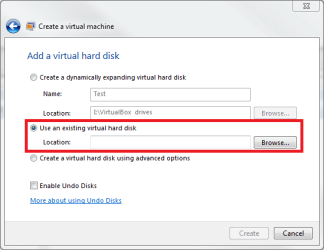
Now log in as New User and create a new virtual machine choosing Use an existing virtual hard disk, choosing the copy of XP Mode you moved in previous step:

VPC_use_existing_vhd.png

That's it. Virtual PC recognizes XP Mode virtual hard disk and can attach the base vhd automatically. Complete XP Mode is moved, with user accounts, files and apps.


Not knowing how familiar you are with creating a vm, XP Mode base and so on, here's further reading:
Come back to tell how it went.

Kari
 

My Computer

Computer type
Laptop
Computer Manufacturer/Model Number
HP ENVY 17-1150eg
OS
Windows 10 Pro x64 EN-GB
CPU
1.6 GHz Intel Core i7-720QM Processor
Memory
6 GB
Graphics Card(s)
ATI Mobility Radeon HD 5850 Graphics
Sound Card
Beats sound system with integrated subwoofer
Monitor(s) Displays
17" laptop display, 22" LED and 32" Full HD TV through HDMI
Screen Resolution
1600*900 (1), 1920*1080 (2&3)
Hard Drives
Internal: 2 x 500 GB SATA Hard Disk Drive 7200 rpm
External: 2TB for backups, 3TB USB3 network drive for media
Cooling
As Envy runs a bit warm, I have it on a Cooler Master pad
Keyboard
Logitech diNovo Media Desktop Laser (bluetooth)
Mouse
Logitech Performance Mouse MX
Internet Speed
50/10 Mbps VDSL
Antivirus
Windows Defender 4.3.9431.0
Browser
Maxthon 3.5.2., IE11
Awesome!

Got it on the first try.
I copied the Windows XP Mode.vhd from the default location of the existing, working perfect, account, C:\Users\Your_Username\AppData\Local\Microsoft\Windows Virtual PC\Virtual Machines\Windows XP Mode.vhd to the public location, C:\Users\Public\

I then changed the settings for the Windows XP mode in the New User and it worked flawlessly.

Thank you so much for saving me so much time. You are to be praised!

Question: I assume I should go to the Original User and change the settings for that account to access the same public location? That way, if either user had to access the single Application we need Windows XP Mode for would be accessing the same database.

And, should I delete the original, now unused, Windows XP Mode.vhd from the Original User's account?

Thanks again.
DS/Anchorage Alaska
(Yes, I can see Sarah Palin from here :cool: )
 

My Computer

Computer Manufacturer/Model Number
Dell Inspiron 545S
OS
Win XP, Win Vista 64, Win 7 64, Mac OS X 10.6.5
CPU
Intel Core 2 Duo E7400
Motherboard
Dell
Memory
6GB
Graphics Card(s)
Intel GMA 3100
Sound Card
Realtek
Monitor(s) Displays
Dell 2209
Hard Drives
650GB Seagate
PSU
na
Case
Yes
Cooling
YEs
Both users can use the same XP Mode virtual hard disk. User A saves a file or installs an app, User B sees these when using XP Mode next time. No problems there. However, it's important to remember when more users are sharing a virtual machine NOT TO HIBERNATE! You must shut down, really shut down when you are done. Every time.

When you hibernate a Virtual PC virtual machine (default closing function), a so called saved state file (like hiberfile.sys in real, physical PC running Seven) is created to save the hibernation information. This file is saved in the same folder that vhd file, with the same name and extension vsv, for instance Windows XP Mode.vsv.

When user 1 for instance creates a new file or edits already existing one when user 2 has not shut down but only hibernated XP Mode, when user 2 next time logs in XP Mode reads hibernation info from that vsv file and restores XP Mode as it was when hibernated NOT SHOWING THE CHANGES USER 1 HAS MADE SINCE LAST TIME USER 2 HIBERNATED!.

Confusing, I had to read twice what I just wrote and I'm still unsure if I can understand... ;) Hopefully you get it.


There's no need to remove original XP Mode from User 2, if you don't want to. He can use both, even at the same time. Of course, you can remove it if you want to. If you remove, delete these files:
  • Windows XP Mode.vhd
  • Windows XP Mode.vmc
  • Windows XP Mode.vsv
  • Windows XP Mode.vmc.backup
  • Windows XP Mode.vmcx
First four are located in C:\Users\Your_Username\AppData\Local\Microsoft\Windows Virtual PC\Virtual Machines\, the last one in C:\Users\Your_Username\Virtual Machines\. (.vsv and .backup do not always exist. If yes, delete when deleting XP Mode.)

Kari
 
Last edited:

My Computer

Computer type
Laptop
Computer Manufacturer/Model Number
HP ENVY 17-1150eg
OS
Windows 10 Pro x64 EN-GB
CPU
1.6 GHz Intel Core i7-720QM Processor
Memory
6 GB
Graphics Card(s)
ATI Mobility Radeon HD 5850 Graphics
Sound Card
Beats sound system with integrated subwoofer
Monitor(s) Displays
17" laptop display, 22" LED and 32" Full HD TV through HDMI
Screen Resolution
1600*900 (1), 1920*1080 (2&3)
Hard Drives
Internal: 2 x 500 GB SATA Hard Disk Drive 7200 rpm
External: 2TB for backups, 3TB USB3 network drive for media
Cooling
As Envy runs a bit warm, I have it on a Cooler Master pad
Keyboard
Logitech diNovo Media Desktop Laser (bluetooth)
Mouse
Logitech Performance Mouse MX
Internet Speed
50/10 Mbps VDSL
Antivirus
Windows Defender 4.3.9431.0
Browser
Maxthon 3.5.2., IE11
Back
Top