Hi all,
I had two different versions of Win installed on my PC: a win32 (the oldest) and a win64. I decided to remove win32 because I don't need it anymore (as a final step, I changed graphic card and win32 is no more supported...).
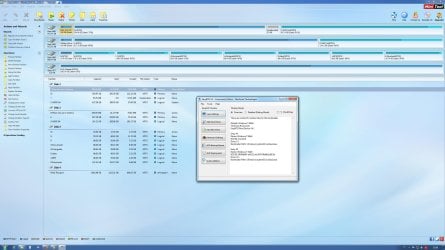
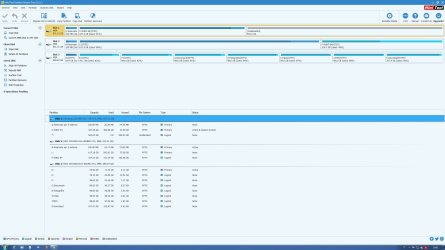
So I followed really useful instructions of a tutorial found on this site, and now the situation is that I have my HD with three partitions:
- One system reserved (100Mbytes)
- One O: that contained win32 (500Gbytes)
- One C: with the win64 O.S. (430Gbytes), that is the Active&Boot partition
Now I'd like to expand C:, but it means that I should expand the partition to the left (very difficult to do in my understanding).
Is it possibile to proceed as follows?
1. Deallocate O: freeing space
2. Copy C: in the deallocated space
3. Mark the new partition as Active&Boot (e.g. using EasyBCD)
4. Deallocate the old C:
5. Expand the new C: on right
I ignore if this is feasible or not, even because I ignore the behaviour of the backup tools (AOMEI, Macrium, PartitionWizard or whatever...) regarding the labelling of the partitions (e.g. the result will be a new partition or the tool will refuse to copy the partition because a C: partition is already existing?).
Is there a different solution?
Thanks you all,
Francesco
I had two different versions of Win installed on my PC: a win32 (the oldest) and a win64. I decided to remove win32 because I don't need it anymore (as a final step, I changed graphic card and win32 is no more supported...).
So I followed really useful instructions of a tutorial found on this site, and now the situation is that I have my HD with three partitions:
- One system reserved (100Mbytes)
- One O: that contained win32 (500Gbytes)
- One C: with the win64 O.S. (430Gbytes), that is the Active&Boot partition
Now I'd like to expand C:, but it means that I should expand the partition to the left (very difficult to do in my understanding).
Is it possibile to proceed as follows?
1. Deallocate O: freeing space
2. Copy C: in the deallocated space
3. Mark the new partition as Active&Boot (e.g. using EasyBCD)
4. Deallocate the old C:
5. Expand the new C: on right
I ignore if this is feasible or not, even because I ignore the behaviour of the backup tools (AOMEI, Macrium, PartitionWizard or whatever...) regarding the labelling of the partitions (e.g. the result will be a new partition or the tool will refuse to copy the partition because a C: partition is already existing?).
Is there a different solution?
Thanks you all,
Francesco
My Computer
- Computer type
- PC/Desktop
- Computer Manufacturer/Model Number
- Custom build
- OS
- Windows 7 (32 and 64) / Windows 10 on a laptop
- CPU
- Intel i7
- Motherboard
- Asus
- Memory
- 10GByte
- Graphics Card(s)
- AMD
- Antivirus
- Avira
- Browser
- Firefox