Moving System Partition Files to another HDD

sMk

New member
Local time
12:42 PM
Messages
2
Hi all, long time reader, first time poster.

I have tried to use the search but i couldn't find any solution.

Here is my problem.

I buyed a new laptop (hp 8440p) with an intel 160GB SSD and with an additional 500 GB SATA HDD.
I erased the pre installed Windows 7 and started a clean installation of Windows 7 Ultimate. I installed Windows 7 on the SSD.
After installation was complete and i have customized my windows, i wanted to do backup of the system with the integrated backup tool.

Unforutnately in the "choose a location" box, no hdds were showing up.

This made me curios as the "external SATA" should have popped up. After some research, i found out the SATA HDD is marked as "system" Partition, and therefor it is not eligible as a backup destination.

I don't know why this HDD is marked as system as i have definitely installed Windows 7 on the SSD and not on the SATA, which can be seen in the attached screenshot of diskmanager.

So my question is:

Is there a way to move the "system state" to the SSD so that i can choose the SATA as backup destination ?

Thanks in advance,

Kind regards,
sMk
 

Attachments
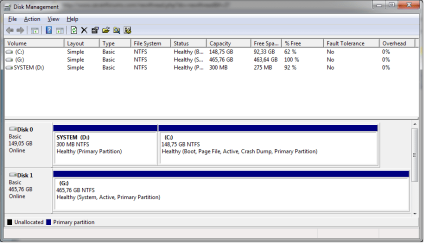
  • disk_man.png
    disk_man.png
    18.7 KB · Views: 565

My Computer My Computer

OS
Windows 7

My Computer My Computer

Computer Manufacturer/Model Number
Custom
OS
Windows 7 Professional x64
CPU
Intel i7 2600K OC'd @ 4620 MHz
Motherboard
Asus P8Z68-V Pro
Memory
16GB GSkill Sniper 2133 Mhz (4x4GB)
Graphics Card(s)
EVGA GeForce GTX 480 SuperClocked+
Sound Card
Realtek High Definition Audio
Monitor(s) Displays
2x Acer S273HLbmii 27"
Screen Resolution
2 x 1920x1080
Hard Drives
64GB Crucial M4 SSD

Storage: Hitachi 1TB 5400RPM, Samsung 1.5TB 5400RPM
PSU
Corsair HW Series 750w (modular)
Case
Cooler Master HAF 932 Advanced Blue Edition
Cooling
CM Hyper 212+ CPU cooler, 3x 230mm + 1x 140mm case fans
Keyboard
Logitech MK320 (wireless)
Mouse
Logitech MK320 (wireless)
Internet Speed
30 Mb/s : 2 Mb/s
HI Jonathan,

thank you very much for your response, but i have a question.

Is it necessary to perform the task "mark a partition as active" as the Partition on the SSD is already marked as active ?

Thanks in advance.

//edit

or have you meant the Partition labeled "System" ?

Kind regards,
sMk

Welcome to SF!

That should be no trouble at all.

The first step is making sure the SSD is the first hard drive to boot in the BIOS boot priority.

Unplug the 500GB HDD and then boot into the repair disc or installation DVD. Follow these directions for marking your Windows partition as active:

http://www.sevenforums.com/tutorials/71432-partition-mark-active.html

Reboot, and then run a startup repair from the repair disc or DVD.

http://www.sevenforums.com/tutorials/681-startup-repair.html
 

My Computer My Computer

OS
Windows 7
No, it's just a safeguard. Go ahead and run startup repair without marking the partition as active.

It does appear as if the partition is already active.
 

My Computer My Computer

Computer Manufacturer/Model Number
Custom
OS
Windows 7 Professional x64
CPU
Intel i7 2600K OC'd @ 4620 MHz
Motherboard
Asus P8Z68-V Pro
Memory
16GB GSkill Sniper 2133 Mhz (4x4GB)
Graphics Card(s)
EVGA GeForce GTX 480 SuperClocked+
Sound Card
Realtek High Definition Audio
Monitor(s) Displays
2x Acer S273HLbmii 27"
Screen Resolution
2 x 1920x1080
Hard Drives
64GB Crucial M4 SSD

Storage: Hitachi 1TB 5400RPM, Samsung 1.5TB 5400RPM
PSU
Corsair HW Series 750w (modular)
Case
Cooler Master HAF 932 Advanced Blue Edition
Cooling
CM Hyper 212+ CPU cooler, 3x 230mm + 1x 140mm case fans
Keyboard
Logitech MK320 (wireless)
Mouse
Logitech MK320 (wireless)
Internet Speed
30 Mb/s : 2 Mb/s
This will write the System MBR to WIn7 partition, which is fine, but the 100mb System REserved partition which was supposedly set up for that purpose will then be useless, so you can recover it's space into Win7 using free Partition Wizard bootable CD if you want.

The 100mb SYs partition is useful if you have a multi-boot situation, Bitlocker, or want the Repair My Computer console placed on the Advanced Boot Tools menu accessed by tapping F8 at bootup. If you want to keep it, you can write the MBR into it by marking it Active before running Startup Repair up to 3 separate times with reboots.

You'll also need to remove the Active flag from your external HD. Use Diskpart INACTIVE command or Partition Wizard CD to Modify>Set to Inactive. This is the reason all other HD's should be unplugged during install, and data drives should be formatted Logical.
 
Move system partition

Forgive me if I am new at this but I want to move the system info from the disc it is currently on (a 2TB disc!) since the size makes it difficult to do a system backup. The boot info is on an SSD

I have tried the previous advice (disconnect HDD,make partition active, run repair) but doesn't seem to work. However I read that the reboot should be done at least 3 times. I assumed that this would be done automatically (just like in windows OS installation) but am now wondering whether I should have done it manually. I only did it once because of the old adage "if you do the same thing, you get the same result"

Can you advise?

Roy
 

My Computer My Computer

OS
Windows 7 home premium 64 bit
The startup repair needs to be run at least three times with a reboot between each one.
 

My Computer My Computer

Computer Manufacturer/Model Number
HP Pavilion Elite 495UK
OS
Windows 7 Ultimate SP1 64-Bit
CPU
Intel Core i7 870 @ 2.93GHz
Motherboard
MSI 2A9C (CPU1)
Memory
8Gb Dual-Channel DDR3 @ 664MHz
Graphics Card(s)
nVidia GeForce GTX 460 1024MB dedicated RAM
Sound Card
Realtek HD Audio
Monitor(s) Displays
HP2310i
Screen Resolution
1920 x 1080
Hard Drives
1x1954GB Hitachi HDS22020ALA 330 (RAID), 1x1954GB Hitachi External for backup and storage
PSU
460W
Case
HP Elite
Cooling
Air cooled
Keyboard
Logitech K750 solar-powered keyboard
Mouse
Logitech Wireless M180 mouse
Internet Speed
2Mb
Other Info
Pure Avanti Flow Internet Radio with iPod Dock, 64Gb iPod, HP USB Speakers, Sony MDR-V500 Headphones, Sony Vaio F-Series Laptop
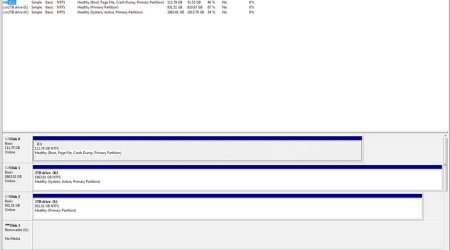
Please post back a screenshot of your maximized Disk Management drive map with listings showing all columns, using the SNipping Tool in Start Menu. Have all drives attached when you do this. .
 
The ;problem is that Disk1 is set Active so Startup Repair will continue to write the System boot files there until Win7 partition is marked Active. You may also then need to unplug Disk 1 and 2 to keep them from interfering.

You must mark the Win7 partition Active first before doing the Repairs or Startup Repair will NOT write the System boot files to the partition: Partition - Mark as Active


Then run Startup Repair - Run 3 Separate Times
 
Very glad to hear it and thanks for the update.
 

My Computer My Computer

Computer Manufacturer/Model Number
HP Pavilion Elite 495UK
OS
Windows 7 Ultimate SP1 64-Bit
CPU
Intel Core i7 870 @ 2.93GHz
Motherboard
MSI 2A9C (CPU1)
Memory
8Gb Dual-Channel DDR3 @ 664MHz
Graphics Card(s)
nVidia GeForce GTX 460 1024MB dedicated RAM
Sound Card
Realtek HD Audio
Monitor(s) Displays
HP2310i
Screen Resolution
1920 x 1080
Hard Drives
1x1954GB Hitachi HDS22020ALA 330 (RAID), 1x1954GB Hitachi External for backup and storage
PSU
460W
Case
HP Elite
Cooling
Air cooled
Keyboard
Logitech K750 solar-powered keyboard
Mouse
Logitech Wireless M180 mouse
Internet Speed
2Mb
Other Info
Pure Avanti Flow Internet Radio with iPod Dock, 64Gb iPod, HP USB Speakers, Sony MDR-V500 Headphones, Sony Vaio F-Series Laptop
Back
Top