
Moving Windows 7 Installation

RaptorFB

New member
Local time
8:23 PM
Messages
5
I have a 200GB hard drive that is close to the end of its life cycle and have a 2TB replacement on hand and ready.

Windows 7 Ultimate 32bit (It's a student license if it matters) is installed on this 200GB drive, and I was hoping for advice, instruction, or information involving the complete move of the operating system from the old 200GB drive to the new 2TB drive. I really don't want to spend my day off from classes reinstalling Windows, if at all possible.

Would anyone be able to provide insight regarding my question? Thank you in advance.

Edit: Seems like this thread (http://www.sevenforums.com/installa...ws-7-dual-boot-move-one-installation-bcd.html) is asking a similar question, but I'm not going to lie, some of the explanations are blowing right over my head here.
 
Last edited:

My Computer

OS
Windows 7 Ultimate 32bit
CPU
AMD Athlon 64 X2 +4000
Memory
2GB
Graphics Card(s)
GeForce 8400GS
Monitor(s) Displays
Samsung T240HD
Case
Antec P180
Welcome to SF! RaptorFB

Why spend a day when you can spend a week or more? :D Simply bump the 200gb to the second sata port and unplug it long enough to toss a 20 minute fresh install on the new drive.

From there use the Windows Easy Transfer tool when booted back into the 200gb drive to create that backup and over a week or more once all programs are on fresh on the 1tb drive restore the backup! Once everything is up and running on the 1tb drive to your satisfaction toss the 200gb aside!

A fresh copy of Windows when not only changing drives but when the size difference is great is always the best move to start with. Since 7 installs much faster then previous versions it won't take long for a clean install. Then you simply add one program at a time to it as you go along.

The backup when restored will also restore all files and settings seen on the 200gb drive. In the meantime you are still running the things you want on the 200gb drive until then. You also have access to all files still seen on that drive in case you forget to backup any!
 

My Computers

System One System Two

  • Computer type
    PC/Desktop
    Computer Manufacturer/Model Number
    Custom builds = 2
    OS
    W7 Ultimate x64/W10 Pro x64/W11 Pro Triple Boot - Main PC W7 Remote PC Micro ATX W7 Pro x64/W11 Pro
    CPU
    AMD Phenom II X4 975 Deneb 3.6ghz - 965 2nd remote pc
    Motherboard
    Gigabyte GA-790XTA-UD4-Gigabyte GA-880GM-D2H remote pc
    Memory
    Kingston Hyper X DDR3 1600 1.5v 16gb - Hyper X Fury 8gb 2nd
    Graphics Card(s)
    MSI HD Radeon 5750 1gb - MSI HD Radeon 6450 on mini tower
    Sound Card
    Creative Labs X-Fi Xtreme Audio P - Realtek onooard 2nd case
    Monitor(s) Displays
    ASUS VW199T-P 19" HP 2082a Main-HP 2082a 20" remote pc
    Screen Resolution
    Asus 1440x900 - HP 1600x900
    Hard Drives
    WD Black 1TB HD per OS W7, W10, and pending W11 presently on 500gb OS Drive - Pending Triple 1TB HDs for Spanned Storage/backup volume
    Single 2TB external USB enclosure, single 1TB System 7 Host/Boot drive, Pending 8TB external HD for system image b
    PSU
    Corsair 750TX - primary / Corsair CX600 - second
    Case
    Antec 900-2 - SSD compatible / NZXT Vulcan mini tower
    Cooling
    Zalman CNPS9900A
    Keyboard
    AZIO L70 Backlit Letters Gaming - ONN Cordless/USB
    Mouse
    MSI DS200 Programmable, Logitech Cordless
    Internet Speed
    30mbps upgrade - primary hard wired - mini tower usb WiFi
    Antivirus
    GFI VIPRE Internet Security 2014 on W7 2016 beta on W10,
    Browser
    Cyberfox, WaterFox 64bit FF variants, FireFox x64, Pale Moon
    Other Info
    Accomdata fan cooled usb 2.0 PIDE/Sata II, III external enclosure.
    Sambient usb/eSata PATA/Sata II, III external enclosure.
  • Computer type
    PC/Desktop
    System Manufacturer/Model Number
    CUSTOM ASSEMBLY
    OS
    W7 Pro x64/W11 Pro
    CPU
    AMD Deneb 3.6ghz - 965
    Motherboard
    Gigabyte GA-880GM-D2H remote pc
    Memory
    Kingston Hyper X Fury 8gb
    Graphics Card(s)
    MSI HD Radeon 6450 DVI Output
    Sound Card
    Realtek onooard Creative or Other separate PENDING
    Monitor(s) Displays
    VIZIO 32" LCD TV Separate LCD Pending
    Screen Resolution
    1600x1080
    Hard Drives
    WD 500GB OS Host/Boot WD Green 1TB Storage/Backup
    PSU
    Corsair 600W - THERMALTAKE 600W spare case
    Case
    NZXT Vulcan mini tower
    Cooling
    Twin 120mm Top Fans - 240mm Side Cover
    Keyboard
    ONN Cordless/USB Logitech Cordless
    Mouse
    ONN USB/Cordless - Logitech Cordless
    Internet Speed
    DSL 5G
    Browser
    MS Edge, FireFox, WaterFox x64, FireFox Nightly
    Other Info
    OS Testing-Remote Access to Main TeamViewer
I see, that is one tempting method. The main reason I shy away from a full reinstall is to avoid reinstalling and reconfiguring all my programs, such as Photoshop or Media Player Classic HC. Would the Easy Transfer tool you mentioned have me avoid this? Also, I guess I forgot to mention that the old 200GB drive is indeed OLD for it runs on an IDE port. Part of the reason I purchased a 2TB drive was to merge the data on all my remaining 120-200GB IDE drives and get rid of the old hard drives, since the noise and heat was insane. Also, I really wouldn't want to spend a week, heh... The longer my PC is out of commission, the longer I have to use the dormitory computer lab. I was hoping for a quick solution, but you say there are repercussions to NOT doing a clean install as opposed to my requested transfer of hard drives?

Edit: The move is not a pressing issue though, I just found out that the purchased hard drive does not come with a data cable, thus the waiting game for the cable ordered begins.
 
Last edited:

My Computer

OS
Windows 7 Ultimate 32bit
CPU
AMD Athlon 64 X2 +4000
Memory
2GB
Graphics Card(s)
GeForce 8400GS
Monitor(s) Displays
Samsung T240HD
Case
Antec P180
The other option for drives is the free version of the Acronis Disk Director suite if you are running WD or Seagate drives. But restoring images of two separate drives of one type smaller in size to unpack on a single new larger sata drive can easily see problems. You can only restore one image of the 200gb OS drive and see how things go.

The backups on the other hand can be restored once a fresh install of Windows and the programs is seen for the new drive. Once everything is up and running the way you want it you can then use one of the old drives for storing a full system image.

The free versions of Acronis provided by the drive manufacturers can also mount the drive image from the 200gb drive created just as if you had a second C drive where copy files from the image onto the new drive is only the time it takes while restoring a backup will see the settings for programs applied.

With only files stored on the 120gb that would be a matter of copy + paste since you would be doing that anyways from an image since no OS is being restored from that one. The backup however would be the efficient method for preserving things from both ide drives to be restored all at once to the 1tb when seeing a clean install on that.

As far as a week or more that would be when still having the two old drives still in the case and running 7 from the 200gb and the occasion boot into the new drive's copy of 7 until everything is on that over the extended period of time without any need to go to a lab. You would still have the 200gb in use.

With a clean install of everything I have on here I estimate that would only take about 5hrs. roughly and the amount I have on now might scare you! :eek: :D

When creating an image to restore onto the 1tb drive you would still need a separate drive or plenty of dvd-rw disks to store separate from the destination drive since the restoration process involves first wiping it entirely of any files present. That's another thing to know ahead of time while a backup is restored to the present installation on at the time.
 

My Computers

System One System Two

  • Computer type
    PC/Desktop
    Computer Manufacturer/Model Number
    Custom builds = 2
    OS
    W7 Ultimate x64/W10 Pro x64/W11 Pro Triple Boot - Main PC W7 Remote PC Micro ATX W7 Pro x64/W11 Pro
    CPU
    AMD Phenom II X4 975 Deneb 3.6ghz - 965 2nd remote pc
    Motherboard
    Gigabyte GA-790XTA-UD4-Gigabyte GA-880GM-D2H remote pc
    Memory
    Kingston Hyper X DDR3 1600 1.5v 16gb - Hyper X Fury 8gb 2nd
    Graphics Card(s)
    MSI HD Radeon 5750 1gb - MSI HD Radeon 6450 on mini tower
    Sound Card
    Creative Labs X-Fi Xtreme Audio P - Realtek onooard 2nd case
    Monitor(s) Displays
    ASUS VW199T-P 19" HP 2082a Main-HP 2082a 20" remote pc
    Screen Resolution
    Asus 1440x900 - HP 1600x900
    Hard Drives
    WD Black 1TB HD per OS W7, W10, and pending W11 presently on 500gb OS Drive - Pending Triple 1TB HDs for Spanned Storage/backup volume
    Single 2TB external USB enclosure, single 1TB System 7 Host/Boot drive, Pending 8TB external HD for system image b
    PSU
    Corsair 750TX - primary / Corsair CX600 - second
    Case
    Antec 900-2 - SSD compatible / NZXT Vulcan mini tower
    Cooling
    Zalman CNPS9900A
    Keyboard
    AZIO L70 Backlit Letters Gaming - ONN Cordless/USB
    Mouse
    MSI DS200 Programmable, Logitech Cordless
    Internet Speed
    30mbps upgrade - primary hard wired - mini tower usb WiFi
    Antivirus
    GFI VIPRE Internet Security 2014 on W7 2016 beta on W10,
    Browser
    Cyberfox, WaterFox 64bit FF variants, FireFox x64, Pale Moon
    Other Info
    Accomdata fan cooled usb 2.0 PIDE/Sata II, III external enclosure.
    Sambient usb/eSata PATA/Sata II, III external enclosure.
  • Computer type
    PC/Desktop
    System Manufacturer/Model Number
    CUSTOM ASSEMBLY
    OS
    W7 Pro x64/W11 Pro
    CPU
    AMD Deneb 3.6ghz - 965
    Motherboard
    Gigabyte GA-880GM-D2H remote pc
    Memory
    Kingston Hyper X Fury 8gb
    Graphics Card(s)
    MSI HD Radeon 6450 DVI Output
    Sound Card
    Realtek onooard Creative or Other separate PENDING
    Monitor(s) Displays
    VIZIO 32" LCD TV Separate LCD Pending
    Screen Resolution
    1600x1080
    Hard Drives
    WD 500GB OS Host/Boot WD Green 1TB Storage/Backup
    PSU
    Corsair 600W - THERMALTAKE 600W spare case
    Case
    NZXT Vulcan mini tower
    Cooling
    Twin 120mm Top Fans - 240mm Side Cover
    Keyboard
    ONN Cordless/USB Logitech Cordless
    Mouse
    ONN USB/Cordless - Logitech Cordless
    Internet Speed
    DSL 5G
    Browser
    MS Edge, FireFox, WaterFox x64, FireFox Nightly
    Other Info
    OS Testing-Remote Access to Main TeamViewer
Hello RaptorFB, welcome to Seven Forums!


Have a look at the info below to get a better understanding of what Night Hawk was suggesting by using 2 Hard Disk Drives (HDD) while you transfer the data from the old HDD to the new one, you will in essence have 2 separate Operating Systems (OS) at the same time until you move all the data to the new HDD and can then remove it very easily.

One word of advice, do not try to install Windows 7 to the entire 2TB HDD, we are seeing quite a few people have serious issues installing Windows 7 to so large a space, instead, create a Partition of not much more than 100GB to do the install to; it's better to have separate data partitions anyway in case of OS failure.

Be sure to post back with any further questions you may have and to keep us informed.

   Information

The easiest way to do away with boot issues between separate Operating Systems (OS) is to use the BIOS one time boot menu to select which OS to boot at system startup, each motherboard has an individual hot-key to tap during system start-up to access this menu.

If you have 2 separate Hard Disk Drives (HDD) and have one OS installed to one HDD and you want to install another OS to the second HDD, disconnect the HDD with the first OS installed on it and leave only the HDD you want to install the second OS to connected.
Just be sure not to change where the original HDD SATA cable was connected, it has to be re-connected to the exact same port to avoid boot issues.

Install the second OS to the connected HDD and when complete and the system is booting good, power down and reconnect the first HDD with the first OS on it.

This way the OSs will boot independently of each other and there will be no boot conflicts between the 2 separate OSs to have to sort later.

Then set the BIOS to boot the HDD / OS you want as default and if you want to start the other (new) OS you use the BIOS one-time boot menu to select that HDD / OS to start when the PC is started.


My Computer

Computer Manufacturer/Model Number
* BFK Customs *
OS
W 7 64-bit Ultimate
CPU
Intel Q9550 Yorkfield
Motherboard
ASUS P5Q Pro
Memory
8GB Dominator 8500C5D
Graphics Card(s)
ATI : XFX 5870
Sound Card
Realtek HD Audio 7-1
Monitor(s) Displays
1x 47" LCD HDMI & 3x 26" LCD HDMI
Screen Resolution
1920x1080P & 1920x1200
Hard Drives
1x 80GB Intel X25-M G2 SSD : 1x 500GB & 1x 640GB WD Caviar Black(s)
PSU
Corsair 620HX
Case
Cooler Master RC-690
Cooling
Tuniq Tower 120, 2x 140mm and 3x 120mm case fans
Keyboard
Microsoft 500
Mouse
Razer Diamondback 3G
Internet Speed
14 Mb/s
Other Info
1x Koutech 3Gb/s SATA HDD Hot Swap Rack
Stretching an image from a 200gb drive out over the entire capacity of the drive would see problems all too easily. Since you have been cramped with a 200gb OS and 120gb pair of ide drives rather then just seeing a small 100gb primary which would be even more confining a 500gb primary for the fresh 7 install leaving plenty of space for a second storage/backup partition would be a thought to consider.

At first you will be seeing about 1.84tb available once partitioned and formatted. A 1tb drive sees 80gb off of the retail figure where you simply plan on doubling that to about 160gb. Take away 500gb for the OS and some wiggle room and you have 1.34tb for storing files and even a drive image unless you plan to add in a second drive at some point internal or external.

Are you using a usb keyboard? Most likely that is already answered since most are usb with most including a PS/2 type adapter. On some boards even with the adapter a usb keyboard won't have the F keys available at post time. That will depend on the make and model keyboard as well as the board.

For example Asus always seem to see those work for pressing the F8 key to bring up the boot device menu. For the new build here the Gigabyte board on the other hand requires a second roll away PS/2 only keyboard to press the F12 option. :( Some of that has to with the particular illuminate usb type keyboard itself.
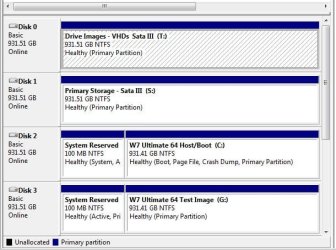
One way to get past that for seeing an image of the host drive restored to the second to set up a dual boot configuration was using Acronis True Image(full version) where the entry for the second drive could be added into the host(original) drive's boot options while both are stand alone by default.

This idea was given a series of tests with the latest EasyBCD 2.0.1 and later 2.0.2 releases. For restoring disk images to a second drive for this type of project Acronis was found to be the answer on that one. It won't work when unplugging the host drive and restoring an image with the backup feature in 7 since one will rule out the other. But restoration of the main OS/boot drive was found reliable at the same time.

Note this was seen done between two identical Sata II drives. The other pair seen in the screen here are Sata III drives used for storage and disk images as well as backing up a few other things.
 

Attachments

  • Image Restored to Second Drive.jpg
    Image Restored to Second Drive.jpg
    55.2 KB · Views: 5

My Computers

System One System Two

  • Computer type
    PC/Desktop
    Computer Manufacturer/Model Number
    Custom builds = 2
    OS
    W7 Ultimate x64/W10 Pro x64/W11 Pro Triple Boot - Main PC W7 Remote PC Micro ATX W7 Pro x64/W11 Pro
    CPU
    AMD Phenom II X4 975 Deneb 3.6ghz - 965 2nd remote pc
    Motherboard
    Gigabyte GA-790XTA-UD4-Gigabyte GA-880GM-D2H remote pc
    Memory
    Kingston Hyper X DDR3 1600 1.5v 16gb - Hyper X Fury 8gb 2nd
    Graphics Card(s)
    MSI HD Radeon 5750 1gb - MSI HD Radeon 6450 on mini tower
    Sound Card
    Creative Labs X-Fi Xtreme Audio P - Realtek onooard 2nd case
    Monitor(s) Displays
    ASUS VW199T-P 19" HP 2082a Main-HP 2082a 20" remote pc
    Screen Resolution
    Asus 1440x900 - HP 1600x900
    Hard Drives
    WD Black 1TB HD per OS W7, W10, and pending W11 presently on 500gb OS Drive - Pending Triple 1TB HDs for Spanned Storage/backup volume
    Single 2TB external USB enclosure, single 1TB System 7 Host/Boot drive, Pending 8TB external HD for system image b
    PSU
    Corsair 750TX - primary / Corsair CX600 - second
    Case
    Antec 900-2 - SSD compatible / NZXT Vulcan mini tower
    Cooling
    Zalman CNPS9900A
    Keyboard
    AZIO L70 Backlit Letters Gaming - ONN Cordless/USB
    Mouse
    MSI DS200 Programmable, Logitech Cordless
    Internet Speed
    30mbps upgrade - primary hard wired - mini tower usb WiFi
    Antivirus
    GFI VIPRE Internet Security 2014 on W7 2016 beta on W10,
    Browser
    Cyberfox, WaterFox 64bit FF variants, FireFox x64, Pale Moon
    Other Info
    Accomdata fan cooled usb 2.0 PIDE/Sata II, III external enclosure.
    Sambient usb/eSata PATA/Sata II, III external enclosure.
  • Computer type
    PC/Desktop
    System Manufacturer/Model Number
    CUSTOM ASSEMBLY
    OS
    W7 Pro x64/W11 Pro
    CPU
    AMD Deneb 3.6ghz - 965
    Motherboard
    Gigabyte GA-880GM-D2H remote pc
    Memory
    Kingston Hyper X Fury 8gb
    Graphics Card(s)
    MSI HD Radeon 6450 DVI Output
    Sound Card
    Realtek onooard Creative or Other separate PENDING
    Monitor(s) Displays
    VIZIO 32" LCD TV Separate LCD Pending
    Screen Resolution
    1600x1080
    Hard Drives
    WD 500GB OS Host/Boot WD Green 1TB Storage/Backup
    PSU
    Corsair 600W - THERMALTAKE 600W spare case
    Case
    NZXT Vulcan mini tower
    Cooling
    Twin 120mm Top Fans - 240mm Side Cover
    Keyboard
    ONN Cordless/USB Logitech Cordless
    Mouse
    ONN USB/Cordless - Logitech Cordless
    Internet Speed
    DSL 5G
    Browser
    MS Edge, FireFox, WaterFox x64, FireFox Nightly
    Other Info
    OS Testing-Remote Access to Main TeamViewer
I just got the hard drive and cables today.
So, after reading everyone's responses, I am still somewhat confused. I also think I should clarify as to what I think I am understanding from all of the replies.
My goal is to move the Win7 OS over to the 2TB drive.
The moving of data from other (non OS) drives is just going to be a copy and paste operation.
From what you guys are telling me, do NOT make a single partition spanning the entire disk size, and opt out for a smaller partition for the OS, and separate partitions for data.
My current Win7 hard drive is a 200GB drive with 54.7GB in use, but if I move the Win7 OS wholesale, then would that be moving or copying the entire partition (using the methods linked above)?

Finally, I am a bit confused with this line in specific from Night Hawk:
When creating an image to restore onto the 1tb drive you would still need a separate drive or plenty of dvd-rw disks to store separate from the destination drive since the restoration process involves first wiping it entirely of any files present. That's another thing to know ahead of time while a backup is restored to the present installation on at the time.
Could someone kindly clarify this as well?

Thanks in advance.
 

My Computer

OS
Windows 7 Ultimate 32bit
CPU
AMD Athlon 64 X2 +4000
Memory
2GB
Graphics Card(s)
GeForce 8400GS
Monitor(s) Displays
Samsung T240HD
Case
Antec P180
Thank you for the quick response.
Current (200GB) OS drive is a Segate, and my newly purchased drive (2TB) is one of those "green drives" by Western Digital.

Edit: Thank you for the resources.
 

My Computer

OS
Windows 7 Ultimate 32bit
CPU
AMD Athlon 64 X2 +4000
Memory
2GB
Graphics Card(s)
GeForce 8400GS
Monitor(s) Displays
Samsung T240HD
Case
Antec P180
Mission accomplished. Used the WDC provided Acronis program linked by gregrocker.
Thanks to everyone for the help.
 

My Computer

OS
Windows 7 Ultimate 32bit
CPU
AMD Athlon 64 X2 +4000
Memory
2GB
Graphics Card(s)
GeForce 8400GS
Monitor(s) Displays
Samsung T240HD
Case
Antec P180
Glad to see you have it sorted and thanks for the update.
 

My Computer

Computer Manufacturer/Model Number
* BFK Customs *
OS
W 7 64-bit Ultimate
CPU
Intel Q9550 Yorkfield
Motherboard
ASUS P5Q Pro
Memory
8GB Dominator 8500C5D
Graphics Card(s)
ATI : XFX 5870
Sound Card
Realtek HD Audio 7-1
Monitor(s) Displays
1x 47" LCD HDMI & 3x 26" LCD HDMI
Screen Resolution
1920x1080P & 1920x1200
Hard Drives
1x 80GB Intel X25-M G2 SSD : 1x 500GB & 1x 640GB WD Caviar Black(s)
PSU
Corsair 620HX
Case
Cooler Master RC-690
Cooling
Tuniq Tower 120, 2x 140mm and 3x 120mm case fans
Keyboard
Microsoft 500
Mouse
Razer Diamondback 3G
Internet Speed
14 Mb/s
Other Info
1x Koutech 3Gb/s SATA HDD Hot Swap Rack
I just got the hard drive and cables today.
So, after reading everyone's responses, I am still somewhat confused. I also think I should clarify as to what I think I am understanding from all of the replies.
My goal is to move the Win7 OS over to the 2TB drive.
The moving of data from other (non OS) drives is just going to be a copy and paste operation.

Finally, I am a bit confused with this line in specific from Night Hawk:
When creating an image to restore onto the 1tb drive you would still need a separate drive or plenty of dvd-rw disks to store separate from the destination drive since the restoration process involves first wiping it entirely of any files present. That's another thing to know ahead of time while a backup is restored to the present installation on at the time.
Could someone kindly clarify this as well?

Thanks in advance.

That's easy enough to explain. When you go to create a full image from the source drive namely the 200gb you couldn't store that on the new 1tb drive being the destination drive.

When going to restore any image previously saved to a drive the restoration tool used will first wipe the drive clean of anything on it. You'll want to keep that in mind if you eventually decide to create a full image of the 1tb drive you now have in for safe keeping in case you need to restore it sometime later.

In order words you have to back up any new files added since the image was made before restoration or lose them entirely. As far as copy and pasting entire folders between drives I know that one well enough. You can also use the Windows Easy Transfer tool and let that do the work for you too. :D

You will find that restoring an image does go much faster then what it took for using the cloning option in the event you end up finding you still need to perform a clean install later if problems come up from the cloning to the new drive.
 

My Computers

System One System Two

  • Computer type
    PC/Desktop
    Computer Manufacturer/Model Number
    Custom builds = 2
    OS
    W7 Ultimate x64/W10 Pro x64/W11 Pro Triple Boot - Main PC W7 Remote PC Micro ATX W7 Pro x64/W11 Pro
    CPU
    AMD Phenom II X4 975 Deneb 3.6ghz - 965 2nd remote pc
    Motherboard
    Gigabyte GA-790XTA-UD4-Gigabyte GA-880GM-D2H remote pc
    Memory
    Kingston Hyper X DDR3 1600 1.5v 16gb - Hyper X Fury 8gb 2nd
    Graphics Card(s)
    MSI HD Radeon 5750 1gb - MSI HD Radeon 6450 on mini tower
    Sound Card
    Creative Labs X-Fi Xtreme Audio P - Realtek onooard 2nd case
    Monitor(s) Displays
    ASUS VW199T-P 19" HP 2082a Main-HP 2082a 20" remote pc
    Screen Resolution
    Asus 1440x900 - HP 1600x900
    Hard Drives
    WD Black 1TB HD per OS W7, W10, and pending W11 presently on 500gb OS Drive - Pending Triple 1TB HDs for Spanned Storage/backup volume
    Single 2TB external USB enclosure, single 1TB System 7 Host/Boot drive, Pending 8TB external HD for system image b
    PSU
    Corsair 750TX - primary / Corsair CX600 - second
    Case
    Antec 900-2 - SSD compatible / NZXT Vulcan mini tower
    Cooling
    Zalman CNPS9900A
    Keyboard
    AZIO L70 Backlit Letters Gaming - ONN Cordless/USB
    Mouse
    MSI DS200 Programmable, Logitech Cordless
    Internet Speed
    30mbps upgrade - primary hard wired - mini tower usb WiFi
    Antivirus
    GFI VIPRE Internet Security 2014 on W7 2016 beta on W10,
    Browser
    Cyberfox, WaterFox 64bit FF variants, FireFox x64, Pale Moon
    Other Info
    Accomdata fan cooled usb 2.0 PIDE/Sata II, III external enclosure.
    Sambient usb/eSata PATA/Sata II, III external enclosure.
  • Computer type
    PC/Desktop
    System Manufacturer/Model Number
    CUSTOM ASSEMBLY
    OS
    W7 Pro x64/W11 Pro
    CPU
    AMD Deneb 3.6ghz - 965
    Motherboard
    Gigabyte GA-880GM-D2H remote pc
    Memory
    Kingston Hyper X Fury 8gb
    Graphics Card(s)
    MSI HD Radeon 6450 DVI Output
    Sound Card
    Realtek onooard Creative or Other separate PENDING
    Monitor(s) Displays
    VIZIO 32" LCD TV Separate LCD Pending
    Screen Resolution
    1600x1080
    Hard Drives
    WD 500GB OS Host/Boot WD Green 1TB Storage/Backup
    PSU
    Corsair 600W - THERMALTAKE 600W spare case
    Case
    NZXT Vulcan mini tower
    Cooling
    Twin 120mm Top Fans - 240mm Side Cover
    Keyboard
    ONN Cordless/USB Logitech Cordless
    Mouse
    ONN USB/Cordless - Logitech Cordless
    Internet Speed
    DSL 5G
    Browser
    MS Edge, FireFox, WaterFox x64, FireFox Nightly
    Other Info
    OS Testing-Remote Access to Main TeamViewer
Back
Top