Solved Multiboot

kendalton

New member
Local time
6:14 PM
Messages
2
Hi!

I have 2 different windows 7 installs on two seperate hard drives in my desktop....Can I make a boot menu to boot into the two different installs...and if so how?
 

My Computer

Computer type
PC/Desktop
Computer Manufacturer/Model Number
custom
OS
Windows7 ultimate
CPU
Amd x2 6000
Motherboard
asus m2n-sli
Memory
2gb
Graphics Card(s)
7600
The answer is yes... your multiple operating systems to be presented in the Boot Manager menu do NOT need to be on just one physical hard drive. They can be on any partition of any drive.

Furthermore, they (including the typical C-partition on your boot drive along with the small "system reserved" which is marked as "active" and IS a PRIMARY partition) do not have to be PRIMARY partitions. In contrast to the "active" partition on the Boot drive which MUST be PRIMARY, any of the actual true system partitions (e.g. C typically) which contain a Windows operating system can actually be LOGICAL or PRIMARY partitions.

The only partition which truly has to be PRIMARY is the "active" partition on the BOOT DRIVE (as specified in your BIOS as the #1 hard drive in the boot sequence). This is typically the small 100MB "system reserved" partition which doesn't even have a drive letter, but is where the Boot Manager programs and files are stored. And because this is the "active" partition it's where the machine/BIOS goes when you boot (and IT MUST BE A PRIMARY PARTITION), to load Boot Manager which then presents the Boot Manager menu if you have two or more items to select from.

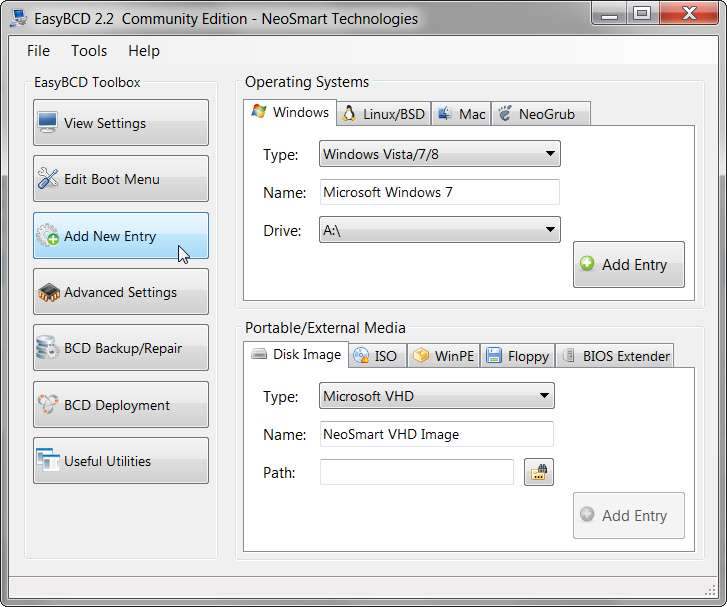
So, in my opinion the easiest way for you to add a second bootable OS to your environment is to use the wonderfully easy to understand and use EasyBCD Free Version (for non-commercial use). Once you install it you will then be able to instantly and intuitively make changes to your existing boot menu (if any), or if you only have one OS at the moment you can add your second OS.

And as you will see when you run EasyBCD to "add" a new entry to the Boot Manager menu, you can choose ANY drive/partition where this additional OS is located. And you can give it any name you want it to appear as in the Boot Manager menu list. You are not limited in any way.

2rqp.jpg
 

My Computer

Computer type
PC/Desktop
Computer Manufacturer/Model Number
Home-built, two systems (1) and (2)
OS
Windows 7 Pro x64 (1), Win7 Pro X64 (2)
CPU
i5-3350p 3.1Ghz/6MB-cache (1); E8400 3.0Ghz/6MB-cache (2)
Motherboard
ASUS P8Z77-V Pro (1); ASUS P5Q3 (2)
Memory
8GB PC3-12800 DDR3 (1); 4GB PC3-10600 DDR3 (2)
Graphics Card(s)
ATI HD7750 (1), (see TV cards); ATI R7 250 (2)
Sound Card
Realtek ALC892 HD Audio (1); Realtek ALC1200 HD Audio (2)
Monitor(s) Displays
Eizo HD2441W LCD, Eizo S2433W (1); Eizo 24" S2433W (2)
Screen Resolution
1920x1200, 1920x1200 (1); 1920x1200 (2)
Hard Drives
(1) 1TB SATA-II (7200RPM), 2x2TB SATA-III (7200RPM), 250GB SATA-III (10000RPM) for OS; 2x2TB external USB 3.0

(2) 320GB SATA-II (7200RPM), 750GB SATA-II (7200RPM), 150GB SATA-II (10000RPM) for OS; 2TB external USB 3.0
PSU
Nesteq ECS-6001 600W (1); Nesteq ECS-5001 500W (2)
Case
Acousti-Case 360 (1) and (2)
Cooling
Noctua NH-U12P SE2 for CPU, 2x120mm case fans (1) and (2)
Keyboard
IBM PS/2 (1) and (2)
Mouse
Logitech MX Revolution wireless (1); Microsoft wired (2)
Internet Speed
100mbps down / 10mbps up
Antivirus
Microsoft Security Essentials; Malwarebyte Anti-Malware Pro
Browser
Firefox
Other Info
Ceton InfiniTV 4-tuner cablecard-enabled TV card as well as Hauppauge HVR-2250 OTA/ATSC 2-tuner TV card in (1), running under Win7 WMC
Thanx

OH I do feel a fool....I completely forgot about easybcd....well I haven't used it for a couple of years:p
I have just spent 2 hours downloading programs that didn't work....

anyway thanx a million:D
 

My Computer

Computer type
PC/Desktop
Computer Manufacturer/Model Number
custom
OS
Windows7 ultimate
CPU
Amd x2 6000
Motherboard
asus m2n-sli
Memory
2gb
Graphics Card(s)
7600
Back
Top