
How to Change the "Mystify Screen Saver" Settings in Windows 7 and Windows 8
Information
By default the Mystify screen saver has no settings to set in the Screen Saver Settings window in Windows 7 and Windows 8. However, you can change the Mystify screen saver settings through the registry instead. This will show you how to.
Note
The default location of the Mystify screen saver file is at C:\Windows\System32\Mystify.scr.
Tip
You will just need to play with the settings below and adjust the Value Data (step 8) until you get the desired affect from the selected DWORD Name (step 5).
EXAMPLE: Mystify Screen Saver

OPTION ONE
To Restore the Default Mystify Settings
Download
2. Save the .reg file to your desktop.
3. Double click/tap on the extracted the .reg file to merge it.
4. Click/tap on Run, Yes (UAC), Yes, and OK if prompted.
5. When done, you can delete the downloaded .reg file if you like.
OPTION TWO
To Customize the Mystify Settings
2. If prompted by UAC, then click/tap on Yes.
3. In regedit, navigate to the location below. (See screenshot below)
Code:
HKEY_CURRENT_USER\Software\Microsoft\Windows\Current Version\Screensavers\Mystify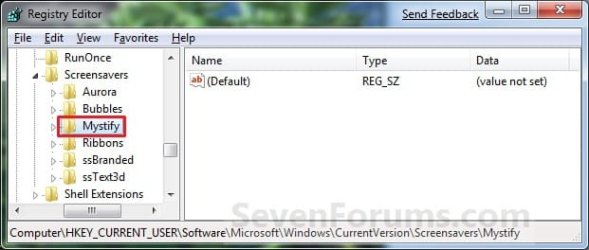
4. In the right pane, right click on a empty area and click/tap on New and DWORD (32-bit) Value. (See screenshot above)
5. Type in a DWORD Name from the table below that you want to change, and press Enter.
| DWORD Name | Value Data | Description |
|---|---|---|
| Blur | 0 or 1 | For line fade away. Set this value to 1 to enable, 0 to disable and let them draw on top of each other. |
| CameraFOV | 1000000000 to 2000000000 | Affects "field of view" on screen. Lower value zooms in, and higher value zooms out. |
| LineWidth | 1000000000 to 1080000000 | For thinner or thicker lines. Higher value number for thicker lines. |
| NumLines | 1 to 100 | For more or less lines on screen. Higher value number for more lines. |
| SpanMultiMon | 0 or 1 | To span multiple monitors. 1 = Treats all monitors as one large monitor to play across. 0 = Plays separately on each monitor. |
6. Double click/tap on the DWORD Name (from step 5) to modify it.
7. Dot Decimal, type in the Value Data you want in the table above, and click/tap on OK. (See example screenshot below)

8. Repeat steps 4 to 7 to change another available DWORD Name option.
NOTE: You can add and customize one, a few, or all of the available options if you like (see table below step 5), but only add one instance of each DWORD Name in step 4 to prevent problems.
9. Close Regedit when done.
That's it,
Shawn Brink
Related Tutorials
- How to Change the Screen Saver in Windows 7 and Windows 8
- How to Make your own Windows 7 Theme Pack
- How to Change or Save a Windows 7 Theme
- How to Change the "Aurora Screen Saver" Settings in Windows 7 and Windows 8
- How to Change the "Bubbles Screen Saver" Settings in Windows 7 and Windows 8
- How to Change the "Ribbons Screen Saver" Settings in Windows 7 and Windows 8
Attachments
Last edited:


 and just loaded with soooo much helpful info Brink!
 , Bubbles

