Solved Need Help Fixing Boot Manager Issues

Jerilin

New member
Local time
8:11 PM
Messages
7
Background Info: The computer I am using I got from a relative who died. He had bought a HP computer with a Windows 7 Home Premium upgrade disc that he ran in order to upgrade from Vista to Windows 7. When we got the computer it still had all of his files and user account named Dave.

When I started using it, I left his files on there but deleted a lot of unnecessary programs I didn't want or need. I also renamed the user account from Dave to my name.....


Fast forward to the present. I got help from HP customer support last night to get a wireless printer we had boughten up and running and he said he cleaned up the registry to get rid of old printer files that were causing a fatal error loop during a printer install. It worked and I was able to successfully install the new printer.

After I restarted the computer and the boot manager screen came on it was missing an option from the list. Previously it said Windows Vista (Recovered) and also Windows 7 Home Premium (Recovered) both options would load Windows 7 though no matter which you choose. At this point the Windows 7 option was missing from the list and it just showed Vista. When you clicked Vista is just reverted to 7 though.

In an effort to fix this I put the Windows 7 Home Premium disc in and restarted the computer and then clicked on startup repair. It gave me a popup right away telling me there was a startup issue it needed to fix. I assumed it would fix the Windows 7 issue on the boot manager so I clicked accept. It restarted the computer.

Now here's where it gets fun....After it did the automatic "fixing" of the startup issue it re-added Windows 7 (recovered) to the list of OS to pick from. I thought it fixed the problem and all was as it should be. But now when I click on Windows 7 it reverts WAAAY back in time to the exact user account settings, programs I had previously uninstalled, etc. It looked exactly like it looked when we got it from Dave!! My user account name no longer showed up and in place of it is now Dave. This ONLY happens when I click on Windows 7 (recovered) in the boot manager list. When I click Windows Vista or F8 and then start windows normally everything functions as it should. The user account say my name, my documents are still there, it is in the "present" settings--everything as it should be.

How do I fix this problem so that I can click Windows 7 and it doesn't go back in time??!! Also is it supposed to say "recovered" next to Windows 7 and Vista in the boot manager and why doesn't it load Vista when I click on Vista rather than 7. I am very confused! Any help would be appreciated.
 

My Computer

OS
Windows 7 Home Premium 64 bit
Sounds like you have a Dual Boot of two Windows 7's.

From the Win7 which works correctly, please post back a screenshot of your maximized full Disk mgmt drive map with listings, using the Snipping Tool in Start Menu. Attach file using Paper Clip in Reply box. Screen Shots

Type Disk Management in Start search box to get there.

We will help you get rid of the unneeded Dual Boot menu and second installation if there is one.

You can also use the Win7 Upgrade installation DVD to do a clean reinstall of Win7 without the HP factory bloatware or messed up Dual Boot if you want. Look over the steps which apply to you: Reinstalling Windows 7
 
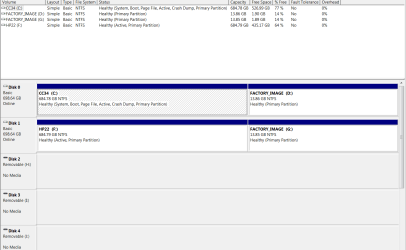
I attached the disk management screen. There is nothing below disc 1...it goes up to disc 5 and then a cd-rom drive below that with nothing shown there. Thanks for your help. I think I have two Windows 7 on my computer also otherwise shouldn't it go to Vista when I click on Vista rather than 7?? I would like for it to just give me 7 as an option and just go into 7 when I click it or let the boot manager screen time out.
 

Attachments

  • Snip of Disk Management.PNG
    Snip of Disk Management.PNG
    21.9 KB · Views: 54

My Computer

OS
Windows 7 Home Premium 64 bit
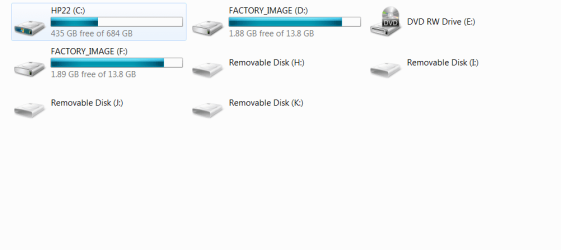
I have realized what it is doing when I click on Windows 7--it is booting into the F: Drive which has Dave's documents and programs all on there as well as his user account. He essentially re-copied his program/documents,etc unto the F: drive.... (I think) The C: Drive is what my account is on although I haven't been able to change the name from David PC and the "Profile name" from David. It shows up as the correct name on the user account page in control panel but when I go to my computer and click on user accounts it still shows David. How do I change this?? Also will deleting everything on the F: drive get rid of the problem of it going into hard drive F: when I click on 7 in boot manager?


EDIT: I restarted the computer and clicked on Windows 7 on the BM screen to get into what I thought was David's account on the F: drive. When I went to my computer though it said something different then it did in the correctly functioning account after clicking Vista. It said that the F: drive was a factory image and had 13.8 GB on it rather than what it said when I was on the "Vista" account. On the Vista account it says 684 GB and shows Dave's account,programs,etc. I don't understand.

I will attach the two different My Computer screens so you can see what I mean....the one on the left is how it looks when I click Windows 7 in BM (which is supposedly the F: drive according to my post below) The one on the right is what is looks like when clicking Windows Vista in BM (which is supposedly the C: Drive.)
 

Attachments

  • My Computer snip.PNG
    My Computer snip.PNG
    12.4 KB · Views: 9
  • My Computer Snip-C-Drive (Windows Vista in BM).PNG
    My Computer Snip-C-Drive (Windows Vista in BM).PNG
    15.4 KB · Views: 5
Last edited:

My Computer

OS
Windows 7 Home Premium 64 bit
Type msconfig into start/search and hit Enter. Go to the Boot tab and delete the entry for the F drive.
 

My Computer

Computer Manufacturer/Model Number
HP, Dell, Gateway, Toshiba - 4 laptops and 2 desktops
OS
Vista, Windows7, Mint Mate, Zorin, Windows 8
CPU
from 1.6GHz Duo to i7
Monitor(s) Displays
2x HP w2207
Hard Drives
5x HDD, 7x SSD, 12x Externals
Keyboard
with trackball - no mices
Mouse
Trackball mice
Internet Speed
DSL 6000
Type msconfig into start/search and hit Enter. Go to the Boot tab and delete the entry for the F drive.

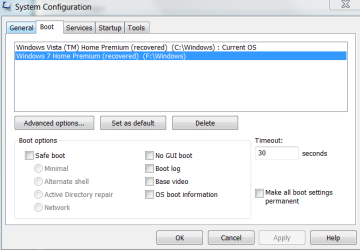
Here is what is shows on that page:


Even though it shows the Windows Vista option on there that boots into the C: drive it still runs Windows 7 when I click it in BM. If I delete the Windows 7 option on there (with the F: drive) will it still run Windows 7 but show Vista in BM?? I WANT it to just run 7 so I'm concerned it won't if I delete that from here.
 

Attachments

  • systemconfig.PNG
    systemconfig.PNG
    14.7 KB · Views: 14
Last edited:

My Computer

OS
Windows 7 Home Premium 64 bit
Well, not 100% sure. I suggest yu set the one that is highlighted right now as "Default" - click the "Set as Default" button. Then let's see what happens. At least there is no harm done trying first that way.
 

My Computer

Computer Manufacturer/Model Number
HP, Dell, Gateway, Toshiba - 4 laptops and 2 desktops
OS
Vista, Windows7, Mint Mate, Zorin, Windows 8
CPU
from 1.6GHz Duo to i7
Monitor(s) Displays
2x HP w2207
Hard Drives
5x HDD, 7x SSD, 12x Externals
Keyboard
with trackball - no mices
Mouse
Trackball mice
Internet Speed
DSL 6000
You have Win7 on both C and F drive, although when you boot into the Disk1 drive it shows itself in C and reletters the Recovery partition.

It appears that factory Recovery disks might have been run on the second drive inadvertantly. Whatever the cause, you need to decide which one you want to keep and we will help you remove the other one.

If you confirm it's Disk0 you want to keep then power down to temporarily unplug Disk1, boot up and see if it runs as you want and has the Win7 of your choice. If so, you can plug back in Disk1 and delete it's partitions in Disk Mgmt, create New ones as you wish and Format NTFS Primary.

To remove the Dual Boot menu, install EasyBCD 2.02 and delete the unwanted listing on Edit Boot Menu tab, then rename Win7 correctly. EasyBCD 2.0.2 - NeoSmart Technologies
 
You have Win7 on both C and F drive, although when you boot into the Disk1 drive it shows itself in C and reletters the Recovery partition.

It appears that factory Recovery disks might have been run on the second drive inadvertantly. Whatever the cause, you need to decide which one you want to keep and we will help you remove the other one.

If you confirm it's Disk0 you want to keep then power down to temporarily unplug Disk1, boot up and see if it runs as you want and has the Win7 of your choice. If so, you can plug back in Disk1 and delete it's partitions in Disk Mgmt, create New ones as you wish and Format NTFS Primary.

To remove the Dual Boot menu, install EasyBCD 2.02 and delete the unwanted listing on Edit Boot Menu tab, then rename Win7 correctly. EasyBCD 2.0.2 - NeoSmart Technologies

Yes disk 0 is what I want it to boot in Windows 7 (or Drive C: in other words) I don't know what you mean by unplug?? It's not an external hard drive it's inside the computer...sorry I've never messed with the disks before...
 

My Computer

OS
Windows 7 Home Premium 64 bit
If you're not comfortable with unplugging the HD, then go ahead and try to delete F and G in C (Disk0) Disk Management then create partitions on Disk1 for data, now or later:
Partition or Volume - Delete
Partition or Volume - Create New

A good use for Disk1 will be to store a Win7 image and file backup:
Backup Complete Computer - Create an Image Backup
Backup User and System Files - Windows 7 Forums

The Disk Management screenshot shows your System boot files to be on C so there is no risk, however if Disk Mgmt won't delete them for any reason we can give you some simple commands to get it done in minutes.
 
Unplugging a disk is really simple. Power the system down (best unplug it), open the sidepanel and pull either the mobo cable or the power cable that comes from the PSU.
 

My Computer

Computer Manufacturer/Model Number
HP, Dell, Gateway, Toshiba - 4 laptops and 2 desktops
OS
Vista, Windows7, Mint Mate, Zorin, Windows 8
CPU
from 1.6GHz Duo to i7
Monitor(s) Displays
2x HP w2207
Hard Drives
5x HDD, 7x SSD, 12x Externals
Keyboard
with trackball - no mices
Mouse
Trackball mice
Internet Speed
DSL 6000
If you're not comfortable with unplugging the HD, then go ahead and try to delete F and G in C (Disk0) Disk Management then create partitions on Disk1 for data, now or later:
Partition or Volume - Delete
Partition or Volume - Create New

A good use for Disk1 will be to store a Win7 image and file backup:
Backup Complete Computer - Create an Image Backup
Backup User and System Files - Windows 7 Forums

The Disk Management screenshot shows your System boot files to be on C so there is no risk, however if Disk Mgmt won't delete them for any reason we can give you some simple commands to get it done in minutes.

Will go ahead and try this but don't I already have a Win 7 Image with D: in Disk 0? It gives me the option to delete F and G so I'll try that and see what happens.
 

My Computer

OS
Windows 7 Home Premium 64 bit
The Recovery Partition on Disk0 resets the HD to factory condition which includes all the preinstalled bloatware, and is not always reliable to run - which is another reason (besides HD failure) why it's good to make the Recovery Disks in All Programs>Recovery.

A Win7 backup image will save the exact image of your Win7 setup as you want it with all of your programs, files and settings, so it is preferred to Factory Recovery as a way to restore when Win7 becomes irreparable or ready for reinstall.

Let us know how it goes.
 
The Recovery Partition on Disk0 resets the HD to factory condition which includes all the preinstalled bloatware, and is not always reliable to run - which is another reason (besides HD failure) why it's good to make the Recovery Disks in All Programs>Recovery.

A Win7 backup image will save the exact image of your Win7 setup as you want it with all of your programs, files and settings, so it is preferred to Factory Recovery as a way to restore when Win7 becomes irreparable or ready for reinstall.

Let us know how it goes.

That makes sense. Will make a copy then.... Ok I successfully deleted F: and G: (everything off Disk 1)


Ok I went back to msconfig>System Config>Boot and the Windows 7 booting into F: is now gone. Which is what I wanted!! Now I just need to rename the remaining Windows Vista Home Premium booting into C: to Windows 7 somehow. I think you said to use Easy BCD? http://neosmart.net/dl.php?id=1

And then after that I can partition Disk 1 and backup Win 7 and C drive...


Decided to download Easy BCD and renamed the Windows Vista booting into the C: drive to Windows 7 Home Premium so everything is fixed now. Just need to partition Disk 1 and and backup Win 7/C: drive. Thanks for the help!!!
 
Last edited:

My Computer

OS
Windows 7 Home Premium 64 bit
Back
Top