Need to erase a drive/unite drives on my SD card

Digdis

New member
Local time
2:13 AM
Messages
6
Hey,
Got this 8GB SD, which serves my son's Android phone.
Now, for some reason, this SD is divided to two DRIVES (not partitions, drives), a 3GB drive and a 5GB drive. The phone treats the 3GB drive as its first and default drive.
Now, I want to reformat the SD in a way it'll include a single 8GB drive. Then I can repartition it the way I like.
Problem is that I couldn't find a single tool which does that. Whenever I try partitioning the SD with any of these tools, it detects 2 separate drives, on which it can perform any partitioning function, but all within the drive itself. No tool offered the option to erase a drive or merge drives. I could also do with a tool that turns the SD blank or return it to its factory settings. I have tried Windows tools with card readers or with the SD inserted in my phone (MSC mode) without any luck. Also tried some Android tools, no help either.
Would appreciate any help here.
Cheers,
D.
 

My Computer My Computer

At a glance

Windows 7 64 bits
Computer type
Laptop
Computer Manufacturer/Model Number
Lenovo
OS
Windows 7 64 bits
Wecome to SevenForums Digdis,

I had never before put my thoughts into partitioning SD Cards ( he!) and wasn't even aware of it so to say. Can of course be excused since I never had an Android phone - moved to my first Windows 8 Nokia Lumia 520 Smartphone only recently.:)

Anyway I think you can try MiniTools Partition Wizard Home Edition 8.1.1 to delete the partitions ( whether you call those partitions or drives it is all the same) and recreate partitions (drives) of your choice. Free download Magic Partition Manager Software, partition magic alternative, free partition magic, partition magic Windows 7 and server partition software - Partition Wizard Online

SD partitions can be managed with the partition manager Partition Wizard.

http://tutorial-fornewbie.blogspot.in/2013/04/how-to-create-partition-on-sd-card.html
 

My Computer My Computer

At a glance

Windows 7 Home Premium 32 bit
OS
Windows 7 Home Premium 32 bit
Thanks for the quick reply, Jumanji.
In fact, the minitools partition wizard was the first tool I tried. Alas, it was all the same as other tools I have tried afterwards - the tool displayed 2 separate drives (not partitions). Therefore, I could not erase any of the drives (unlike the partition case).
 

My Computer My Computer

At a glance

Windows 7 64 bits
Computer type
Laptop
Computer Manufacturer/Model Number
Lenovo
OS
Windows 7 64 bits
May be I am way off the mark - atleast in this case - when I said partitions and drives are the same (tuned as I am to conventional partitioning.)

Does your SD card show as two different physical drives?

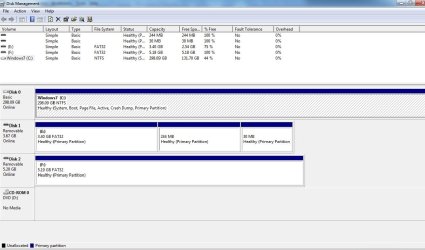
Can you post the screenshot of how the SD looks in Windows Disk Management? ( Please remove all other external drives.)
 

My Computer My Computer

At a glance

Windows 7 Home Premium 32 bit
OS
Windows 7 Home Premium 32 bit
Attached the disk management screenshot. Please notice disks 1 & 2 (drives E and F) - these belong to my SD Card. Notice that Disk 1 (E) is internally partitioned. This is deliberate and OK (was required for some android application I was dealing with), but has no relevance here. Point is that the SD card has two separate drives, not partitions.
Just a small disclaimer: I can see this with the phone connected to my PC in MSC mode. I should get a hold of the card reader today, in order to see whether it's viewed differently. I suspect that the results will be the same.
 

Attachments

  • disk manager.jpg
    disk manager.jpg
    88.2 KB · Views: 2

My Computer My Computer

At a glance

Windows 7 64 bits
Computer type
Laptop
Computer Manufacturer/Model Number
Lenovo
OS
Windows 7 64 bits
OK, Thank you for the nice screenshot.

Now everything is clear.

I also understand that is with your phone connected directly to the PC and the Disk Manager in it (the phone) or whatever that is doing it.

And yes, let us see how it looks through a card reader.

My own perception is that it is going to be different obeying the normal laws and you should be able to delete the volumes and make it one drive - not the Microsoft one drive :)
 

My Computer My Computer

At a glance

Windows 7 Home Premium 32 bit
OS
Windows 7 Home Premium 32 bit
OK, so I connected it via the SD card reader. The one I've got has 6 slots per card type (SD, micro SD, CF etc.), so when connected to the PC it creates a drive per slot. Therefore, I can only see the first drive (the 3GB one) with this reader. So - maybe I need to try another reader. Should take a bit of time.
 

My Computer My Computer

At a glance

Windows 7 64 bits
Computer type
Laptop
Computer Manufacturer/Model Number
Lenovo
OS
Windows 7 64 bits

My Computer My Computer

At a glance

Windows 7 Home Premium 32 bit
OS
Windows 7 Home Premium 32 bit
Thanks Jumanji.
Just to clarify: When in the SD card reader, I see the first drive but with all partitions inside (as in disk E in the screenshot). Only thing I don't see is drive F.
Anyway, I will try this utility later on today.
 

My Computer My Computer

At a glance

Windows 7 64 bits
Computer type
Laptop
Computer Manufacturer/Model Number
Lenovo
OS
Windows 7 64 bits
My brain cells are overloaded with so many things they refuse to understand anything :D.

May be seeing a screenshot will help. Also let it be recorded here.

In any case run the clean all command on the correct drive.
 

My Computer My Computer

At a glance

Windows 7 Home Premium 32 bit
OS
Windows 7 Home Premium 32 bit
Hi there

Do it THE EASY way --forget all this complex stuff.

1) as administrator run from Command mode DISKPART

2) LIST DISK say the SD card is DISK 3

3) SELECT DISK 3
4) CLEAN
5) CREATE PARTITION PRIMARY
6)FORMAT FS=FAT32 (or whatever- FAT/ NTFS) QUICK

EXIT

Job done --forget all those other complex methods.

Ensure though windows explorer or nothing else has the SD card open.

Cheers
jimbo
 

My Computer My Computer

At a glance

Linux CENTOS 7 / various Windows OS'es and se...Intel i7 Intel i58GB, 16GBOn Motherboard
Computer type
PC/Desktop
Computer Manufacturer/Model Number
Custom built, several laptops HP/ASUS
OS
Linux CENTOS 7 / various Windows OS'es and servers
CPU
Intel i7 Intel i5
Memory
8GB, 16GB
Graphics Card(s)
On Motherboard
Sound Card
Realtek HD audio
Monitor(s) Displays
Apple Cinema display, Samsung LCD
Screen Resolution
1920 X 1080
Hard Drives
4 X 1TB SATA
Mouse
Toshiba wireless laser
Internet Speed
> 20MB up
To be sure that there is no "dirty data" left - keeping in mind the card was used in an android phone and perhaps formatted in it -, do a cleanall and just not clean which wipes only the first 2048 sectors. I really cannot understand how complex it is just typing cleanall instead of clean.Then writing additional commands to format is even more complex :) . Forget about these complex instructions and format it as you will usually do.

An even easier method you can try given that you already have Partition Wizard installed on your system is to delete the volumes in Partition Wizard and format it. These partitioning utilities can usually see all volumes and you can never go wrong because it is GUI based.( My brain cells have recovered from the overload :))
 
Last edited:

My Computer My Computer

At a glance

Windows 7 Home Premium 32 bit
OS
Windows 7 Home Premium 32 bit
First of all, thanks very much for your help. Much appreciated.
After trying everything you said (with diskpart cleanall), drive remains the same - 3.4GB. I'm starting to think that this SD card was always a 4GB one (really can't tell from what's written on it), and that the other drive I see is some sort of internal memory or something else that's exported by the phone. Another reason to think so is that the sum of both drive sizes is ~9GB, which is a pretty odd number.
Nevertheless, this has been very helpful to me in order to understand disk partitioning - something I thought I knew all about.
Cheers again,
D.
 

My Computer My Computer

At a glance

Windows 7 64 bits
Computer type
Laptop
Computer Manufacturer/Model Number
Lenovo
OS
Windows 7 64 bits
Back
Top