Capt Seo,
You can use your Win 7 DVD.
Boot from the Win 7 DVD
When you get that very first dialog, use
SHIFT + F10 key combo to get to a command prompt.
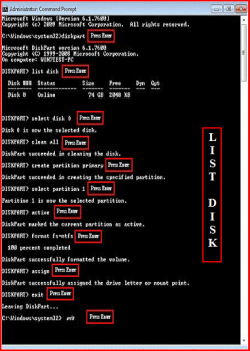
From that command prompt you can use the procedure using DiskPart.
Simply enter DiskPart and hit enter and follow the procedure given in an earlier post.
If you have a Win 7 System Repair disk you can boot from it.
Let's see what I have for notes:
GO TO A COMMAND PROMPT USING A SYSTEM REPAIR DISK
1) Make a System Repair Disk (
WIN key| type
Create System Repair Disk |
ENTER key)
2) Insert
System Repair Disk into optical reader.
3)
Shutdown your computer.
4)
Boot up your computer from the System Repair Disk (if needed, Power on button, immediately hit F2 key, change boot order to have boot from cd/dvd first).
5) Wait while a mini-version of Windows is loaded and finally the System Recovery Options dialog appears.
6)
SYSTEM RECOVERY OPTIONS dialog |
will show
Select a keyboard input method |
NEXT button
7)
SYSTEM RECOVERY OPTIONS dialog
will search your system for installed versions of Windows.
8)
SYSTEM RECOVERY OPTIONS dialog |
select the
Use recovery tools that can help fix problems starting Windows radio button |
NEXT button
9)
SYSTEM RECOVERY OPTIONS |
will show
Choose a recovery tool and list the following |
System Repair
System Restore
System Image Recovery
Windows Memory Diagnostic
Command Prompt
10) Click on
command prompt | run any desired commands | type
EXIT when finished
11) Remove the System Repair Disk CD
12)
SHUTDOWN button
13)
Power On your computer
And for the future, consider making a system image--see following:
[FONT="]CREATE A SYSTEM REPAIR DISK[/FONT]
| type
System Repair |
Enter key |
Create Disk button
[FONT="]CREATE AND RESTORE A SYSTEM IMAGE[/FONT]
| type
Backup your computer |
Enter key
· In left-hand pane, select
Create a System Image
· select where you want to save the backup |
Next
· Select the drives you want to backup |
Next
· Start Backup button
· Finish button after completion
RESTORE A SYSTEM IMAGE BACKUP
· Boot from the System Repair CD you created.
· Connect the external drive with the backup image
· NEXT button (change language if desired)
· Restore your computer using a system image
that you created earlier radio button
· NEXT button
· Use the latest available system image radio button
· NEXT button
· Format and repartition disks checkbox
· NEXT button
· FINISH button
· YES button