Hello All,
This is a somewhat lenghty story, but I'll try to include only the necessary facts.
My Desktop PC has been setup for quite some time as an XP/Windows 7 dual boot to support Windows 7 evaluation. This has worked fine and never been an issue. The PC has 3 hard drives: (1) Single partition 40gb running WinXP Pro. (2) 500gb with two partitions; an 80gb for Win7 Pro and 420gb+/- for User Data. (3) 250gb single partition for User data, media, etc.
Since I've decided that I'm not going back to WinXP, my desire was to image copy the Windows7 volume (Disk2-Part1) over the WinXP volume (Disk1-Part1) so I can get back to a single boot Win7 config on a dedicated drive and return the 80gb Win7 volume back to the user data pool from the 500gb disk.
Since I use Acronis True Image Home 2010, I used this to take a Win7 boot volume image and then restored it over the WinXP boot volume. This appeared to work fine and when I went to reboot I thought I would find the same boot menu prompt, only to find the "NTLDR is missing" error. Obviously I boned up the WinXP setup and confused the bootmgr. I then used the Win7 setup disk to repair the system using bootrec.exe from the DOS command prompt by doing a /fixmbr and /fixboot.
This worked and I once again had a dual-boot with both Windows7 setups available; and both were able to boot fine. Since I still wanted to rid my system of the original Win7 installation and get back the 80gb partition it consumed, I slowly started working on this.
This is a good time to mention that; the Win7 I want to keep is drive E: and the Win7 I want to trash is drive C: This is not desirable, but the original Win7 installation called the old WinXP drive E: and this persisted even after the Win7 image restore.
I used EasyBCD to edit the bootloader setup and removed the unwanted Win7 setup from the menu, this was fine and I rebooted to test. All OK. Then after the reboot where I am now running Win7 from the E: drive, I proceeded to use Disk Management to change the old Win7 C: drive to X: - my next step after another reboot would be to delete this partition. After a reboot attempt, I then ended up with the "This copy of Windows is not genuine" hosed up system error. After reading posts, I decided to get regedit fired up and renamed the X: drive back to C: by renaming the appropriate entry in "HKEY_LOCAL_MACHINE\SYSTEM\MountedDevices "
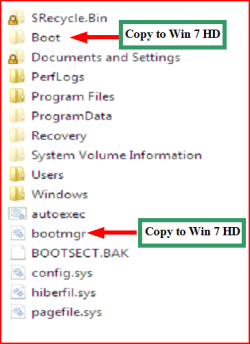
That worked and now I'm back where I was: Single boot Win7 from E: drive and and old Win7 setup on C: basically functioning as a user data drive. The bootmgr files appear to be on the E: drive, not C:.
QUESTION1 - How can I get this old C: removed properly and not hose up my system as above when I try to? With this I guess I would have to live with my boot device being E: ?
QUESTION2 - Is there a supported and proper way to get my Win7 E: volume renamed to C: just for a return to normalcy and all that, assuming I'm successful with Question1 above? I'm guessing not without a reinstall, but just hopeful.
Thanks for your patience guys !!
This is a somewhat lenghty story, but I'll try to include only the necessary facts.
My Desktop PC has been setup for quite some time as an XP/Windows 7 dual boot to support Windows 7 evaluation. This has worked fine and never been an issue. The PC has 3 hard drives: (1) Single partition 40gb running WinXP Pro. (2) 500gb with two partitions; an 80gb for Win7 Pro and 420gb+/- for User Data. (3) 250gb single partition for User data, media, etc.
Since I've decided that I'm not going back to WinXP, my desire was to image copy the Windows7 volume (Disk2-Part1) over the WinXP volume (Disk1-Part1) so I can get back to a single boot Win7 config on a dedicated drive and return the 80gb Win7 volume back to the user data pool from the 500gb disk.
Since I use Acronis True Image Home 2010, I used this to take a Win7 boot volume image and then restored it over the WinXP boot volume. This appeared to work fine and when I went to reboot I thought I would find the same boot menu prompt, only to find the "NTLDR is missing" error. Obviously I boned up the WinXP setup and confused the bootmgr. I then used the Win7 setup disk to repair the system using bootrec.exe from the DOS command prompt by doing a /fixmbr and /fixboot.
This worked and I once again had a dual-boot with both Windows7 setups available; and both were able to boot fine. Since I still wanted to rid my system of the original Win7 installation and get back the 80gb partition it consumed, I slowly started working on this.
This is a good time to mention that; the Win7 I want to keep is drive E: and the Win7 I want to trash is drive C: This is not desirable, but the original Win7 installation called the old WinXP drive E: and this persisted even after the Win7 image restore.
I used EasyBCD to edit the bootloader setup and removed the unwanted Win7 setup from the menu, this was fine and I rebooted to test. All OK. Then after the reboot where I am now running Win7 from the E: drive, I proceeded to use Disk Management to change the old Win7 C: drive to X: - my next step after another reboot would be to delete this partition. After a reboot attempt, I then ended up with the "This copy of Windows is not genuine" hosed up system error. After reading posts, I decided to get regedit fired up and renamed the X: drive back to C: by renaming the appropriate entry in "HKEY_LOCAL_MACHINE\SYSTEM\MountedDevices "
That worked and now I'm back where I was: Single boot Win7 from E: drive and and old Win7 setup on C: basically functioning as a user data drive. The bootmgr files appear to be on the E: drive, not C:.
QUESTION1 - How can I get this old C: removed properly and not hose up my system as above when I try to? With this I guess I would have to live with my boot device being E: ?
QUESTION2 - Is there a supported and proper way to get my Win7 E: volume renamed to C: just for a return to normalcy and all that, assuming I'm successful with Question1 above? I'm guessing not without a reinstall, but just hopeful.
Thanks for your patience guys !!
My Computer
- OS
- Windows 7