Network Adapters Already Expanded In Device Manager

CBM

New member
Power User
Local time
4:51 PM
Messages
104
Location
Ohio
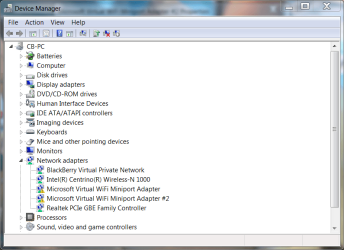
Hello everyone. Long time no see. Anyway, while attempting to understand why my Windows 7 x64 laptop has, for the past several months, failed to connect wirelessly to my AT&T wireless modem/router when coming out of sleep, I again noticed that my network adapters are already expanded when I open Device Manager. To the best of my knowledge none of the items in Device Manager should already be expanded unless there's a problem. I don't recall when this first occurred, but I imagine it has something to do with not being able to connect wirelessly after coming out of sleep mode, but I digress. I never have a problem connecting when restarting or turning on the laptop, only when coming out of sleep mode. I'm not concerned about the sleep/connection issue because I've researched it for months, tried every solution and still have the problem. I've also researched the problem concerning my adapters already being expanded in Device Manager but haven't been able to find any information on it.

My wireless adapter, the Intel Centrino Wireless-N 1000, has functioned properly, both before and after I updated the driver today through Intel's website. I'm just wondering why the network adapters are already expanded upon opening Device Manager. Again, I'm not concerned about the sleep/connection issue as there seems to be no solution for it other than a complete reinstall of the OS. I have attached a screenshot of my Device Manager.

Thank you in advance for your time and any assistance provided.
 

Attachments

  • Network Adapters Expanded.PNG
    Network Adapters Expanded.PNG
    132.1 KB · Views: 0

My Computer

Computer Manufacturer/Model Number
1.Dell Studio XPS 7100 Desktop; 2.Dell XPS 17 Laptop
OS
1.Windows 7 Ultimate x64; 2.Windows 7 Ultimate x64
CPU
1.AMD Phenom II X6 1075T; 2.Intel Core i7-2720QM 2.20 GHz
Memory
1.8GB DDR3; 2.8GB DDR3
Graphics Card(s)
1.AMD HD 5670 1GB; 2.NVIDIA GeForce GT 555M 3GB
Monitor(s) Displays
1.Samsung SyncMaster; 2.17.3in FHD
Screen Resolution
1.1600X900; 2.1920X1080
Hard Drives
1.1TB; 2.1TB 500GB X2
Keyboard
1.Microsoft Wireless; 2.Backlit
Mouse
Microsoft Wireless; 2.Microsoft Wireless Mobile 3500
Internet Speed
10.0 Mbps
Looking at that image shows issues with the Microsoft Virtual WiFi Miniport Adapter. It's hard to see the down arrow on the two icons, particularly since they got away from using the yellow triangle but the first clue is the expanded list, always shows when there's a problem in the category. As for the problem could simply be the WiFi is turned off or maybe drivers need to be reinstalled or updated.
 

My Computer

Computer type
PC/Desktop
Computer Manufacturer/Model Number
Customs, Dell, Gateway, HP, Toshiba, Acer, ASUS
OS
Windows 7 Ultimate 64-bit, Windows 8.1 64-bit, Mac OS X 10.10, Linux Mint 17, Windows 10 Pro TP
Keyboard
Microsoft
Mouse
Microsoft
Looking at that image shows issues with the Microsoft Virtual WiFi Miniport Adapter. It's hard to see the down arrow on the two icons, particularly since they got away from using the yellow triangle but the first clue is the expanded list, always shows when there's a problem in the category. As for the problem could simply be the WiFi is turned off or maybe drivers need to be reinstalled or updated.

Thank you Berton, for your prompt reply. I didn't notice the two arrows on the Microsoft Virtual WiFi Miniport Adapters. I enabled them for two reasons; one, to see if Device Manager opened properly with no expansions of devices, which it did, and two, to see if perhaps they were causing issues with my sleep mode/connection issue, which I'll know soon enough.

Thank you again. I appreciate your assistance.
 

My Computer

Computer Manufacturer/Model Number
1.Dell Studio XPS 7100 Desktop; 2.Dell XPS 17 Laptop
OS
1.Windows 7 Ultimate x64; 2.Windows 7 Ultimate x64
CPU
1.AMD Phenom II X6 1075T; 2.Intel Core i7-2720QM 2.20 GHz
Memory
1.8GB DDR3; 2.8GB DDR3
Graphics Card(s)
1.AMD HD 5670 1GB; 2.NVIDIA GeForce GT 555M 3GB
Monitor(s) Displays
1.Samsung SyncMaster; 2.17.3in FHD
Screen Resolution
1.1600X900; 2.1920X1080
Hard Drives
1.1TB; 2.1TB 500GB X2
Keyboard
1.Microsoft Wireless; 2.Backlit
Mouse
Microsoft Wireless; 2.Microsoft Wireless Mobile 3500
Internet Speed
10.0 Mbps
You're welcome.
 

My Computer

Computer type
PC/Desktop
Computer Manufacturer/Model Number
Customs, Dell, Gateway, HP, Toshiba, Acer, ASUS
OS
Windows 7 Ultimate 64-bit, Windows 8.1 64-bit, Mac OS X 10.10, Linux Mint 17, Windows 10 Pro TP
Keyboard
Microsoft
Mouse
Microsoft
You're welcome.

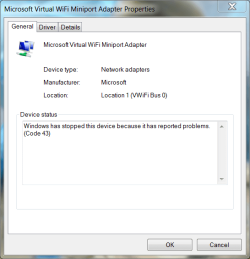
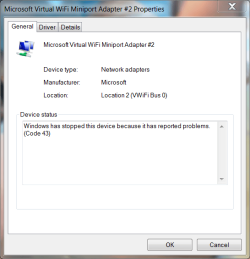
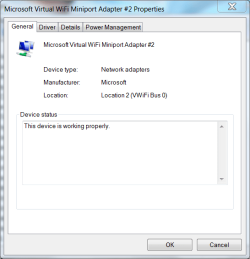
Well, I enabled the two MS miniport adapters and closed and reopened Device Manager, which showed no devices expanded. I then put the computer to sleep from within my user account. I still had the sleep mode/connection issue but when I came out of sleep mode and finally reconnected to the Internet and opened Device Manager the two MS miniports had been disabled by Windows, showing yellow triangles next to the devices. I have attached screenshots.

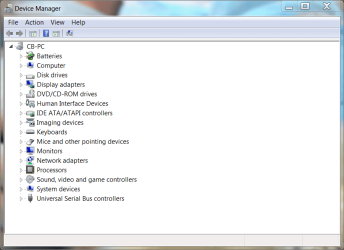
I then restarted and opened Device Manager. None of the devices are expanded and the two MS miniports show as enabled and working properly. I have attached screenshots.

I'm not really concerned about the issue. I'm going to do a clean install in the next couple of weeks but haven't decided whether to reinstall my Windows 7 or try the Windows 10 preview I downloaded and burned several weeks ago. I'm simply trying to understand the network adapter problem, which will probably go away once I do a clean install, probably of Win 7.
 

Attachments

  • Expanded, Now With Yellow Triangles.PNG
    Expanded, Now With Yellow Triangles.PNG
    142.4 KB · Views: 0
  • MS Miniport 1.PNG
    MS Miniport 1.PNG
    94.3 KB · Views: 8
  • MS Miniport 2.PNG
    MS Miniport 2.PNG
    90.2 KB · Views: 8
  • Device Manager After Reboot.PNG
    Device Manager After Reboot.PNG
    127 KB · Views: 0
  • MS Miniport 1 After Reboot.PNG
    MS Miniport 1 After Reboot.PNG
    67 KB · Views: 8
  • MS Miniport 2 After Reboot.PNG
    MS Miniport 2 After Reboot.PNG
    66.8 KB · Views: 8

My Computer

Computer Manufacturer/Model Number
1.Dell Studio XPS 7100 Desktop; 2.Dell XPS 17 Laptop
OS
1.Windows 7 Ultimate x64; 2.Windows 7 Ultimate x64
CPU
1.AMD Phenom II X6 1075T; 2.Intel Core i7-2720QM 2.20 GHz
Memory
1.8GB DDR3; 2.8GB DDR3
Graphics Card(s)
1.AMD HD 5670 1GB; 2.NVIDIA GeForce GT 555M 3GB
Monitor(s) Displays
1.Samsung SyncMaster; 2.17.3in FHD
Screen Resolution
1.1600X900; 2.1920X1080
Hard Drives
1.1TB; 2.1TB 500GB X2
Keyboard
1.Microsoft Wireless; 2.Backlit
Mouse
Microsoft Wireless; 2.Microsoft Wireless Mobile 3500
Internet Speed
10.0 Mbps
Back
Top