never finishes installation

gripshift

New member
Local time
3:48 PM
Messages
21
Installing 64 bit upgrade version on new 2T hard drive, when it gets to "Completing Installation" it restarts, then goes to Windows Boot Manager with only preexisitng OS (Vista) listed. I deleted OEM partitions (on old drive) per previous thread addressing the issue, to no avail. I didnt' get "Setup is Preparing Computer for First Use Screen" before the forced restart. I followed instructions in the "Clean Install" post. I have the new drive set as 1st priority in the Boot sequence (BIOS). The (partial) installation created various folders (including Windows) on the new drive.
 

My Computer

Computer Manufacturer/Model Number
Dell XPS 630i
OS
Windows 7 Home Premium 64bit
CPU
Intel Core 2 Quad q9550
Motherboard
Dell
Memory
8gb
Graphics Card(s)
2 X Nvidia 512 mb geForece 9800 gt dual SLI
Hard Drives
WD 500 mb
WD 2 tb
1. "How long did you wait for installation to continue after bailing out?" I didn't wait, it restarted and booted into the old OS, Vista, on another (boot) drive, before completing the installing - this happened during the last step of the install.

2. I have upgrade version of Win 7. Is it necessary to first install Vista on the install drive, and then upgrade to Win 7? I've heard both yes and no in various places on the web.

3. Doesn't Win 7 setup write over an (already) allocated/formatted disk? (I would like to avoid the diskpart clean procedure, which takes about 8 hours on a 2 T drive.)
 

My Computer

Computer Manufacturer/Model Number
Dell XPS 630i
OS
Windows 7 Home Premium 64bit
CPU
Intel Core 2 Quad q9550
Motherboard
Dell
Memory
8gb
Graphics Card(s)
2 X Nvidia 512 mb geForece 9800 gt dual SLI
Hard Drives
WD 500 mb
WD 2 tb
Hello gripshift, welcome to Seven Forums!


#2 Have a look at this tutorial at the link below.

Do a Clean Install with a Upgrade Windows 7 Version


#3 Contrary to popular belief, formatting does not remove any data at all, it just checks for sector errors and marks the space to be over-written as needed, all the data is still there including all the code from previous/failed installation attempts.

It would be best to use the "clean all" command as that does over-write every sector of the Hard Disk Drive (HDD) but you can try the "clean" command, that just over-writes the "boot sector" code, it may work for you.

The necessary thing is to create a partition of at least 100GB to install Windows 7 to as we've been seeing a lot of people have serious issues trying to install to as large a space as 1 & 2TB, Windows doesn't seem to like that. Be sure to do Step Two in this tutorial at the link below; be sure to post back with any further questions you may have and to keep us informed.

SSD / HDD : Optimize for Windows Reinstallation
 

My Computer

Computer Manufacturer/Model Number
* BFK Customs *
OS
W 7 64-bit Ultimate
CPU
Intel Q9550 Yorkfield
Motherboard
ASUS P5Q Pro
Memory
8GB Dominator 8500C5D
Graphics Card(s)
ATI : XFX 5870
Sound Card
Realtek HD Audio 7-1
Monitor(s) Displays
1x 47" LCD HDMI & 3x 26" LCD HDMI
Screen Resolution
1920x1080P & 1920x1200
Hard Drives
1x 80GB Intel X25-M G2 SSD : 1x 500GB & 1x 640GB WD Caviar Black(s)
PSU
Corsair 620HX
Case
Cooler Master RC-690
Cooling
Tuniq Tower 120, 2x 140mm and 3x 120mm case fans
Keyboard
Microsoft 500
Mouse
Razer Diamondback 3G
Internet Speed
14 Mb/s
Other Info
1x Koutech 3Gb/s SATA HDD Hot Swap Rack
The "clean" command appeared to work fine, and the procedure only took a few seconds to accomplish.

With the 100gb partition created using diskpart, Win 7 was installed to it successfully.

Caveat: When the PC boots up it only boot into the old OS, Vista, and doesn't give an option to select booting to Win 7.

Win 7 is on the 100gb partition of (2tb) disk 1 (Windows Disk Management). It is a primary (not boot) partition. The rest of the disk is unallocated.

1. How do I configure it so that I can boot into Win 7?

2. Also, I have a small unallocated portion of another disk: how do I expand the (only other) (Primary, boot) partition of that disk to consume the unallocated portion?

3. As to the 2tb disk 1, should I (just) create one or more partitions out of the unallocated portion of it? What type of partitions should I create (primary of logical)? Then do a "quick format" of each?

Thank you.
 

My Computer

Computer Manufacturer/Model Number
Dell XPS 630i
OS
Windows 7 Home Premium 64bit
CPU
Intel Core 2 Quad q9550
Motherboard
Dell
Memory
8gb
Graphics Card(s)
2 X Nvidia 512 mb geForece 9800 gt dual SLI
Hard Drives
WD 500 mb
WD 2 tb
Hello again.


Before we make any specific recommendations will you please post a snip/screen-shot of the entire disk management drive map with a full description as to which drive/partition is which, so we can see what you have going on as there may be a fairly simple way to resolve the situation.

In the Windows start menu right click computer and click manage, in the left pane of the "Computer Management" window that opens click disk management and post a snip of that.


Be sure to post back with any further questions you may have and to keep us informed.


How to Upload and Post a Screenshot and File in Seven Forums
 

My Computer

Computer Manufacturer/Model Number
* BFK Customs *
OS
W 7 64-bit Ultimate
CPU
Intel Q9550 Yorkfield
Motherboard
ASUS P5Q Pro
Memory
8GB Dominator 8500C5D
Graphics Card(s)
ATI : XFX 5870
Sound Card
Realtek HD Audio 7-1
Monitor(s) Displays
1x 47" LCD HDMI & 3x 26" LCD HDMI
Screen Resolution
1920x1080P & 1920x1200
Hard Drives
1x 80GB Intel X25-M G2 SSD : 1x 500GB & 1x 640GB WD Caviar Black(s)
PSU
Corsair 620HX
Case
Cooler Master RC-690
Cooling
Tuniq Tower 120, 2x 140mm and 3x 120mm case fans
Keyboard
Microsoft 500
Mouse
Razer Diamondback 3G
Internet Speed
14 Mb/s
Other Info
1x Koutech 3Gb/s SATA HDD Hot Swap Rack
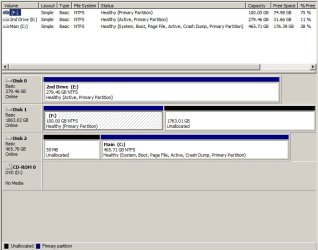
Disk 1, F is the 100gb partition where Win 7 was installed.

Disk 2 is the old disk, with the boot partition in C (Vista), would like to expand to include unallocated portion of that disk.

Also wondering if 100gb is enuf size for Win 7 - could I (easily) expand it to, say, 200g?

So,

1. How to make PC boot to Win 7 in F (Disk 1).
2. As to unallocated portion of Disk 1, is it ok to create one or more partitions out of it? Type of partitions: primary or logical? Then "quick format" each?
3. How to expand Disk 2 to include unallocated portion?

(Disk Management screen shot attached)
 

Attachments

  • Disk Management screen shot.jpg
    Disk Management screen shot.jpg
    66.9 KB · Views: 17

My Computer

Computer Manufacturer/Model Number
Dell XPS 630i
OS
Windows 7 Home Premium 64bit
CPU
Intel Core 2 Quad q9550
Motherboard
Dell
Memory
8gb
Graphics Card(s)
2 X Nvidia 512 mb geForece 9800 gt dual SLI
Hard Drives
WD 500 mb
WD 2 tb
Before I go into a big explanation, do you want to continue to dual boot Vista and W_7 ?
 

My Computer

Computer Manufacturer/Model Number
* BFK Customs *
OS
W 7 64-bit Ultimate
CPU
Intel Q9550 Yorkfield
Motherboard
ASUS P5Q Pro
Memory
8GB Dominator 8500C5D
Graphics Card(s)
ATI : XFX 5870
Sound Card
Realtek HD Audio 7-1
Monitor(s) Displays
1x 47" LCD HDMI & 3x 26" LCD HDMI
Screen Resolution
1920x1080P & 1920x1200
Hard Drives
1x 80GB Intel X25-M G2 SSD : 1x 500GB & 1x 640GB WD Caviar Black(s)
PSU
Corsair 620HX
Case
Cooler Master RC-690
Cooling
Tuniq Tower 120, 2x 140mm and 3x 120mm case fans
Keyboard
Microsoft 500
Mouse
Razer Diamondback 3G
Internet Speed
14 Mb/s
Other Info
1x Koutech 3Gb/s SATA HDD Hot Swap Rack
no need to dual boot, but would perhaps like to be able to boot to Vista (for a week or so) via changing the boot sequence in the BIOS - later on I wouldn't want/need to do this . . .
 

My Computer

Computer Manufacturer/Model Number
Dell XPS 630i
OS
Windows 7 Home Premium 64bit
CPU
Intel Core 2 Quad q9550
Motherboard
Dell
Memory
8gb
Graphics Card(s)
2 X Nvidia 512 mb geForece 9800 gt dual SLI
Hard Drives
WD 500 mb
WD 2 tb
OK, here's what I would do and how I'd do it, so it will be easy to remove Viast when needed.


1. How to make PC boot to Win 7 in F (Disk 1).


Disconnect all the Hard Disk Drives (HDD) except the one Windows 7 is installed to, use Option Two of this tutorial to mark the W_7 partition as "Active" and then do the 3 separate startup repairs with a restart between each repair to get W_7 booting good all on its own, then power down to reconnect the other HDDs; set the BIOS to boot Windows 7 HDD as default and when you want to boot Vista use the one-time BIOS boot menu for your motherboard to do that.

Startup Repair - Run 3 Separate Times

2. As to unallocated portion of Disk 1, is it ok to create one or more partitions out of it? Type of partitions: primary or logical? Then "quick format" each?

Yes though I would create primary, not logical partitions and I would do full formats.

3. How to expand Disk 2 to include unallocated portion?

This tutorial "Option Two" (disregard the "System Reserved" reference) outlines how to recover space to the left of a partition back into the OS partition; have a look at the rest of the tutorial to see the other things Partition Wizard can do for you.

Partition Wizard : Use the Bootable CD
 

My Computer

Computer Manufacturer/Model Number
* BFK Customs *
OS
W 7 64-bit Ultimate
CPU
Intel Q9550 Yorkfield
Motherboard
ASUS P5Q Pro
Memory
8GB Dominator 8500C5D
Graphics Card(s)
ATI : XFX 5870
Sound Card
Realtek HD Audio 7-1
Monitor(s) Displays
1x 47" LCD HDMI & 3x 26" LCD HDMI
Screen Resolution
1920x1080P & 1920x1200
Hard Drives
1x 80GB Intel X25-M G2 SSD : 1x 500GB & 1x 640GB WD Caviar Black(s)
PSU
Corsair 620HX
Case
Cooler Master RC-690
Cooling
Tuniq Tower 120, 2x 140mm and 3x 120mm case fans
Keyboard
Microsoft 500
Mouse
Razer Diamondback 3G
Internet Speed
14 Mb/s
Other Info
1x Koutech 3Gb/s SATA HDD Hot Swap Rack
Would there be any problem extending the Win 7 partition from 100gb to 1tb (out of total 2tb on the disk)? (It appears that this would need to be done before it was made a boot partition.) If not, what is the maximize size for Win 7?
 

My Computer

Computer Manufacturer/Model Number
Dell XPS 630i
OS
Windows 7 Home Premium 64bit
CPU
Intel Core 2 Quad q9550
Motherboard
Dell
Memory
8gb
Graphics Card(s)
2 X Nvidia 512 mb geForece 9800 gt dual SLI
Hard Drives
WD 500 mb
WD 2 tb
The more modern way with built-in Win7 Backup imaging is to place the User folders (documents, pictures, videos, downloads, etc) on a separate data partition which keeps them safe in case of OS failure: http://www.sevenforums.com/tutorials/18629-user-folders-change-default-location.html You can even set this up so that Vistas user folders access the same data.

Your backup image (which should be stored on another drive) can then be smaller and more compact: http://www.sevenforums.com/tutorials/663-backup-complete-computer-create-image-backup.html

If Win7 ever becomes inoperable you can boot the DVD Repair console to "Recover Using An Image" to the OS partition in 15 minutes, and your data will be safe in its own partition and waiting to use.

You are wise to keep the HD's independent, booting into chosen OS via BIOS boot order menu, or the one-time BIOS Boot Menu accessed by tapping the Dell F12 key at bootup.
 
Would there be any problem extending the Win 7 partition from 100gb to 1tb (out of total 2tb on the disk)? (It appears that this would need to be done before it was made a boot partition.) If not, what is the maximize size for Win 7?


It would make more sense to leave it at 100GB for the OS and just create a single partition from the unallocated space to use as a data partition to save all your data, i.e. pics, docs and music then when/if you ever need to reinstall Windows 7 all your personal data will be safe on another partition and will not have to be moved to another partition to be safe before the install.

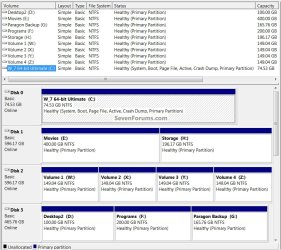
Have a look at my partition structure for an example, though there's no need to go to this extreme as I have, I just like to compartmentalize.


click to enlarge
Disk Management.jpg
 

My Computer

Computer Manufacturer/Model Number
* BFK Customs *
OS
W 7 64-bit Ultimate
CPU
Intel Q9550 Yorkfield
Motherboard
ASUS P5Q Pro
Memory
8GB Dominator 8500C5D
Graphics Card(s)
ATI : XFX 5870
Sound Card
Realtek HD Audio 7-1
Monitor(s) Displays
1x 47" LCD HDMI & 3x 26" LCD HDMI
Screen Resolution
1920x1080P & 1920x1200
Hard Drives
1x 80GB Intel X25-M G2 SSD : 1x 500GB & 1x 640GB WD Caviar Black(s)
PSU
Corsair 620HX
Case
Cooler Master RC-690
Cooling
Tuniq Tower 120, 2x 140mm and 3x 120mm case fans
Keyboard
Microsoft 500
Mouse
Razer Diamondback 3G
Internet Speed
14 Mb/s
Other Info
1x Koutech 3Gb/s SATA HDD Hot Swap Rack
Thank you. So far so good.

Little problem - when I removed the Win 7 disk from the optical drive (after doing the 3X boot repair routine) and tried to boot, I get the message:

---------
Boot from CD:

Boot Mgr is missing

Press Ctrl Alt Del to restart
---------

When I so restart, I just get the message again. Works OK if I have Win 7 disk in drive, though.

Fix?
 

My Computer

Computer Manufacturer/Model Number
Dell XPS 630i
OS
Windows 7 Home Premium 64bit
CPU
Intel Core 2 Quad q9550
Motherboard
Dell
Memory
8gb
Graphics Card(s)
2 X Nvidia 512 mb geForece 9800 gt dual SLI
Hard Drives
WD 500 mb
WD 2 tb
Set Win7 HD as first HD to boot in BIOS setup, after DVD drive. Test that it boots correctly.

Then boot Vista by tapping the Dell F12 one-time BBS (BIOS Boot Screen) pop-up menu to see that it boots via BIOS.

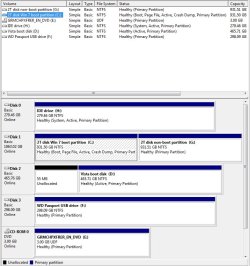
If there are any further problems, Please post back another screenshot of your full Disk Mgmt drive map and listings with page maximized.
 
Win7 HD is set as first HD to boot in BIOS setup, after DVD drive. I still get the same message ("Boot MGR missing") when I try to boot without the Win 7 disk in DVD drive.

(Of course the BIOS boot sequence points to the entire disk, not just the partition Win 7 is on (one of two partitions on the drive), but I presume as long as it is designated as the boot partition and it is active, it should be OK.)
 

Attachments

  • Untitled-1 copy.jpg
    Untitled-1 copy.jpg
    101.2 KB · Views: 6

My Computer

Computer Manufacturer/Model Number
Dell XPS 630i
OS
Windows 7 Home Premium 64bit
CPU
Intel Core 2 Quad q9550
Motherboard
Dell
Memory
8gb
Graphics Card(s)
2 X Nvidia 512 mb geForece 9800 gt dual SLI
Hard Drives
WD 500 mb
WD 2 tb
OK, here's what you need to do as the next step to get this booting right.

From the snip I assume the "Disk 1, partition 1" is the new Windows 7 partition and the one that needs to boot when the PC is started, Correct?

You need to mark the ...

"Disk 0, partition 1"

"Disk 2, partition 1"

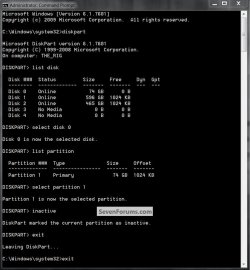
as " inactive " using diskpart when booted from the Windows 7 install disk, then exit diskpart and immediately do the at least 3 separate startup repairs with a system restart between each repair to create the boot files to the "Disk 1, partition 1" active partition.

Have a look at my snip below for the commands, if you don't do this all at the same time it will fail.

click to enlarge
Inactive2.jpg
 

My Computer

Computer Manufacturer/Model Number
* BFK Customs *
OS
W 7 64-bit Ultimate
CPU
Intel Q9550 Yorkfield
Motherboard
ASUS P5Q Pro
Memory
8GB Dominator 8500C5D
Graphics Card(s)
ATI : XFX 5870
Sound Card
Realtek HD Audio 7-1
Monitor(s) Displays
1x 47" LCD HDMI & 3x 26" LCD HDMI
Screen Resolution
1920x1080P & 1920x1200
Hard Drives
1x 80GB Intel X25-M G2 SSD : 1x 500GB & 1x 640GB WD Caviar Black(s)
PSU
Corsair 620HX
Case
Cooler Master RC-690
Cooling
Tuniq Tower 120, 2x 140mm and 3x 120mm case fans
Keyboard
Microsoft 500
Mouse
Razer Diamondback 3G
Internet Speed
14 Mb/s
Other Info
1x Koutech 3Gb/s SATA HDD Hot Swap Rack
thank you. yes, Disk 1, Partition 1 is the subject Win 7 boot partition

by "startup repairs with a system restart between each repair" you mean boot from the Windows 7 install disk, and at the language screen select "Next", and at the next screen select "Repair", then at the next screen select "Startup Repair", correct?
 

My Computer

Computer Manufacturer/Model Number
Dell XPS 630i
OS
Windows 7 Home Premium 64bit
CPU
Intel Core 2 Quad q9550
Motherboard
Dell
Memory
8gb
Graphics Card(s)
2 X Nvidia 512 mb geForece 9800 gt dual SLI
Hard Drives
WD 500 mb
WD 2 tb
thank you. yes, Disk 1, Partition 1 is the subject Win 7 boot partition

by "startup repairs with a system restart between each repair" you mean boot from the Windows 7 install disk, and at the language screen select "Next", and at the next screen select "Repair", then at the next screen select "Startup Repair", correct?


Yes, but do the startup repairs "immediately" after you have marked the other partitions inactive and then exit diskpart so there's no interruption in the process; if you interrupt the "all-in-one" process you may well get a fail and have to start all over again.

Do you get what I'm trying to say?


Startup Repair - Run 3 Separate Times
 

My Computer

Computer Manufacturer/Model Number
* BFK Customs *
OS
W 7 64-bit Ultimate
CPU
Intel Q9550 Yorkfield
Motherboard
ASUS P5Q Pro
Memory
8GB Dominator 8500C5D
Graphics Card(s)
ATI : XFX 5870
Sound Card
Realtek HD Audio 7-1
Monitor(s) Displays
1x 47" LCD HDMI & 3x 26" LCD HDMI
Screen Resolution
1920x1080P & 1920x1200
Hard Drives
1x 80GB Intel X25-M G2 SSD : 1x 500GB & 1x 640GB WD Caviar Black(s)
PSU
Corsair 620HX
Case
Cooler Master RC-690
Cooling
Tuniq Tower 120, 2x 140mm and 3x 120mm case fans
Keyboard
Microsoft 500
Mouse
Razer Diamondback 3G
Internet Speed
14 Mb/s
Other Info
1x Koutech 3Gb/s SATA HDD Hot Swap Rack
I ran diskpart from the language screen, selected disks 1 and 2, then selected each disk's 1st partition, then typed "inactive" for each. I then did the repair of Win 7 from the language "Next" screen, then "Startup repair" - 3 times, not actually booting to Win 7 after each, instead going back into the language screen, "Next" and then "Startup repair" after each repair.

I still have the "Boot Mngr missing" prompt trying to boot without the Win 7 disk in the DVD drive, and the disk management screen after this process is the same.
 

My Computer

Computer Manufacturer/Model Number
Dell XPS 630i
OS
Windows 7 Home Premium 64bit
CPU
Intel Core 2 Quad q9550
Motherboard
Dell
Memory
8gb
Graphics Card(s)
2 X Nvidia 512 mb geForece 9800 gt dual SLI
Hard Drives
WD 500 mb
WD 2 tb
Back
Top